It is currently Sun May 19, 2013 11:36 am


Latest GIMP Scripts & Plug-ins

All times are UTC - 5 hours [ DST ]


Post new topic Reply to topic  [ 23 posts ]  Go to page 1, 2, 3  Next
Author Message
 Post subject: Circle of Ring Tutorial
PostPosted: Fri May 25, 2012 6:07 pm  (#1) 
Offline
Global Moderator
User avatar

Joined: Apr 07, 2010
Posts: 6943
Making a Circle Ring


This is a tutorial where someone requested how to make a circle of ring. There are many ways to do this and this is one of them.

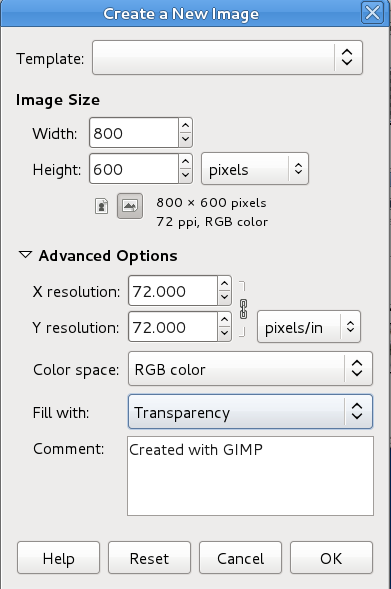
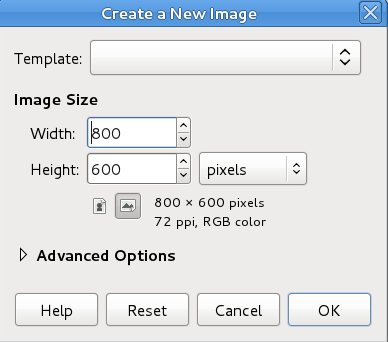
First of all, open a new image. File > New > width 800 pixels, Height 600 pixels, OK This will be called your background layer.
Image

Add new transparent layer, Ok
Image

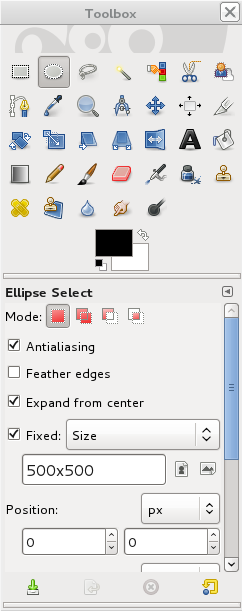
On this transparent layer, make a circle using your Ellipse Select Tool :elipse In the toolbox image it shows you to click expand from center and fixed (Aspect ratio) click size and make it 500x500.
Image
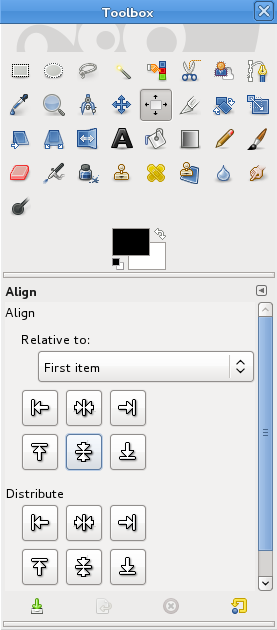
Click your layer and then click your alignment tool :alntool Then click the top center :alntop and the :alnmid

Image
This will center your elipse.

Select > To Path > Select > None

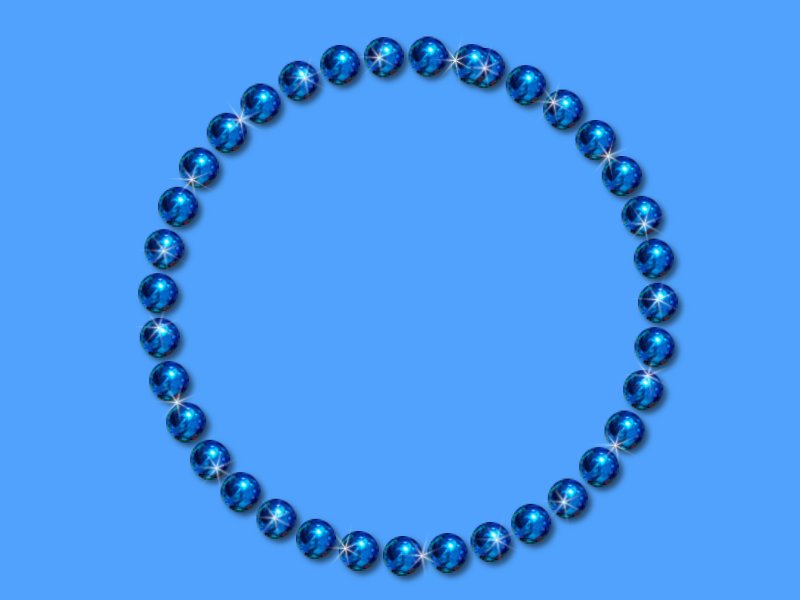
Go to your paint brush tool :brush go to your brush folder and select a brush you want to use for your circle. In my case I chose the silver bearing brush set at 75.3 spacing and scale 0.40. paint your brush on your empty white layer and adjust the spacing until you are satisfied with the distance between the beads. After you decide what spacing and size brush you want, erase every thing you have on the sphere layer. Leave the sphere layer selected.

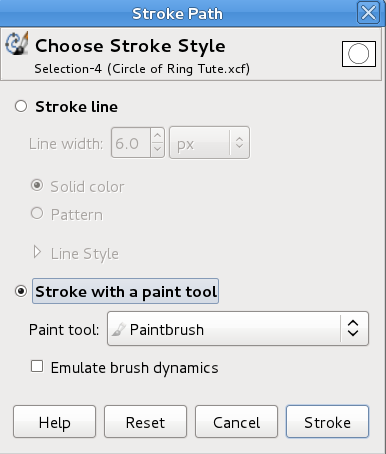
Go to your paths dialog :pathtab Click on your selection and go to botton of your path dialog and click the :pap (Paint along Path) click beside Stroke with paint tool. Make sure that beside paint tool paintbrush is selected. then click stroke.
Image

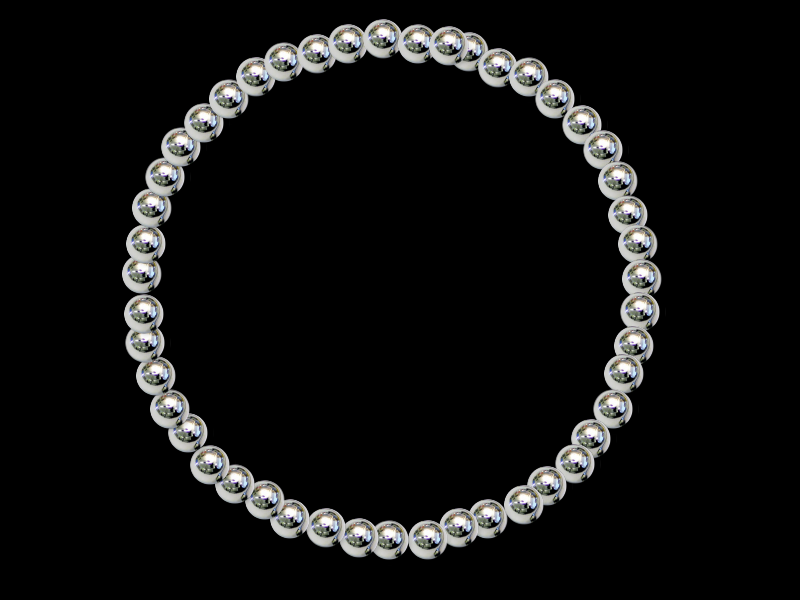
Now your beads should show up.
Go back to your Layer dialog :layertab and you will see your bead layer on top and your plain white background below. If you want to change the color of your background, double click your foreground color tool which the default is black and change to the color of your choosing for your background. I will choose black, Select the background to make it active and drag your color over to your main window with the beads. I now have a circle of beads on a black blackground.
If you don't want a background, turn off the background layer by clicking the eye. Once you have your ellipse saved in your paths dialog, you can use that again to make another circle with a different brush or colors.
If you have any questions, please post back in this Tutorial.
Image

_________________
Image


Share on Facebook Share on Twitter Share on Orkut Share on Digg Share on MySpace Share on Delicious Share on Technorati
Top
 Profile  
 

 Post subject: Re: Circle of Ring Tutorial
PostPosted: Sat May 26, 2012 11:48 am  (#2) 
Offline
GimpChat Member
User avatar

Joined: Mar 23, 2012
Posts: 3073
Location: UK
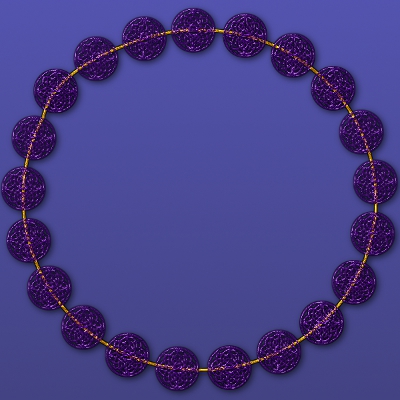
Nice tute. Not easy getting the spacing right though.

Image

_________________
Image


Top
 Profile  
 
 Post subject: Re: Circle of Ring Tutorial
PostPosted: Sat May 26, 2012 12:09 pm  (#3) 
Offline
Global Moderator
User avatar

Joined: Apr 07, 2010
Posts: 6943
Very pretty erisian. Did you leave the ring there on purpose.

_________________
Image


Top
 Profile  
 
 Post subject: Re: Circle of Ring Tutorial
PostPosted: Sat May 26, 2012 12:11 pm  (#4) 
Offline
GimpChat Member
User avatar

Joined: Mar 23, 2012
Posts: 3073
Location: UK
Yes Molly. I re-stroked it to about 4 pixels on a different layer before merging down and bevelling.

_________________
Image


Top
 Profile  
 
 Post subject: Re: Circle of Ring Tutorial
PostPosted: Sat May 26, 2012 12:13 pm  (#5) 
Offline
Global Moderator
User avatar

Joined: Apr 07, 2010
Posts: 6943
I see, just wondered... looks good

_________________
Image


Top
 Profile  
 
 Post subject: Re: Circle of Ring Tutorial
PostPosted: Sat May 26, 2012 12:14 pm  (#6) 
Offline
GimpChat Member
User avatar

Joined: Mar 23, 2012
Posts: 3073
Location: UK
Thank you. :)

_________________
Image


Top
 Profile  
 
 Post subject: Re: Circle of Ring Tutorial
PostPosted: Sat May 26, 2012 2:29 pm  (#7) 
Offline
Global Moderator
User avatar

Joined: Apr 07, 2010
Posts: 6943
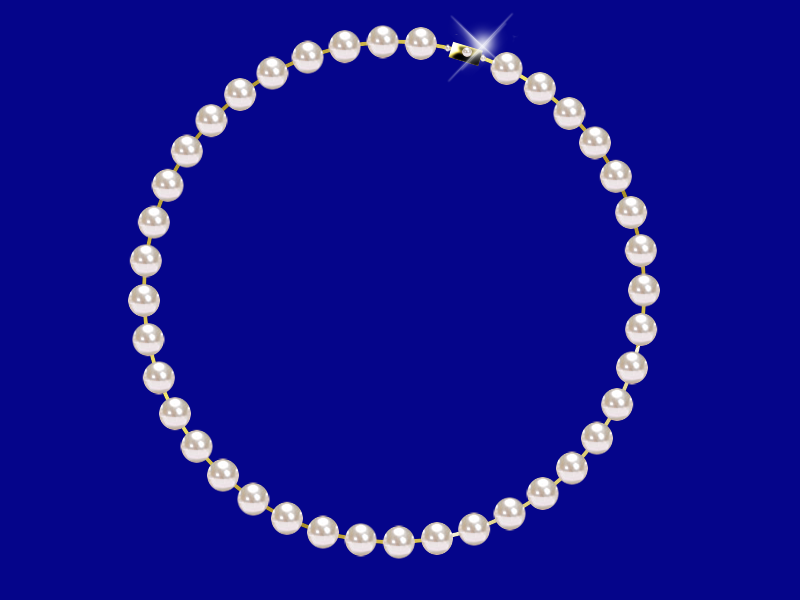
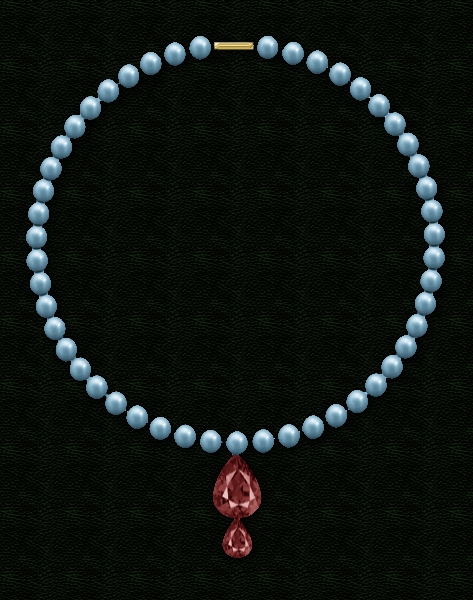
Here is another option you can use this for. I used a little pearl I made into a paint brush.
Image

_________________
Image


Top
 Profile  
 

 Post subject: Re: Circle of Ring Tutorial
PostPosted: Sat May 26, 2012 2:31 pm  (#8) 
Offline
GimpChat Member
User avatar

Joined: Mar 23, 2012
Posts: 3073
Location: UK
That's gorgeous Molly. I like the sparkle.

_________________
Image


Top
 Profile  
 
 Post subject: Re: Circle of Ring Tutorial
PostPosted: Sat May 26, 2012 2:38 pm  (#9) 
Offline
Global Moderator
User avatar

Joined: Apr 07, 2010
Posts: 6943
Thanks, That is from that real diamond in the clasp :teeth

_________________
Image


Top
 Profile  
 
 Post subject: Re: Circle of Ring Tutorial
PostPosted: Sat May 26, 2012 2:43 pm  (#10) 
Offline
GimpChat Member
User avatar

Joined: Mar 23, 2012
Posts: 3073
Location: UK
I'll take you word for it. :hoh

_________________
Image


Top
 Profile  
 
Display posts from previous:  Sort by  
Post new topic Reply to topic  [ 23 posts ]  Go to page 1, 2, 3  Next

All times are UTC - 5 hours [ DST ]


Who is online

Users browsing this forum: No registered users and 3 guests


You cannot post new topics in this forum
You cannot reply to topics in this forum
You cannot edit your posts in this forum
You cannot delete your posts in this forum
You cannot post attachments in this forum

Search for:
Jump to:  

* Login   * Subscribe to RSS Feed


Powered by phpBB © 2000, 2002, 2005, 2007 phpBB Group