|
The thing is, that there is a fundamental disconnect taking place here. All this new thinking in UI-design where everything must be designed as a metaphor to some real world object in order to make "difficult" computer concepts easily chewable to the layman shows it's disadvantages exactly in situations like this.
The same applies to GIMP and graphics software in general. We easily compare the image with a sheet of paper, or maybe a stack of papers where the layers are individual sheets (that can also be partially or wholly transparent). But whereas you can cut sheets of paper in whatever shape you want, a bitmap image just doesn't work that way. A bitmap image is always rectangular, and I'll explain why.
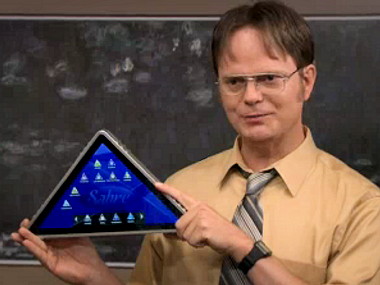
See, a bitmap image is merely a two-dimensional array of data (or 3-dimensional, if you consider the layers as an extra dimension, but let's keep it simple and forget layers for now). In a bitmap, visual information is represented as a collection of sample points (where each sample point contains the colour and transparency information of that location), arranged into a grid, ie. a 2-dimensional array. This is of course not the only possible way to arrange sample points, one could easily create eg. hexagonal bitmaps, or bitmaps made of squares and octagons, or triangles, or whatever you can tessellate. But rectangular grids make sense because that's just how our display technology works for now, so they are easy to map on to the screen.
So any bitmap image must necessarily be rectangular. We have bitmaps that allow transparency, so you can sort of emulate an image of any shape you want, but that's just an illusion created by a rectangular bitmap with parts of it left transparent. Therefore, for bitmaps, it doesn't really make sense to expect to be able to "cut" them in different shapes, like you can with paper.
Now, how this is relevant to the crop command is this: The crop command only works rectangularly, because that is the way bitmaps work in general. Since the image can only be rectangular, there would be no point in allowing layers to be any other shape either - they would still have to be represented as rectangles, only you'd be making parts of the layer "inaccessible" - and you can already get the same effect by layer masks, so it would be too much work for no gain whatsoever. Crop to selection giving a rectangular result also makes sense, because it crops to the smallest possible rectangle that can still contain your selection - afterwards, you can simply use the selection to erase (make transparent) the parts of the rectangle you want to be transparent.
This is why I always say that if you want to be good with any graphics software, you should familiarize yourself with how computer graphics work. Become intimate with the pixels. When you see a hex triplet, you should be able to immediately see the approximate colour in your head. With computer graphics, it's all mathematics when you strip down all the fancy abstractions. It becomes so much easier to understand how all the different features and filters work, when you're able to think of the image as simply a set of numbers, which just happen to be represented visually.
|
 Login
Login Register
 Tweets
 FAQ
FAQ Advanced Search