It is currently Wed Aug 12, 2026 3:37 pm


All times are UTC - 5 hours [ DST ]


Post new topic Reply to topic  [ 5 posts ] 
Author Message
 Post subject: FontSlab Tabbed Dialog Guide Part 1: Reducing Text Size
PostPosted: Tue Sep 28, 2021 11:28 am  (#1) 
Offline
GimpChat Member
User avatar

Joined: Aug 08, 2016
Posts: 2855
Location: East Midlands of England
This guide is a version to accompany FontSlab Version 0.17.

(Edited 04/25/2025 to add updated FontSlab plug-in and guide.)

There is a pdf version of the guide:


Attachment:
Tabbed-FontSlab-ReduceSize-Guide-Part-1.pdf [700.87 KiB]
Downloaded 186 times


FontSlab is my plug-in for manipulating both fonts and custom fonts along a path in Gimp 2.10. It provides a lot of options and is now available in this tabbed dialog version, thanks to the work of MareroQ in bringing Gimpfu3 by Arakne to scripting Gimp plug-ins. The 4th tab in the filter dialog provides web-links to the guides here on GimpChat.

There is a zipped Resources folder to accompany this guide that includes:

FontSlab_v_0.14-tab plug-in file
Chunky_SoftRays custom font file
winding path path file

Attachment:
Resources-Size.zip [4.46 MiB]
Downloaded 163 times


Unpack the resources folder and save it to your preferred location. The plug-in needs to be copied into your user plug-ins folder and the path file should be imported to the image (I used a size of 1000x800) that you create for this project.

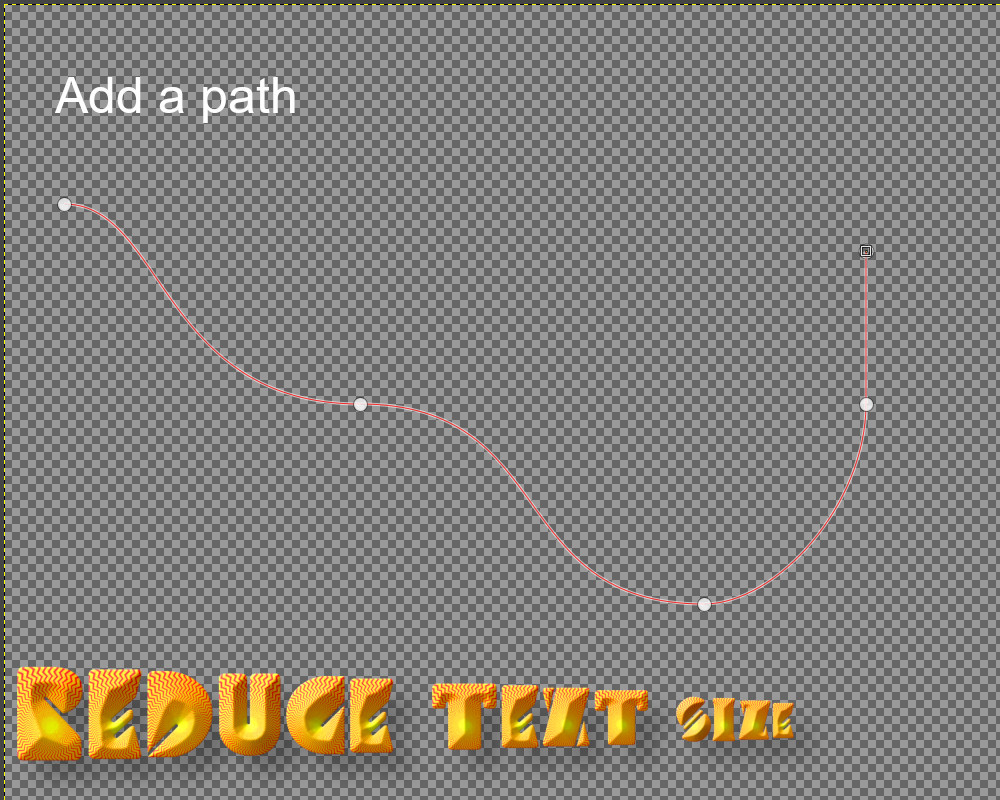
Fire up the Gimp, create a new image and add a curving path to your image either by using the path tool or by importing the path file from the path tool dock.

Image

_________________
Image
"Let no one steal your dreams."
Paul Cookson

Custom Font Links
2.10 Tools
Character Paths
White Bases


Last edited by Skinnyhouse on Fri Apr 25, 2025 2:31 am, edited 2 times in total.

Share on Facebook Share on Twitter Share on Orkut Share on Digg Share on MySpace Share on Delicious Share on Technorati
Top
 Post subject: Re: FontSlab Tabbed Dialog Guide Part 1: Reducing Text Size
PostPosted: Tue Sep 28, 2021 11:32 am  (#2) 
Offline
GimpChat Member
User avatar

Joined: Aug 08, 2016
Posts: 2855
Location: East Midlands of England
Call up the FontSlab dialog:

Filters>>Custom Fonts>>Using Tools>>FontSlab Tabbed v0.17...

Normally you will have to find the best sizes using trial and error – using the Undo dock (with your keyboard shortcut Ctrl + Z) or simply by deleting the offending layer.

My settings are shown below. If you are using your own resources then enter values just for the options highlighted in red in the dialog screenshots.

From the first tab on the dialog (Colour & Fonts):

Enter the text; I used the phrase, ‘THE LONG AND WINDING ROAD’.

Choose a custom font; I used Chunky_Soft_Rays.

From the second tab on the dialog (Size & Spacing):

Set the value for the ‘Font size’ option; I used 120.
Set the value for ‘Text size step change’; I used -4.0.

Click on ‘OK’ to commit your choices.

Attachment:
Slide_2_tab_Reduce.jpg
Slide_2_tab_Reduce.jpg [ 346.2 KiB | Viewed 58615 times ]


Optional adjustment to letter positioning

If you are not quite satisfied with the outcome - some letters may overlap where a path curve is sharper - there is an option available to add each character as a separate layer which can be selected and moved around independently of the others.

Attachment:
Slide_3_tab_Reduce.jpg
Slide_3_tab_Reduce.jpg [ 131.07 KiB | Viewed 58615 times ]

_________________
Image
"Let no one steal your dreams."
Paul Cookson

Custom Font Links
2.10 Tools
Character Paths
White Bases


Last edited by Skinnyhouse on Fri Apr 25, 2025 2:37 am, edited 1 time in total.

Top
 Post subject: Re: FontSlab Tabbed Dialog Guide Part 1: Reducing Text Size
PostPosted: Tue Sep 28, 2021 11:34 am  (#3) 
Offline
GimpChat Member
User avatar

Joined: Aug 08, 2016
Posts: 2855
Location: East Midlands of England
Open FontSlab with the ‘Retain layers’ option set to ‘Yes’ on the first tab click on ‘OK’.

Attachment:
Slide_4_tab_Reduce.jpg
Slide_4_tab_Reduce.jpg [ 286.66 KiB | Viewed 58615 times ]


Select the character layer in the layer stack that you want to re-position and drag with your mouse or use the arrow keys to move it.

You can always use ‘Merge down’ or ‘Merge visible layers’ to make the finished layer easier to manage and move around.


The finished text looks better with an added drop shadow (doesn’t everything).

Attachment:
Slide_5_tab_Reduce.jpg
Slide_5_tab_Reduce.jpg [ 60.83 KiB | Viewed 62347 times ]

_________________
Image
"Let no one steal your dreams."
Paul Cookson

Custom Font Links
2.10 Tools
Character Paths
White Bases


Last edited by Skinnyhouse on Fri Apr 25, 2025 2:40 am, edited 1 time in total.

Top
 Post subject: Re: FontSlab Tabbed Dialog Guide Part 1: Reducing Text Size
PostPosted: Fri Apr 25, 2025 3:47 am  (#4) 
Offline
GimpChat Member
User avatar

Joined: Aug 08, 2016
Posts: 2855
Location: East Midlands of England
:bump

Updated plug-in file (v0.17) available in the resources folder in post#1.

_________________
Image
"Let no one steal your dreams."
Paul Cookson

Custom Font Links
2.10 Tools
Character Paths
White Bases


Top
 Post subject: Re: FontSlab Tabbed Dialog Guide Part 1: Reducing Text Size
PostPosted: Fri Apr 25, 2025 4:15 am  (#5) 
Offline
Global Moderator
User avatar

Joined: May 16, 2010
Posts: 16158
Thank you for the update Skinnyhouse! :)

_________________
Image


Top
Post new topic Reply to topic  [ 5 posts ] 

All times are UTC - 5 hours [ DST ]


* Login  


Powered by phpBB3 © phpBB Group