Option 1: Does what it says.
Option 2: Change Drive letter Information
Explanation of Option 2
For those who have a large Main Drive and have it partitioned to have more
than 1 drive letter they can manually change the default of where it copies
the files to. If you want to change the default to a higher Drive letter, for
whatever reason. I have given note of all the line of codes where to make the
changes, so you can fix it to backup in a different location. If you know the basic
of batch programming from the DOS. Select Option 2 of menu for more information.
Again, this is a very simple Backup Batch file and shouldn’t be to much of a problem
to adjust to your needs. If you decide to change the drive letter, just open the “bat”
file with a text editor and not a word processor and make the changes you want.
What to expect
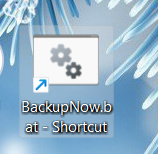
Once you have close all your file Explorer(s) Windows. And return to your desktop,
you should now have an extra Icon on your desktop, something like this one.
Attachment:
 backup-image-04.jpg [ 16.83 KiB | Viewed 1208 times ]
Right click on the Icon and rename it to Gimp Backup for example. There is a way
to change the Icon to something else if don’t like how it looks by right clicking and go to properties
then click change Icon. Now your all setup and just need a USB Flash Drive to back up to. I
recommend an empty one to start with until you get the hang of thing. Once your D Drive is
ready to use, click on the icon to open the Backup Menu options and enter option 1 and press
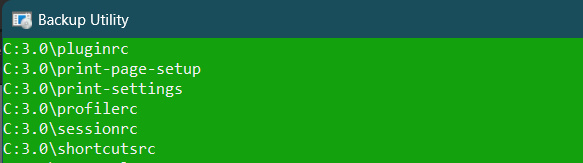
enter to get thing going. Once it begins to copy files you should see something like this on your screen.
Attachment:
 backup-image-05.jpg [ 34.63 KiB | Viewed 1208 times ]
On the left side it of each line, you’ll see where the file is coming from, in this
case the C Drive and after that the folder called 3.0 with a file named pluginrc
being copied from where the batch file is located. Once it get all the files copied it
will display the number of files copied and how long it took to copied all the files
to the D Drive. You can do the same for your “GEGL-0.4” folder of Gimp and backup
you plug-ins from there as well, just repeat the same steps as for your Gimp files,
placing the BackNow.bat where your plug-ins are located..
I use it all the time, with a flash drive just for Gimp with all my graphics I might ever use.
And anything else I create and want saved right away. Just an Ideal I thought you might
be interested working with. I been doing this for years now. I even use it for My Document
folder under registered program 2026.
Please give some feedback if you use it.
Attachment:
 BackupNow.zip [198.1 KiB]
Downloaded 51 times
BackupNow.zip [198.1 KiB]
Downloaded 51 times
 Login
Login Register
 Tweets
 FAQ
FAQ Advanced Search


