It is currently Sat Jun 20, 2026 3:01 pm


All times are UTC - 5 hours [ DST ]


Post new topic Reply to topic  [ 8 posts ] 
Author Message
 Post subject: How to get a realistic looking engraving effect
PostPosted: Fri Feb 06, 2026 2:44 pm  (#1) 
Offline
New Member

Joined: Feb 06, 2026
Posts: 1
Attachment:
Copy of Closure Hero Gold.png
Copy of Closure Hero Gold.png [ 1.09 MiB | Viewed 2400 times ]
Pod seller here. I have created some good mockups using AI and canva. How do i get realistic engraving effect on silver or gold dog tag necklaces? Thanks.

_________________
Left Unsaid — quiet keepsakes for words left unsaid
https://leftunsaid.store


Share on Facebook Share on Twitter Share on Orkut Share on Digg Share on MySpace Share on Delicious Share on Technorati
Top
 Post subject: Re: How to get a realistic looking engraving effect
PostPosted: Fri Feb 06, 2026 4:04 pm  (#2) 
Offline
Administrator
User avatar

Joined: Aug 10, 2012
Posts: 14042
Location: Native to NYC living in Arizona, Gimp 2.8 - 3.0, Win 11 PC.
Here’s a fast method I used to make text look engraved on the gold dog tag:

1. Open your dog-tag image and add your text.

2. Text layer → Alpha to Selection.

3. New layer below text → fill any color → Edit → Clear.

4. Filters → Light & Shadow → Drop Shadow

* Small offset (based on text size)
* Blur ≈ 2–3× offset
* Lower opacity** so it looks natural

5. (Optional) On a top layer, add a subtle white highlight, blur lightly, and reduce opacity for extra realism.

Works well for me when I want a clean, quick engraved look.

Attachment:
File comment: Example Image
Screenshot (154).png
Screenshot (154).png [ 926.83 KiB | Viewed 2384 times ]


Attachment:
File comment: XCF file created using GIMP 2.8.18
golden_dog_tag_wallace.xcf [4.58 MiB]
Downloaded 87 times

_________________
Image
"A wise man learns more from a foolish question than a fool can learn from a wise answer"
Image


Top
 Post subject: Re: How to get a realistic looking engraving effect
PostPosted: Mon Feb 09, 2026 3:46 am  (#3) 
Offline
GimpChat Member
User avatar

Joined: May 10, 2013
Posts: 1430
Location: FInland
Would not use drop shadow.
Engraving is imprint, drop shadow makes the effect look raised (emboss).
The shadow needs to be cast inside the text on same side the light is coming from, We had inner shadow in 2.10 (LayerFX), but is there already inner shadow in Gimp3? Don't know, will investigate later.

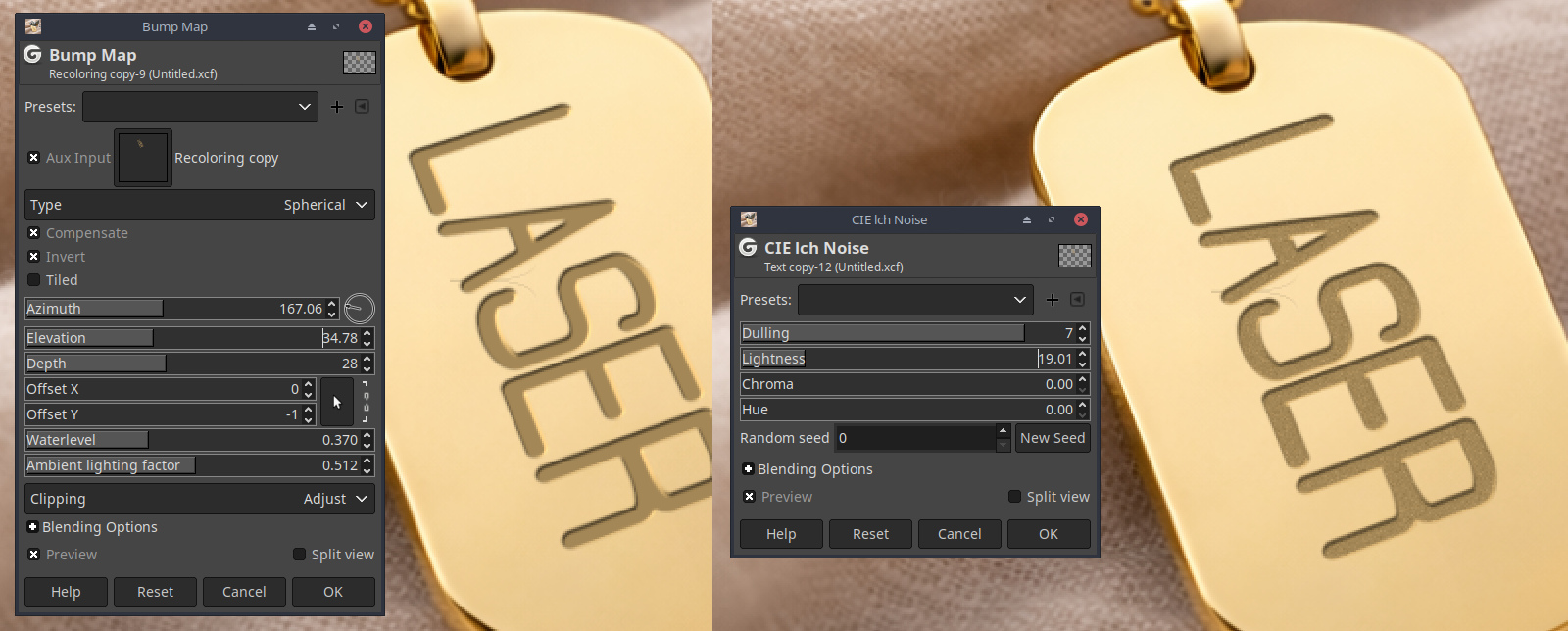
Edit: Quick test with Bump Map.

1. Type your text, use slightly darker gold than the polished surface of your shiny plate. The bigger the better, because after rotating you switch to perspective tool and that means downsizing.
2. Filters: Map-> Bump Map. Note the direction of light, and remember to select the aux input (same text layer), or nothing will happen.
3. Filters: Noise-> CIE Ich Noise. Because there will be always little scratches. When I engrave with laser it leaves sometimes these super tiny ridges between the beam scans but that's not necessary to mimic.

We could make it better (try a bit different numbers yourself), but this is something like it would look if engraved with a laser.
I've been engraving for about 30 years, but mostly rubber, wood and multilayered plastic.
The old school military dog tags were done with graphotype machine, and it was embossing. Letters were raised.

Attachment:
BumpMap-Noise.jpg
BumpMap-Noise.jpg [ 346.25 KiB | Viewed 2129 times ]


Last edited by Nidhogg on Mon Feb 09, 2026 6:08 am, edited 1 time in total.

Top
 Post subject: Re: How to get a realistic looking engraving effect
PostPosted: Mon Feb 09, 2026 6:07 am  (#4) 
Offline
Global Moderator
User avatar

Joined: Apr 01, 2012
Posts: 8382
Location: On the other side of your screen
Nidhogg wrote:

But is there already inner shadow in Gimp3?
On Gimp 2, I would make the base text darker gold, add just a little bit of noise and use inner shadow.
Still no much experience on Gimp3 and that's what I only have now available, but I have engraved for 30 years.
.


In version 3 there is in text styling which I think is a GEGL function
Oops that was 'inner glow'

2.10 has some chisel scripts, Dont know about 3 yet


Attachments:
chisel - dn299.scm [9.83 KiB]
Downloaded 88 times
chisel - dn.scm [9.39 KiB]
Downloaded 76 times

_________________
Image
Free Fun Photo Editing & resources
Poems from the Lord
Gimp Newby
Gimp version 3.2.0 and GMIC-Qt 3.7.5 OS :- Windows 10 Home 64
Top
 Post subject: Re: How to get a realistic looking engraving effect
PostPosted: Mon Feb 09, 2026 6:13 am  (#5) 
Offline
GimpChat Member
User avatar

Joined: May 10, 2013
Posts: 1430
Location: FInland
Thank you sallyanne, Seems I had added some GEGL in the GEGL folder Beaver has posted. Will check it out.


Top
 Post subject: Re: How to get a realistic looking engraving effect
PostPosted: Tue Feb 10, 2026 1:08 am  (#6) 
Offline
Global Moderator
User avatar

Joined: May 16, 2010
Posts: 16037
I also have a tutorial on creating an engraved effect. For Gimp-2.10 though. And you need the layer effects py plugin.
viewtopic.php?f=23&t=428

_________________
Image


Top
 Post subject: Re: How to get a realistic looking engraving effect
PostPosted: Tue Feb 10, 2026 3:55 am  (#7) 
Offline
GimpChat Member
User avatar

Joined: May 10, 2013
Posts: 1430
Location: FInland
Thought I just add this small round brass seal, it was engraved with old CNC machine.

Attachment:
CNC-Engrave.png
CNC-Engrave.png [ 235.36 KiB | Viewed 2019 times ]


Top
 Post subject: Re: How to get a realistic looking engraving effect
PostPosted: Tue Feb 10, 2026 11:59 pm  (#8) 
Offline
Global Moderator
User avatar

Joined: Apr 01, 2012
Posts: 8382
Location: On the other side of your screen
With version three I did a Map>bump map>Linear inverted
Image

_________________
Image
Free Fun Photo Editing & resources
Poems from the Lord
Gimp Newby
Gimp version 3.2.0 and GMIC-Qt 3.7.5 OS :- Windows 10 Home 64


Top
Post new topic Reply to topic  [ 8 posts ] 

All times are UTC - 5 hours [ DST ]


* Login  


Powered by phpBB3 © phpBB Group