Believe me, you do not want to do this. Gimp is a bitmap editorwhere the units are pixels and "real world" sizes depend on the image print resolution.
However:
Attachment:
 01.jpg [ 276.58 KiB | Viewed 3161 times ]
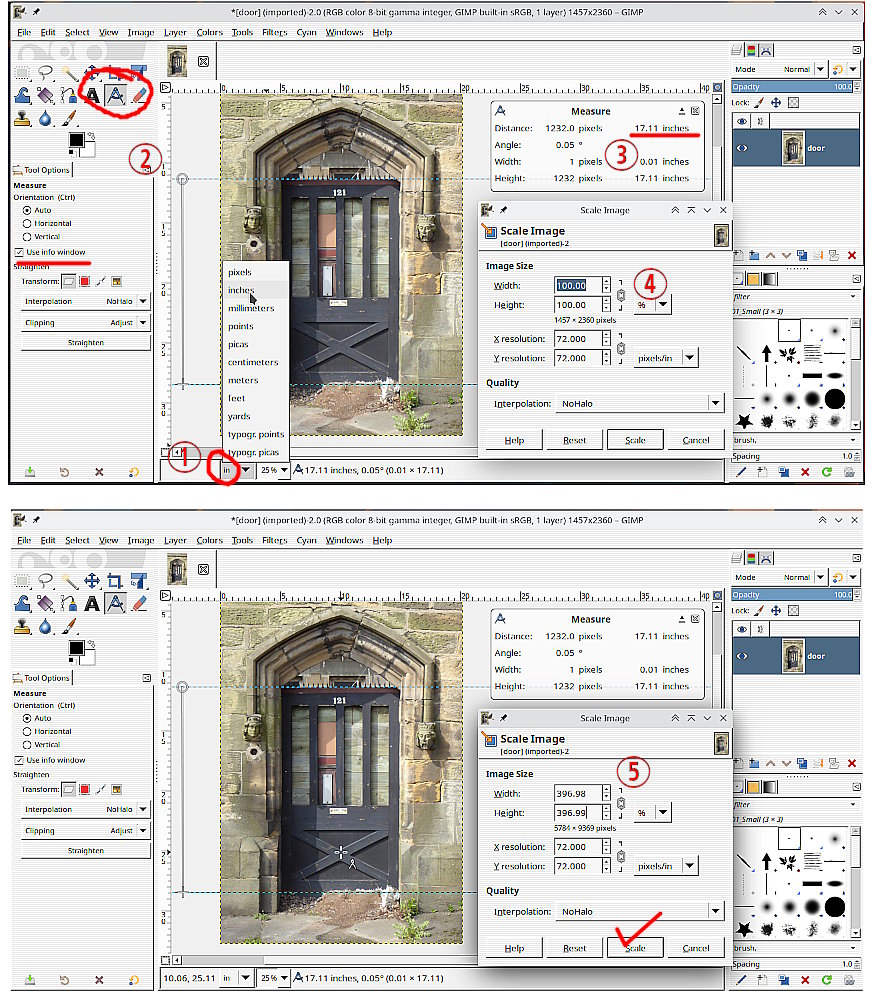
(1) For any image you can change the units used down at the bottom of the window. It does not make any difference but I recommend inches.
(2) The measure tool will now use inches
(3) Measuring the door, for this image gives 17.11 inches.
(4) Image -> Scale Image brings up the scale dialogue and change the units to percentage.
Get your calculator out and for this image and a 68" high door, the scaling factor is 68 / 17.11 x 100 = 397 %
(5) Use that 397% for scaling the image
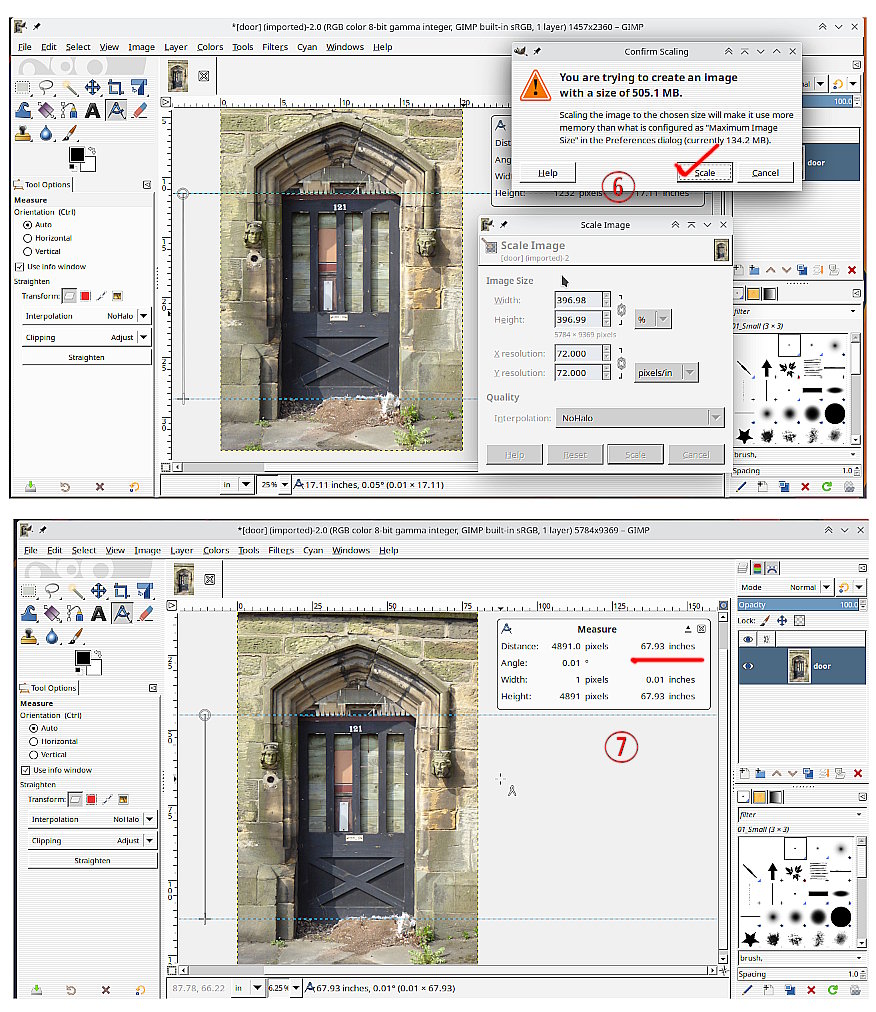
This is where you will run into problems, image file size.
Attachment:
 02.jpg [ 256.05 KiB | Viewed 3161 times ]
(6) These are only warnings, you can still scale, but it takes time.
(7) Check the size on the scaled image.
Note: anything you copy/paste into the image has to be the same resolution as the image.
 Login
Login Register
 Tweets
 FAQ
FAQ Advanced Search