It is currently Thu Nov 26, 2026 7:21 pm


All times are UTC - 5 hours [ DST ]


Post new topic Reply to topic  [ 6 posts ] 
Author Message
 Post subject: how do you do this?
PostPosted: Wed Aug 31, 2011 2:37 pm  (#1) 
Offline
GimpChat Member
User avatar

Joined: Jun 04, 2011
Posts: 254
GIMP Version: 2.7.3
Operating System: Windows
OS Version: vista-sp1
GIMP Experience: Basic Level


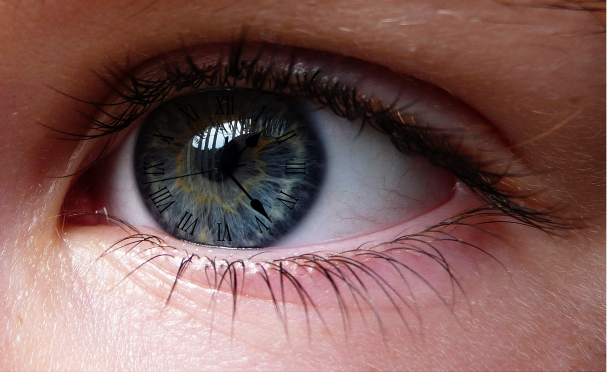
does anyone know how to do this? I've been trying to find out for the longest i have plans for it if i can find out how to do it.


Attachments:
hot_damn_pics_64_48.jpg
hot_damn_pics_64_48.jpg [ 45.8 KiB | Viewed 2696 times ]

_________________
Image
Share on Facebook Share on Twitter Share on Orkut Share on Digg Share on MySpace Share on Delicious Share on Technorati
Top
 Post subject: Re: how do you do this?
PostPosted: Wed Aug 31, 2011 2:55 pm  (#2) 
Offline
GimpChat Member
User avatar

Joined: Apr 07, 2010
Posts: 14182
Would you be able to find a clock face, make it fit over the iris layer? You would have to have it on a transparent layer, so if you could find a clock face with black letters and remove the background, that might work.

_________________
Image


Top
 Post subject: Re: how do you do this?
PostPosted: Wed Aug 31, 2011 2:59 pm  (#3) 
Offline
GimpChat Member
User avatar

Joined: Feb 17, 2011
Posts: 225
molly's advice is good. No need for transparency, however. Just make background white and make clock layer type Multiply.

You can probably find quite good vector images which have white background. Cutting transparency is difficult, but Multiply layer does the trick. Also play with layer Opacity a bit.


Top
 Post subject: Re: how do you do this?
PostPosted: Thu Sep 01, 2011 10:46 am  (#4) 
Offline
Script Coder
User avatar

Joined: Jul 14, 2010
Posts: 697
kimppi wrote:
molly's advice is good. No need for transparency, however. Just make background white and make clock layer type Multiply.

You can probably find quite good vector images which have white background. Cutting transparency is difficult, but Multiply layer does the trick. Also play with layer Opacity a bit.


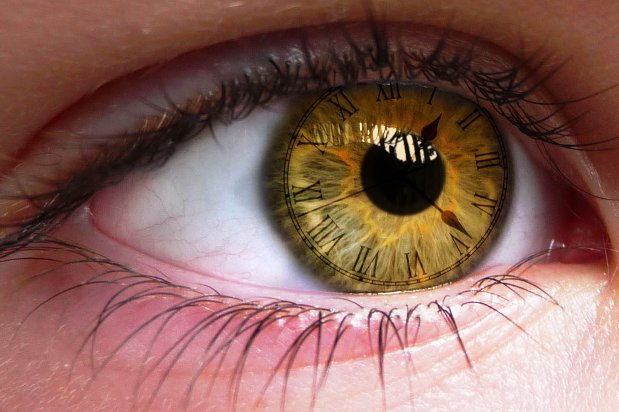
I used overlay, duplicated:
Attachment:
eye.jpg
eye.jpg [ 51.93 KiB | Viewed 2623 times ]

I was hasty on the enlarged pupil - should be elliptical to match the eye orientation, not circular.

source images:
http://jimpix.co.uk/photos/photo-507-people.html
http://www.shutterstock.com/pic-5021591 ... -face.html

xcf attached.

-Rob A>


Attachments:
eye.xcf [1.94 MiB]
Downloaded 136 times

_________________
Image
Fantasy Cartography and Mapping by RobA
Top
 Post subject: Re: how do you do this?
PostPosted: Thu Sep 01, 2011 11:36 am  (#5) 
Offline
GimpChat Member

Joined: Aug 05, 2011
Posts: 606
Location: limestone,ny
wow..just when i think i know a little gimp you guys show me just how little i do know


Top
 Post subject: Re: how do you do this?
PostPosted: Thu Sep 01, 2011 6:04 pm  (#6) 
Offline
GimpChat Member
User avatar

Joined: Apr 07, 2010
Posts: 14182
Here is mine.

Image

_________________
Image


Top
Post new topic Reply to topic  [ 6 posts ] 

All times are UTC - 5 hours [ DST ]


* Login  


Powered by phpBB3 © phpBB Group