It is currently Mon Nov 23, 2026 7:52 pm


All times are UTC - 5 hours [ DST ]


Post new topic Reply to topic  [ 26 posts ]  Go to page Previous  1, 2
Author Message
 Post subject: Re: Select area not to be touched help?
PostPosted: Thu May 15, 2014 2:21 pm  (#21) 
Offline
GimpChat Member
User avatar

Joined: Dec 22, 2011
Posts: 399
saulgoode wrote:
  • Select the region you don't want to change.
  • Duplicate your layer.
  • Add a layermask ("Layer->Mask->Add Layer Mask") and in the dialog box that appears choose the Initialize To: "Selection" option and check the "Invert mask" box.
  • "Select->None".
  • Click on the top layer's thumbnail preview in the Layers dialog (to make it active).

Make your color changes. Even though you will be changing the entire layer, wherever the layermask is black, the unchanged original layer underneath will be revealed.

This is basically how selections work to mask changes; doing it this way may just help you understand what's going on.


I have been using your instructions and its working perfectly. thank you. The only problem I face now is that I am having so much fun I want to learn more :)

_________________
Image


Top
 Post subject: Re: Select area not to be touched help?
PostPosted: Thu May 15, 2014 6:49 pm  (#22) 
Offline
GimpChat Member
User avatar

Joined: Jun 24, 2010
Posts: 504
Location: Western Vic Australia
Deblk, Good to see you found a method that works for you. Have fun.
SaulGoode's method is very simple.


Top
 Post subject: Re: Select area not to be touched help?
PostPosted: Fri May 16, 2014 2:15 am  (#23) 
Offline
GimpChat Member
User avatar

Joined: Dec 22, 2011
Posts: 399
wbool63 wrote:
Deblk, Good to see you found a method that works for you. Have fun.
SaulGoode's method is very simple.

Thanks....Simple is good for me till I understand the procedure :)

_________________
Image


Top
 Post subject: Re: Select area not to be touched help?
PostPosted: Fri May 16, 2014 2:18 am  (#24) 
Offline
GimpChat Member
User avatar

Joined: Dec 22, 2011
Posts: 399
saulgoode wrote:
  • Select the region you don't want to change.
  • Duplicate your layer.
  • Add a layermask ("Layer->Mask->Add Layer Mask") and in the dialog box that appears choose the Initialize To: "Selection" option and check the "Invert mask" box.
  • "Select->None".
  • Click on the top layer's thumbnail preview in the Layers dialog (to make it active).

Make your color changes. Even though you will be changing the entire layer, wherever the layermask is black, the unchanged original layer underneath will be revealed.

This is basically how selections work to mask changes; doing it this way may just help you understand what's going on.


I cannot seem to do this procedure on another section of the image after completing the first...I go through the whole procedure again but does not seem to work....do I have to do something different if I decide to do another selection after having done the first. I end up with quite a few layers which is maybe where I am going wrong or I use the wrong layer although I tried them all....can you help please, thanks :)

_________________
Image


Top
 Post subject: Re: Select area not to be touched help?
PostPosted: Sat May 17, 2014 7:40 pm  (#25) 
Offline
Script Coder
User avatar

Joined: Apr 23, 2010
Posts: 1553
Location: not from Guildford after all
Make sure you duplicate the original layer (that doesn't have a layermask). In the following screenshot of the Layers dialog, I first made a layermask of the mirror and then inverted the layer.
For the next selection, I copied the original layer ("BG") and masked out everything but the wood slats on the wall (which I then darkened).

Attachment:
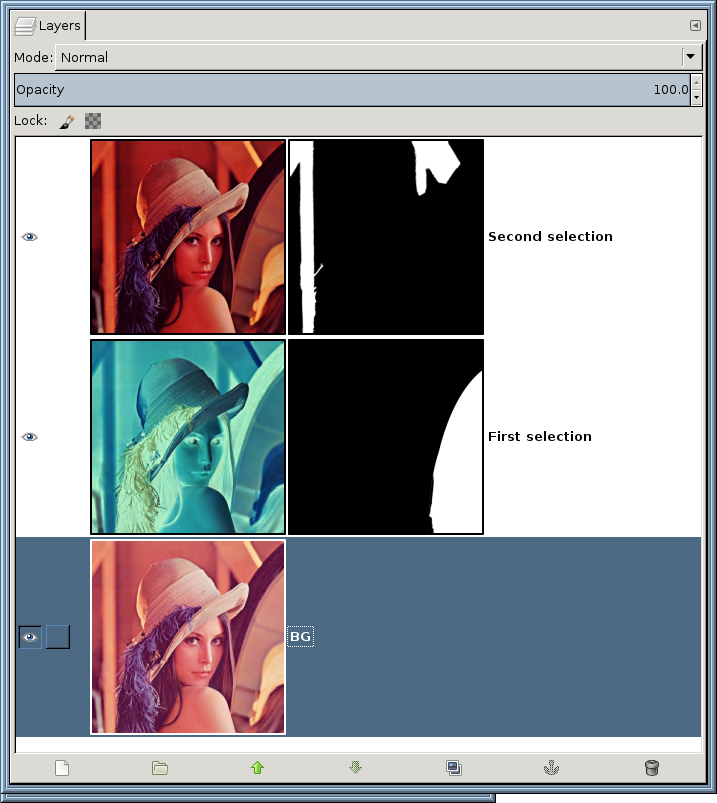
masking1.png
masking1.png [ 223.09 KiB | Viewed 1423 times ]


Here is original image along with the final result:
Attachment:
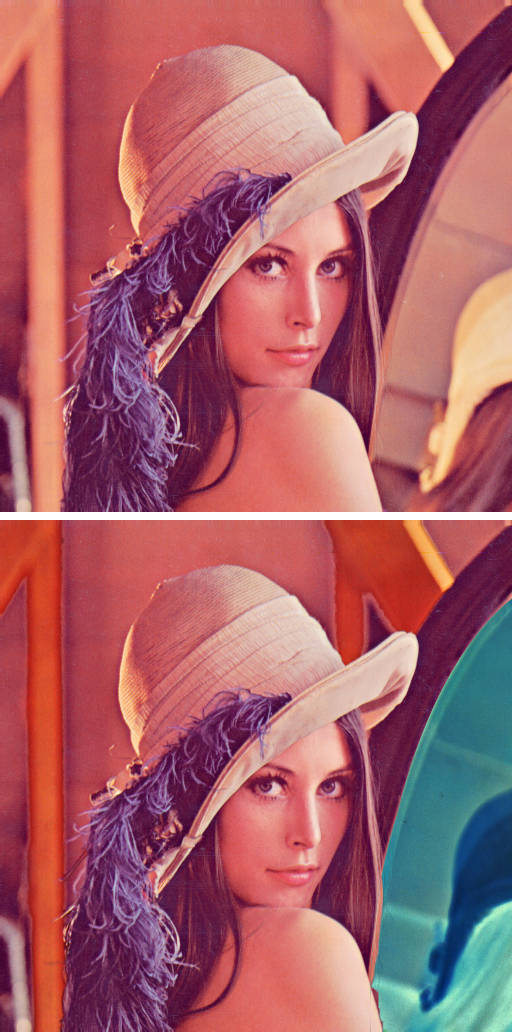
masking2.png
masking2.png [ 931.42 KiB | Viewed 1423 times ]

_________________
Any sufficiently primitive technology is indistinguishable from a rock.


Top
 Post subject: Re: Select area not to be touched help?
PostPosted: Mon May 19, 2014 1:22 pm  (#26) 
Offline
GimpChat Member
User avatar

Joined: Dec 22, 2011
Posts: 399
saulgoode wrote:
Make sure you duplicate the original layer (that doesn't have a layermask). In the following screenshot of the Layers dialog, I first made a layermask of the mirror and then inverted the layer.
For the next selection, I copied the original layer ("BG") and masked out everything but the wood slats on the wall (which I then darkened).

Attachment:
masking1.png


Here is original image along with the final result:
Attachment:
masking2.png


Thank you very much :)

_________________
Image


Top
Post new topic Reply to topic  [ 26 posts ]  Go to page Previous  1, 2

All times are UTC - 5 hours [ DST ]


* Login  


Powered by phpBB3 © phpBB Group