It is currently Sun Oct 04, 2026 10:47 am


All times are UTC - 5 hours [ DST ]


Post new topic Reply to topic  [ 17 posts ] 
Author Message
 Post subject: Create don't fit in first layer?
PostPosted: Thu Jun 05, 2014 12:17 am  (#1) 
Offline
GimpChat Member
User avatar

Joined: Feb 14, 2013
Posts: 462
Location: Stockholm
GIMP Version:[/b] 2.8.10
Operating System: Mac OS
OS Version: 10.9.3
GIMP Experience: Beginner Level


Hello.

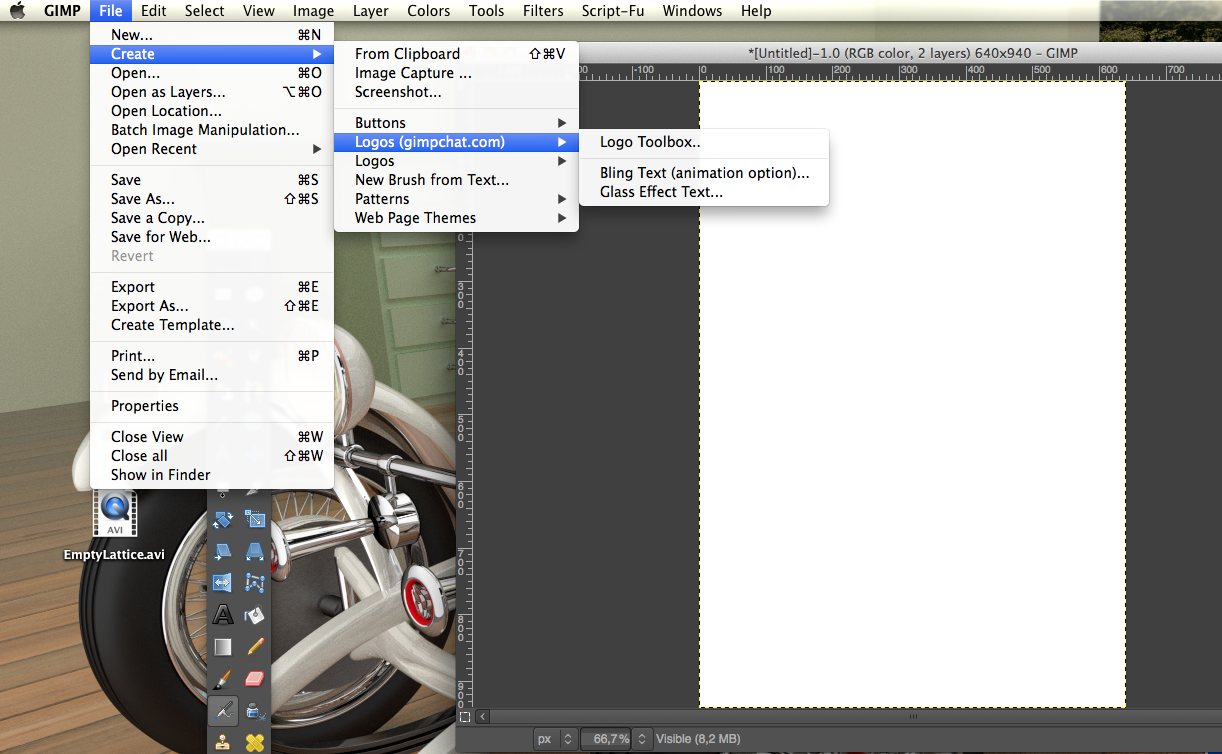
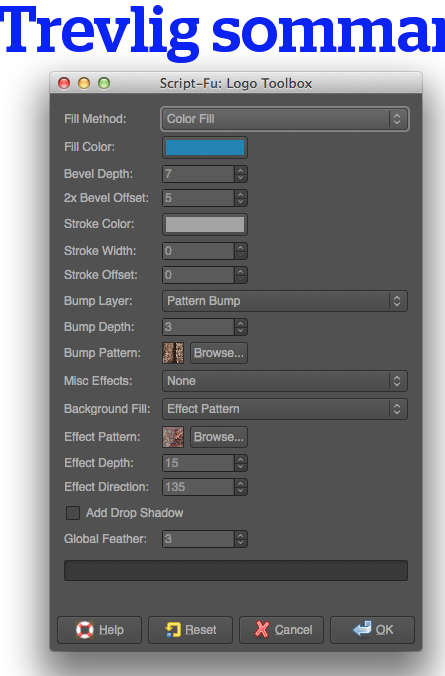
Many times I make my text in Gimp, but I have problem when I need to change size to something els 400 x800 (Flagsize) and then open up one Create - Logos. That create one other layer (New) and automatically delete the first one and with default size 600x400. I don't like that

If you take a look at my BlenderVideo you see the flag http://player.vimeo.com/video/97262644 with few words. Thats no problem for me.
How can I go directly in to create with new flag size.
Image


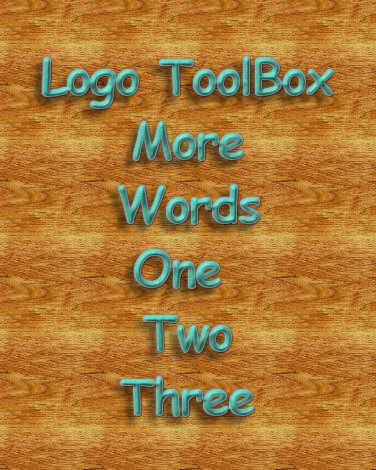
When I try to add many words in to this Logo Toolbox Gimp don't let me do that. Only few maybe 3-4 words. Why?? font size 50

Image


Thanks in advance
Lurifax

_________________
Late 2017 iMac Retina 4K 21,5 inch Mac OS High Sierra version 10.13.4
3,6 GHz Intel Core i7
16 GB Ram 2400 MHz DDR4
Graphic card Radeon Pro 560 4096 MB
Affinity Photo and Affinity Designers.


Share on Facebook Share on Twitter Share on Orkut Share on Digg Share on MySpace Share on Delicious Share on Technorati
Top
 Post subject: Re: Create don't fit in first layer?
PostPosted: Thu Jun 05, 2014 3:35 am  (#2) 
Offline
GimpChat Founder
User avatar

Joined: May 22, 2008
Posts: 5241
Location: Gimpville
Lurifax73 wrote:
When I try to add many words in to this Logo Toolbox Gimp don't let me do that. Only few maybe 3-4 words. Why?? font size 50

[ Image ]

Thanks in advance
Lurifax

Hi Lurifax73.

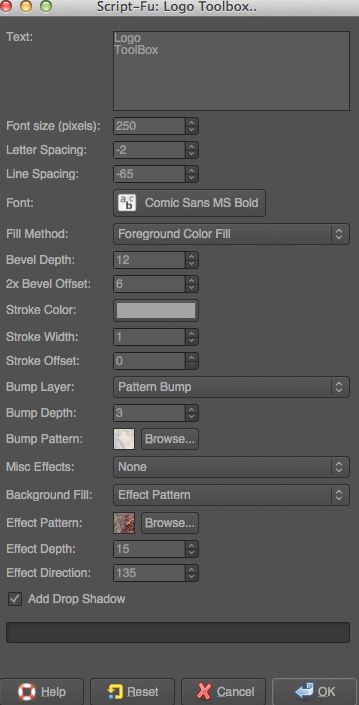
Calling the Logo Toolbox script from the "Create" menu will generate a new image, automatically sized to fit the text you have entered. You should be able to enter as many words and lines as you like in the text entry section. The text entry section is a fully scrollable text entry area (i.e. SF-TEXT).

Image

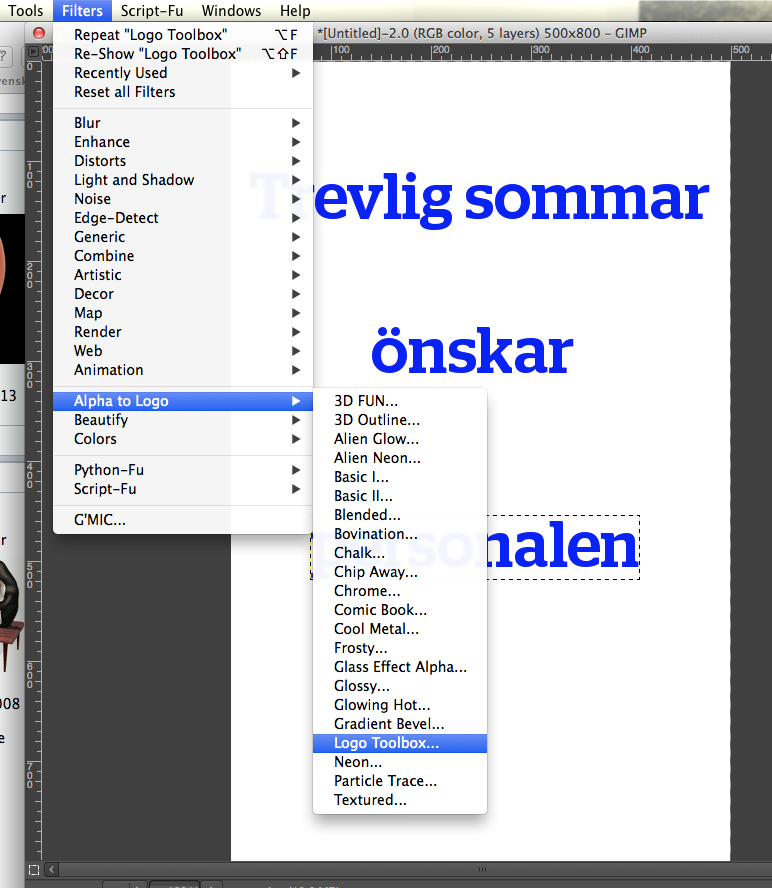
If you want to work on existing text or images you can call the Logo Toolbox script from the Filters/Alpha To Logo menu.

Let me know if I misunderstood and did not answer your question.

_________________
“If you reach for the stars, you just might land on a decently sized hill.” - Stuart Hill


Top
 Post subject: Re: Create don't fit in first layer?
PostPosted: Thu Jun 05, 2014 3:47 am  (#3) 
Offline
GimpChat Member
User avatar

Joined: Feb 14, 2013
Posts: 462
Location: Stockholm
Thank you GnuTux. I try with Filters-Alpha to logo. Flag need to be 400x800 Create-Logo provide me with 600x400.
Thanks
Lurifax.

_________________
Late 2017 iMac Retina 4K 21,5 inch Mac OS High Sierra version 10.13.4
3,6 GHz Intel Core i7
16 GB Ram 2400 MHz DDR4
Graphic card Radeon Pro 560 4096 MB
Affinity Photo and Affinity Designers.


Top
 Post subject: Re: Create don't fit in first layer?
PostPosted: Thu Jun 05, 2014 4:02 am  (#4) 
Offline
GimpChat Founder
User avatar

Joined: May 22, 2008
Posts: 5241
Location: Gimpville
Yes. The size of the image is determined automatically by the size (and style) of the fonts. If you want a specific image size (like 400x800) when invoking from the "Create" menu, you could experiment with the font/size, then crop to 400x800.

Otherwise, just create a new 400x800 canvas, add your text, then run the Logo Toolbox from Filters/Alpha to Logo.

Note: When using smaller fonts, like 50px, you'll probably need to decrease the default values for Bevel Depth, as well as decrease the default values for 2X Offset (or turn it off), as these defaults are designed to work with larger font sizes and may cause unwanted artifacts when used with small font sizes.

_________________
“If you reach for the stars, you just might land on a decently sized hill.” - Stuart Hill


Top
 Post subject: Re: Create don't fit in first layer?
PostPosted: Thu Jun 05, 2014 4:26 am  (#5) 
Offline
GimpChat Member
User avatar

Joined: Feb 14, 2013
Posts: 462
Location: Stockholm
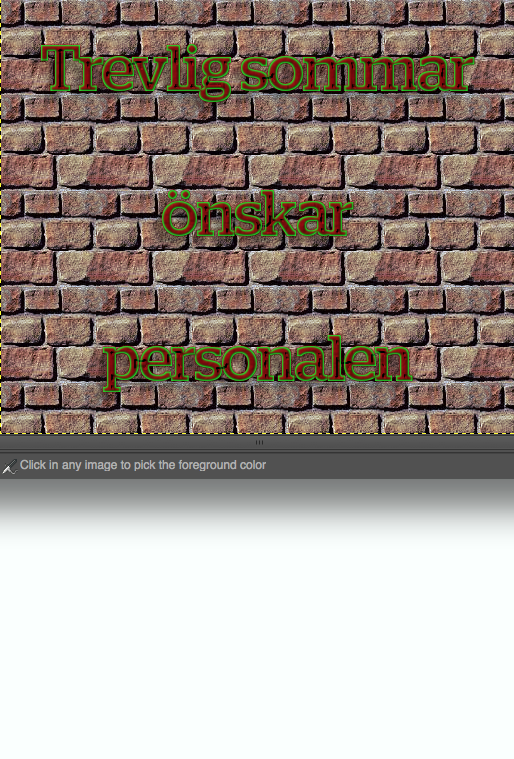
OK, first I let you look at my screnshot from my latest try. Text land up on each other. I understand if I use to big text, but 50-60 ar not big
You se I try to put text with space between each line


TextTextTextText


Text


Text Text Text
I realy whant to make a flag with this brick wall with text from top to botton
I doing something wrong.
Lurifax.

Image


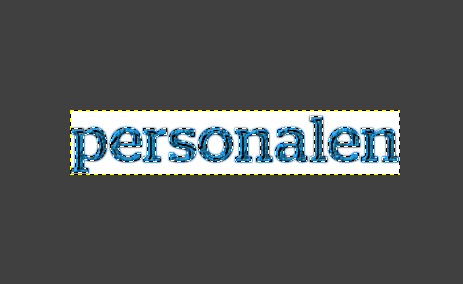
I almost make it.


Image

Image
What happen?
Image

_________________
Late 2017 iMac Retina 4K 21,5 inch Mac OS High Sierra version 10.13.4
3,6 GHz Intel Core i7
16 GB Ram 2400 MHz DDR4
Graphic card Radeon Pro 560 4096 MB
Affinity Photo and Affinity Designers.


Last edited by Lurifax73 on Thu Jun 05, 2014 4:45 am, edited 1 time in total.

Top
 Post subject: Re: Create don't fit in first layer?
PostPosted: Thu Jun 05, 2014 4:39 am  (#6) 
Offline
Global Moderator
User avatar

Joined: Apr 01, 2012
Posts: 8475
Location: On the other side of your screen
Wouldn't it be easier to do your text in a text box and filters 'alpha to logo' which ever style you want. Then resize it. you can add backgrounds etc after.

_________________
Image
Free Fun Photo Editing & resources
Poems from the Lord
Gimp Newby
Gimp version 3.2.4 and GMIC-Qt 4.0.2 OS :- Windows 10 Home 64


Last edited by sallyanne on Thu Jun 05, 2014 4:39 am, edited 1 time in total.

Top
 Post subject: Re: Create don't fit in first layer?
PostPosted: Thu Jun 05, 2014 4:39 am  (#7) 
Offline
GimpChat Founder
User avatar

Joined: May 22, 2008
Posts: 5241
Location: Gimpville
Oh, OK. I see now.

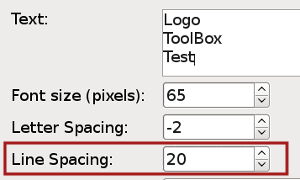
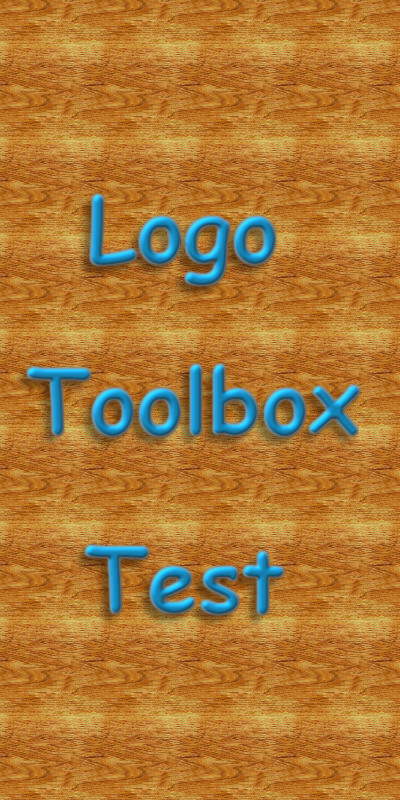
Do not space your text or center using the text dialog. Instead use the line spacing option. Smaller or negative values decreases line spacing and larger/positive numbers increases line spacing. The same applies to letter spacing (space between individual letters, which varies by font).

Image

Image

I do plan on adding a text justification option to the next maintenance release.

_________________
“If you reach for the stars, you just might land on a decently sized hill.” - Stuart Hill


Top
 Post subject: Re: Create don't fit in first layer?
PostPosted: Thu Jun 05, 2014 5:05 am  (#8) 
Offline
GimpChat Founder
User avatar

Joined: May 22, 2008
Posts: 5241
Location: Gimpville
Lurifax73 wrote:
I almost make it.
What happen?
[ Image ]

The Alpha to Logo option works on whatever layer you have selected in your layer stack. The best way to do this using Alpha to Logo is to..

1) Create a new 400x800 image (transparent BG).
2) Create and place your text lines where you want them
3) Merge the text lines down to your 400x800 layer

Then run the script from Alpha to Logo. :bigthup

Image

_________________
“If you reach for the stars, you just might land on a decently sized hill.” - Stuart Hill


Top
 Post subject: Re: Create don't fit in first layer?
PostPosted: Thu Jun 05, 2014 5:13 am  (#9) 
Offline
GimpChat Member
User avatar

Joined: Feb 14, 2013
Posts: 462
Location: Stockholm
I made it. Perfect. Thanks GnuTux and Sallyanne
Last question.
How can I extend the brick wall without text and then drag a textur in to the place.

Image

_________________
Late 2017 iMac Retina 4K 21,5 inch Mac OS High Sierra version 10.13.4
3,6 GHz Intel Core i7
16 GB Ram 2400 MHz DDR4
Graphic card Radeon Pro 560 4096 MB
Affinity Photo and Affinity Designers.


Top
 Post subject: Re: Create don't fit in first layer?
PostPosted: Thu Jun 05, 2014 5:21 am  (#10) 
Offline
GimpChat Founder
User avatar

Joined: May 22, 2008
Posts: 5241
Location: Gimpville
I'm not sure I understand what you are trying to do. The brick wall should be filling the the 400x800 background layer at this point in your workflow. Is that correct?

Do you want to increase the size of the brick wall background or change it to another texture?

_________________
“If you reach for the stars, you just might land on a decently sized hill.” - Stuart Hill


Top
 Post subject: Re: Create don't fit in first layer?
PostPosted: Thu Jun 05, 2014 5:37 am  (#11) 
Offline
GimpChat Member
User avatar

Joined: Jan 10, 2013
Posts: 863
I also do not quite understand.
Maybe the filter in the G'MIC plug-in for GIMP, Namely the Seamcarve can do this. Extend the wall

_________________
bbbbbbbbbbbImage
bbbbbbbbbbb Be patient, English is not my language.


Top
 Post subject: Re: Create don't fit in first layer?
PostPosted: Thu Jun 05, 2014 6:21 am  (#12) 
Offline
GimpChat Member
User avatar

Joined: Feb 14, 2013
Posts: 462
Location: Stockholm
GuTux. I need to add one texture below the text on the brick wall.
Can I extend the brick wall behind the texture I vill be happy.
Image

_________________
Late 2017 iMac Retina 4K 21,5 inch Mac OS High Sierra version 10.13.4
3,6 GHz Intel Core i7
16 GB Ram 2400 MHz DDR4
Graphic card Radeon Pro 560 4096 MB
Affinity Photo and Affinity Designers.


Top
 Post subject: Re: Create don't fit in first layer?
PostPosted: Thu Jun 05, 2014 6:35 am  (#13) 
Offline
GimpChat Founder
User avatar

Joined: May 22, 2008
Posts: 5241
Location: Gimpville
Yes. The brick wall should be filling a separate 400x800 background layer at this point in your workflow. Just select Filters/Canvas size and increase the canvas large enough to encompass the new graphics (texture). Make sure you select "resize all layers" from the drop down at the bottom of the Filters/Canvas dialog.

Once that is done, you can clear the brick wall layer and refill it. Or, you can create a new layer, fill it with bricks and move it to the bottom.

_________________
“If you reach for the stars, you just might land on a decently sized hill.” - Stuart Hill


Top
 Post subject: Re: Create don't fit in first layer?
PostPosted: Thu Jun 05, 2014 6:43 am  (#14) 
Offline
GimpChat Member
User avatar

Joined: Feb 14, 2013
Posts: 462
Location: Stockholm
Thank you GnuTux. That help me a lot.
Lurifax

_________________
Late 2017 iMac Retina 4K 21,5 inch Mac OS High Sierra version 10.13.4
3,6 GHz Intel Core i7
16 GB Ram 2400 MHz DDR4
Graphic card Radeon Pro 560 4096 MB
Affinity Photo and Affinity Designers.


Top
 Post subject: Re: Create don't fit in first layer?
PostPosted: Thu Jun 05, 2014 6:45 am  (#15) 
Offline
GimpChat Founder
User avatar

Joined: May 22, 2008
Posts: 5241
Location: Gimpville
YVW!

Glad I could help. :)

_________________
“If you reach for the stars, you just might land on a decently sized hill.” - Stuart Hill


Top
 Post subject: Re: Create don't fit in first layer?
PostPosted: Thu Jun 05, 2014 8:36 am  (#16) 
Offline
GimpChat Member
User avatar

Joined: Feb 14, 2013
Posts: 462
Location: Stockholm
Sorry.
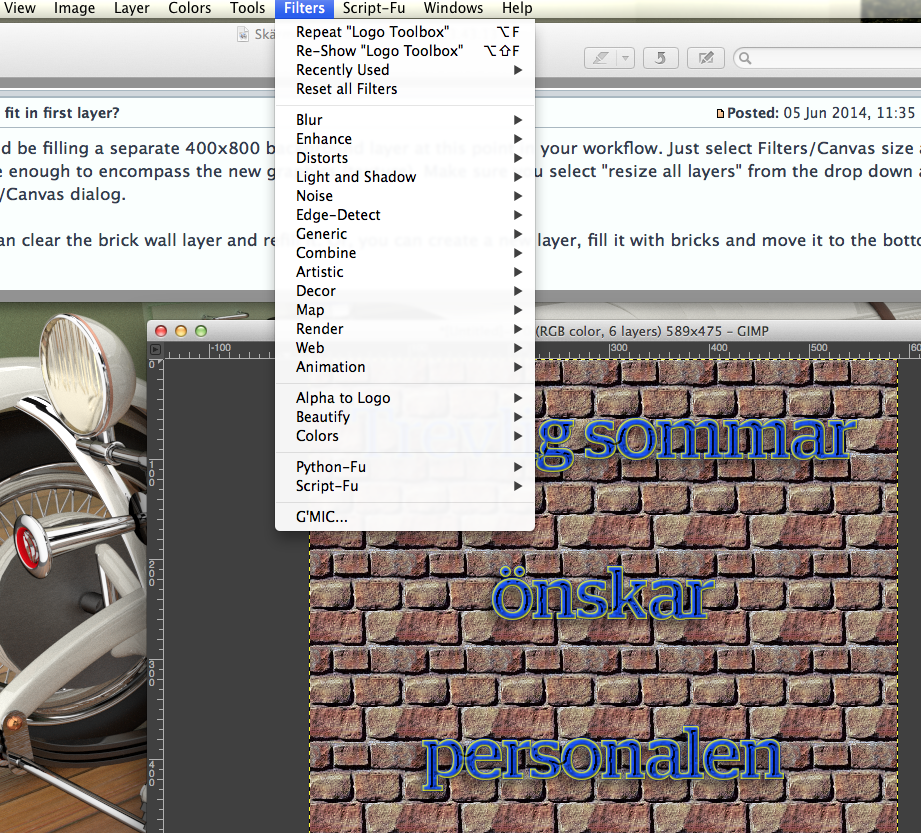
I don't see any "Canvas Size" button under Filter. Where is it.

There is one under Images, but I don't know if I suppose to use that one.


Image

_________________
Late 2017 iMac Retina 4K 21,5 inch Mac OS High Sierra version 10.13.4
3,6 GHz Intel Core i7
16 GB Ram 2400 MHz DDR4
Graphic card Radeon Pro 560 4096 MB
Affinity Photo and Affinity Designers.


Top
 Post subject: Re: Create don't fit in first layer?
PostPosted: Thu Jun 05, 2014 9:04 am  (#17) 
Offline
GimpChat Founder
User avatar

Joined: May 22, 2008
Posts: 5241
Location: Gimpville
Sorry, yes. Canvas size is located under Image.

_________________
“If you reach for the stars, you just might land on a decently sized hill.” - Stuart Hill


Top
Post new topic Reply to topic  [ 17 posts ] 

All times are UTC - 5 hours [ DST ]


* Login  


Powered by phpBB3 © phpBB Group