It is currently Mon Jun 08, 2026 5:47 am


All times are UTC - 5 hours [ DST ]


Post new topic Reply to topic  [ 12 posts ] 
Author Message
 Post subject: how do i do this?
PostPosted: Mon Mar 07, 2011 7:44 pm  (#1) 
Offline
GimpChat Member

Joined: Mar 07, 2011
Posts: 206
How do i do this Image how do i save my pictures with no black/gray/white background? is cause i want to put pictures over the signature but when i save it it also saves the background but i do not know how can anyone help please


Share on Facebook Share on Twitter Share on Orkut Share on Digg Share on MySpace Share on Delicious Share on Technorati
Top
 Post subject: Re: how do i do this?
PostPosted: Mon Mar 07, 2011 8:13 pm  (#2) 
Offline
Global Moderator
User avatar

Joined: May 16, 2010
Posts: 16019
Try opening your image in Gimp - right click layer/select add alpha channel if it doesnt have one.
Select the fuzzy select tool :fuzzsel - click your background color (if it's all one color)
Go to Edit/Clear or select delete on your keyboard - save your image as a PNG.

ie ... remove the background color and save as a PNG as PNG supports transparency.

_________________
Image


Top
 Post subject: Re: how do i do this?
PostPosted: Mon Mar 07, 2011 8:30 pm  (#3) 
Offline
GimpChat Member

Joined: Mar 07, 2011
Posts: 206
Rod wrote:
Try opening your image in Gimp - right click layer/select add alpha channel if it doesnt have one.
Select the fuzzy select tool :fuzzsel - click your background color (if it's all one color)
Go to Edit/Clear or select delete on your keyboard - save your image as a PNG.

ie ... remove the background color and save as a PNG as PNG supports transparency.

ok this is what i want i hope u can understand me .

this is what i made Image but when i saved the picture the whole entire white back ground showed up now i want this picture " Image "

on top of this one " Image " but i just want the character on top of the sig/banner without saving the whole entire white background now i know how to resize but thats all can u help me please


Top
 Post subject: Re: how do i do this?
PostPosted: Mon Mar 07, 2011 8:58 pm  (#4) 
Offline
GimpChat Member

Joined: Aug 27, 2010
Posts: 491
This is what you want?

Image


Top
 Post subject: Re: how do i do this?
PostPosted: Mon Mar 07, 2011 8:59 pm  (#5) 
Offline
GimpChat Member

Joined: Mar 07, 2011
Posts: 206
Mike wrote:
This is what you want?

Image

yes thats wut i want did u understand my previous msg?


Top
 Post subject: Re: how do i do this?
PostPosted: Mon Mar 07, 2011 9:30 pm  (#6) 
Offline
Global Moderator
User avatar

Joined: May 16, 2010
Posts: 16019
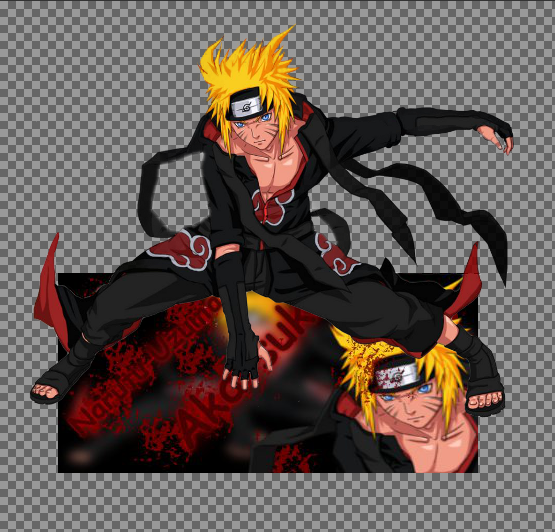
I assumed you wanted something like this.(the checkered area being the transparency)

Image

_________________
Image


Top
 Post subject: Re: how do i do this?
PostPosted: Mon Mar 07, 2011 9:37 pm  (#7) 
Offline
GimpChat Member

Joined: Mar 07, 2011
Posts: 206
Rod wrote:
I assumed you wanted something like this.(the checkered area being the transparency)

Image

yes but i do not want the background like that i jst want the sign and the pic on top of it as one pic with no background colors


Top
 Post subject: Re: how do i do this?
PostPosted: Mon Mar 07, 2011 10:11 pm  (#8) 
Offline
GimpChat Member
User avatar

Joined: Apr 08, 2010
Posts: 5420
Location: Northwest Ohio
That checkered background is just to show you that it is actually transparent, it would not normally show if you save the file as png. When you make you signature, in order for the background to stay transparent, you must save it as a .png file, not a .jpg file. If saved as a jpg file, the background will not stay transparent, but if you save it as a png file the background will stay transparent...when you save as png in gimp, you have dialog boxes that pop up to save as merged and untick box for show background.


Top
 Post subject: Re: how do i do this?
PostPosted: Mon Mar 07, 2011 10:28 pm  (#9) 
Offline
GimpChat Member

Joined: Mar 07, 2011
Posts: 206
2-ton wrote:
That checkered background is just to show you that it is actually transparent, it would not normally show if you save the file as png. When you make you signature, in order for the background to stay transparent, you must save it as a .png file, not a .jpg file. If saved as a jpg file, the background will not stay transparent, but if you save it as a png file the background will stay transparent...when you save as png in gimp, you have dialog boxes that pop up to save as merged and untick box for show background.

what are dialog boxes? but png wont let me upload files into different websites


Top
 Post subject: Re: how do i do this?
PostPosted: Mon Mar 07, 2011 11:36 pm  (#10) 
Offline
GimpChat Member
User avatar

Joined: Apr 08, 2010
Posts: 5420
Location: Northwest Ohio
dialog boxes are drop down or pop up boxes with choices to make for whatever you are doing. In gimp, when you save as png, the boxes will pop up automatically and you have to make the choices to proceed.
If a website won't let you upload a png file, then i don't think you can have a transparent background. I have never run across a site that wouldn't let a png file upload to it.


Top
 Post subject: Re: how do i do this?
PostPosted: Tue Mar 08, 2011 12:11 am  (#11) 
Offline
GimpChat Member

Joined: Mar 07, 2011
Posts: 206
2-ton wrote:
dialog boxes are drop down or pop up boxes with choices to make for whatever you are doing. In gimp, when you save as png, the boxes will pop up automatically and you have to make the choices to proceed.
If a website won't let you upload a png file, then i don't think you can have a transparent background. I have never run across a site that wouldn't let a png file upload to it.

u mean its the save box?


Top
 Post subject: Re: how do i do this?
PostPosted: Tue Mar 08, 2011 4:19 pm  (#12) 
Offline
Global Moderator
User avatar

Joined: May 16, 2010
Posts: 16019
The first thing you will need to do is render the image (take the white background out) - using either the fuzzy select tool, :fuzzsel or the scissors tool - :scisel
Take your time and do it nice and neatly. Make sure to add an alpha channel before you start so it will delete the white area in the back ground. After you get your image cut out - you can then just resize it, and move it where you want it and save the image as a PNG.

Save your image as a PNG (in the save as dialog)
Then just click okay on the dialogs that pop up and you should be fine.
Most are just default settings.

Just make sure that when you do save it - those checkered areas are showing as your background.
PNG will see that as transparency.

If you need more help i will be glad to do this for you. :)

_________________
Image


Top
Post new topic Reply to topic  [ 12 posts ] 

All times are UTC - 5 hours [ DST ]


* Login  


Powered by phpBB3 © phpBB Group