It is currently Sat Sep 26, 2026 11:49 pm


All times are UTC - 5 hours [ DST ]


Post new topic Reply to topic  [ 11 posts ] 
Author Message
 Post subject: file-png-save2 Questions
PostPosted: Wed Mar 16, 2016 12:18 pm  (#1) 
Offline
GimpChat Member

Joined: Feb 21, 2016
Posts: 34
GIMP Version: 2.8.16
Operating System: Windows
GIMP Experience: New User


HI,Questions are as follows:
(gimp-layer-scale-full drawable 200 200 TRUE 2)
I scale layer 300 to 200, and then save, but there was a problem,
(file-png-save2 1 image drawable filename filename 0 9 0 0 0 1 1 1 1)
PNG are automatically cropped to the image size of the saved 200, I need it to keep the transparent part of the canvas size does not change
Why the same arguments
(file-png-save2 0 image drawable filename filename 0 9 0 0 0 1 1 1 1)
just click the OK button to save the image using the interactive operations will retain the transparent part, PNG is still 300.why AutoSave may not retain the canvas size?


Share on Facebook Share on Twitter Share on Orkut Share on Digg Share on MySpace Share on Delicious Share on Technorati
Top
 Post subject: Re: file-png-save2 Questions
PostPosted: Wed Mar 16, 2016 5:41 pm  (#2) 
Offline
Administrator
User avatar

Joined: Aug 10, 2012
Posts: 14213
Location: Native to NYC living in Arizona, Gimp 2.8 - 3.0, Win 11 PC.
I wish I could help you out in some way,
but I have no idea what it is that you're asking.
:puzzled

_________________
Image
"A wise man learns more from a foolish question than a fool can learn from a wise answer"
Image


Top
 Post subject: Re: file-png-save2 Questions
PostPosted: Wed Mar 16, 2016 9:40 pm  (#3) 
Offline
GimpChat Member

Joined: Feb 21, 2016
Posts: 34
Wallace wrote:
I wish I could help you out in some way,
but I have no idea what it is that you're asking.
:puzzled

HI Wallace thanks for your reply.
I use a screenshot to describe
Did not save to the transparent part the whole picture becomes small.
Attachment:
snip_20160317083056.png
snip_20160317083056.png [ 877.98 KiB | Viewed 3388 times ]

Attachment:
snip_20160317085808.png
snip_20160317085808.png [ 629.65 KiB | Viewed 3388 times ]

Attachment:
snip_201603170858.png
snip_201603170858.png [ 469.68 KiB | Viewed 3388 times ]


Top
 Post subject: Re: file-png-save2 Questions
PostPosted: Wed Mar 16, 2016 9:57 pm  (#4) 
Offline
Administrator
User avatar

Joined: Aug 10, 2012
Posts: 14213
Location: Native to NYC living in Arizona, Gimp 2.8 - 3.0, Win 11 PC.
How did you go about scaling the image?
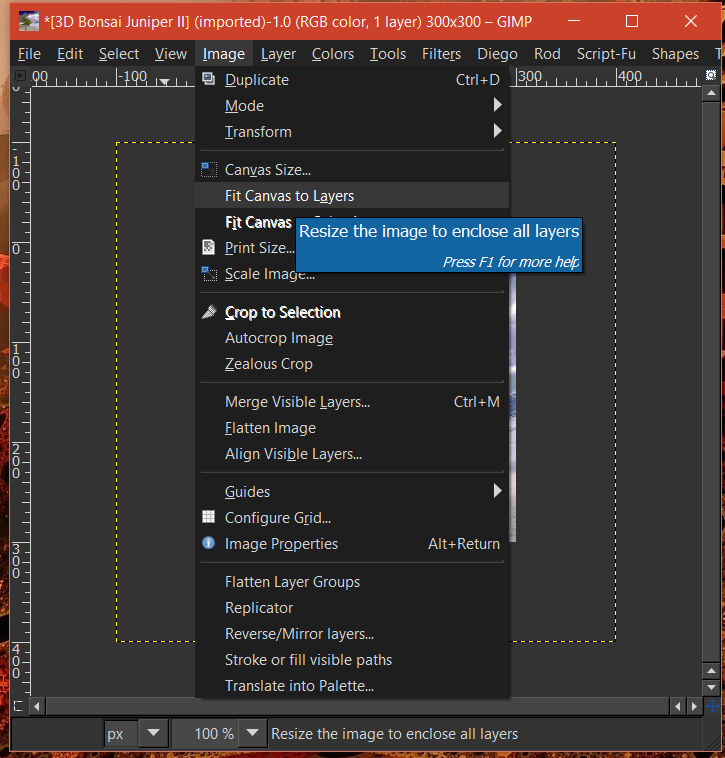
Have you tried doing "Fit Canvas to Layers" and then export as PNG?

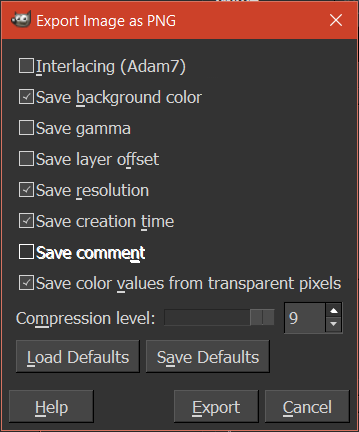
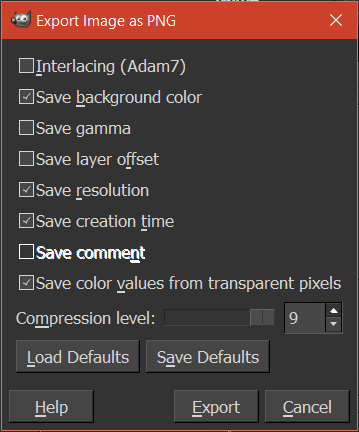
The image below is my Export Image as PNG dialog,
which is showing the default settings.

Image

_________________
Image
"A wise man learns more from a foolish question than a fool can learn from a wise answer"
Image


Top
 Post subject: Re: file-png-save2 Questions
PostPosted: Wed Mar 16, 2016 10:34 pm  (#5) 
Offline
GimpChat Member

Joined: Feb 21, 2016
Posts: 34
Wallace wrote:
How did you go about scaling the image?
Have you tried doing "Fit Canvas to Layers" and then export as PNG?

The image below is my Export Image as PNG dialog,
which is showing the default settings.

[ Image ]

I didn't do anything, steps as you did above, I would like to have transparent areas 300 pictures is retained,
not 200.


Top
 Post subject: Re: file-png-save2 Questions
PostPosted: Wed Mar 16, 2016 11:20 pm  (#6) 
Offline
Administrator
User avatar

Joined: Aug 10, 2012
Posts: 14213
Location: Native to NYC living in Arizona, Gimp 2.8 - 3.0, Win 11 PC.
gimptest wrote:
I didn't do anything,
steps as you did above,
I would like to have transparent areas 300 pictures is retained,
not 200.

Open your image.

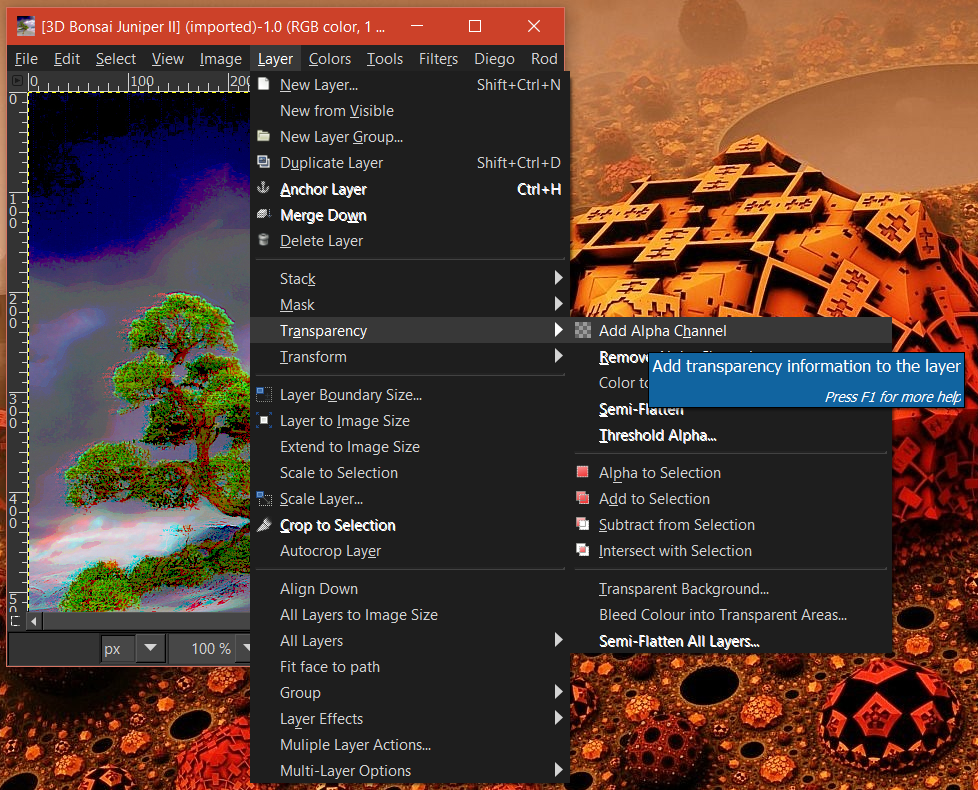
Make sure the image has an Alpha Channel
Image

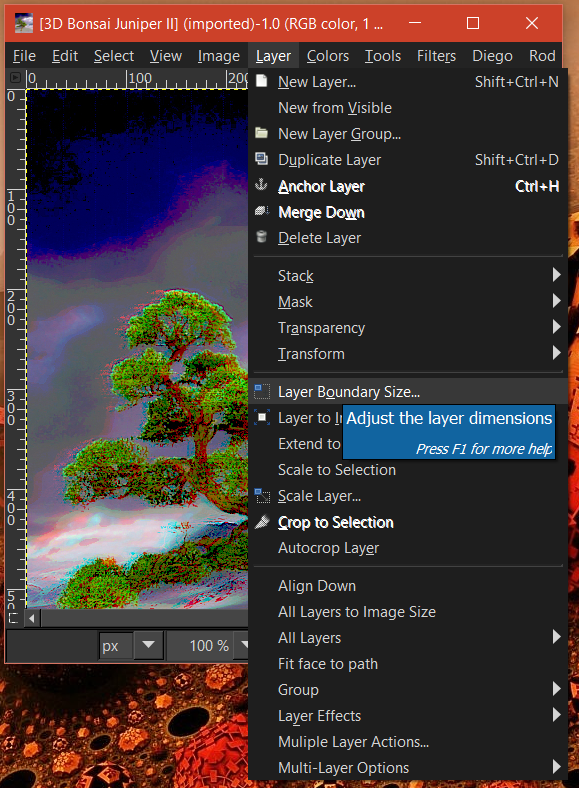
Go to. Layer>Layer Boundary Size
Image

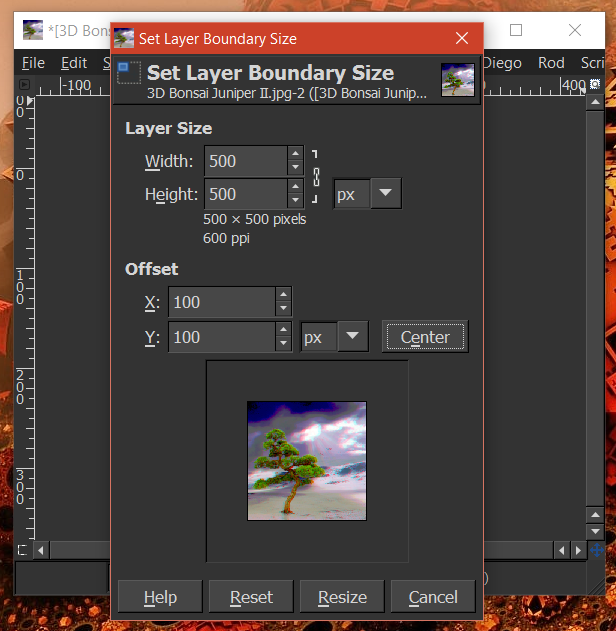
Adjust layer boundary size, center image, click Resize
Image

Go to, Image>Fit Canvas to Layers
Image

Export Image as PNG with these settings
Image

_________________
Image
"A wise man learns more from a foolish question than a fool can learn from a wise answer"
Image


Top
 Post subject: Re: file-png-save2 Questions
PostPosted: Thu Mar 17, 2016 12:12 am  (#7) 
Offline
GimpChat Member

Joined: Feb 21, 2016
Posts: 34
Wallace wrote:
gimptest wrote:
I didn't do anything,
steps as you did above,
I would like to have transparent areas 300 pictures is retained,
not 200.

Open your image.

Make sure the image has an Alpha Channel
[ Image ]

Go to. Layer>Layer Boundary Size
[ Image ]

Adjust layer boundary size, center image, click Resize
[ Image ]

Go to, Image>Fit Canvas to Layers
[ Image ]

Export Image as PNG with these settings
[ Image ]


Thanks for your help,I added two lines of code have been successful.

(gimp-layer-add-alpha drawable)

(gimp-image-resize-to-layers image)


Top
 Post subject: Re: file-png-save2 Questions
PostPosted: Thu Mar 17, 2016 12:28 am  (#8) 
Offline
Administrator
User avatar

Joined: Aug 10, 2012
Posts: 14213
Location: Native to NYC living in Arizona, Gimp 2.8 - 3.0, Win 11 PC.
gimptest wrote:

Thanks for your help,I added two lines of code have been successful.

(gimp-layer-add-alpha drawable)

(gimp-image-resize-to-layers image)

I hope that what I've shown you,
helped you get to where you wanted to going.

_________________
Image
"A wise man learns more from a foolish question than a fool can learn from a wise answer"
Image


Top
 Post subject: Re: file-png-save2 Questions
PostPosted: Thu Mar 17, 2016 6:08 am  (#9) 
Offline
Script Coder
User avatar

Joined: Oct 25, 2010
Posts: 4812
gimptest wrote:
GIMP Version: 2.8.16
Operating System: Windows
GIMP Experience: New User


HI,Questions are as follows:
(gimp-layer-scale-full drawable 200 200 TRUE 2)
I scale layer 300 to 200, and then save, but there was a problem,
(file-png-save2 1 image drawable filename filename 0 9 0 0 0 1 1 1 1)
PNG are automatically cropped to the image size of the saved 200, I need it to keep the transparent part of the canvas size does not change
Why the same arguments
(file-png-save2 0 image drawable filename filename 0 9 0 0 0 1 1 1 1)
just click the OK button to save the image using the interactive operations will retain the transparent part, PNG is still 300.why AutoSave may not retain the canvas size?

The API saves a single layer, so the resulting PNG is the size of the layer you saved. When you use the menu, a temporary image is produced by flattening the current image, so the resulting image is the size of the canvas. You may need to use
(gimp-layer-resize-to-image-size layer)

before saving.

_________________
Image


Top
 Post subject: Re: file-png-save2 Questions
PostPosted: Thu Mar 17, 2016 11:38 am  (#10) 
Offline
GimpChat Member

Joined: Feb 21, 2016
Posts: 34
Wallace wrote:
gimptest wrote:

Thanks for your help,I added two lines of code have been successful.

(gimp-layer-add-alpha drawable)

(gimp-image-resize-to-layers image)

I hope that what I've shown you,
helped you get to where you wanted to going.


Thank you, very helpful to help me answer.


Top
 Post subject: Re: file-png-save2 Questions
PostPosted: Thu Mar 17, 2016 11:49 am  (#11) 
Offline
GimpChat Member

Joined: Feb 21, 2016
Posts: 34
ofnuts wrote:
gimptest wrote:
GIMP Version: 2.8.16
Operating System: Windows
GIMP Experience: New User


HI,Questions are as follows:
(gimp-layer-scale-full drawable 200 200 TRUE 2)
I scale layer 300 to 200, and then save, but there was a problem,
(file-png-save2 1 image drawable filename filename 0 9 0 0 0 1 1 1 1)
PNG are automatically cropped to the image size of the saved 200, I need it to keep the transparent part of the canvas size does not change
Why the same arguments
(file-png-save2 0 image drawable filename filename 0 9 0 0 0 1 1 1 1)
just click the OK button to save the image using the interactive operations will retain the transparent part, PNG is still 300.why AutoSave may not retain the canvas size?

The API saves a single layer, so the resulting PNG is the size of the layer you saved. When you use the menu, a temporary image is produced by flattening the current image, so the resulting image is the size of the canvas. You may need to use
(gimp-layer-resize-to-image-size layer)

before saving.


Thank you for your reply, use this code solved the problem


Top
Post new topic Reply to topic  [ 11 posts ] 

All times are UTC - 5 hours [ DST ]


* Login  


Powered by phpBB3 © phpBB Group