It is currently Mon Sep 21, 2026 7:17 pm


All times are UTC - 5 hours [ DST ]


Post new topic Reply to topic  [ 18 posts ] 
Author Message
 Post subject: aligning several layers
PostPosted: Tue Apr 26, 2016 1:55 am  (#1) 
Offline
GimpChat Member

Joined: Dec 10, 2013
Posts: 106
GIMP Version: 2.8.14
Operating System: Windows
GIMP Experience: New User


hi

so now I have three layers on top of the background, they are actually small square layer and each layer is one Chinese text.

Now I would like to align three layers together to another position while their individual relative position is fixed. i.e. aligning the three layers together like one object

How can I do that??


Share on Facebook Share on Twitter Share on Orkut Share on Digg Share on MySpace Share on Delicious Share on Technorati
Top
 Post subject: Re: aligning several layers
PostPosted: Tue Apr 26, 2016 2:05 am  (#2) 
Offline
GimpChat Member

Joined: Dec 10, 2013
Posts: 106
Attachment:
question.png
question.png [ 7.94 KiB | Viewed 4987 times ]
Another question is - Please see attachment


Top
 Post subject: Re: aligning several layers
PostPosted: Tue Apr 26, 2016 2:16 am  (#3) 
Offline
Administrator
User avatar

Joined: Aug 10, 2012
Posts: 14206
Location: Native to NYC living in Arizona, Gimp 2.8 - 3.0, Win 11 PC.
You can put out guidelines,
on the edges of the green square.
To give the alignment for the other squares.
Measure the distance where you want the other squares to be.
Place a guideline there and move the other squares to that position with the Move Tool.

Also if I might suggest,
that you have a look at the Essential GIMP Tutorials.
To help you become better familiarize with Gimp and it's tool.

Essential GIMP Tutorials Link

_________________
Image
"A wise man learns more from a foolish question than a fool can learn from a wise answer"
Image


Top
 Post subject: Re: aligning several layers
PostPosted: Tue Apr 26, 2016 6:01 am  (#4) 
Offline
GimpChat Member

Joined: Dec 10, 2013
Posts: 106
Attachment:
question.png
question.png [ 1.91 KiB | Viewed 4915 times ]


Sorry this picture should be more precise in illustrating my wish..

can I also fix the distance of the center of each layer with "guideline"

and Sorry, how to get to the gudieline??


Top
 Post subject: Re: aligning several layers
PostPosted: Tue Apr 26, 2016 7:30 am  (#5) 
Offline
GimpChat Member

Joined: Dec 10, 2013
Posts: 106
Attachment:
8888-8888.png
8888-8888.png [ 25.62 KiB | Viewed 4894 times ]
Attachment:
88888888888888.png
88888888888888.png [ 48.11 KiB | Viewed 4894 times ]


This is an example, it's actually a layer (already Auto-crop)

I've enabled "Snap to Grid" I've configured the grid to width=25 and height=25 and so everything should be the multiples of 25.

but when I try to drag the center of the layer to grid, it is not very "magnetic", and instead it gives me 76 and 101 coordinates (see bottom left corner) It does not snap to 75 and 100

Did I set the Snap to Grid and its setting correctly? Anything else I have to set? Did I do anything wrong


Top
 Post subject: Re: aligning several layers
PostPosted: Tue Apr 26, 2016 1:25 pm  (#6) 
Offline
Administrator
User avatar

Joined: Aug 10, 2012
Posts: 14206
Location: Native to NYC living in Arizona, Gimp 2.8 - 3.0, Win 11 PC.
You could turn off the snap function off and move in manually.

_________________
Image
"A wise man learns more from a foolish question than a fool can learn from a wise answer"
Image


Top
 Post subject: Re: aligning several layers
PostPosted: Tue Apr 26, 2016 2:14 pm  (#7) 
Offline
GimpChat Member

Joined: Dec 10, 2013
Posts: 106
Wallace wrote:
You could turn off the snap function off and move in manually.


no way to be magnetic perfectly?? I just do not want to move with a mouse because it's time-and-effort-consuming for long term


Top
 Post subject: Re: aligning several layers
PostPosted: Tue Apr 26, 2016 2:31 pm  (#8) 
Offline
Administrator
User avatar

Joined: Aug 10, 2012
Posts: 14206
Location: Native to NYC living in Arizona, Gimp 2.8 - 3.0, Win 11 PC.
kenny1999 wrote:
Wallace wrote:
You could turn off the snap function off and move in manually.


no way to be magnetic perfectly?? I just do not want to move with a mouse because it's time-and-effort-consuming for long term

Use the Move Tool and move it one pixel at a time. Until it is where you want it to be.

_________________
Image
"A wise man learns more from a foolish question than a fool can learn from a wise answer"
Image


Top
 Post subject: Re: aligning several layers
PostPosted: Tue Apr 26, 2016 3:56 pm  (#9) 
Offline
GimpChat Member
User avatar

Joined: Nov 15, 2014
Posts: 875
@kenny1999,

I think you have a couple of minor problems.
Your layer(s) is not an exact multiple of 25 pixels. If we consider the horizontal ruler, it starts at 28 and ends at 123, which makes the width 95.
Half of this: 47.5 if we add the 28 (start position) we get 75.5. Therefore you have centred within 0.5 of the layer width.
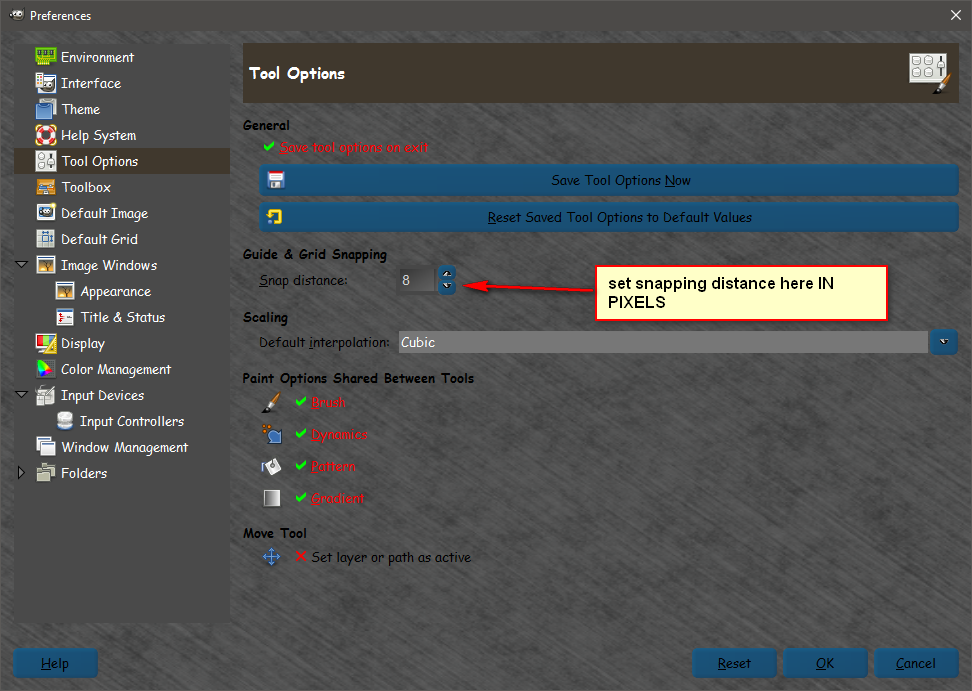
It also makes me think that you need to set the snap interval to 25 (I think it is in "Tools" in Preferences).

Unless it will cause you a problem, I suggest that you make your width and height multiples of 25.
(You should be able to start with something slightly larger and use the Crop tool to snap to your grid and get the correct size precisely.)

I hope this helps - let us know how you get on.

david.


Top
 Post subject: Re: aligning several layers
PostPosted: Wed Apr 27, 2016 1:13 am  (#10) 
Offline
GimpChat Member

Joined: Dec 10, 2013
Posts: 106
david wrote:
@kenny1999,

I think you have a couple of minor problems.
Your layer(s) is not an exact multiple of 25 pixels. If we consider the horizontal ruler, it starts at 28 and ends at 123, which makes the width 95.
Half of this: 47.5 if we add the 28 (start position) we get 75.5. Therefore you have centred within 0.5 of the layer width.
It also makes me think that you need to set the snap interval to 25 (I think it is in "Tools" in Preferences).

Unless it will cause you a problem, I suggest that you make your width and height multiples of 25.
(You should be able to start with something slightly larger and use the Crop tool to snap to your grid and get the correct size precisely.)

I hope this helps - let us know how you get on.

david.


Did you mean the size/dimension of the layer that I desire to move also matters?

In the grid setting it's 25 width and 25 height intervals


Top
 Post subject: Re: aligning several layers
PostPosted: Wed Apr 27, 2016 3:11 am  (#11) 
Offline
GimpChat Member
User avatar

Joined: Nov 15, 2014
Posts: 875
Apologies; I probably did not make things very clear.
The size of the layer matters because your grid is anchored to the top, left corner of the layer, so one of its crossing points will not be at the exact centre of the layer.
If the layer size and multiples of the grid size are the same, your layer will be divided into exact divisions.

Even though your grid size is set at 25 pixels, it would seem that the snap spacing was set at a smaller interval. In effect they act like smaller, invisible subdivisions of your grid.
I suggest that you set your snap interval also to 25 pixels, so that it will snap only to the visible grid lines.

david.


Top
 Post subject: Re: aligning several layers
PostPosted: Wed Apr 27, 2016 6:15 am  (#12) 
Offline
GimpChat Member

Joined: Dec 10, 2013
Posts: 106
david wrote:
Apologies; I probably did not make things very clear.
The size of the layer matters because your grid is anchored to the top, left corner of the layer, so one of its crossing points will not be at the exact centre of the layer.
If the layer size and multiples of the grid size are the same, your layer will be divided into exact divisions.

Even though your grid size is set at 25 pixels, it would seem that the snap spacing was set at a smaller interval. In effect they act like smaller, invisible subdivisions of your grid.
I suggest that you set your snap interval also to 25 pixels, so that it will snap only to the visible grid lines.

david.


So what can I do to let the CENTER of any layer snap to only coordinates of multiples of 25? e.g. (25,25) (50,50) (75,75) (100,75).....

and never snaps to things like (26,24) (49,50)

what I mean CENTER of any layer could be probably understood as the symmetrical center of any shape. By the way, could GIMP itself detect/find out the center for me?


Top
 Post subject: Re: aligning several layers
PostPosted: Thu Apr 28, 2016 7:01 am  (#13) 
Offline
GimpChat Member
User avatar

Joined: Nov 15, 2014
Posts: 875
If things are not snapping to your grid then you need to go to Edit, Preferences and set the snap setting.

To centre something precisely use your grid and re-read what Wallace wrote about alignment in your other query.

Also, in the early stages of learning, don't try to be too ambitious. Do simple things that will help you find your way around GIMP.
It is an enormous programme and extremely versatile, which means that it takes time to learn even the limited parts we require.

Best of luck!
david.


Attachments:
Snap_spacing.jpg
Snap_spacing.jpg [ 84.49 KiB | Viewed 3837 times ]
Top
 Post subject: Re: aligning several layers
PostPosted: Thu Apr 28, 2016 12:52 pm  (#14) 
Offline
GimpChat Member
User avatar

Joined: Nov 16, 2011
Posts: 5127
Location: Metro Vancouver, BC
kenny1999, Enable Snap to Grid: View → Snap to Grid
Although sometimes useful, as a rule I prefer not to enable Snap to Grid. Normally I use Move & Align tools and View → Snap to Guides for positioning.

In your case maybe this will work; make an image the final size and make an array, Filters → Map → Small Tiles or with more options G'MIC Array [regular] (in '/Arrays & tiles/').

_________________
Image
Gimp 2.8.18, Linux, median user
Gimp Chat Tutorials Index
Spirit Bear (Kermode)


Top
 Post subject: Re: aligning several layers
PostPosted: Sat Apr 30, 2016 3:17 pm  (#15) 
Offline
GimpChat Member

Joined: Dec 10, 2013
Posts: 106
Thanks David: But what is Guide & Grid distance?? I don't really understand it

Thanks Odinbc: I've done View-->Show Guides but I cannot notice where the guide is shown.

When I done View-->Show Grid, sets of lines obvioulsly show ups.

sorry, but comes to a more basic question ---- What is Guide? What is Grid? What are they ? What are their difference?


Top
 Post subject: Re: aligning several layers
PostPosted: Sat Apr 30, 2016 3:52 pm  (#16) 
Offline
GimpChat Member
User avatar

Joined: Nov 16, 2011
Posts: 5127
Location: Metro Vancouver, BC
kenny1999 wrote:
Thanks David: But what is Guide & Grid distance?? I don't really understand it

Thanks Odinbc: I've done View-->Show Guides but I cannot notice where the guide is shown.

When I done View-->Show Grid, sets of lines obvioulsly show ups.

sorry, but comes to a more basic question ---- What is Guide? What is Grid? What are they ? What are their difference?

2. Grids and Guides
2.2. Guides

_________________
Image
Gimp 2.8.18, Linux, median user
Gimp Chat Tutorials Index
Spirit Bear (Kermode)


Top
 Post subject: Re: aligning several layers
PostPosted: Thu Dec 01, 2016 1:04 pm  (#17) 
Offline
GimpChat Member

Joined: Nov 08, 2016
Posts: 45
kenny1999 wrote:
Attachment:
question.png
Another question is - Please see attachment


Try Alignment Tool. The tool aligns and distributes layers. In your example, you already cropped each layer to the same size --- "small square layer and each layer is one Chinese text.". Setup the first square where you want it. Now use the Align Tool to align and distribute horizontally and vertically. To select multiple layers (squares) use the Shift key. Make sure to select an offset when you distribute.


Last edited by vA+6Q-Hv[BX] on Fri Dec 02, 2016 12:06 am, edited 1 time in total.

Top
 Post subject: Re: aligning several layers
PostPosted: Thu Dec 01, 2016 1:37 pm  (#18) 
Offline
Global Moderator
User avatar

Joined: May 16, 2010
Posts: 16173
kenny1999 wrote:
Thanks David: But what is Guide & Grid distance?? I don't really understand it

Thanks Odinbc: I've done View-->Show Guides but I cannot notice where the guide is shown.

When I done View-->Show Grid, sets of lines obvioulsly show ups.

sorry, but comes to a more basic question ---- What is Guide? What is Grid? What are they ? What are their difference?

If you have View>Show Guides ticked you can click on the ruler (top or side) and drag out a guide. To move them around the layer select the :move tool in the toolbox and click and drag one. Here i have created two guides. One a grabbed from the left ruler and the other from the top (vertically and horizontally respectively)
Image
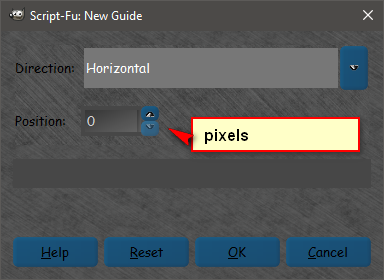
There are also scripts to position guides in exact center. Image>Guides>New Guide
Image

Image

_________________
Image


Top
Post new topic Reply to topic  [ 18 posts ] 

All times are UTC - 5 hours [ DST ]


* Login  


Powered by phpBB3 © phpBB Group