As always

Gimp has settings for this.
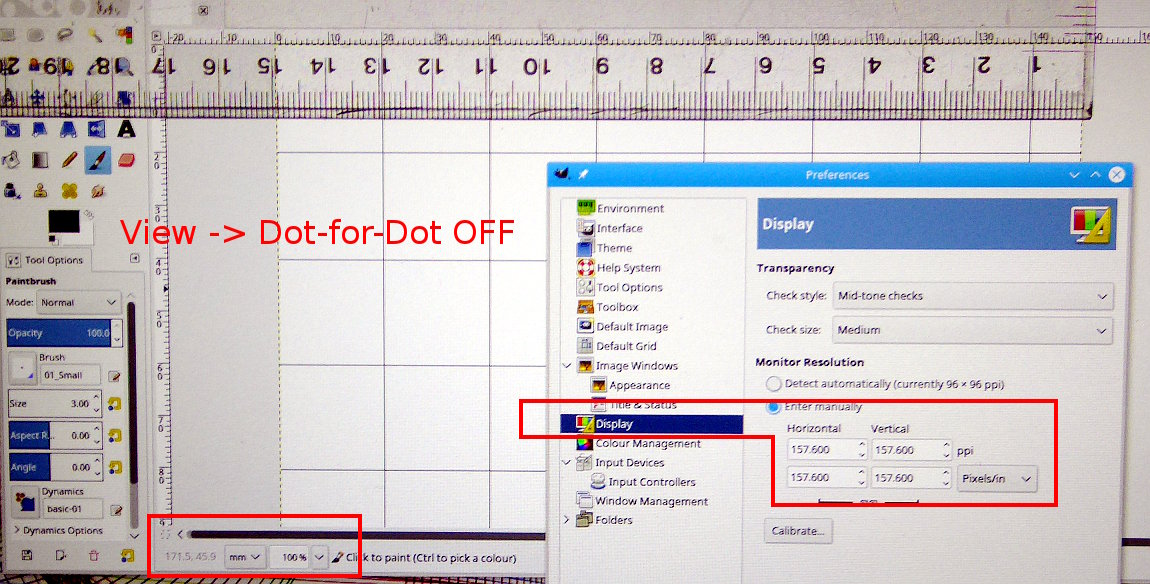
It is the View -> Dot-for-Dot option. By default it is on and 1 drawing pixel corresponds with 1 monitor pixel, which is the best option for editing.
Turn that off and at 100% zoom you see what the image looks like in real life. Often comes as a shock to people expecting a poster and getting a postage stamp.
The screen(monitor) resolution will need setting up. Use Edit -> Preferences -> Display for the settings. It might need a little trial and error as in this photograph of my laptop. This has a 14" 1920x1080 display and the resolution settings were definitely not automatically detected.
Attachment:
 to-scale.jpg [ 200.7 KiB | Viewed 5083 times ]
That shows a 150 mm wide canvas, and a real-life scale rule attached over the top. Also a 20 mm grid, set that up per drawing with Image -> Configure Grid.
 Login
Login Register
 Tweets
 FAQ
FAQ Advanced Search