It is currently Sat Jul 25, 2026 8:03 am


All times are UTC - 5 hours [ DST ]


Post new topic Reply to topic  [ 29 posts ]  Go to page 1, 2  Next
Author Message
 Post subject: Text as a Gif?
PostPosted: Thu Dec 22, 2011 7:33 am  (#1) 
Offline
GimpChat Member
User avatar

Joined: Dec 22, 2011
Posts: 399
GIMP Version: 2.6.11
Operating System: Windows
OS Version: Windows 7 Home
GIMP Experience: Beginner Level


Hi Guys

Been tearing my hair out with this problem below:

I have a gif ami which I have duplicated to put on the other side which is great. In the middle I want to create a basic signature but after saving when played the text is really wishy washy. I have been looking into this and I understand that the text once saved as a gif reduces the quality.

What can I do to create better quality text?

Thanks.

_________________
Image


Share on Facebook Share on Twitter Share on Orkut Share on Digg Share on MySpace Share on Delicious Share on Technorati
Top
 Post subject: Re: Text as a Gif?
PostPosted: Thu Dec 22, 2011 7:48 am  (#2) 
Offline
Global Moderator
User avatar

Joined: May 16, 2010
Posts: 16132
You can add apng to Gimp and save as an animated png and that gives you better quality.
Download the apng plugin from the gimp registry and place the exe and the ui file in your USERNAME/.gimp-2.6/plug-ins folder.Take the png file in your gimp program directory gimp-2.0/lib/gimp/2.0/plug-ins folder out and move it somewhere else.

Restart Gimp
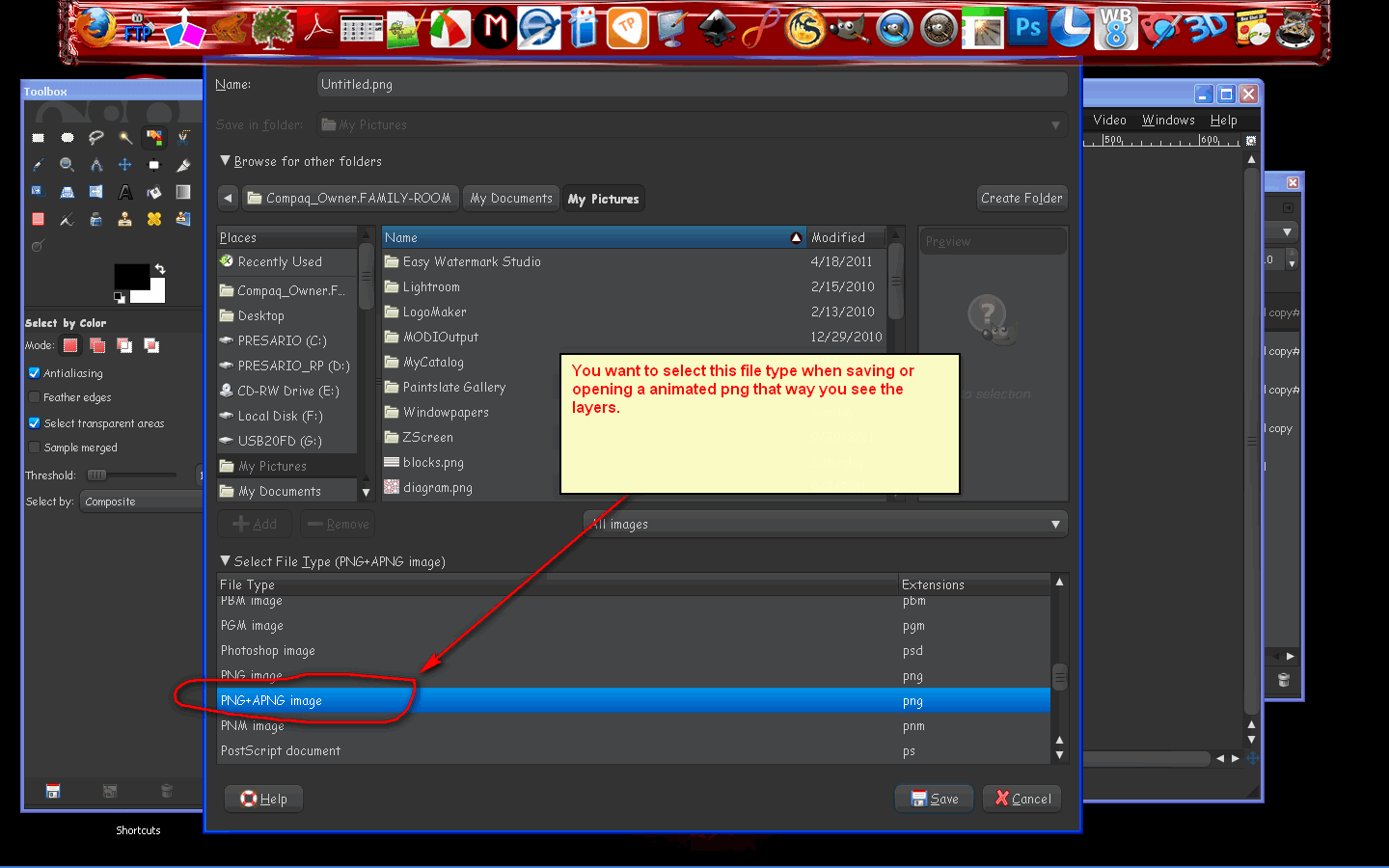
When you save - save as png-apng and select animation.The image will have to be reopened AS a png-apng file so you can see each layer.

Hope that helps.

There is also a scm written by Fencepost i believe that creates a path animation.Better quality also.
You can find it on Deviant Art just search scripts for gimp.

_________________
Image


Top
 Post subject: Re: Text as a Gif?
PostPosted: Thu Dec 22, 2011 9:32 am  (#3) 
Offline
Retired Staff
User avatar

Joined: May 22, 2008
Posts: 6946
Location: Somewhere in GIMP
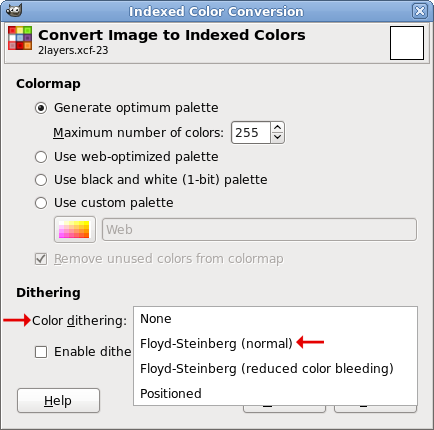
You can get better quality gifs if you convert your gif to Indexed before saving it.

Image > Mode > Indexed. Click the down arrow by Color Dithering and choose Floyd-Steinberg (normal) or the other Floyd-Steinberg one. You will never get a high quality gif but this does help.

Image

_________________
Image
World War IV will be fought with sticks and stones. - Albert Einstein


Top
 Post subject: Re: Text as a Gif?
PostPosted: Thu Dec 22, 2011 10:00 am  (#4) 
Offline
GimpChat Member
User avatar

Joined: Dec 22, 2011
Posts: 399
Gosh, this all sounds soo complicated.

Can I just add a single layer text into the gif or is it better to create a 3D effect then copy this to my gif? If I create a 3D text how would I copy and paste all the layers?

Quote:
Take the png file in your gimp program directory gimp-2.0/lib/gimp/2.0/plug-ins folder out and move it somewhere else

Where do I stick it so to speak lol

_________________
Image


Top
 Post subject: Re: Text as a Gif?
PostPosted: Thu Dec 22, 2011 10:47 am  (#5) 
Offline
GimpChat Member
User avatar

Joined: Dec 22, 2011
Posts: 399
Quote:
When you save - save as png-apng and select animation.The image will have to be reopened AS a png-apng file so you can see each layer.

Sorry trying to understand this. Are you saying that my already saved gif with the newly added text to save the whole thing as a png-apng?

_________________
Image


Top
 Post subject: Re: Text as a Gif?
PostPosted: Thu Dec 22, 2011 1:38 pm  (#6) 
Offline
GimpChat Founder
User avatar

Joined: May 22, 2008
Posts: 5241
Location: Gimpville
APN's create large animations so I tend to avoid them, if possible.

For the best looking text using gif (animated or not), do as Oregonian suggests. It's fairly simple.

Also, it's very important to semi-flatten when using gif. You can read more about it here

_________________
“If you reach for the stars, you just might land on a decently sized hill.” - Stuart Hill


Top
 Post subject: Re: Text as a Gif?
PostPosted: Thu Dec 22, 2011 1:45 pm  (#7) 
Offline
Global Moderator
User avatar

Joined: May 16, 2010
Posts: 16132
Deblk wrote:
Quote:
When you save - save as png-apng and select animation.The image will have to be reopened AS a png-apng file so you can see each layer.

Sorry trying to understand this. Are you saying that my already saved gif with the newly added text to save the whole thing as a png-apng?


No, sorry for the confusion. :)
What i meant was the animated png file you create must be opened as png-apng.
You can do this by clicking the drop down arrow at the bottom far left of the open/save dialog window.
Click that and a drop down menu will open showing all the extensions Gimp can save and open.
Select png-apng in the drop down and your png image will open as layers.

The file-png.exe you remove from Gimps program directory you can place in any folder you like as long as it isn't in Gimps path.You could just create a folder named old png binary, place the file in there and save it in your C drive. :)
That way you will have it if you ever want to revert back to just PNG which is highly unlikely.

Gif can only save in so many colors where as PNG can save in many more so the gradient changes look much better.PNG even supports transparency. :bigthup

Tux is correct though PNG's can create some large files.If you are going to create PNG animations use as few colors as possible.

_________________
Image


Top
 Post subject: Re: Text as a Gif?
PostPosted: Thu Dec 22, 2011 2:11 pm  (#8) 
Offline
Global Moderator
User avatar

Joined: May 16, 2010
Posts: 16132
A picture is worth a thousand words. :)

Image

Image

My exported animated png file
Image

_________________
Image


Top
 Post subject: Re: Text as a Gif?
PostPosted: Thu Dec 22, 2011 3:16 pm  (#9) 
Offline
GimpChat Member
User avatar

Joined: Dec 22, 2011
Posts: 399
Thank you guys for all your help. What I am trying to achieve in this situation is adding text in between an already made gif animation which I duplicated and mirrored. What I am doing is opening my animation then adding the text in the middle of the two pictures which seems ok till I save it as an animation then the text is not good. I do not want the text to animate so I merge that into background. I have not created an animated PNG yet so am a bit confused.

Do I need to save my animation as a animated PNG first then add the text
or
Do I do what I am doing then save the whole thing as animated PNG
or
Create my sig separately save as PNG animated even though I do not want it to animate then copy and paste into my animation then save the whole thing as a animated PNG?

Rod, I will try the plugin.

Sorry if I am confusing you all.

Thanks

_________________
Image


Top
 Post subject: Re: Text as a Gif?
PostPosted: Thu Dec 22, 2011 7:05 pm  (#10) 
Offline
Global Moderator
User avatar

Joined: May 16, 2010
Posts: 16132
No confusion here. :) Glad to help if we can.
Create your animation then save as png-apng
You can download the png-apng plugin here
http://sourceforge.net/projects/gimp-apng/files/

Image example help - this should explain everything you need to do to get apng running on Windows version of Gimp-2.6.11.

Image

You will need to restart Gimp-2.6.11 in order for the plug-in to initialize correctly.

_________________
Image


Top
 Post subject: Re: Text as a Gif?
PostPosted: Fri Dec 23, 2011 7:15 am  (#11) 
Offline
GimpChat Member
User avatar

Joined: Dec 22, 2011
Posts: 399
Ok so just to confirm open my already made gif as normal add my text then save the whole thing as a png-apng?

Just one thing, will it better to create my text first in 3D then copy to my gif or will just adding text to the gif be good enough which of course would be easier?

_________________
Image


Top
 Post subject: Re: Text as a Gif?
PostPosted: Fri Dec 23, 2011 7:28 am  (#12) 
Offline
Retired Staff
User avatar

Joined: May 22, 2008
Posts: 6946
Location: Somewhere in GIMP
It's hard to know/"see" what you are doing. Can you save your files as xcf files and attach in here?

How to Attach a File in Gimp Chat

_________________
Image
World War IV will be fought with sticks and stones. - Albert Einstein


Top
 Post subject: Re: Text as a Gif?
PostPosted: Fri Dec 23, 2011 8:09 am  (#13) 
Offline
GimpChat Member
User avatar

Joined: Dec 22, 2011
Posts: 399
Ok....here are the gifs with and without text. Also would like to know if I would get better quality if I created a 3D effect text first which I have just taught myself with one of the tutorials :D or would I just get away with just normal text?


Attachments:
Mary Sig (1).gif
Mary Sig (1).gif [ 16.02 KiB | Viewed 2393 times ]
Mary No Sig (1).gif
Mary No Sig (1).gif [ 15.63 KiB | Viewed 2393 times ]

_________________
Image
Top
 Post subject: Re: Text as a Gif?
PostPosted: Fri Dec 23, 2011 9:17 am  (#14) 
Offline
Retired Staff
User avatar

Joined: May 22, 2008
Posts: 6946
Location: Somewhere in GIMP
That's very cute. I don't see any reason you can't substitute 3D text for the text that you have. Once you have made your 3D text, you need to semi-flatten it before you save it as a gif. Your text is rough because it wasn't semi-flattened before you saved it as a gif. You can see the difference in the text. The screenshot shows what Mary looks like when it's semi-flattened. You can see the white edge around it. That blends with the white background in here and is invisible. I found a somewhat similar font to the one you used to demonstrate.

Image Image

You have several steps you need to take to get your image back into an editable mode.

Here's a step-by-step procedure of what you need to do.

  1. File > Open as Layers. Highlight the two files you want to open together as one image and open them. They are now in one image.
  2. In the Menu on the image Window, Click Filters > Animation > Unoptimize. That restores all of the layers as they were before they were Combined.
  3. Click Image in the image window, then select Mode > RGB. You can't work on Indexed files.
  4. Find the layer that has Mary on it and select it by clicking the layer.
  5. Click the Pencil tool :pencil in the Toolbox and find and select the Circle (13) brush.
  6. Select the Eraser Tool :eraser and in the options, check the Hard Edge selection.
  7. Carefully erase Mary on the Mary layer.
  8. Now you can make your 3D text to fit between the teddy bears. Once you have made the text how you want it, make sure your Background color is white (ffffff), click Layer in the Menu bar on the Image window, Transparency > Semi-Flatten. That will make a white edge around your text.
  9. Merge the Mary text down to the layer that had Mary on it before.
  10. Filters > Animation > Optimize (Difference). That restores the Combining of the layers.
  11. File > Save As > put a gif extension on the name of your image: mary-sig.gif.
  12. Be sure to check Save as Animation.

You will note that I did not have you change it to Indexed mode. Since the image had already been Indexed once it wouldn't make any difference in the quality of the rest of the image. When you save as a gif file, the Indexing will be done for you.

_________________
Image
World War IV will be fought with sticks and stones. - Albert Einstein


Top
 Post subject: Re: Text as a Gif?
PostPosted: Fri Dec 23, 2011 12:47 pm  (#15) 
Offline
GimpChat Member
User avatar

Joined: Dec 22, 2011
Posts: 399
@ Oregonian...wow what a difference!

I don't want to create 3D text if I don't need to and get the quality you have shown me

Not sure what you mean highlight the two files that I want to open together?
I don't want any white in the text, would like it totally transparent?
Am I missing the point here?

Can I just add the text again in the one that has no text using the Text Tool then save that layer as semi flattened then save the whole thing as a gif?

I love your tree :D

_________________
Image


Top
 Post subject: Re: Text as a Gif?
PostPosted: Fri Dec 23, 2011 1:12 pm  (#16) 
Offline
Retired Staff
User avatar

Joined: May 22, 2008
Posts: 6946
Location: Somewhere in GIMP
It's a good idea not to have any other images open when you do this so you don't open the files into an existing image.

When you click File > Open as Layers, click one of the files you want to open, then while holding down the Ctrl key, click the other file so that both images are highlighted, click Open. Both animations will open into the same image.

After you have opened the two files together and have done all the steps up to and including erasing the original Mary, you can make a new Mary, semi-flatten it, merge it down to the old Mary layer and you're ready to go on with the rest of the steps.

_________________
Image
World War IV will be fought with sticks and stones. - Albert Einstein


Top
 Post subject: Re: Text as a Gif?
PostPosted: Fri Dec 23, 2011 1:40 pm  (#17) 
Offline
Global Moderator
User avatar

Joined: May 16, 2010
Posts: 16132
Quote:
Ok so just to confirm open my already made gif as normal add my text then save the whole thing as a png-apng?


Yes that is what i mean. :)
Or you can just create an entirely new image and save it as a png-apng image.
Just remember you can not view it as layers unless you open it as an png-apng image.
Gimp will see the PNG extension and will open it like any other single layer graphic unless you tell Gimp to read the PNG as an animation.That is what open as png-apng accomplishes. ;)

Gimp will however know a GIF is an animation and open it with all layers intact.
Remember also PNG animations can get pretty big in size.Much bigger than GIF animations.But they are better quality.depends on what you need i guess.

_________________
Image


Top
 Post subject: Re: Text as a Gif?
PostPosted: Fri Dec 23, 2011 2:00 pm  (#18) 
Offline
GimpChat Member
User avatar

Joined: Dec 22, 2011
Posts: 399
Oregonian wrote:
It's a good idea not to have any other images open when you do this so you don't open the files into an existing image.

When you click File > Open as Layers, click one of the files you want to open, then while holding down the Ctrl key, click the other file so that both images are highlighted, click Open. Both animations will open into the same image.


When I 'open as layers' all I get is the list of layers which I cannot select more then one at a time and don't understand what you mean by selecting them then opening?

I am really sorry about this but nothing seems to work as you have suggested :(

_________________
Image


Top
 Post subject: Re: Text as a Gif?
PostPosted: Fri Dec 23, 2011 2:04 pm  (#19) 
Offline
Global Moderator
User avatar

Joined: May 16, 2010
Posts: 16132
Deb hold down your ctrl key on your keyboard while clicking each layer you want to open.Then they will open all at once.

_________________
Image


Top
 Post subject: Re: Text as a Gif?
PostPosted: Fri Dec 23, 2011 2:09 pm  (#20) 
Offline
GimpChat Member
User avatar

Joined: Dec 22, 2011
Posts: 399
Rod wrote:
Deb hold down your ctrl key on your keyboard while clicking each layer you want to open.Then they will open all at once.

I am sorry but they don't....

_________________
Image


Top
Post new topic Reply to topic  [ 29 posts ]  Go to page 1, 2  Next

All times are UTC - 5 hours [ DST ]


* Login  


Powered by phpBB3 © phpBB Group