It is currently Thu Nov 26, 2026 9:09 pm


All times are UTC - 5 hours [ DST ]


Post new topic Reply to topic  [ 6 posts ] 
Author Message
 Post subject: Help! deleting the white backgrounds in layers
PostPosted: Tue Feb 07, 2012 2:12 pm  (#1) 
Offline
New Member

Joined: Jan 07, 2012
Posts: 4
GIMP Version: 2.6.11
Operating System: Windows
OS Version: XP - SP3
GIMP Experience: Beginner Level


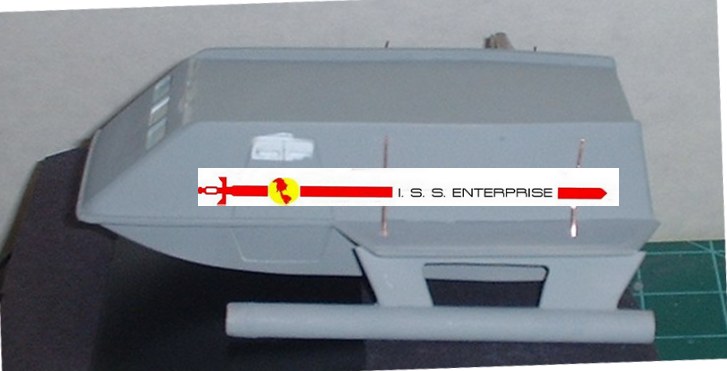
Image


Ok first off I'm new to this, my second day figuring this program. i'm a model builder and I'm starting off using this program to make decals- so far it's working- though this is the first graphics program i have ever used.

Now my question, HOW can I delete the white background in the top layer, the sword and globe, to make it appear as it will when it later becomes a physical decal? I tried edge detect, and some others, but nothing I found would just superimpose my actual work. Any help? Thanks. CR


Share on Facebook Share on Twitter Share on Orkut Share on Digg Share on MySpace Share on Delicious Share on Technorati
Top
 Post subject: Re: Help! deleting the white backgrounds in layers
PostPosted: Tue Feb 07, 2012 3:27 pm  (#2) 
Offline
GimpChat Member
User avatar

Joined: Apr 08, 2010
Posts: 5420
Location: Northwest Ohio
you can get rid of any particular color by color>color to alpha>and choose which color to get rid of. But you must save in a format that preserves the transparency, such as png or xcf. If you save as jpg then the transparent part will show up as your background color setting.
*forgot to add that you must first make sure your layer has an alpha channel!


Top
 Post subject: Re: Help! deleting the white backgrounds in layers
PostPosted: Tue Feb 07, 2012 6:30 pm  (#3) 
Offline
GimpChat Member
User avatar

Joined: Apr 07, 2010
Posts: 14182
You can also take the fuzzy select tool :fuzzsel and select the white part around the sword the go to selection > grow > grow 1 > okay then press delete.

_________________
Image


Top
 Post subject: Re: Help! deleting the white backgrounds in layers
PostPosted: Wed Feb 08, 2012 7:09 am  (#4) 
Offline
GimpChat Member
User avatar

Joined: Sep 06, 2011
Posts: 368
Location: US, Ohio
First off, this is a very cool use of Gimp! Thanks for sharing!

One of the best ways to isolate an image from the background is with a layer mask. A layer mask tell gimp what part of a layer to hide, and what part to show. For more information on layer masks check out this gimp video tutorial: http://www.gimpedblog.blogspot.com/2012 ... ow-to.html

Once you are comfortable with layer masks, do this:

Create a new layer mask, initialize it to "grayscale copy of layer
Click on your layer mad and then click colors>>>brightness/contrast
Adjust your brightness down and your contrast up until your image disappears.
Now click Colors>>>invert - and that will isolate the object from the background.

Since most of this object is a single color, you could even take it a step further and do what I did in this logo tutorial: http://gimpedblog.blogspot.com/2011/11/ ... mp-to.html

Hope this helps!


Top
 Post subject: Re: Help! deleting the white backgrounds in layers
PostPosted: Wed Feb 08, 2012 8:01 am  (#5) 
Offline
GimpChat Member
User avatar

Joined: Apr 07, 2010
Posts: 14182
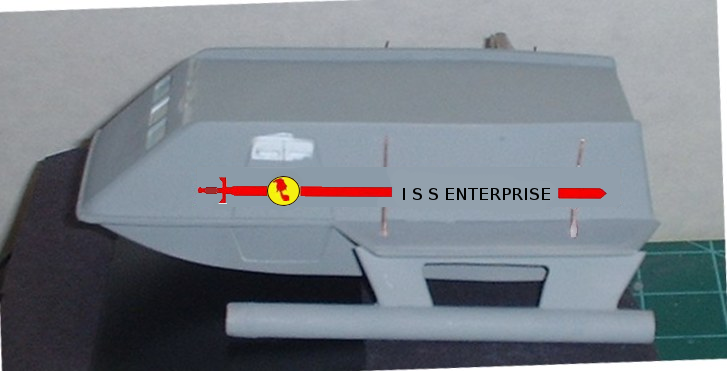
I was able to delete the white but your text is so small that it was hard to save without leaving some of the white behind, so I deleted and redid the text.
Image

_________________
Image


Top
 Post subject: Re: Help! deleting the white backgrounds in layers
PostPosted: Fri Feb 10, 2012 9:05 am  (#6) 
Offline
New Member

Joined: Jan 07, 2012
Posts: 4
Thanks guys- especially you Molly, for playing around with the pic. I uploaded some fonts for the image, thats why yours are different than mine.
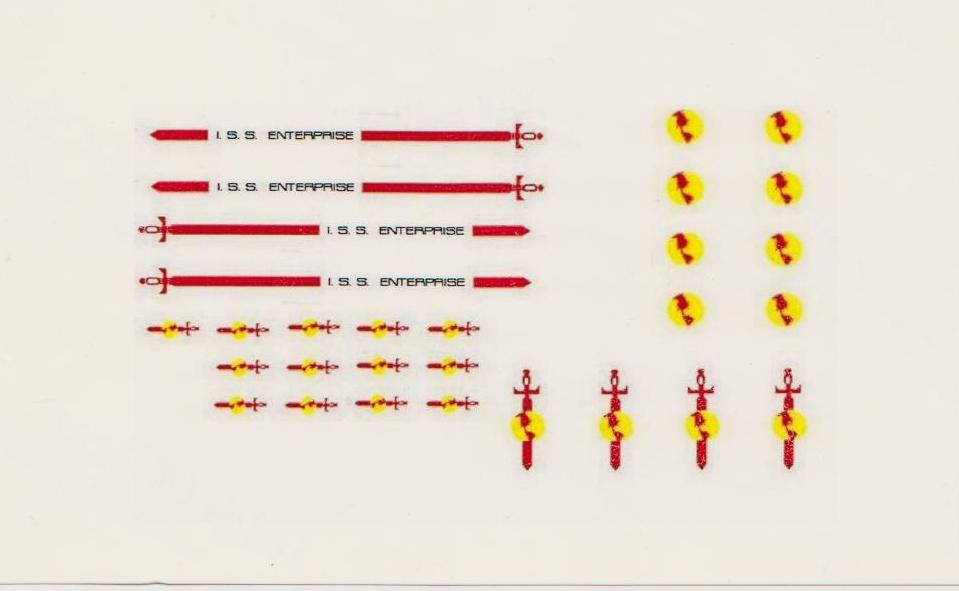
Here is a pic of one of the decals, graphics were done with gimp and printed with my cannon MX 800 ink jet. I'm gonna have the whole set laser jetted- lol - later today!


Image

Not perfect, and about 2/3 the scale it should be! I'm learning. When its done in a month or so I'll post some pics of the completed shuttle with it's Gimp produced decals. I think this will turn out fine! Happy Friday. CR

AND TST- I didn't use the layer mask for this at all, couldn't figure it out! Thanks for the link man. Be good.


Top
Post new topic Reply to topic  [ 6 posts ] 

All times are UTC - 5 hours [ DST ]


* Login  


Powered by phpBB3 © phpBB Group