It is currently Wed Nov 25, 2026 9:39 pm


All times are UTC - 5 hours [ DST ]


Post new topic Reply to topic  [ 11 posts ] 
Author Message
 Post subject: Selecting and enlarging only certian parts of an image
PostPosted: Fri Oct 22, 2010 11:00 am  (#1) 
Offline
GimpChat Member

Joined: Oct 22, 2010
Posts: 6
Greetings,
I am new to GIMP and downloaded it for a specific purpose. I work for a small company and during a presentation i would like to show some documents on the projector. This isn't really a problem, but my difficulty is after the full document has been displaced i would like to be able to enlarge certain sections of the document to make the text more apparent, but still have the original document in the background so as to give the feeling that I didn't just pull the text out of no where. I know this is probably too difficult or so simple that I look like an idiot, but i figured it never hurts to ask.

If anyone could give me some help I would really appreciate it.


Share on Facebook Share on Twitter Share on Orkut Share on Digg Share on MySpace Share on Delicious Share on Technorati
Top
 Post subject: Re: Selecting and enlarging only certian parts of an image
PostPosted: Fri Oct 22, 2010 11:13 am  (#2) 
Offline
Retired Staff
User avatar

Joined: May 22, 2008
Posts: 6946
Location: Somewhere in GIMP
Are you using GIMP as a text editor to type the original documents?

I understand what you are trying to do and if you are using GIMP to make the original documents, you could copy the area from the original document in the text editor, then make a new layer, click the Text icon in the toolbox and click the image and paste that text into the text editor and enlarge the font.

_________________
Image
World War IV will be fought with sticks and stones. - Albert Einstein


Top
 Post subject: Re: Selecting and enlarging only certian parts of an image
PostPosted: Fri Oct 22, 2010 11:18 am  (#3) 
Offline
GimpChat Member

Joined: Oct 22, 2010
Posts: 6
No the documents were scanned into the computer, for reasons it would be unethical to actually recreate the documents.

I'm trying to think of how to describe it, like have you ever seen a news show where they have documents that were obtained, and then they read certain parts of the document and as they do they make that specific part that they are reading larger (resolution doesn't matter) while keeping the whole document smaller in the background. Kind of like layering the enlarged section over the regular sized section


Top
 Post subject: Re: Selecting and enlarging only certian parts of an image
PostPosted: Fri Oct 22, 2010 11:34 am  (#4) 
Offline
Retired Staff
User avatar

Joined: May 22, 2008
Posts: 6946
Location: Somewhere in GIMP
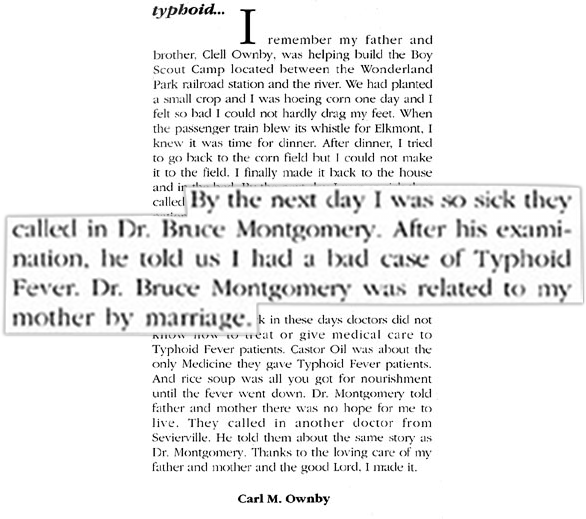
This is an image of a scanned document I found here.

Is this something like what you are looking for? I used the Paths tool to select around a part of the text and enlarged it by 200%.

Keep in mind there is more than one way to do this. I'm thinking Layer Masks would work well too.

Image

_________________
Image
World War IV will be fought with sticks and stones. - Albert Einstein


Top
 Post subject: Re: Selecting and enlarging only certian parts of an image
PostPosted: Fri Oct 22, 2010 11:48 am  (#5) 
Offline
GimpChat Member

Joined: Oct 22, 2010
Posts: 6
that is exactly it thank you


Top
 Post subject: Re: Selecting and enlarging only certian parts of an image
PostPosted: Fri Oct 22, 2010 11:52 am  (#6) 
Offline
Retired Staff
User avatar

Joined: May 22, 2008
Posts: 6946
Location: Somewhere in GIMP
Do you need an explanation about how to do it?

_________________
Image
World War IV will be fought with sticks and stones. - Albert Einstein


Top
 Post subject: Re: Selecting and enlarging only certian parts of an image
PostPosted: Fri Oct 22, 2010 12:04 pm  (#7) 
Offline
GimpChat Member

Joined: Oct 22, 2010
Posts: 6
Yes, i've just realized that i have no clue how to do that after 30 minutes of trying


Top
 Post subject: Re: Selecting and enlarging only certian parts of an image
PostPosted: Fri Oct 22, 2010 12:06 pm  (#8) 
Offline
Retired Staff
User avatar

Joined: May 22, 2008
Posts: 6946
Location: Somewhere in GIMP
I wondered. OK, I'll write up a little tutorial about how I did it. I added a bit about layer masks a little later that you may have missed. It will take a bit of time.

_________________
Image
World War IV will be fought with sticks and stones. - Albert Einstein


Top
 Post subject: Re: Selecting and enlarging only certian parts of an image
PostPosted: Fri Oct 22, 2010 12:24 pm  (#9) 
Offline
GimpChat Member

Joined: Oct 22, 2010
Posts: 6
thank you take your time


Top
 Post subject: Re: Selecting and enlarging only certian parts of an image
PostPosted: Fri Oct 22, 2010 1:38 pm  (#10) 
Offline
Retired Staff
User avatar

Joined: May 22, 2008
Posts: 6946
Location: Somewhere in GIMP
  1. Open the scanned document in GIMP.
  2. Check to make sure your image is RGB mode by selecting Image in the menu bar and Mode > make sure RGB is ticked.
  3. Right click the layer the image is on and choose, Add Alpha Channel. That is to add transparency around the document later.
  4. Find an area of text you want to enlarge and select around it using the Paths Tool :pathtool .
    You may need to zoom :zoom into your document to see what you are doing better.
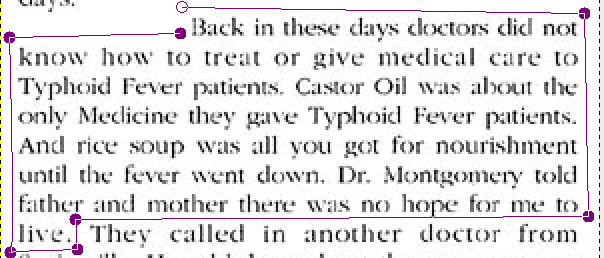
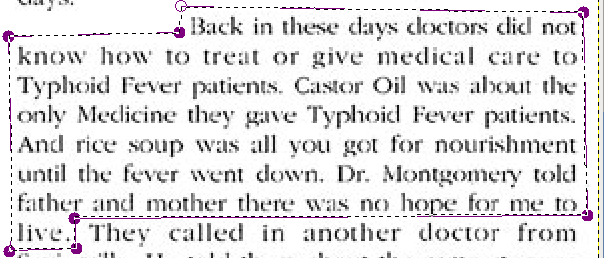
  5. Select around the text you want to enlarge by clicking around it with the Paths tool. When you get to the little circle you started with click in it, then press the Enter key. That makes a selection (moving dashed border around the selected area).

    Selecting with the Paths Tool

    Image


    After pressing Enter.

    Image

  6. Edit > Copy (or Ctrl + C)
  7. Edit > Paste As > New Image. Or you can press Ctrl + Shift + V. Now you have your text isolated in a new image.
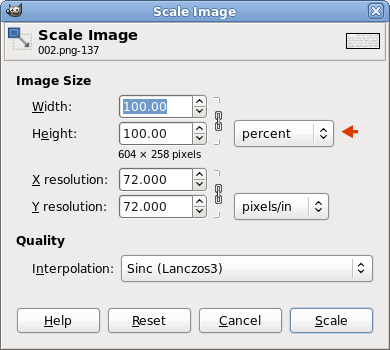
  8. In the new image, click Image in the menu then Scale Image.
  9. I don't how much you want to enlarge your text selection. Change pixels to percent and use whatever value you prefer.
  10. The rest of the dialog doesn't need to be changed. Click Scale.

    Image

  11. At the top of the image in the Title bar, you will see how large the new enlarged image is (###x###). The first number is the Width. Remember that number.
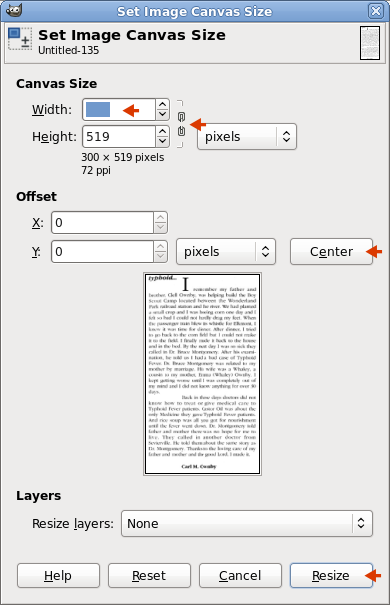
  12. Go to your original scanned document image and select Image > Add Canvas.
    Break the chain to the right of Width and Height by clicking it with the mouse. Then highlight the Width amount and change it to the width of your enlarged text. Click the Center button then click Resize. Your main image is how wider and surrounded by transparency (gray checks).

    Image

  13. Go back to your enlarged text piece image, Edit > Copy.
  14. Click in the original scanned image and Ctrl + V.
  15. You will have a floating selection in your layer window.
  16. Click the New Layer button :new and it will be anchored into a new layer over your original image.
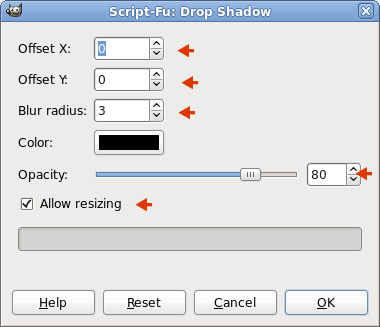
  17. I put a drop shadow around the piece of text image. Click the top layer which is your piece of enlarged text so that layer is selected.
  18. In the image window select Filters > Light & Shadow > Drop Shadow. Set X and Y at zero. I made the blur radius 3 and left the opacity at 80 percent. Be sure Allow resizing is checked.

    Image

  19. Right click the top layer and choose Merge Visible layers. If you want your image transparent around the main image, save your image as <filename>.png.

If you have any questions at all, post back. I wasn't sure how much you know about GIMP so I put everything I could think of in here. I may have over done it. :hehe

_________________
Image
World War IV will be fought with sticks and stones. - Albert Einstein


Top
 Post subject: Re: Selecting and enlarging only certian parts of an image
PostPosted: Fri Oct 22, 2010 1:58 pm  (#11) 
Offline
GimpChat Member

Joined: Oct 22, 2010
Posts: 6
That was incredibly helpful, and there is never such a thing as too much information when making a guide

Thank you very much


Top
Post new topic Reply to topic  [ 11 posts ] 

All times are UTC - 5 hours [ DST ]


* Login  


Powered by phpBB3 © phpBB Group