It is currently Wed Sep 23, 2026 11:40 am


All times are UTC - 5 hours [ DST ]


Post new topic Reply to topic  [ 12 posts ] 
Author Message
 Post subject: How do I use or open this kind of file
PostPosted: Fri Jul 19, 2013 4:53 am  (#1) 
Offline
GimpChat Member
User avatar

Joined: Apr 07, 2010
Posts: 14182
GIMP Version: 2.8.4
Operating System: Linux
OS Version: Linux Fedora 17
GIMP Experience: Intermediate Level


I am trying to do this tutorial. I want to be able to make that nice gold textured text that Caz used on his banner. Image
This is the tutorial in the attachment below. I am stuck on #7 showing in the image. There is no save as but I did get it to save in my downloads but I don't know how to use it or how to get it into Gimp. I tried open with: then clicked Gimp but it doesn't recognize the file and won't open.
Can anyone help me with this, would be much appreciated.
Image


Attachments:
cool rifts.pdf [298.14 KiB]
Downloaded 163 times

_________________
Image
Share on Facebook Share on Twitter Share on Orkut Share on Digg Share on MySpace Share on Delicious Share on Technorati
Top
 Post subject: Re: How do I use or open this kind of file
PostPosted: Fri Jul 19, 2013 5:52 am  (#2) 
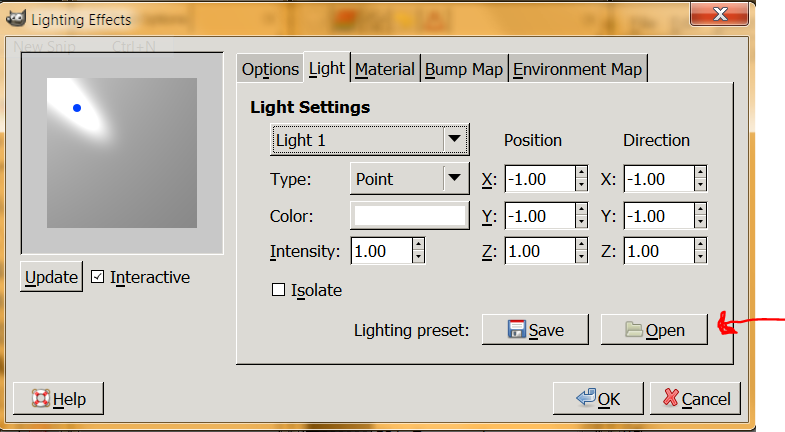
Molly, Filters->Light and Shadow->Lighting Effects
Select the 'Light' tab.
Click Open, navigate to the file.
Image


Top
 Post subject: Re: How do I use or open this kind of file
PostPosted: Fri Jul 19, 2013 6:01 am  (#3) 
Offline
GimpChat Member
User avatar

Joined: Apr 07, 2010
Posts: 14182
Thank you very much Fluffy, I will give that a try...this is one hard tutorial for me but I am determined to get that gold text, I really like it.

Edit: that worked out very well fluffy. Now I am as far as the end of step 9 and stuck again but I won't give up, at least I hope I don't
Here is what I have so far. The gold one is set at value, and the other one is set at normal, to show the plasma.

Image

Image

_________________
Image


Top
 Post subject: Re: How do I use or open this kind of file
PostPosted: Fri Jul 19, 2013 7:34 am  (#4) 
Offline
GimpChat Member
User avatar

Joined: Oct 07, 2010
Posts: 439
Location: home/Nixnine/.gimp-2.0/scripts/nixnine.scm
Remove the .bz2 in the name and it will open as an xcf in gimp.

Ooops. Never mind. Wrong thing.

I'm lost in lala land this morning.

_________________
I refuse to be confused, but am often confused at this refusal.


Top
 Post subject: Re: How do I use or open this kind of file
PostPosted: Fri Jul 19, 2013 8:37 am  (#5) 
Offline
GimpChat Member
User avatar

Joined: Sep 24, 2010
Posts: 12845
bz2 is a compressed XCF and GIMP directly supports this file type. :)

edit

One other thing while this is the subject. It would be cool for GIMPChat to support this file type (already does for XCF). I've had to 7zip this file in the past when uploading here. Being already compress maakes 7zip fruitless and sometimes the 7zip file is actually bigger then the compressed XCF. :)

_________________
Lyle

Psalm 109:8

Image


Last edited by lylejk on Fri Jul 19, 2013 8:41 am, edited 1 time in total.

Top
 Post subject: Re: How do I use or open this kind of file
PostPosted: Fri Jul 19, 2013 8:39 am  (#6) 
Offline
GimpChat Member
User avatar

Joined: Apr 07, 2010
Posts: 14182
Thank you Lyle. I just didn't know how to work it. I am good now but stuck on #9. I will keep going back to it to see if I can get it to makes sense.

_________________
Image


Top
 Post subject: Re: How do I use or open this kind of file
PostPosted: Fri Jul 19, 2013 9:22 am  (#7) 
Offline
GimpChat Member
User avatar

Joined: Jul 17, 2012
Posts: 2769
you can also position the light manually, from the lights-tab

just drag the blue dots where the tutorial says they should be:

"The first is a spot light giving the center of the text a little more focus. the 2nd and 3rd light is a directional light that comes directly from top and from bottom to give the shape nice highlight at top and on the bottom outlines."

Step 9 tells you to use the plasma layer as a bumpmap for giving your text a texture
so you load the plasma layer into the bumpmap-tab of lighting effects


Top
 Post subject: Re: How do I use or open this kind of file
PostPosted: Fri Jul 19, 2013 9:34 am  (#8) 
Offline
GimpChat Member
User avatar

Joined: Apr 07, 2010
Posts: 14182
Thank you. I ran them through one at a time. with the filter link filter one, light 1, light 2 and light 3. which worked great. the last one was the plasma. I did get the bumpmap to get the plasma texture. That shows in my screen shots,

it is the step below that where I am stuck, where it says Now we've got a more structured surface. Go to color / Desaturate then after that set the opacity of the text layer below the structure to 40%. Anyway, that is where I am confused cuz it doesn't look right. (What is the structure layer)?

_________________
Image


Top
 Post subject: Re: How do I use or open this kind of file
PostPosted: Fri Jul 19, 2013 9:48 am  (#9) 
Offline
GimpChat Member
User avatar

Joined: Jul 17, 2012
Posts: 2769
i think it says, desaturate the plasma layer )you just used as the bump map), set the opacity to 40% and the mode to `Soft Light`

that will enhance the structured (=textured) look of your texteffect


Top
 Post subject: Re: How do I use or open this kind of file
PostPosted: Fri Jul 19, 2013 9:59 am  (#10) 
Offline
GimpChat Member
User avatar

Joined: Apr 07, 2010
Posts: 14182
Yes, I did do that and then I didn't like what it looked like so I went back. I guess I will do it again and go from there to see if the next steps make sense. I just couldn't see why I would desaturate it when it looked so nice the say it was but anyway, I will go back to it and carry on. At least I got it saved up to the point half way through step 9.

_________________
Image


Top
 Post subject: Re: How do I use or open this kind of file
PostPosted: Fri Jul 19, 2013 12:36 pm  (#11) 
Offline
GimpChat Member

Joined: Dec 27, 2012
Posts: 393
Location: England
Image

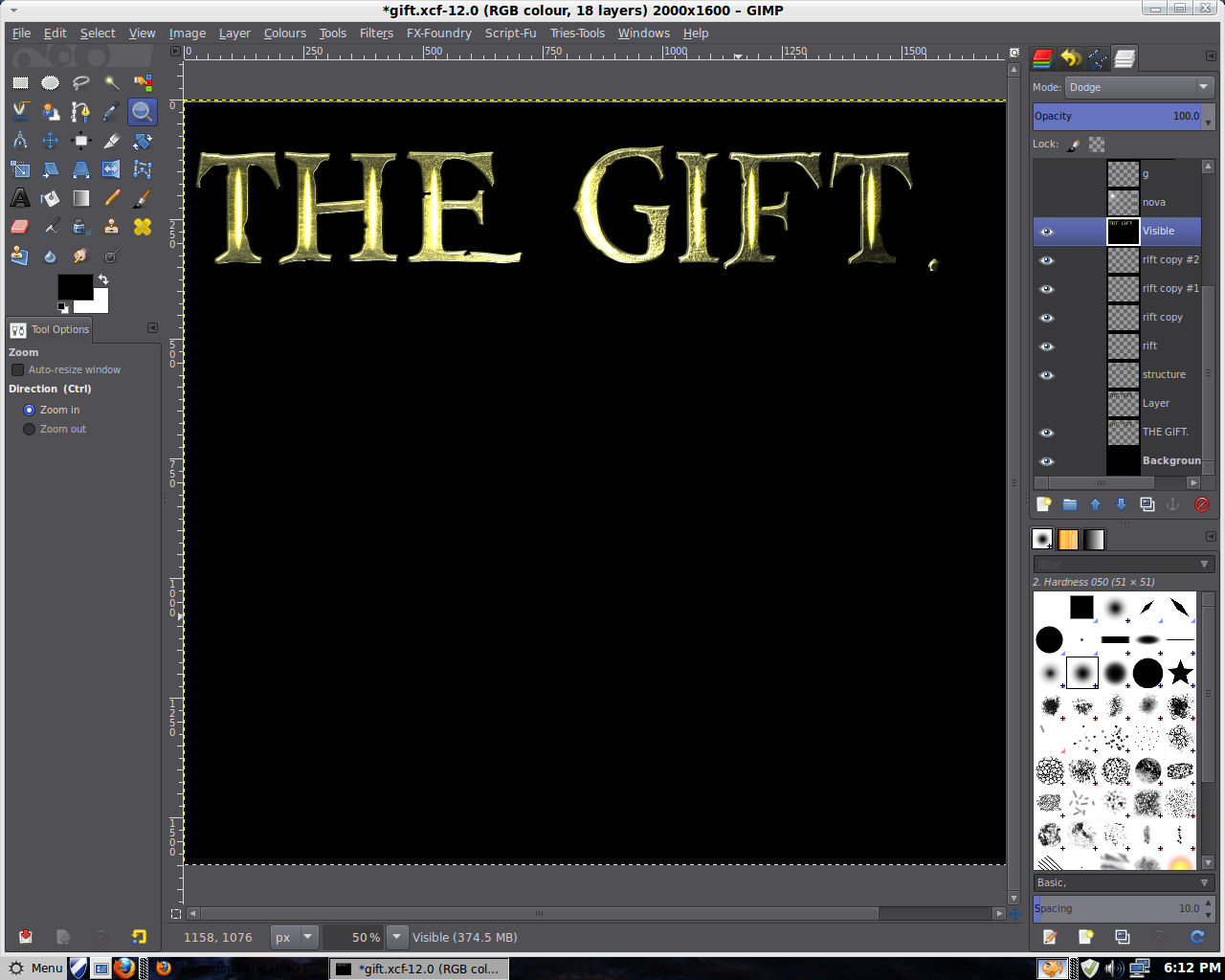
I never kept the xcf for the text I used for the banner but I did find this old one. It may help to see how I set out the layers.

The Gift layer is the basic text layer after the lighting effects have been added to it. Mode is normal opacity 100%
Structure layer is set to soft light opacity 100% It has been desaturated
Rift layer normal opacity 100%
Rift copy set to dodge opacity 100%
Rift copy #1 set to dodge opacity 100%
Rift copy #2 set to grain merge opacity 100%
Visible layer, a copy of visible, is set to dodge opacity 100%

The layer called Layer is the original text layer before the lighting effects were added, It's a matter of choice as to whether it's turned on or off.

The rest of the layers, not enough room in the screen shot to show them all, were for the light ray effects and were a total disaster. I never could get them to look right.

_________________
Image

DeviantArt gallery


Top
 Post subject: Re: How do I use or open this kind of file
PostPosted: Fri Jul 19, 2013 4:03 pm  (#12) 
Offline
GimpChat Member
User avatar

Joined: Jul 17, 2012
Posts: 2769
this is not a very well written tutorial, but it reminded me what great looking text you can do with lighting effects

Image


Top
Post new topic Reply to topic  [ 12 posts ] 

All times are UTC - 5 hours [ DST ]


* Login  


Powered by phpBB3 © phpBB Group