It is currently Tue Sep 22, 2026 6:55 pm


All times are UTC - 5 hours [ DST ]


Post new topic Reply to topic  [ 4 posts ] 
Author Message
 Post subject: How to add effects to the frame (4 sides) of a random picture
PostPosted: Tue Dec 17, 2013 3:01 am  (#1) 
Offline
GimpChat Member

Joined: Dec 10, 2013
Posts: 106
GIMP Version: 2.8.4
Operating System: Windows
GIMP Experience: Beginner Level


How to add effects to the four sides of a random picture?

If we don't talk about transparency, all pictures jpg/jpeg/bmp are confined to a rectangular side with four sharp edges and sharp corners. I want to 'blur' the edges and corners of any random pictures. I don't know the academic name for this effect. I hope to know how to make it with GIMP. Thank you very much.


Share on Facebook Share on Twitter Share on Orkut Share on Digg Share on MySpace Share on Delicious Share on Technorati
Top
 Post subject: Re: How to add effects to the frame (4 sides) of a random picture
PostPosted: Tue Dec 17, 2013 3:57 am  (#2) 
Offline
GimpChat Member
User avatar

Joined: Nov 16, 2011
Posts: 5127
Location: Metro Vancouver, BC
An example picture would help with your problem or do you mean a bunch (batch) of pictures of various size? By inversing a selection inside an image it's easy to blur or feather the perimeter of a single image.

_________________
Image
Gimp 2.8.18, Linux, median user
Gimp Chat Tutorials Index
Spirit Bear (Kermode)


Top
 Post subject: Re: How to add effects to the frame (4 sides) of a random picture
PostPosted: Tue Dec 17, 2013 7:38 am  (#3) 
Offline
Global Moderator
User avatar

Joined: May 16, 2010
Posts: 16173
You can make multiple selections on all four corners at once and use Filters>Blur>Gaussian Blur to do it also. Just be sure to tick add to selection in the tool options dialog window.

_________________
Image


Top
 Post subject: Re: How to add effects to the frame (4 sides) of a random picture
PostPosted: Tue Dec 17, 2013 3:42 pm  (#4) 
Offline
Administrator
User avatar

Joined: Aug 10, 2012
Posts: 14207
Location: Native to NYC living in Arizona, Gimp 2.8 - 3.0, Win 11 PC.
Maybe this might help... There's the Script-Fu's "Fuzzy Border" filter.
You can find this filter in the image window menu through Filters → Decor → Fuzzy Border.
Here is what the script's dialog looks like.
Image
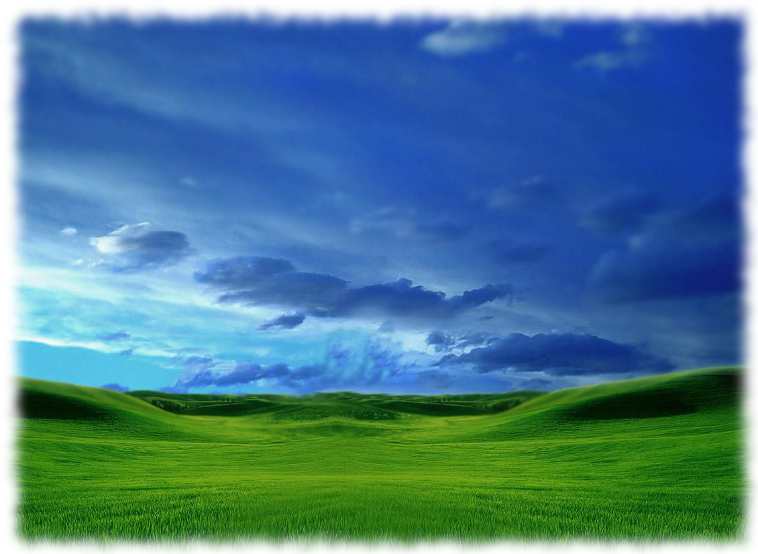
I ran this filter on the image below using it's default settings, as an example of what this filter can do.
Image
Also, you can view "Gimp's Documentation" about this script @... http://docs.gimp.org/en/script-fu-fuzzy-border.html

_________________
Image
"A wise man learns more from a foolish question than a fool can learn from a wise answer"
Image


Top
Post new topic Reply to topic  [ 4 posts ] 

All times are UTC - 5 hours [ DST ]


* Login  


Powered by phpBB3 © phpBB Group