After you get your gmic installed, open your picture with Gimp, it will come up with a message to convert your image to RGB mode, click convert.
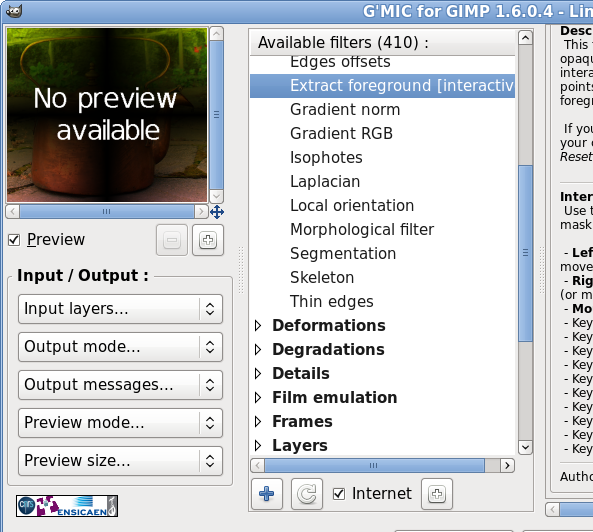
go to Filters > GMIC, In Gmic, go to Contours > click on extract foreground interactive.
When new screen comes up, click the Apply button and that will open up your working window.
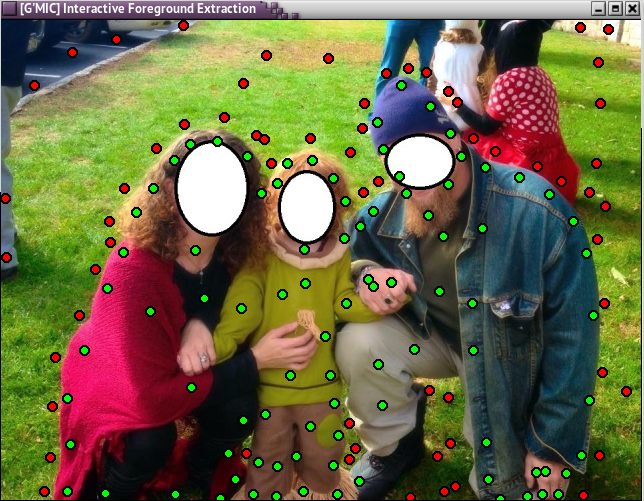
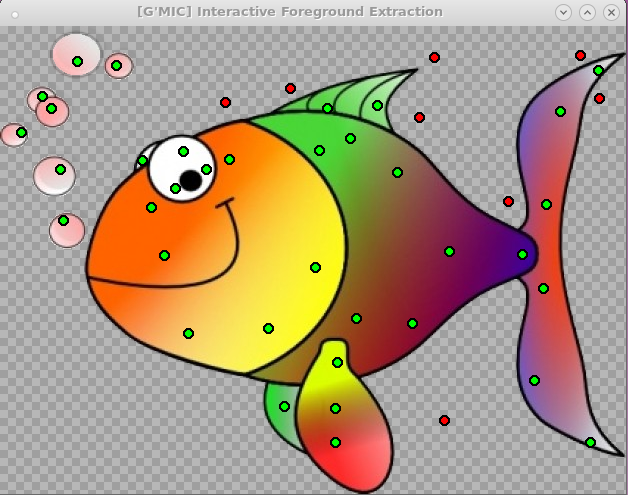
This is done with all red dots and green dots. Left click for green dots (forground to save) right click for red dots (background to remove) When you think you have all your dots in place, press your space bar and it will show you that you background has been removed but it will show a shadow of what was there so you can go over the parts you missed. I missed part of his shoe so I went back and placed some more green dots there and hit space bar again. Keep doing this until you have it the way you are satisfied, then enter. Look at your picture in your layers dialogue and if you missed some of the artifacts, go back and do some more editing with the extract filter, or you can erase or use the lasso tool to clean it up.
BTW, if you should place a red dot where a green one belongs, just left click over the red dot and it will turn green.
I left some artifacts in to show what happens if you don't get them all, just go back and repair them.
 Login
Login Register
 Tweets
 FAQ
FAQ Advanced Search
















.gif)

