It is currently Mon Aug 17, 2026 4:03 pm


All times are UTC - 5 hours [ DST ]


Post new topic Reply to topic  [ 28 posts ]  Go to page 1, 2  Next
Author Message
 Post subject: Choosing palette
PostPosted: Mon Feb 01, 2016 7:30 am  (#1) 
Offline
GimpChat Member
User avatar

Joined: Dec 22, 2011
Posts: 399
GIMP Version: 2.8.14
Operating System: Windows
GIMP Experience: New User


Hiya...is there a way to index a photo to my own palette?

_________________
Image


Share on Facebook Share on Twitter Share on Orkut Share on Digg Share on MySpace Share on Delicious Share on Technorati
Top
 Post subject: Re: Choosing palette
PostPosted: Mon Feb 01, 2016 7:36 am  (#2) 
Offline
GimpChat Member
User avatar

Joined: Aug 13, 2015
Posts: 312
Location: Somewhere between lost and found.
I'm no expert on photo manipulation, but I would think this would be quite difficult if it is even possible. Photos use the entire color spectrum, and a palette that large would be quite big.

You could try:
Colors->Desaturate
Colors->Map->Palette map

But the palette has to be defined first.

_________________
The answer was 42. The question is long forgotten. The computer that solved it is now destroyed.
The MK-2 has been built. Should this be the next question?
(Solve if you can ... ;) )
Image


Top
 Post subject: Re: Choosing palette
PostPosted: Mon Feb 01, 2016 8:35 am  (#3) 
Offline
GimpChat Member
User avatar

Joined: Dec 22, 2011
Posts: 399
jazzon wrote:
I'm no expert on photo manipulation, but I would think this would be quite difficult if it is even possible. Photos use the entire color spectrum, and a palette that large would be quite big.

You could try:
Colors->Desaturate
Colors->Map->Palette map

But the palette has to be defined first.

Thanks....I am looking to create a palette like grayscale but in other colours like browns

_________________
Image


Top
 Post subject: Re: Choosing palette
PostPosted: Mon Feb 01, 2016 8:43 am  (#4) 
Offline
GimpChat Member
User avatar

Joined: Aug 13, 2015
Posts: 312
Location: Somewhere between lost and found.
Hope it helps ya. For that matter I just hope it works, I've never tried it.

_________________
The answer was 42. The question is long forgotten. The computer that solved it is now destroyed.
The MK-2 has been built. Should this be the next question?
(Solve if you can ... ;) )
Image


Top
 Post subject: Re: Choosing palette
PostPosted: Mon Feb 01, 2016 8:56 am  (#5) 
Offline
GimpChat Member
User avatar

Joined: Dec 22, 2011
Posts: 399
jazzon wrote:
Hope it helps ya. For that matter I just hope it works, I've never tried it.

Thanks but don't think that is what I am looking for :)

_________________
Image


Top
 Post subject: Re: Choosing palette
PostPosted: Mon Feb 01, 2016 9:00 am  (#6) 
Offline
GimpChat Member
User avatar

Joined: Dec 08, 2013
Posts: 1088
Maybe this is what you need ... :)


Attachments:
TranslateIntoPalette.jpg
TranslateIntoPalette.jpg [ 469.07 KiB | Viewed 4643 times ]

_________________
Image
Top
 Post subject: Re: Choosing palette
PostPosted: Mon Feb 01, 2016 9:29 am  (#7) 
Offline
GimpChat Member
User avatar

Joined: Aug 13, 2015
Posts: 312
Location: Somewhere between lost and found.
From the Plug-In Browser/Procedure Browser summary for
Colors->Map->Map To Pallete
Quote:
Recolor the image using colors from the active palette

This plug-in maps the contents of the specified drawable with the active palette. It calculates luminosity of each pixel and replaces the pixel by the palette sample at the corresponding index. A complete black pixel becomes the lowest palette entry, and complete white becomes the highest. Works on both Grayscale and RGB image with/without alpha channel.


If I read this right, your palette would have to have at least 256 colors in it already defined.

If I read Your comments above right, You are trying to make the palette from photo... I misunderstood the first time.

SysTemX should have added a link to that plugin. I found it here
I havent tried it yet, but it sounds like what you want.


Attachments:
File comment: The script from registry.gimp.org
translate-into-palette.zip [3.43 KiB]
Downloaded 190 times

_________________
The answer was 42. The question is long forgotten. The computer that solved it is now destroyed.
The MK-2 has been built. Should this be the next question?
(Solve if you can ... ;) )
Image
Top
 Post subject: Re: Choosing palette
PostPosted: Mon Feb 01, 2016 9:37 am  (#8) 
Offline
GimpChat Member
User avatar

Joined: Dec 08, 2013
Posts: 1088
jazzon wrote:
From the Plug-In Browser/Procedure Browser summary for
Colors->Map->Map To Pallete
Quote:
Recolor the image using colors from the active palette

SysTemX should have added a link to that plugin. I found it here
I havent tried it yet, but it sounds like what you want.


SysTemX is on mobile :bigthup ;) ATM. You seem to have it under control though.

_________________
Image


Top
 Post subject: Re: Choosing palette
PostPosted: Mon Feb 01, 2016 9:44 am  (#9) 
Offline
Script Coder
User avatar

Joined: Apr 23, 2010
Posts: 1553
Location: not from Guildford after all
"Colors->Map->Set Color Map" ignores luminosity (should that be what you want).

_________________
Any sufficiently primitive technology is indistinguishable from a rock.


Top
 Post subject: Re: Choosing palette
PostPosted: Mon Feb 01, 2016 9:47 am  (#10) 
Offline
GimpChat Member
User avatar

Joined: Aug 13, 2015
Posts: 312
Location: Somewhere between lost and found.
SysTemX wrote:

SysTemX is on mobile :bigthup ;) ATM. You seem to have it under control though.


I have to piiick ... :rofl

_________________
The answer was 42. The question is long forgotten. The computer that solved it is now destroyed.
The MK-2 has been built. Should this be the next question?
(Solve if you can ... ;) )
Image


Top
 Post subject: Re: Choosing palette
PostPosted: Mon Feb 01, 2016 9:56 am  (#11) 
Offline
GimpChat Member
User avatar

Joined: Aug 13, 2015
Posts: 312
Location: Somewhere between lost and found.
saulgoode wrote:
"Colors->Map->Set Color Map" ignores luminosity (should that be what you want).

This is greyed out for me, as well as the option Image->Mode->Indexed. I assume it is because the current image has LOTS of colors in it. If she uses a photo for here base, wont that have the same issue? (Unless a photo of very few colors/shades...)

_________________
The answer was 42. The question is long forgotten. The computer that solved it is now destroyed.
The MK-2 has been built. Should this be the next question?
(Solve if you can ... ;) )
Image


Top
 Post subject: Re: Choosing palette
PostPosted: Mon Feb 01, 2016 12:01 pm  (#12) 
Offline
GimpChat Member
User avatar

Joined: Dec 22, 2011
Posts: 399
Thanks guys....what I do is index a photo from 256 colours to between 4 - 8. Grayscale is straightforward but wanted to have browns with white and blacks so if possible create my palettes accordingly. Sounds complicated I know lol

_________________
Image


Top
 Post subject: Re: Choosing palette
PostPosted: Mon Feb 01, 2016 7:01 pm  (#13) 
Offline
GimpChat Member
User avatar

Joined: Nov 16, 2011
Posts: 5127
Location: Metro Vancouver, BC
Give the Import Palette dialog a go.

_________________
Image
Gimp 2.8.18, Linux, median user
Gimp Chat Tutorials Index
Spirit Bear (Kermode)


Top
 Post subject: Re: Choosing palette
PostPosted: Mon Feb 01, 2016 7:23 pm  (#14) 
Offline
GimpChat Member
User avatar

Joined: Aug 13, 2015
Posts: 312
Location: Somewhere between lost and found.
Wow. I am shamed. So many years on Gimp and I didn't even know that existed ....

_________________
The answer was 42. The question is long forgotten. The computer that solved it is now destroyed.
The MK-2 has been built. Should this be the next question?
(Solve if you can ... ;) )
Image


Top
 Post subject: Re: Choosing palette
PostPosted: Tue Feb 02, 2016 5:54 am  (#15) 
Offline
GimpChat Member
User avatar

Joined: Dec 22, 2011
Posts: 399
Odinbc wrote:
Give the Import Palette dialog a go.

Thanks...will try that :)
Jazzon we live and learn everyday :)

_________________
Image


Top
 Post subject: Re: Choosing palette
PostPosted: Wed Feb 03, 2016 10:43 am  (#16) 
Offline
GimpChat Member
User avatar

Joined: Aug 13, 2015
Posts: 312
Location: Somewhere between lost and found.
:oops: :rofl

_________________
The answer was 42. The question is long forgotten. The computer that solved it is now destroyed.
The MK-2 has been built. Should this be the next question?
(Solve if you can ... ;) )
Image


Top
 Post subject: Re: Choosing palette
PostPosted: Tue Mar 01, 2016 10:22 am  (#17) 
Offline
GimpChat Member

Joined: Feb 23, 2011
Posts: 70
http://docs.gimp.org/en/gimp-indexed-pa ... ialog.html

I think this is what you are looking for.

_________________
Image


Top
 Post subject: Re: Choosing palette
PostPosted: Thu Mar 03, 2016 3:31 pm  (#18) 
Offline
Script Coder
User avatar

Joined: May 07, 2014
Posts: 4527
Location: Canada
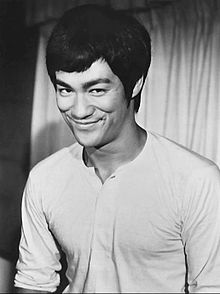
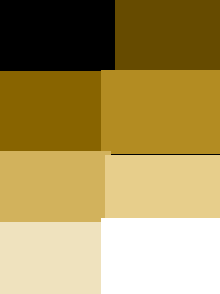
Do you mean something like this?
take a source image like this color or black and white.
Image
and a palette image (here 8 colors that has black white and some yellowish browns).
Image
and get a result like this?
Image

_________________
TinT


Top
 Post subject: Re: Choosing palette
PostPosted: Fri Mar 04, 2016 6:07 am  (#19) 
Offline
GimpChat Member
User avatar

Joined: Dec 22, 2011
Posts: 399
trandoductin wrote:
Do you mean something like this?
take a source image like this color or black and white.
[ Image ]
and a palette image (here 8 colors that has black white and some yellowish browns).
[ Image ]
and get a result like this?
[ Image ]

Yes, exactly what I am looking for :)

_________________
Image


Top
 Post subject: Re: Choosing palette
PostPosted: Fri Mar 04, 2016 1:32 pm  (#20) 
Offline
Script Coder
User avatar

Joined: May 07, 2014
Posts: 4527
Location: Canada
Deblk wrote:
trandoductin wrote:
Do you mean something like this?
take a source image like this color or black and white.
[ Image ]
and a palette image (here 8 colors that has black white and some yellowish browns).
[ Image ]
and get a result like this?
[ Image ]

Yes, exactly what I am looking for :)


Then it's really simple.
First draw your palette colors, or open image with your desired palette.
Count number of colors (call this N).
The Image->Mode->Indexed then click on Generate optimum palette and enter N as maximum number of colors.
Then just copy paste in your desired image (or Open it as layer)...
because the Mode is indexed, it'll force your pasted image (or opened as layer) to match the indexed mode.

_________________
TinT


Top
Post new topic Reply to topic  [ 28 posts ]  Go to page 1, 2  Next

All times are UTC - 5 hours [ DST ]


* Login  


Powered by phpBB3 © phpBB Group