It is currently Sat Jun 27, 2026 1:30 pm


All times are UTC - 5 hours [ DST ]


Post new topic Reply to topic  [ 33 posts ]  Go to page 1, 2  Next
Author Message
 Post subject: Isolating subjects in a photo
PostPosted: Tue May 09, 2017 1:41 pm  (#1) 
Offline
GimpChat Member

Joined: Feb 26, 2014
Posts: 248
GIMP Version: 2.8.14
Operating System: Windows
GIMP Experience: Basic Level


I’m trying to master the art of isolating just the subjects of a photo using Gimp’s Tools (Rectangular Select) and Paint Brush).

Perhaps, there are better (easier ways) to isolate just the subjects so you camouflage the entire background?

Ex. You have 2 lamps sitting on a small table side by side.

The only objects you wish to display in the photo are those 2 lamps, noting else.

It’s very cumbersome trying to draw around the lamps or to paint brush around them.

Is there a magic wand in Gimp where you can wave it all round the photo and say the spell words – “Nothing but lamp” ala Harry Potter and transform the photo into just those 2 lamps and nothing else?

Where do I find that Gimp magic wand?! :)

Thanks so much.


Share on Facebook Share on Twitter Share on Orkut Share on Digg Share on MySpace Share on Delicious Share on Technorati
Top
 Post subject: Re: Isolating subjects in a photo
PostPosted: Tue May 09, 2017 2:13 pm  (#2) 
Offline
GimpChat Member
User avatar

Joined: Apr 09, 2016
Posts: 580
Location: Sheffield UK
Maybe if you post the image, the more experienced (than me) members will suggest which tool to use. It's not so complicated, however, depending on the background a variety of selection tools can be used - including fuzzy select (magic wand) . You'll get there, make duplicates if your concerned about damage, happy Gimping.

_________________
Image


Top
 Post subject: Re: Isolating subjects in a photo
PostPosted: Tue May 09, 2017 2:28 pm  (#3) 
Offline
Administrator
User avatar

Joined: Aug 10, 2012
Posts: 14081
Location: Native to NYC living in Arizona, Gimp 2.8 - 3.0, Win 11 PC.
eagertolearn wrote:
GIMP Version: 2.8.14
Operating System: Windows
GIMP Experience: Basic Level


I’m trying to master the art of isolating just the subjects of a photo using Gimp’s Tools (Rectangular Select) and Paint Brush).

Perhaps, there are better (easier ways) to isolate just the subjects so you camouflage the entire background?

Ex. You have 2 lamps sitting on a small table side by side.

The only objects you wish to display in the photo are those 2 lamps, noting else.

It’s very cumbersome trying to draw around the lamps or to paint brush around them.

Is there a magic wand in Gimp where you can wave it all round the photo and say the spell words – “Nothing but lamp” ala Harry Potter and transform the photo into just those 2 lamps and nothing else?

Where do I find that Gimp magic wand?! :)

Thanks so much.


There is a so called "magic wand" tool,
:fuzzsel,
which is called the "Fuzzy Select" tool.

However,
I think you would be better off using a "Layer Mask".

_________________
Image
"A wise man learns more from a foolish question than a fool can learn from a wise answer"
Image


Top
 Post subject: Re: Isolating subjects in a photo
PostPosted: Tue May 09, 2017 2:32 pm  (#4) 
Offline
GimpChat Member
User avatar

Joined: Jan 06, 2017
Posts: 204
There's always the Scissor Select tool - just click at various points around the object (helps if there are clear lines and maybe a good contrast with the background) once you've connected the curve back to the first point click anywhere inside the curve to convert it into a selection. There are probably quite a few other ways of getting the result you want, but this can be useful tool..


Top
 Post subject: Re: Isolating subjects in a photo
PostPosted: Tue May 09, 2017 3:00 pm  (#5) 
Offline
GimpChat Member

Joined: Oct 30, 2016
Posts: 145
This may be of interest to you.

www.youtube.com Video from : www.youtube.com


Top
 Post subject: Re: Isolating subjects in a photo
PostPosted: Tue May 09, 2017 3:16 pm  (#6) 
Offline
Script Coder
User avatar

Joined: Oct 25, 2010
Posts: 4812
TimeLord wrote:
This may be of interest to you.

www.youtube.com Video from : www.youtube.com


yes, and without additional tools try the Foreground selector.

_________________
Image


Top
 Post subject: Re: Isolating subjects in a photo
PostPosted: Mon May 22, 2017 6:08 pm  (#7) 
Offline
GimpChat Member

Joined: Feb 26, 2014
Posts: 248
Hi All,

My apologies for returning to this topic so late.

I very much appreciate your posts.

I have a jpg but if I right click and copy it I can't paste in here.

I don't see a way to upload.

I guess I'll have to dig up an old account where you upload to a site and they give a url and I can post that url of the jpg.

In the meantime, imagine if you will, you have a tree house and all around that tree house you have branches with pink flowers but all you wanted is a photo (jpg) of nothing but the tree house.

I tried the heal selection tool but that didn't really solve the issue.

That's the goal I'm trying to reach - isolate just the tree house and create a jpg as if the only thing in the photo is the treehouse.

Thanks so much.


Top
 Post subject: Re: Isolating subjects in a photo
PostPosted: Tue May 23, 2017 3:35 am  (#8) 
Offline
GimpChat Member
User avatar

Joined: Aug 16, 2012
Posts: 4271
Location: Göteborg, Sweden
eagertolearn: on this site there are many great tutorials, showing how to use different gimp tools for this. i really wish we had that harry potter wand that just cut out everything you wanted all on its own, but even if there isn't anything that just does all the hard work for you there are many ways of making your work a lot easier. please look at the tutorials on here, i have no time to link you to the right ones now, but they are not hard to find and not hard to follow and you'll learn so many great tricks! good luck with the cutting and if you get your old image uploading account up, share your result :)

_________________


Top
 Post subject: Re: Isolating subjects in a photo
PostPosted: Tue May 23, 2017 3:12 pm  (#9) 
Offline
GimpChat Member

Joined: Feb 26, 2014
Posts: 248
RKJD,

Here's the link to the photo I'm trying to edit so all you see is the tree house.

http://imgur.com/a/6JtKe

Thanks.


Top
 Post subject: Re: Isolating subjects in a photo
PostPosted: Tue May 23, 2017 3:13 pm  (#10) 
Offline
GimpChat Member

Joined: Feb 26, 2014
Posts: 248
Hi Wallace,

Is there a quick tutorial for "Layer Mask"?

Thanks so much.


Top
 Post subject: Re: Isolating subjects in a photo
PostPosted: Tue May 23, 2017 3:36 pm  (#11) 
Offline
Script Coder
User avatar

Joined: Oct 25, 2010
Posts: 4812
https://www.gimp.org/tutorials/Layer_Masks/

_________________
Image


Top
 Post subject: Re: Isolating subjects in a photo
PostPosted: Wed May 24, 2017 4:09 am  (#12) 
Offline
GimpChat Member

Joined: Mar 04, 2011
Posts: 2604
ofnuts wrote:
https://www.gimp.org/tutorials/Layer_Masks/


This is the sort of thing from that reference.
Attachment:
mask.jpg
mask.jpg [ 170.46 KiB | Viewed 2987 times ]


Paint in black to hide / paint in white to uncover.

There is a bit more to it, a bit of cloning to restore the dormer window and remove bits of tree from the roof.

Gimp file attached for you to improve.


Attachments:
tree-house.xcf.gz [850.04 KiB]
Downloaded 84 times
Top
 Post subject: Re: Isolating subjects in a photo
PostPosted: Thu May 25, 2017 11:49 am  (#13) 
Offline
GimpChat Member

Joined: Feb 26, 2014
Posts: 248
Hi ofnuts and rich2005,

Thank you both so much.

I will try to digest all of this.


Top
 Post subject: Re: Isolating subjects in a photo
PostPosted: Fri May 26, 2017 3:14 pm  (#14) 
Offline
GimpChat Member
User avatar

Joined: Jun 06, 2016
Posts: 1033
I could not resist


Attachments:
home of economy.jpg
home of economy.jpg [ 169.74 KiB | Viewed 2930 times ]
Top
 Post subject: Re: Isolating subjects in a photo
PostPosted: Sun Dec 03, 2017 11:01 am  (#15) 
Offline
GimpChat Member

Joined: Feb 26, 2014
Posts: 248
Hi,

I’ve tried my best to replicate the steps in https://www.gimp.org/tutorials/Layer_Masks/ ..but it’s just not accomplishing my goal of isolating the subject in a photo with just colors or geometric patterns around that subject.

I opened a photo (jpg) in Gimp and I can see there’s a Layers tab up top along the right toolbar. I click on that but nothing happens. I then right click on the thumbnail of the photo in that side window and a drop down menu appears where I can choose “Add a Layer Mask”.

Clicking on that opens another drop down menu with white, black, etc, at which point I’m lost. I don’t see what my next step(s) would be to create colors around just the subject of the photo (e.g. the house).

Can you please help me with this disconnect?

Thank you!


Top
 Post subject: Re: Isolating subjects in a photo
PostPosted: Sun Dec 03, 2017 12:31 pm  (#16) 
Offline
Administrator
User avatar

Joined: Aug 10, 2012
Posts: 14081
Location: Native to NYC living in Arizona, Gimp 2.8 - 3.0, Win 11 PC.
eagertolearn wrote:
Hi,

I’ve tried my best to replicate the steps in https://www.gimp.org/tutorials/Layer_Masks/ ..but it’s just not accomplishing my goal of isolating the subject in a photo with just colors or geometric patterns around that subject.

I opened a photo (jpg) in Gimp and I can see there’s a Layers tab up top along the right toolbar. I click on that but nothing happens. I then right click on the thumbnail of the photo in that side window and a drop down menu appears where I can choose “Add a Layer Mask”.

Clicking on that opens another drop down menu with white, black, etc, at which point I’m lost. I don’t see what my next step(s) would be to create colors around just the subject of the photo (e.g. the house).

Can you please help me with this disconnect?

Thank you!

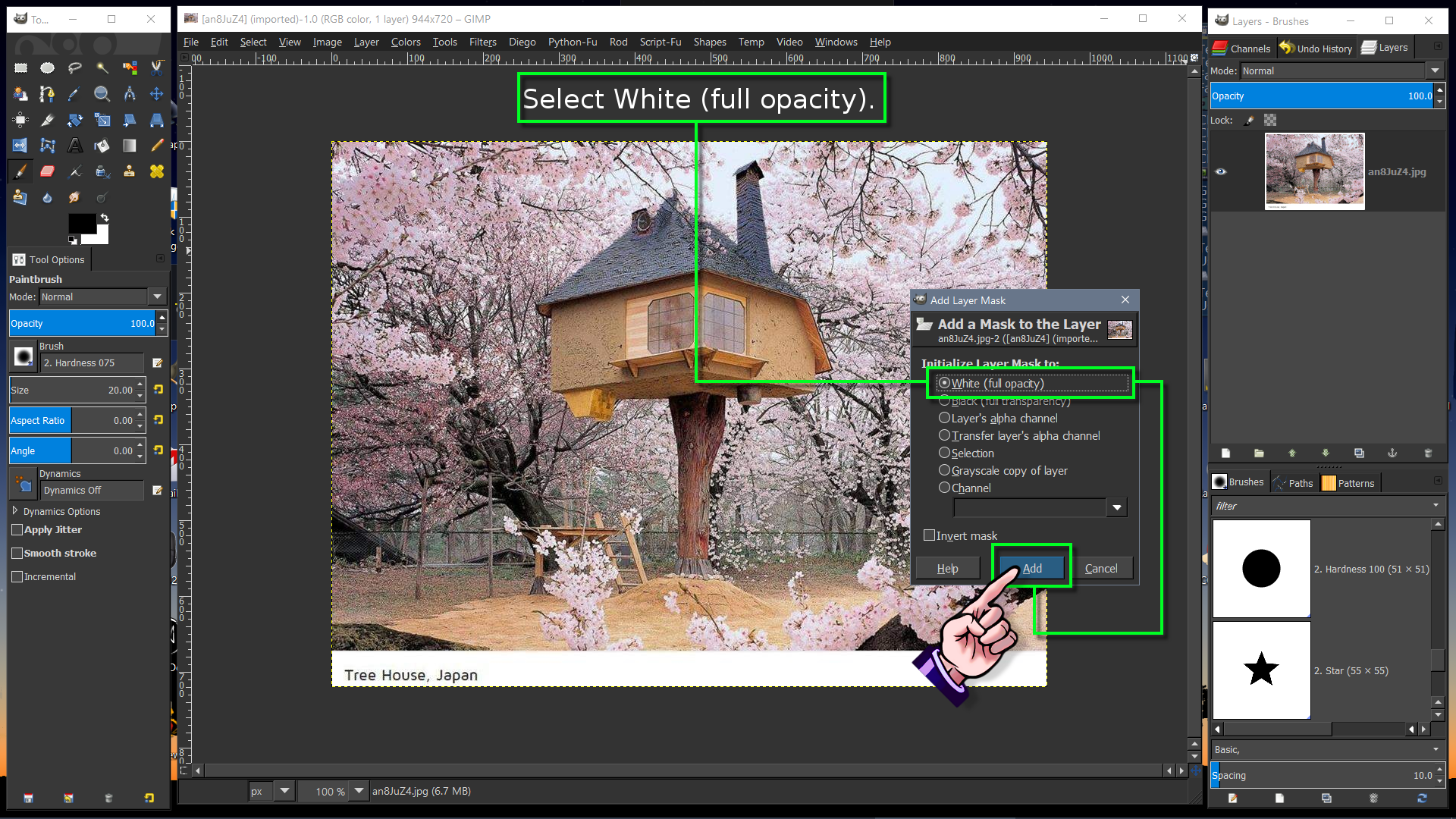
The next step would be this below.

Image

Once you select OK and add the layer mask.
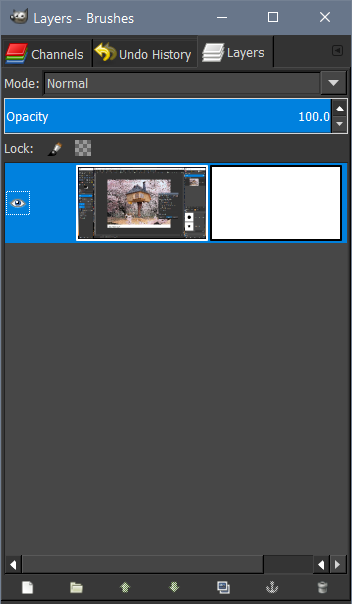
The layer dialog should look like this below.

Image

If you select the white layer mask,
within the layer dialog.
You can begin painting with Black onto the mask.
Painting Black onto the layer mask,
will make those parts disappear,
revealing the alpha channel/transparency.
Painting White onto the layer mask will make any parts painted with black reappear.
This is typically known as non destructive image editing.

_________________
Image
"A wise man learns more from a foolish question than a fool can learn from a wise answer"
Image


Top
 Post subject: Re: Isolating subjects in a photo
PostPosted: Mon Dec 04, 2017 3:35 pm  (#17) 
Offline
GimpChat Member

Joined: Feb 26, 2014
Posts: 248
I'm sorry but everything in the graphic is so tiny I can't read it very well.

How do I reach the point of opening that drop down menu options?

Ex. click Edit and then it opens that drop down menu?

Once I have that menu open I choose White and then Add and then click OK?

Then, once I have the 2 layers I'm not clear about how I recreate or substitute another background (checks or a rooster, etc.) for the current background?

Do I click on the Brush tool icon and then simply brush the white on to cover over the current background?

Is there a quick way rich2005 substituting checks for the original background instead of having to manually brush strokes over the old background?

Thanks so much!


Top
 Post subject: Re: Isolating subjects in a photo
PostPosted: Mon Dec 04, 2017 4:00 pm  (#18) 
Offline
Administrator
User avatar

Joined: Aug 10, 2012
Posts: 14081
Location: Native to NYC living in Arizona, Gimp 2.8 - 3.0, Win 11 PC.
eagertolearn wrote:
I'm sorry but everything in the graphic is so tiny I can't read it very well.

How do I reach the point of opening that drop down menu options?

Ex. click Edit and then it opens that drop down menu?

Once I have that menu open I choose White and then Add and then click OK?

Then, once I have the 2 layers I'm not clear about how I recreate or substitute another background (checks or a rooster, etc.) for the current background?

Do I click on the Brush tool icon and then simply brush the white on to cover over the current background?

Is there a quick way rich2005 substituting checks for the original background instead of having to manually brush strokes over the old background?

Thanks so much!


If you right-click on any layer within the righthand side dock.
A menu will open,
where you can select from a number of options,
including Add Layer Mask.

You can also add a layer mask,
by clicking Layer on the main window's menu and selecting Add Layer Mask.

When the Add Layer Mask dialog pops up.
Select OK and the layer mask will be added.
You should then see another White layer,
next/adjacent to the layer you added the mask to.

Once you've added a layer mask.
You can select the layer mask by clicking on it and then use the paintbrush to paint on it.
Painting on the layer mask itself with Black,
Will make things disappear.
Painting with White within the layer mask.
Will bring back anything that was painted black.

_________________
Image
"A wise man learns more from a foolish question than a fool can learn from a wise answer"
Image


Top
 Post subject: Re: Isolating subjects in a photo
PostPosted: Mon Dec 04, 2017 4:32 pm  (#19) 
Offline
GimpChat Member

Joined: Feb 26, 2014
Posts: 248
I guess where I'm getting lost in all this new nomenclature is the Layer Mask part.

Is there any way I can just "grab" the white in the Layer box and drag it over to the photo and replace that background with the white?

Ex. You taught me I can choose Tools > Rectangular and draw a shape around anything in the picture. Then, I can grab the white background over on the left screen and just dump it into that rectangular box and it fill all that box with white.

Can I do something like that with the Layer Box and brushing?

Or must I manually (laboriously) brush (stroke by stroke) white into the background to replace it?

Thank you!


Top
 Post subject: Re: Isolating subjects in a photo
PostPosted: Mon Dec 04, 2017 4:45 pm  (#20) 
Offline
Administrator
User avatar

Joined: Aug 10, 2012
Posts: 14081
Location: Native to NYC living in Arizona, Gimp 2.8 - 3.0, Win 11 PC.
eagertolearn wrote:
I guess where I'm getting lost in all this new nomenclature is the Layer Mask part.

Is there any way I can just "grab" the white in the Layer box and drag it over to the photo and replace that background with the white?

Ex. You taught me I can choose Tools > Rectangular and draw a shape around anything in the picture. Then, I can grab the white background over on the left screen and just dump it into that rectangular box and it fill all that box with white.

Can I do something like that with the Layer Box and brushing?

Or must I manually (laboriously) brush (stroke by stroke) white into the background to replace it?

Thank you!

You can also use any selection tool on the layer mask as well.
If you're looking to replace the background of any given image.
You first have to remove the background,
cover it up with something else,
or use a mask to hide what you don't want to show.
By layer masking, erasing, filling,
or painting over it somehow.

_________________
Image
"A wise man learns more from a foolish question than a fool can learn from a wise answer"
Image


Top
Post new topic Reply to topic  [ 33 posts ]  Go to page 1, 2  Next

All times are UTC - 5 hours [ DST ]


cron

* Login  


Powered by phpBB3 © phpBB Group