This is a small plug-in for Gimp 2.10 to add scaled and rotated copies of characters to the parent character to try and give the impression of ghosted characters (not in the phantom sense).
Attachment:
 Custom_Font_Ghoster_v0_3.zip [4.14 KiB]
Downloaded 75 times
Custom_Font_Ghoster_v0_3.zip [4.14 KiB]
Downloaded 75 times
Download, unzip and install into your 2.10 user folder.
A pdf of this guide...
Attachment:
 Custom Font Ghoster_03.pdf [870.97 KiB]
Downloaded 76 times
Custom Font Ghoster_03.pdf [870.97 KiB]
Downloaded 76 times
Original example character look…

Call up the dialog from its location:
Filters>>Custom Fonts>>Decorating Tools>>Custom Font Ghoster v0.3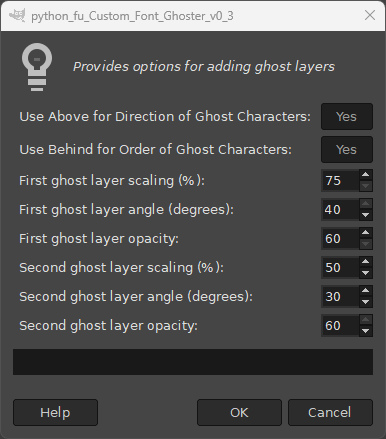
Just hit ‘OK’ to create the ghosted characters look using the default settings…
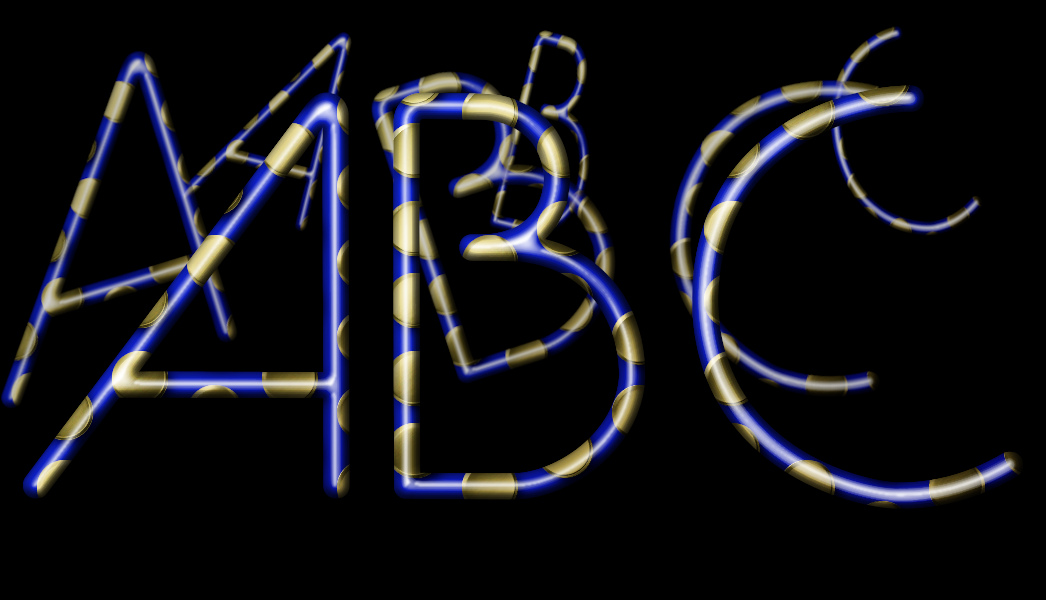
The plug-in inserts two ghost copies of each character into each character layer. The user can adjust the new size and angle of each copy (the filter will apply a certain amount of randomness to the angle) – as well as the opacity of the copy. By default the copies are placed behind the original character and appear to move towards the top edge of the character.
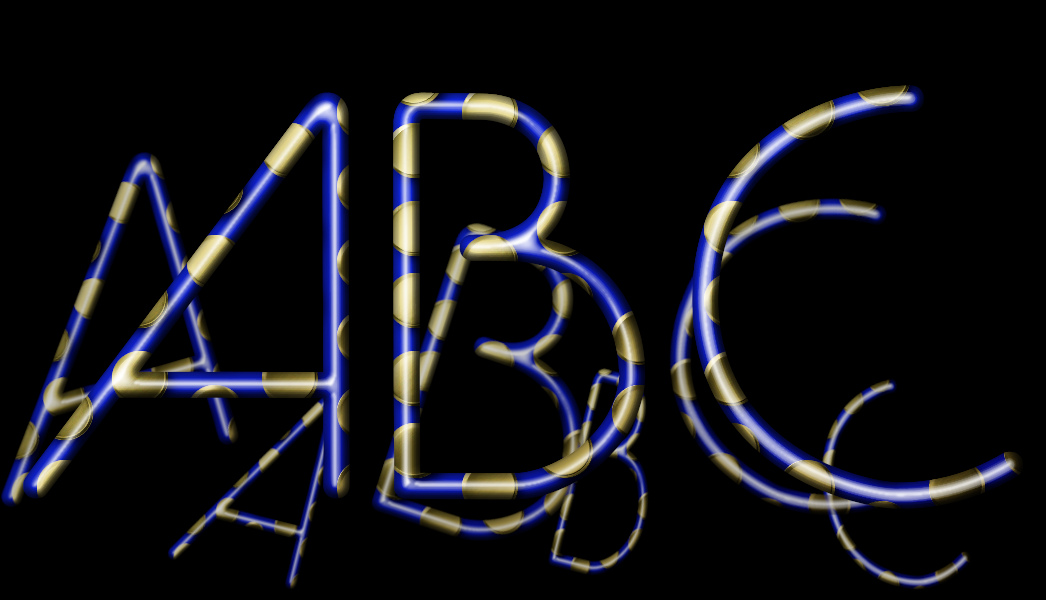
To make the ghost layers appear to move from the bottom edge of the character, click on the first dialog option to set the default option to ‘No’.
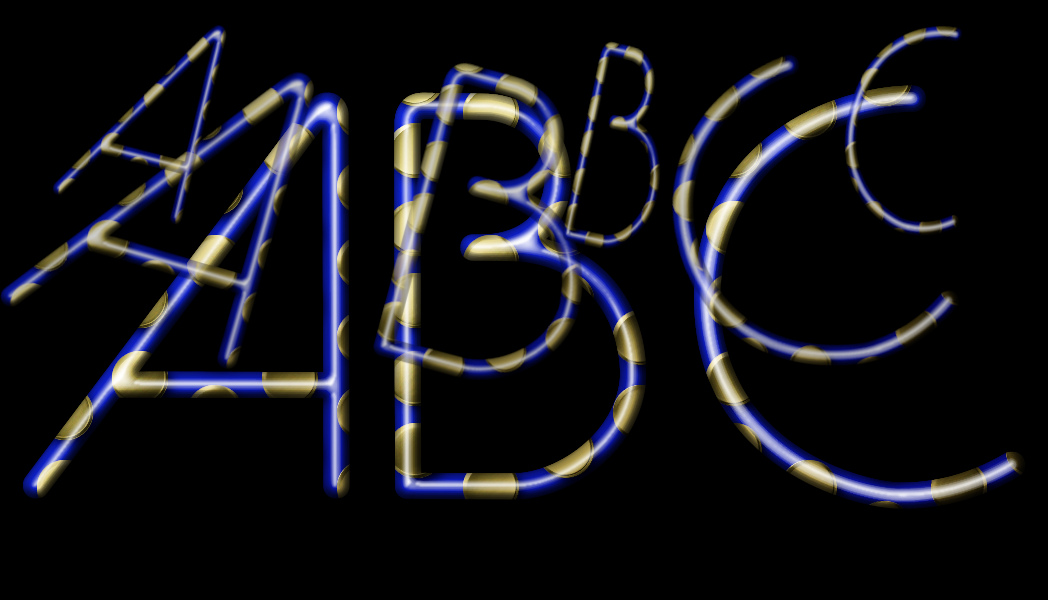
To make the ghost copies appear in front of the character click on the second option on the dialog to set it to ‘No’.
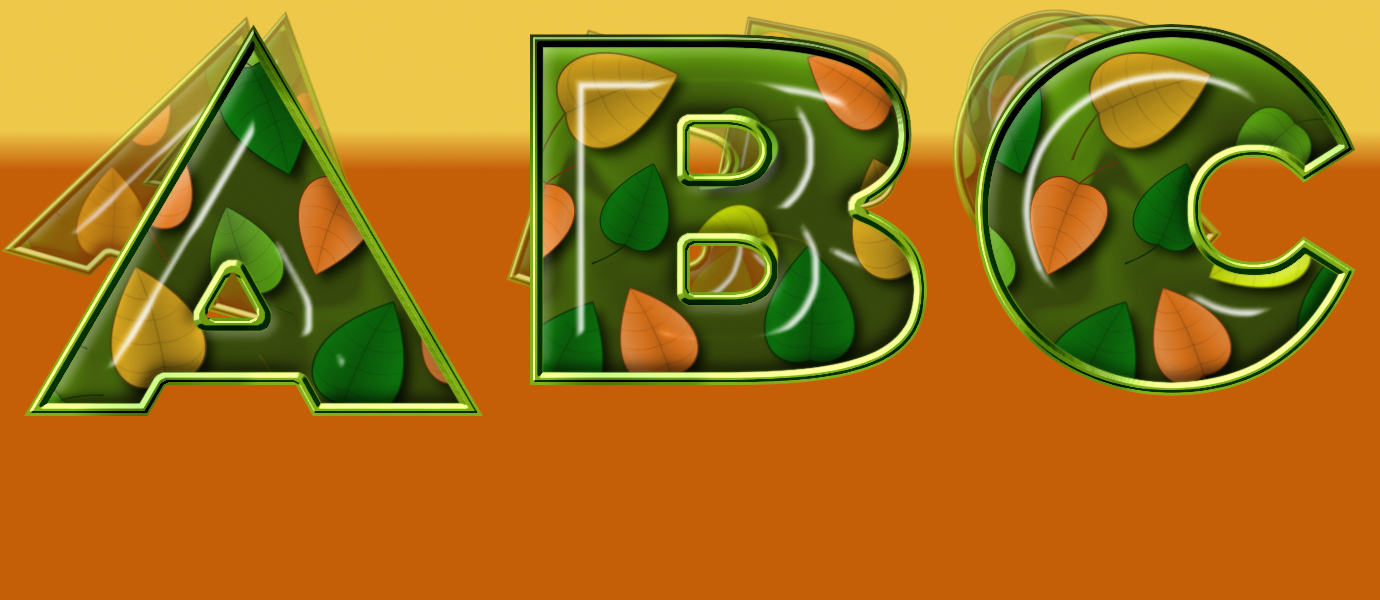
The example custom font above has a fairly generous amount of spacing above the characters, but many custom fonts are quite tight for space.

This does not leave a lot of room to insert the ghost layers:
If this is the case you can quickly add space, as in the example below, to the character layers in a custom font using one of the Spacing options in the Layer Utilities Tool in my Custom Font Tools (see my signature link if you do not have this plug-in).

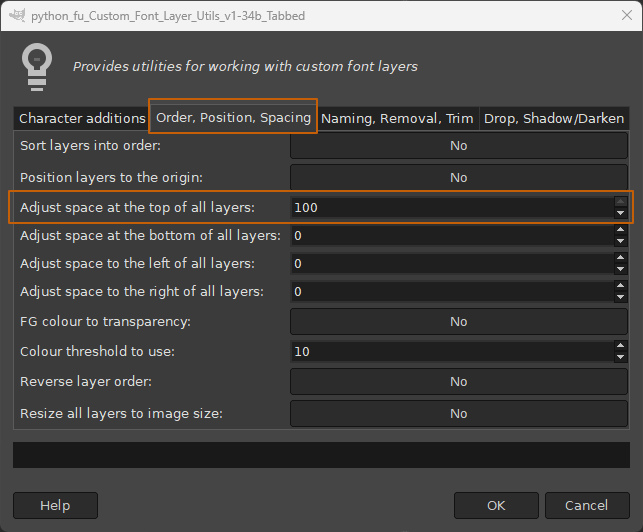
This added space provides more room to display the ‘ghosted’ characters.
Attachment:
 TopSpacedBehind.jpg [ 256.18 KiB | Viewed 1720 times ]
Of course you could always apply the filter twice…

Have fun...
 Login
Login Register
 Tweets
 FAQ
FAQ Advanced Search