- Open your original image
- Create a new layer filled with white
- "Filters->Render->Pattern->Jigsaw" -- Number of tiles = 3x3
- For each of the nine "pieces" of the resulting puzzle, use the Fuzzy Selection Tool
 and 1) click on the center of the piece, 2) "Select->Save to Path", and 3) in the Paths Dialog, rename the path to be the "piece number" (1-9). If your Path dialog is not open, open it with "Windows->Dockable Dialogs->Paths".
Your Layers Dialog and Paths Dialog should now appear like this:
Attachment:
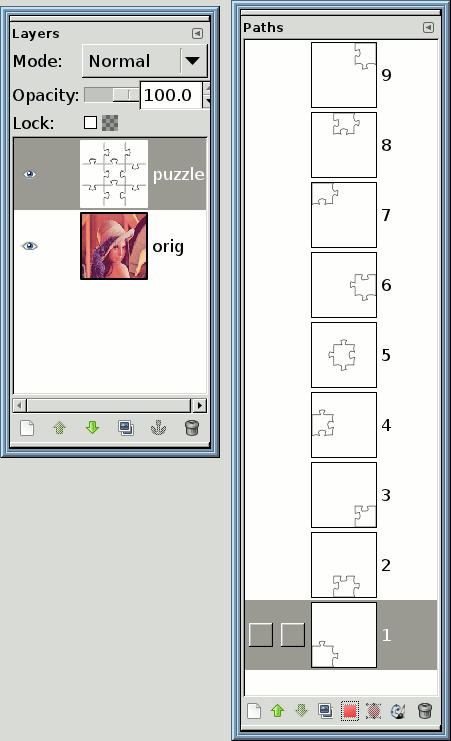 SSpuzzle1.png [ 13.72 KiB | Viewed 2989 times ]
- You can now delete the white puzzle layer.
- Duplicate your original layer nine times so that you end up with 10 layers total.
- "Select->All"
The following steps will be easier if you arrange your windows so that the Layers Dialog and the Paths Dialog are both visible at the same time (you will need to switch back and forth between them). - Click on one of the paths in the Paths Dialog to make it the active path.
- Hold down the CTRL key while you click on the red selection button
 at the bottom of the dialog. This will subtract the region of the path from current selection.
 - Click on the thumbnail preview of the bottommost layer in the Layers Dialog to make it the active layer.
- Perform an "Edit->Clear" (or use the DELETE key).
- Click on one of the other paths in the Paths Dialog (do not use any of the same paths that you used already; I "chain-linked" each path after using it to keep track).
- Hold down the CTRL key while you click on the red selection button at the bottom of the dialog. This will subtract the path's region from the existing selection.
- Click on the thumbnail preview of the next layer up in the Layers Dialog to make it the active layer.
- Perform an "Edit->Clear" (or use the DELETE key).
Here is a screenshot of the Layers Dialog after the first two layers have been processed. Note the checkerboard indicating the transparency around the puzzle pieces.
Attachment:
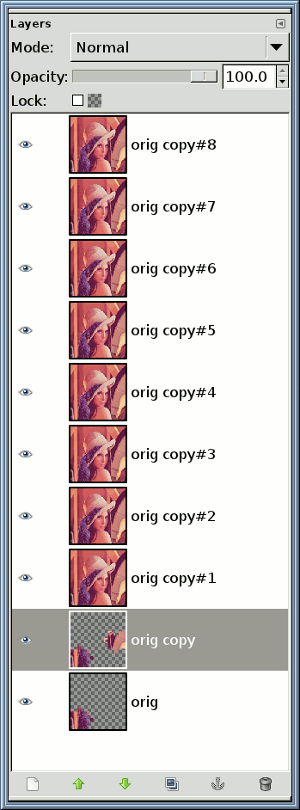 SSpuzzle2.png [ 26.21 KiB | Viewed 2989 times ]
- Repeat steps 12 through 15 seven times until you reach the layer that is just below the topmost layer in the layerstack.
- Add a new layer and fill it with the background pattern of your choice.
- Move the new layer to the bottom of the layerstack.
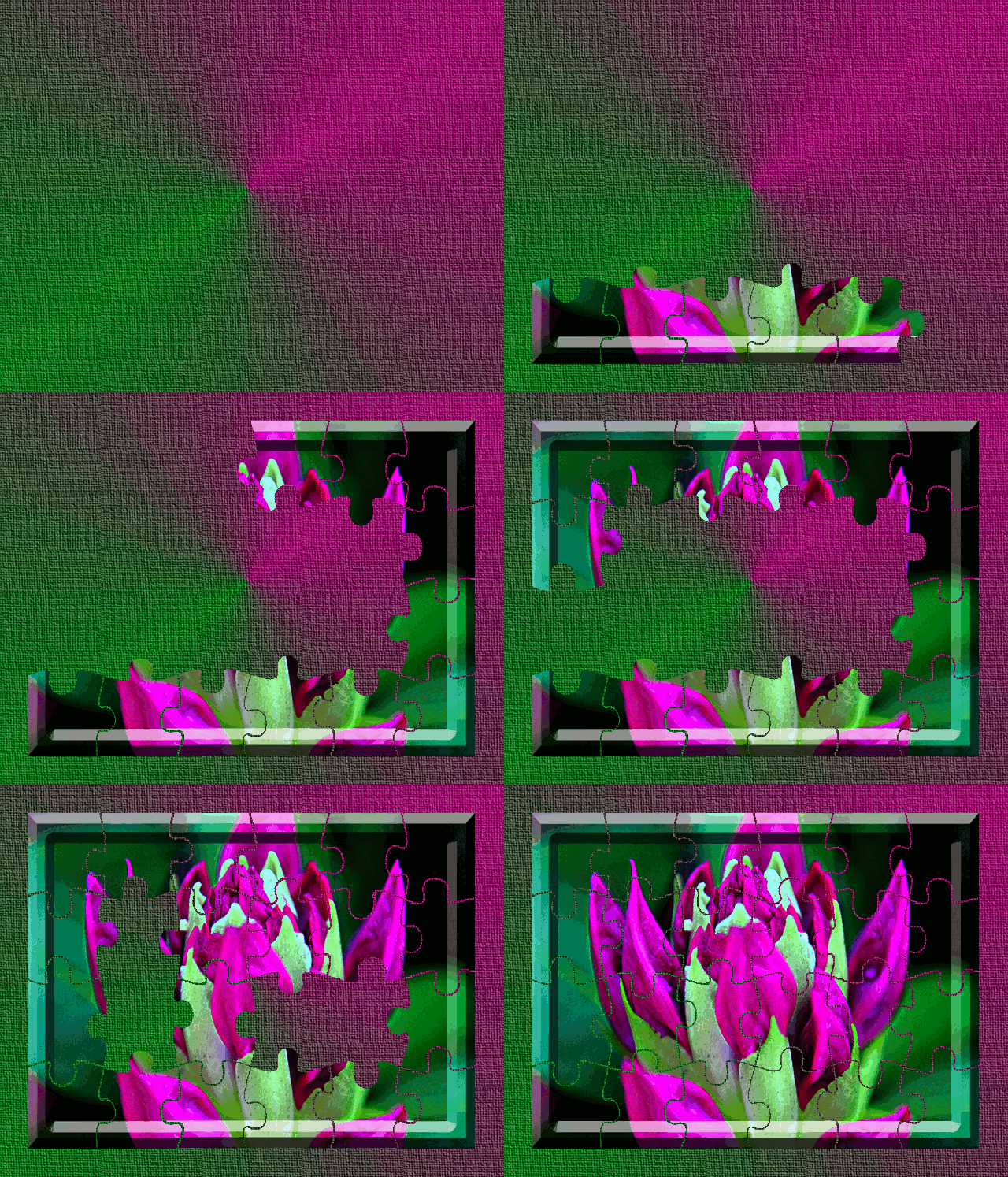
You now have all of the layers of your animation, you can optimize the file ("Filters->Animation->Optimize") and save it with the .gif extension (specify a delay of 1000ms).
Here is my result:
Attachment:
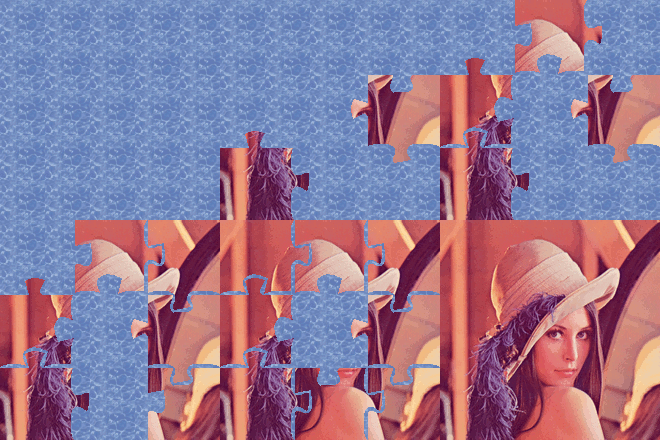 lenna-puzzle.gif [ 63.89 KiB | Viewed 2989 times ]
NOTE: There is another portion of the tutorial which creates a layer that has a few of the pieces "scattered" over the background. Creating this layer is left as an exercise (you should've learned enough about using the paths to cut out pieces of the puzzle, all that remains is moving and rotating them, and adding some shadow effects).
 Login
Login Register
 Tweets
 FAQ
FAQ Advanced Search