It is currently Wed Sep 30, 2026 8:22 pm


All times are UTC - 5 hours [ DST ]


Post new topic Reply to topic  [ 47 posts ]  Go to page Previous  1, 2, 3  Next
Author Message
 Post subject: Re: Directional gradient along a path
PostPosted: Sun Dec 02, 2012 2:51 pm  (#21) 
Offline
GimpChat Member
User avatar

Joined: Nov 09, 2011
Posts: 726
Experimenting with different brushes and effects:
Image

This is fun and perhaps addictive :)

_________________
Image
Be patient, English is not my language.


Top
 Post subject: Re: Directional gradient along a path
PostPosted: Sun Dec 02, 2012 8:58 pm  (#22) 
Offline
GimpChat Member
User avatar

Joined: May 26, 2012
Posts: 342
Location: France
K1TesseraEna wrote:
Can you reproduce the last image in GIMP?
[ Image ]


Not tested but after a brief look, I think this could be reproduced in 2.6 with two brushstrokes:

- First brushtroke with a hard edge brush set up the gradient (black-blue to mid-grey-blue) and fill the path 100%.
- Second brushtroke uses a high-grey-blue starting from the top with fade in activated and uses a soft edge brush which will shade the sides so they feel 3Dimensional.


Top
 Post subject: Re: Directional gradient along a path
PostPosted: Sun Dec 02, 2012 9:38 pm  (#23) 
Offline
GimpChat Member
User avatar

Joined: Sep 22, 2012
Posts: 2089
Location: US
anarkhya wrote:
Not tested but after a brief look, I think this could be reproduced in 2.6 with two brushstrokes:

- First brushtroke with a hard edge brush set up the gradient (black-blue to mid-grey-blue) and fill the path 100%.
- Second brushtroke uses a high-grey-blue starting from the top with fade in activated and uses a soft edge brush which will shade the sides so they feel 3Dimensional.


Well, it's not that simple as it may seem. If you watched the video from the second link in my first post, it's a presentation of a "new, exciting feature"
in CS6 Adobe Illustrator (also referred to as a "real magic" in that video). And CS6 is packed with quite sophisticated software. The reproduction method you've described was possible in Photoshop 7, the predecessor of CS series. Applying gradient along, and especially across, the path in complex objects like spirals in that video is something that can't be easily achieved in GIMP 2 or even in Inkscape (the vector graphics editor similar to AI). YAFU and Esper suggested a workaround based on mahvin's technique and RobA's path blend script. You can get close results with those but only to reproduce a directional gradient along the path with more or less success. Making a gradient stroke across the length of a spiral is still a 'magic' for many image editors.


Top
 Post subject: Re: Directional gradient along a path
PostPosted: Tue Dec 11, 2012 9:03 am  (#24) 
Offline
GimpChat Member
User avatar

Joined: Sep 22, 2012
Posts: 2089
Location: US
Another way to fake irregular gradient - interpolate path

Image


Top
 Post subject: Re: Directional gradient along a path
PostPosted: Tue Dec 11, 2012 10:11 am  (#25) 
Offline
GimpChat Member
User avatar

Joined: Sep 22, 2012
Posts: 2089
Location: US
Image


Top
 Post subject: Re: Directional gradient along a path
PostPosted: Tue Dec 11, 2012 10:23 am  (#26) 
Offline
GimpChat Member
User avatar

Joined: Aug 30, 2012
Posts: 2174
interpolate path ???????

_________________
Image


Top
 Post subject: Re: Directional gradient along a path
PostPosted: Tue Dec 11, 2012 10:43 am  (#27) 
Offline
GimpChat Member
User avatar

Joined: Sep 22, 2012
Posts: 2089
Location: US
;) this was made with interpolate paths in inkscape. In GIMP there is inteprolate paths plugin (Generate intermediate paths by Ofnuts) but I haven't tried it to reproduce this effect. Don't remember if it can interpolate styles (colors in gimp terms)


Top
 Post subject: Re: Directional gradient along a path
PostPosted: Tue Dec 11, 2012 11:07 am  (#28) 
Offline
GimpChat Member
User avatar

Joined: Sep 22, 2012
Posts: 2089
Location: US
I've just tried Ofnuts' script to generate intermediate paths. I created two identical curved paths, moved them apart at 90 pxls and ran the script set to 50 total steps. 50 additional paths were created, but not between start and end paths, not offset. Probably 50 is too much for the script or there was something I didn't do right. But I am sure it's possible to write a script which would create intermediate paths between defined start- and end-point and stroke each path with colors changing according to chosen gradient. Thus this irregular gradient effect could be reproduced in GIMP. Hope Ofnuts reads this thread, he's one of the best paths script writers out there.

Something like this could be achieved with such a script as well

Image


Top
 Post subject: Re: Directional gradient along a path
PostPosted: Sun May 26, 2013 9:02 pm  (#29) 
Offline
GimpChat Member

Joined: May 26, 2013
Posts: 6
So I am to understand from the preceding messages that there is no way to easily create a gradient along or across a stroke using either GIMP or Inkscape... Very disappointing. I am also finding it impossible to produce such an item within an SVG file using Illustrator CS6 either: the stroke looks fine in Illustrator, but if I convert the file to an SVG and then open it in Internet Explorer or Firefox, my stroke appears to have been converted into a blocky raster instead. Is there no graphics program capable of producing a stroke vector with a gradient that goes along or across it?? Is this really such a mysterious thing? I am baffled that it appears so baffling. Someone please tell me I am wrong...


Top
 Post subject: Re: Directional gradient along a path
PostPosted: Mon May 27, 2013 2:34 am  (#30) 
Offline
GimpChat Member
User avatar

Joined: Sep 22, 2012
Posts: 2089
Location: US
kds4444 wrote:
So I am to understand from the preceding messages that there is no way to easily create a gradient along or across a stroke using either GIMP or Inkscape... Very disappointing. I am also finding it impossible to produce such an item within an SVG file using Illustrator CS6 either: the stroke looks fine in Illustrator, but if I convert the file to an SVG and then open it in Internet Explorer or Firefox, my stroke appears to have been converted into a blocky raster instead. Is there no graphics program capable of producing a stroke vector with a gradient that goes along or across it?? Is this really such a mysterious thing? I am baffled that it appears so baffling. Someone please tell me I am wrong...


It is possible to stroke along a path with gradient brush in gimp, but not across.
It is possible to fake gradient along a path by interpolating paths in Inkscape, but not possible to do across.

As for AI CS6, i'm not sure what you mean. It does create a perfect gradient along and across a stroke (path)
that looks great after parsing it to bitmap (png file) or svg file (using Chrome browser to display svg image).

Sorry, it's getting very late on the east coast, will come back tomorrow with some examples.


Top
 Post subject: Re: Directional gradient along a path
PostPosted: Mon May 27, 2013 10:39 am  (#31) 
Offline
GimpChat Member

Joined: May 26, 2013
Posts: 6
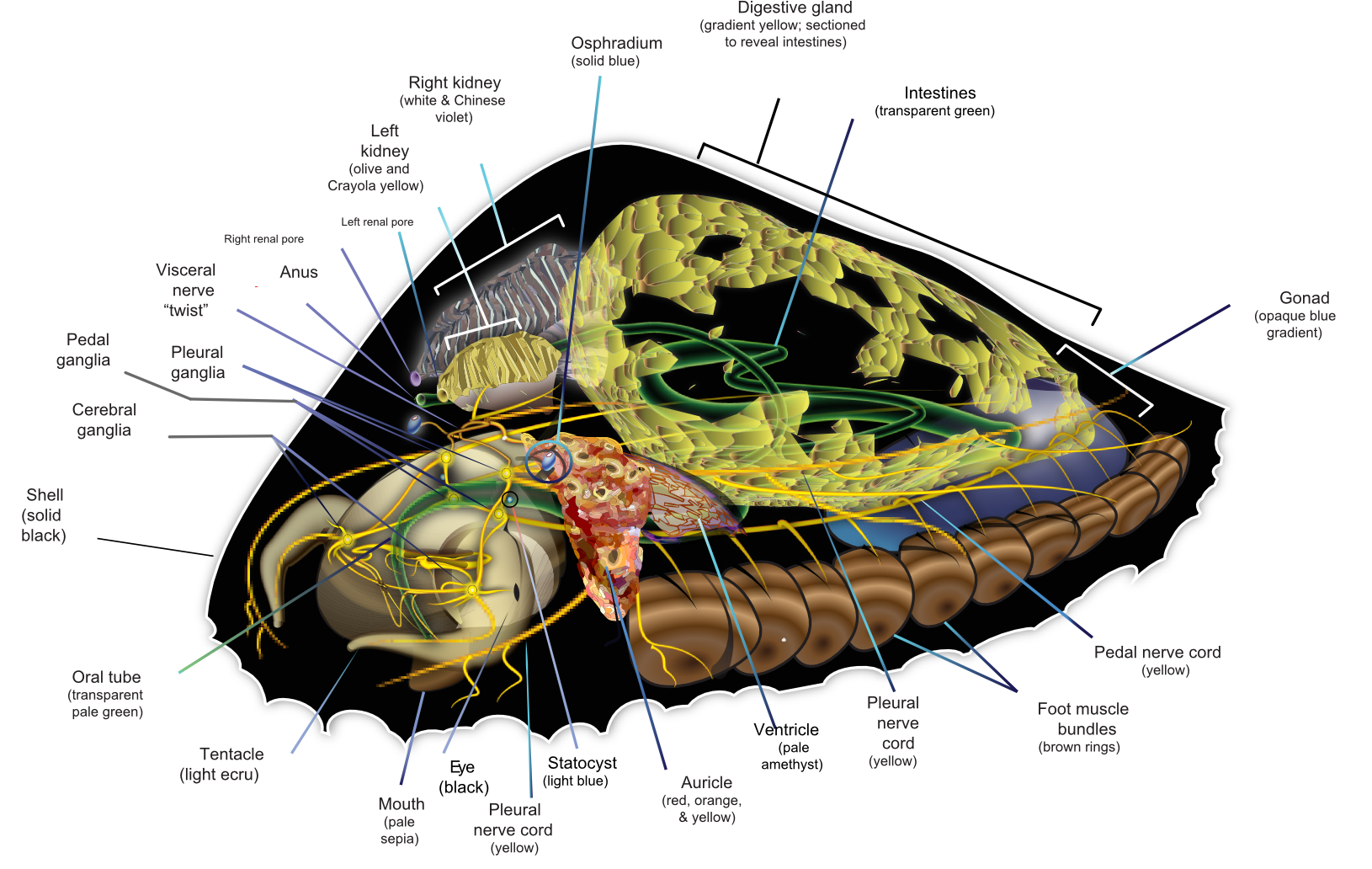
Here is an example of a file with which I have been having this difficulty:

upload.
wikimedia.
org/
wikipedia/
commons/
archive/3/32/
20130425093914!Saltwater_Limpet_Diagram-en.svg

(Put that all on one line— the gimpchat machine would not let me post the URL properly, calling it "spammy").

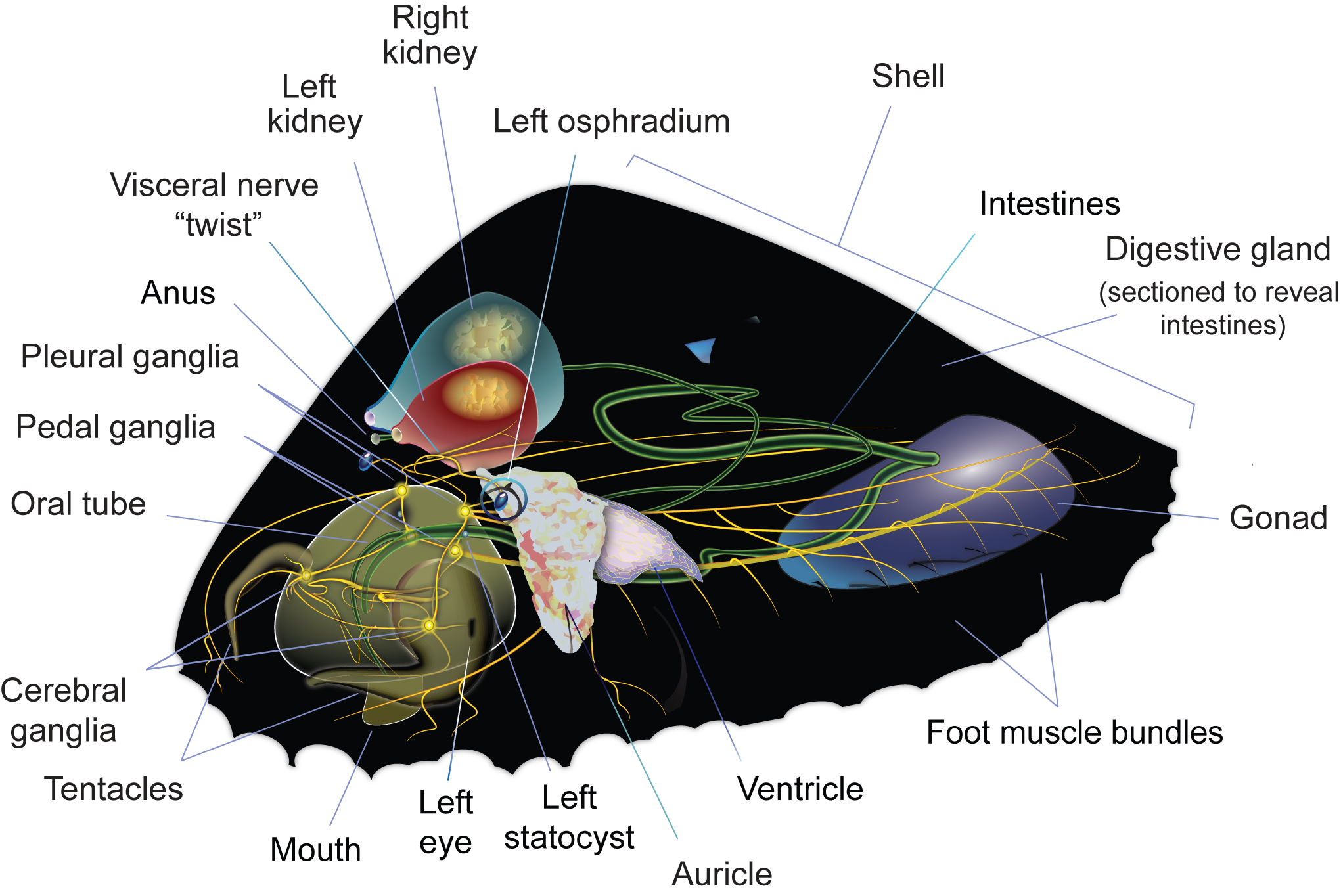
Note the yellow "nerve cords" on the far left, hooking around the animal's head: these are strokes with gradients across them, and they have always come out looking like they've been through a blender. I was hoping to find some other graphics program— ANY program— that could do what AI pretends to do with this kind of object (in AI, the image looks just fine!).

Having said this, I just attempted to create a simple image of a single stroke with a gradient across it using AI, and the SVG version of it, well... it looks like it turned out looking ok.

So now I am super stumped.

Here's another image, this time of just the intestines, converted into PNG format (GIMP would not let me upload SVGs). Again, you can see the jagged edges (yes?). This is another stroke with a gradient across it which looks fine in AI and gets clobbered when AI converts it to an SVG image:
Attachment:
Untitled-2av.png
Untitled-2av.png [ 19.52 KiB | Viewed 5951 times ]


(But can you even see it up close enough here to tell??)

Here is another copy of the same image with a straight stroke that has a radial gradient along side the squiggly intestine. Can you see the difference now?

Attachment:
Untitled-2n.png
Untitled-2n.png [ 19.49 KiB | Viewed 5950 times ]


Lastly, here is how the green intestines appear— more or less— in Adobe Illustrator: clean, crisp (but here rendered as a bitmap and not a vector... which is exactly the problem):
Attachment:
Untitled-2n.jpg
Untitled-2n.jpg [ 768.1 KiB | Viewed 5948 times ]


(and then, just to make the confusion complete, look at the difference between the intestines as rendered in the first image by itself and then in the second image with the straight line: the one giving me the problems looks WORSE in the second image, and the only difference between them is the addition of the straight line! WTF??)


Last edited by kds4444 on Mon May 27, 2013 11:46 am, edited 2 times in total.

Top
 Post subject: Re: Directional gradient along a path
PostPosted: Mon May 27, 2013 11:33 am  (#32) 
Offline
GimpChat Member
User avatar

Joined: Sep 22, 2012
Posts: 2089
Location: US
I see what you mean now.
This is Inkscape converted png image.
Image

But when I open your svg file in AI CS6 and single out one of the yellow jugged nerve branches, it seems to me
nerve itself isn't a stroke (path) but rasterized layer instead.

Image

AI detected some png bitmap on opening. I can't tell what's wrong until i have .ai file with all paths.
As svg file those nerve strings are not paths and thus not editable.
The same is actually with Inkscape that jagged nerve is not a vector, it's raster image.

Image


Top
 Post subject: Re: Directional gradient along a path
PostPosted: Mon May 27, 2013 1:31 pm  (#33) 
Offline
GimpChat Member

Joined: May 26, 2013
Posts: 6
Thank you for taking such a thorough look at this. What you are seeing is exactly what I am experiencing: a raster image where a vector should be. I will gladly let you look at the .ai version of the file, but GIMP won't let me upload it here and Wikimedia forbids it as well— any suggestions?? I have gmail and yahoo accounts-- could I make the file available through one of them? Or should I send it to you directly?


Top
 Post subject: Re: Directional gradient along a path
PostPosted: Mon May 27, 2013 1:52 pm  (#34) 
Offline
GimpChat Member
User avatar

Joined: Sep 22, 2012
Posts: 2089
Location: US
kds4444 wrote:
Thank you for taking such a thorough look at this. What you are seeing is exactly what I am experiencing: a raster image where a vector should be. I will gladly let you look at the .ai version of the file, but GIMP won't let me upload it here and Wikimedia forbids it as well— any suggestions?? I have gmail and yahoo accounts-- could I make the file available through one of them? Or should I send it to you directly?


You'll be able to post links after your 5th post. But I think you can still attach zipped svg or ai files regardless of your
probational status here ;)


Top
 Post subject: Re: Directional gradient along a path
PostPosted: Mon May 27, 2013 2:19 pm  (#35) 
Offline
GimpChat Member

Joined: May 26, 2013
Posts: 6
You are correct:

Attachment:
limpet.zip [3.33 MiB]
Downloaded 171 times


Top
 Post subject: Re: Directional gradient along a path
PostPosted: Mon May 27, 2013 3:39 pm  (#36) 
Offline
GimpChat Member
User avatar

Joined: Sep 22, 2012
Posts: 2089
Location: US
I got it sorted out.
When I exported your original ai file as PNG it resulted in jagged raster image.
The reason is obvious - it has to do with image resolution and ppi which in this case was
parsing to bitmap with more resolution than display could allow.

I selected all objects and copy/pasted to a new document with 1200 X 1200 pixels. (you original bg was around 500 x 500)
Then I scaled up all objects with preserved aspect ratio and voila!
Exporting new document as PNG resulted in this image. No jagged lines, no pixelation.
PNG export settings PPI 150, Supersampling, Interlaced.


[Expand to actual size to see full image - press little square box with an arrow]
Image

Sorry, feet muscle group got lost along the way, but it's not important. Now you can scale your raster image down
to desirable size without losing quality.


Top
 Post subject: Re: Directional gradient along a path
PostPosted: Mon May 27, 2013 3:47 pm  (#37) 
Offline
GimpChat Member

Joined: Feb 01, 2013
Posts: 24
Location: London, UK
GIMP will generate a gradient transverse to the path if you copy the gradient to use as your brush and then use stroke with brush dynamics set to "track direction" but because this applies multiple stamps the result can be quite rough and ugly in places (reduce spacing, use a thin brush, soften brush edge, create enlarged version of path and scale down)

alternatively use "path-to-selection" to colour interior and exterior regions in a fresh layer, then blur to turn that into a a gradient aligned with the path and then apply a mask from the border of that region to emulate the path .. clunky but this sort of method is often used to get soft shadows under text

here is an example using both those techniques


Attachments:
File comment: transverse gradients on a path given two approaches : multicolour brush stroke and blurred interior/exterior
loops with transverse gradient.jpg
loops with transverse gradient.jpg [ 18.59 KiB | Viewed 5924 times ]

_________________
-- jayprich
Top
 Post subject: Re: Directional gradient along a path
PostPosted: Mon May 27, 2013 4:17 pm  (#38) 
Offline
GimpChat Member
User avatar

Joined: Sep 22, 2012
Posts: 2089
Location: US
Well, gimp kind of does that with the technique you described, but it isn't good enough.
I believe a better result can be achieved with RobA's script, see http://www.gimpchat.com/viewtopic.php?f=9&t=4066


What I meant when I started this thread was a clean cut gradient along or across a path.
Like the examples below. Both effects can be achieved in GIMP with some degree of success
but it requires way too many steps or a script.

Image

Image

Image


Top
 Post subject: Re: Directional gradient along a path
PostPosted: Mon May 27, 2013 4:47 pm  (#39) 
Offline
GimpChat Member
User avatar

Joined: Nov 09, 2011
Posts: 726
I can get this using stoke path emulating dynamics with Airbrush and using that circle you can see in the image as a brush, from the clipboard. Brush spacing = 1:
Image
If you use the paintbrush then appear jagged edges.

But as you want a vector graphic I do not know if there is any program that can do the conversion from bitmap with good quality.

I think GIMP developers could make a very powerful tool for stroke along path. For example for the crossings they could make GIMP detect when a stroke must pass in front or behind. Maybe that could be done by marking paths in two layers, top layers for front strokes and bottom layer for strokes that must pass behind. Also should improve jagged edges when using paintbrush.

_________________
Image
Be patient, English is not my language.


Last edited by YAFU on Mon May 27, 2013 5:46 pm, edited 1 time in total.

Top
 Post subject: Re: Directional gradient along a path
PostPosted: Mon May 27, 2013 5:00 pm  (#40) 
Offline
GimpChat Member
User avatar

Joined: Sep 22, 2012
Posts: 2089
Location: US
YAFU wrote:
I think GIMP developers could make a very powerful tool for stroke along path. For example for the crossings they could make GIMP detect when a stroke must pass in front or behind. Maybe that could be done by marking paths in two layers, top layers for front strokes and bottom layer for strokes that must pass behind. Also should improve jagged edges when using paintbrush.


I think that would open up a new world of possibilities in GIMP.

Nicely done, YAFU. Your method is quite unique (using airbrush instead of brushstroke)
and yields a very good result.
I doubt gimp developers are aware of these possibilities, as it is often the case the developers
are not artists and sometimes can't envision everything that can be done using the codes they have
written :hehe . But this is totally doable in gimp and a few new features for gradient tool would be
sensational indeed.


Top
Post new topic Reply to topic  [ 47 posts ]  Go to page Previous  1, 2, 3  Next

All times are UTC - 5 hours [ DST ]


* Login  


Powered by phpBB3 © phpBB Group