It is currently Mon Nov 23, 2026 7:42 pm


All times are UTC - 5 hours [ DST ]


Post new topic Reply to topic  [ 26 posts ]  Go to page 1, 2  Next
Author Message
 Post subject: Select area not to be touched help?
PostPosted: Wed May 14, 2014 6:09 am  (#1) 
Offline
GimpChat Member
User avatar

Joined: Dec 22, 2011
Posts: 399
GIMP Version: 2.8.10
Operating System: Windows
GIMP Experience: Beginner Level


Hiya...I have a photo and would like to be able to select an area that can then be left alone whilst changing colours in the rest of the photo. The section I want to leave alone also has some of the colours I want to change in the rest of the photo and even though I have selected the area I want to leave out still gets changed when I use the 'select by colour' tool to change colours outside that area. Is there a simple solution please?

I hope these makes sense lol

_________________
Image


Share on Facebook Share on Twitter Share on Orkut Share on Digg Share on MySpace Share on Delicious Share on Technorati
Top
 Post subject: Re: Select area not to be touched help?
PostPosted: Wed May 14, 2014 6:23 am  (#2) 
Offline
GimpChat Member
User avatar

Joined: Jan 20, 2013
Posts: 14835
Location: roma, italy
Did you click on the third selection mode in the "Select by Colour" which means "Subtract from the current selection (after having inverted the selection of what you want to keep)?
Ciao

edit: it is the forth mode "Intersect" which has to be activated

see my example (cutting only the green part which was not "kept")

Attachment:
before.png
before.png [ 56.61 KiB | Viewed 5320 times ]


Attachment:
after.png
after.png [ 65.16 KiB | Viewed 5320 times ]

_________________
"Where am I ?"


Top
 Post subject: Re: Select area not to be touched help?
PostPosted: Wed May 14, 2014 6:51 am  (#3) 
Offline
Script Coder
User avatar

Joined: Oct 25, 2010
Posts: 4812
You can mix and match selections:
- select the area and invert the selection
- in the color selector, set "Mode" to "intersect" (right most icon)

You can do even more complex things if you save your selections to channels. See here for some more details.

_________________
Image


Top
 Post subject: Re: Select area not to be touched help?
PostPosted: Wed May 14, 2014 7:13 am  (#4) 
Offline
GimpChat Member
User avatar

Joined: Dec 22, 2011
Posts: 399
Thanks guys but still a little confused.
What I did was mask the object I wanted to keep so I could just select that area then unmask so now it is selected...Still not sure how to work on the rest of the photo without effecting the selected area. What is the 3rd selection mode? Where is the 'intersect mode'? I tried inverting but was still being effected:(

_________________
Image


Top
 Post subject: Re: Select area not to be touched help?
PostPosted: Wed May 14, 2014 7:26 am  (#5) 
Offline
GimpChat Member
User avatar

Joined: Dec 22, 2011
Posts: 399
Thought I sorted it but haven't. I am cutting the selected area tweaking the rest of the photo then pasting back but not easy to line up lol :(

_________________
Image


Top
 Post subject: Re: Select area not to be touched help?
PostPosted: Wed May 14, 2014 7:45 am  (#6) 
Offline
Script Coder
User avatar

Joined: Apr 23, 2010
Posts: 1553
Location: not from Guildford after all
  • Select the region you don't want to change.
  • Duplicate your layer.
  • Add a layermask ("Layer->Mask->Add Layer Mask") and in the dialog box that appears choose the Initialize To: "Selection" option and check the "Invert mask" box.
  • "Select->None".
  • Click on the top layer's thumbnail preview in the Layers dialog (to make it active).

Make your color changes. Even though you will be changing the entire layer, wherever the layermask is black, the unchanged original layer underneath will be revealed.

This is basically how selections work to mask changes; doing it this way may just help you understand what's going on.

_________________
Any sufficiently primitive technology is indistinguishable from a rock.


Top
 Post subject: Re: Select area not to be touched help?
PostPosted: Wed May 14, 2014 7:51 am  (#7) 
Offline
GimpChat Member
User avatar

Joined: Dec 22, 2011
Posts: 399
saulgoode wrote:
  • Select the region you don't want to change.
  • Duplicate your layer.
  • Add a layermask ("Layer->Mask->Add Layer Mask") and in the dialog box that appears choose the Initialize To: "Selection" option and check the "Invert mask" box.
  • "Select->None".
  • Click on the top layer's thumbnail preview in the Layers dialog (to make it active).

Make your color changes. Even though you will be changing the entire layer, wherever the layermask is black, the unchanged original layer underneath will be revealed.

This is basically how selections work to mask changes; doing it this way may just help you understand what's going on.


Yes, thank you. Was thinking I should be using my layers...will give it a go, thanks again :)

_________________
Image


Top
 Post subject: Re: Select area not to be touched help?
PostPosted: Wed May 14, 2014 7:58 am  (#8) 
Offline
GimpChat Member
User avatar

Joined: Apr 07, 2010
Posts: 14182
Image

_________________
Image


Top
 Post subject: Re: Select area not to be touched help?
PostPosted: Wed May 14, 2014 8:09 am  (#9) 
Offline
GimpChat Member
User avatar

Joined: Jun 24, 2010
Posts: 504
Location: Western Vic Australia
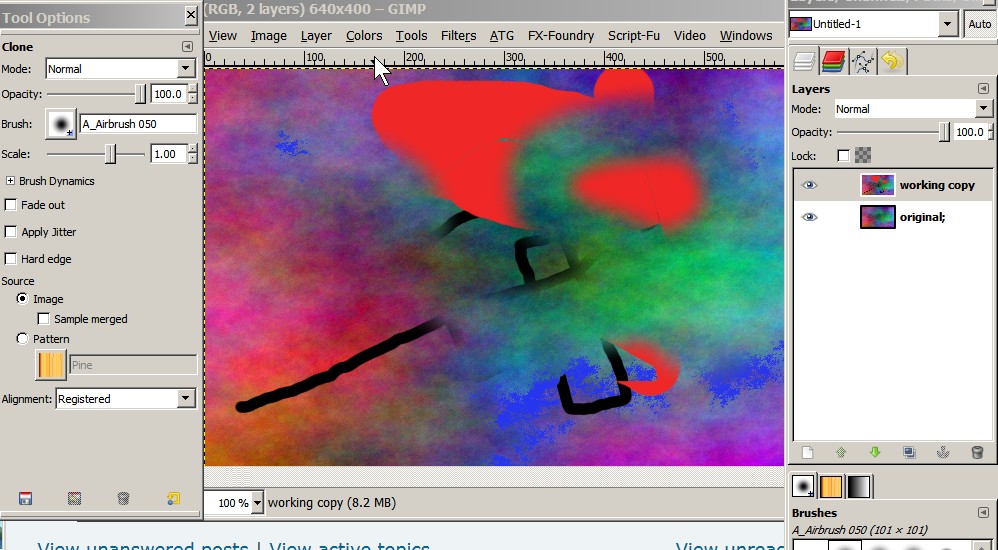
Another simple way to achieve what you want is to duplicate the original image and do all your alterations on the working copy. when you are finished with your alterations select the clone tool in registered mode.
Set your "clone from" spot on the original and use the brush on your worked copy to reveal your original area that you did not want to be touched. Have a quick practice to see if this will work for your problem. You can make a selection on your work copy, if you wish, do your alterations outside your "do-not touch" area, invert the selection and the clone tool will only clone from the do not touch section on the original. If you do not need a super clean demarcation between do not touch area , you can work to your heart's content on the work copy and reveal the untouched area from the original. Have a quick practice first. The red blob and the black squiggly line are on the working copy. The clone tool has revealed the original file part . When you are happy merge the top file down.
Image

_________________
Image


Top
 Post subject: Re: Select area not to be touched help?
PostPosted: Wed May 14, 2014 10:27 am  (#10) 
Offline
GimpChat Member
User avatar

Joined: Dec 22, 2011
Posts: 399
wbool63 wrote:
Another simple way to achieve what you want is to duplicate the original image and do all your alterations on the working copy. when you are finished with your alterations select the clone tool in registered mode.
Set your "clone from" spot on the original and use the brush on your worked copy to reveal your original area that you did not want to be touched. Have a quick practice to see if this will work for your problem. You can make a selection on your work copy, if you wish, do your alterations outside your "do-not touch" area, invert the selection and the clone tool will only clone from the do not touch section on the original. If you do not need a super clean demarcation between do not touch area , you can work to your heart's content on the work copy and reveal the untouched area from the original. Have a quick practice first. The red blob and the black squiggly line are on the working copy. The clone tool has revealed the original file part . When you are happy merge the top file down.
[ Image ]


What is registered mode please?

_________________
Image


Top
 Post subject: Re: Select area not to be touched help?
PostPosted: Wed May 14, 2014 10:38 am  (#11) 
Offline
GimpChat Member
User avatar

Joined: Apr 07, 2010
Posts: 14182
Debik, when you select a tool, the clone in this case, make sure your tool options are open below and all your modes and options are there. Some you have to click a drop down arrow to see what is there.
Image

_________________
Image


Top
 Post subject: Re: Select area not to be touched help?
PostPosted: Wed May 14, 2014 11:15 am  (#12) 
Offline
GimpChat Member
User avatar

Joined: Jun 24, 2010
Posts: 504
Location: Western Vic Australia
molly wrote:
Debik, when you select a tool, the clone in this case, make sure your tool options are open below and all your modes and options are there. Some you have to click a drop down arrow to see what is there.
[ Image ]

Thank You Molly for explaining the registered mode to Deblk. I was brushing up on Inkscape and missed the reply.
The clone method is very simple. Perhaps the clone tool and its different modes is worthy of a tutorial, even though the gimp help explains the clone tool.

_________________
Image


Top
 Post subject: Re: Select area not to be touched help?
PostPosted: Wed May 14, 2014 11:23 am  (#13) 
Offline
GimpChat Member
User avatar

Joined: Apr 07, 2010
Posts: 14182
Actually I think the idea is great for a clone tutorial .
Except for filling in something that is messed up, I hardly ever use it and I didn't know what registered mode was, it just takes a bit of looking around and clicking arrows to find things.

_________________
Image


Top
 Post subject: Re: Select area not to be touched help?
PostPosted: Wed May 14, 2014 11:30 am  (#14) 
Offline
GimpChat Member
User avatar

Joined: Dec 22, 2011
Posts: 399
molly wrote:
Actually I think the idea is great for a clone tutorial .
Except for filling in something that is messed up, I hardly ever use it and I didn't know what registered mode was, it just takes a bit of looking around and clicking arrows to find things.


Thank you...I appreciate all your help...Molly, I try and fathom it out for myself by looking around and clicking but felt I needed help as I have spent a few hours on this project and my mind was getting all furred up....thanks again everybody :)

_________________
Image


Top
 Post subject: Re: Select area not to be touched help?
PostPosted: Wed May 14, 2014 11:33 am  (#15) 
Offline
GimpChat Member
User avatar

Joined: Jun 24, 2010
Posts: 504
Location: Western Vic Australia
molly wrote:
Actually I think the idea is great for a clone tutorial .
Except for filling in something that is messed up, I hardly ever use it and I didn't know what registered mode was, it just takes a bit of looking around and clicking arrows to find things.


Ok I'll make a tut in the next couple days. Note that the official help of gimp is very good.
Sorry, Deblk to go off topic here. I hope that my method solves your problem.

_________________
Image


Top
 Post subject: Re: Select area not to be touched help?
PostPosted: Wed May 14, 2014 11:53 am  (#16) 
Offline
GimpChat Member
User avatar

Joined: Apr 07, 2010
Posts: 14182
Thanks Wooble, that would be great, the forum seems to be getting pretty flat right now.

_________________
Image


Top
 Post subject: Re: Select area not to be touched help?
PostPosted: Wed May 14, 2014 12:17 pm  (#17) 
Offline
GimpChat Member
User avatar

Joined: Dec 22, 2011
Posts: 399
wbool63 wrote:
molly wrote:
Actually I think the idea is great for a clone tutorial .
Except for filling in something that is messed up, I hardly ever use it and I didn't know what registered mode was, it just takes a bit of looking around and clicking arrows to find things.


Ok I'll make a tut in the next couple days. Note that the official help of gimp is very good.
Sorry, Deblk to go off topic here. I hope that my method solves your problem.

Thanks wbool63....I am experimenting with everybody's help :)

_________________
Image


Top
 Post subject: Re: Select area not to be touched help?
PostPosted: Wed May 14, 2014 1:45 pm  (#18) 
Offline
GimpChat Member
User avatar

Joined: Jan 20, 2013
Posts: 14835
Location: roma, italy
because you are experimenting with everybody's help....
I put here in the direction you like to operate.
I took an image (attachement: before)
I selected the central area (the "eye") I wanted to preserve (using the Ellipse Select tool, mode Replace).
Then I inverted the selection.
Then I choosed the Select by Color tool, changing the mode to Intersect.
I clicked somewhere on the right upper side (a reddish brown) with a large threshold, to have a large area selected. Some large areas were selected excluding the central part (to be preserved).
Then I clicked on Colors Invert.
I got the shown result (attachment: after).
Very easy to experiment...if you like to do so.

Attachment:
before.jpg
before.jpg [ 32.39 KiB | Viewed 3113 times ]


Attachment:
after.jpg
after.jpg [ 42.56 KiB | Viewed 3113 times ]

_________________
"Where am I ?"


Top
 Post subject: Re: Select area not to be touched help?
PostPosted: Wed May 14, 2014 3:03 pm  (#19) 
Offline
GimpChat Member
User avatar

Joined: Dec 22, 2011
Posts: 399
dinasset wrote:
because you are experimenting with everybody's help....
I put here in the direction you like to operate.
I took an image (attachement: before)
I selected the central area (the "eye") I wanted to preserve (using the Ellipse Select tool, mode Replace).
Then I inverted the selection.
Then I choosed the Select by Color tool, changing the mode to Intersect.
I clicked somewhere on the right upper side (a reddish brown) with a large threshold, to have a large area selected. Some large areas were selected excluding the central part (to be preserved).
Then I clicked on Colors Invert.
I got the shown result (attachment: after).
Very easy to experiment...if you like to do so.

Attachment:
before.jpg


Attachment:
after.jpg

Awesome...thanks

_________________
Image


Top
 Post subject: Re: Select area not to be touched help?
PostPosted: Wed May 14, 2014 3:59 pm  (#20) 
Offline
GimpChat Member
User avatar

Joined: Dec 22, 2011
Posts: 399
saulgoode wrote:
  • Select the region you don't want to change.
  • Duplicate your layer.
  • Add a layermask ("Layer->Mask->Add Layer Mask") and in the dialog box that appears choose the Initialize To: "Selection" option and check the "Invert mask" box.
  • "Select->None".
  • Click on the top layer's thumbnail preview in the Layers dialog (to make it active).

Make your color changes. Even though you will be changing the entire layer, wherever the layermask is black, the unchanged original layer underneath will be revealed.

This is basically how selections work to mask changes; doing it this way may just help you understand what's going on.

I understand this but cannot get it to work :( The area I don't want touched is still getting changed.

_________________
Image


Top
Post new topic Reply to topic  [ 26 posts ]  Go to page 1, 2  Next

All times are UTC - 5 hours [ DST ]


* Login  


Powered by phpBB3 © phpBB Group