It is currently Fri Oct 02, 2026 10:23 am


All times are UTC - 5 hours [ DST ]


Post new topic Reply to topic  [ 7 posts ] 
Author Message
 Post subject: How to create image like this ?
PostPosted: Thu Aug 07, 2014 7:49 am  (#1) 
Offline
GimpChat Member

Joined: Mar 14, 2014
Posts: 29
GIMP Version: 2.8.10
Operating System: Windows
OS Version: xp
GIMP Experience: Beginner Level


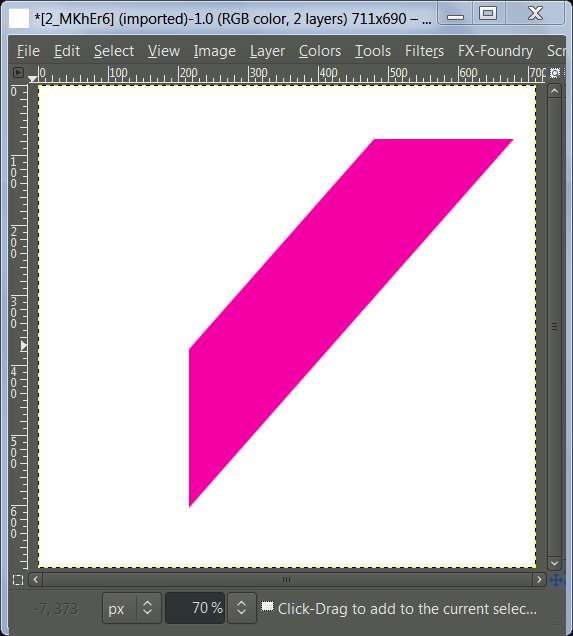
i want to create image like this for use in product tag , but i can not do that

please give me some tutorial video how to do that thank you ^^

Image


Share on Facebook Share on Twitter Share on Orkut Share on Digg Share on MySpace Share on Delicious Share on Technorati
Top
 Post subject: Re: How to create image like this ?
PostPosted: Thu Aug 07, 2014 11:22 am  (#2) 
Offline
Script Coder
User avatar

Joined: Oct 25, 2010
Posts: 4812
What you call "blur" is not a blur, it is an anti-aliasing.

Easily done with a path. Once the path is done, Select>From path and bucket-fill.

Attachment:
PurpleDiagonal.png
PurpleDiagonal.png [ 846 Bytes | Viewed 3284 times ]


Attachments:
PurpleDiagonal.xcf [7.7 KiB]
Downloaded 101 times

_________________
Image
Top
 Post subject: Re: How to create image like this ?
PostPosted: Thu Aug 07, 2014 11:51 am  (#3) 
Offline
Administrator
User avatar

Joined: Aug 10, 2012
Posts: 14220
Location: Native to NYC living in Arizona, Gimp 2.8 - 3.0, Win 11 PC.
There are many ways that you can do this.

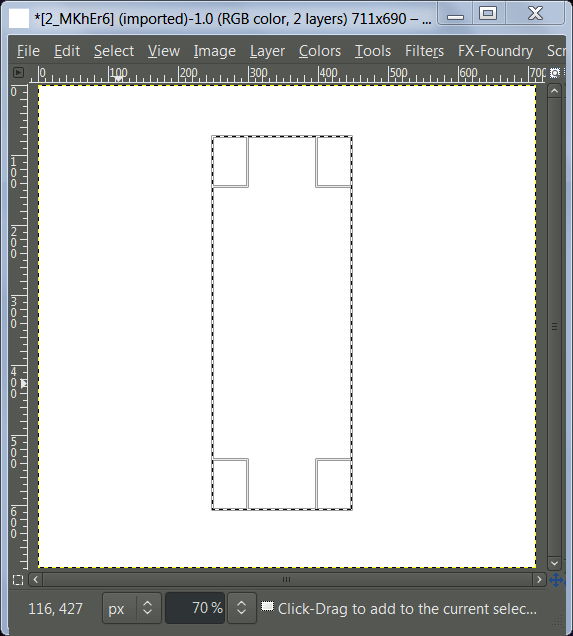
Here you can use the Rectangle Select tool, :rectsel and create a selection as seen below.
Image

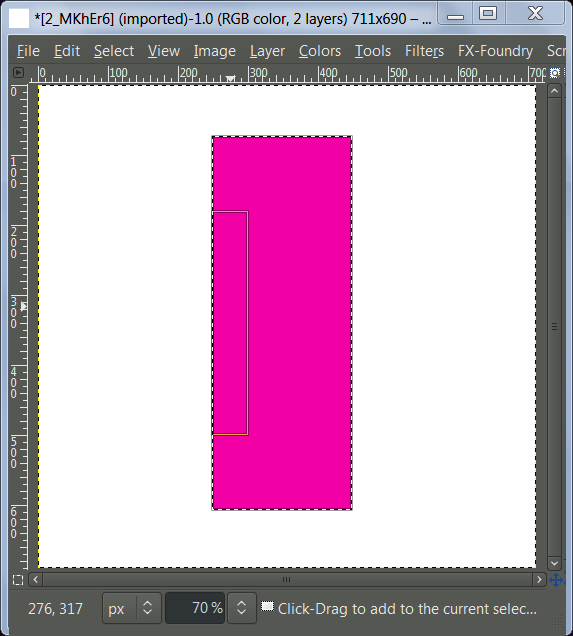
Fill this selection with your color.
Image

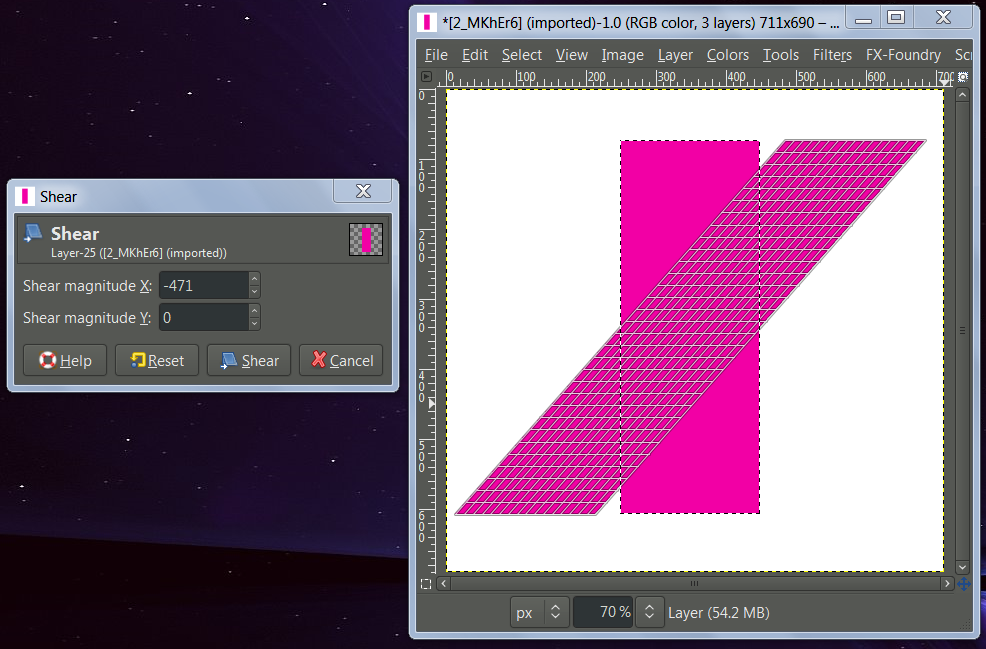
Use the Shear Tool, :shear and move it to the angle you want.

Image

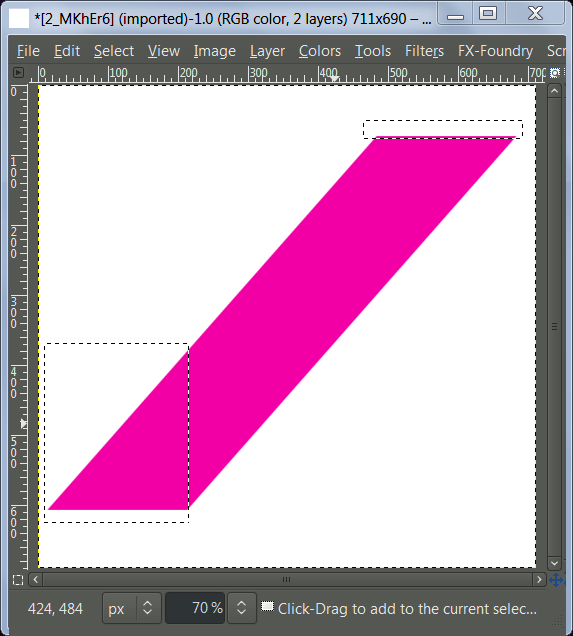
Use the Rectangle Select tool again :rectsel to chop off the ends.
Image

You should end up with something like this.
ImageImage

_________________
Image
"A wise man learns more from a foolish question than a fool can learn from a wise answer"
Image


Last edited by Wallace on Thu Aug 07, 2014 1:24 pm, edited 1 time in total.

Top
 Post subject: Re: How to create image like this ?
PostPosted: Thu Aug 07, 2014 12:42 pm  (#4) 
Offline
GimpChat Member
User avatar

Joined: Nov 16, 2011
Posts: 5127
Location: Metro Vancouver, BC
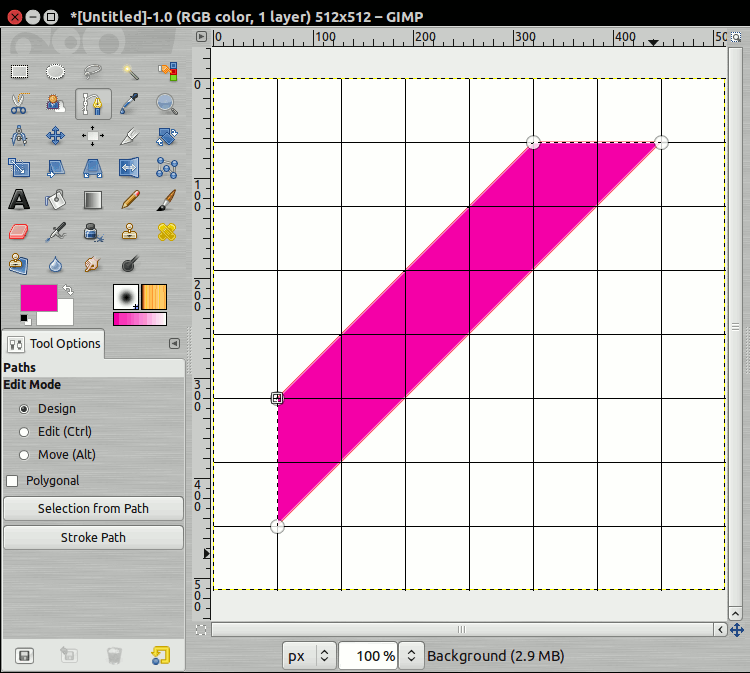
If you go with ofnuts suggestion using the path tool, use a grid.
1. View menu | Show Grid & Snap to Grid
2. Image menu | Configure Grid...

For example, my image 512x512, grid size 64x64, no offset
Image

Image

_________________
Image
Gimp 2.8.18, Linux, median user
Gimp Chat Tutorials Index
Spirit Bear (Kermode)


Top
 Post subject: Re: How to create image like this ?
PostPosted: Thu Aug 07, 2014 2:39 pm  (#5) 
Offline
Global Moderator
User avatar

Joined: Apr 01, 2012
Posts: 8475
Location: On the other side of your screen
I haven't got the latest path shape creator plug-in yet but wouldn't that be able to do it?
Go to this thread to find out about it
viewtopic.php?f=9&t=10389&hilit=Path+shape+Creator

_________________
Image
Free Fun Photo Editing & resources
Poems from the Lord
Gimp Newby
Gimp version 3.2.4 and GMIC-Qt 4.0.2 OS :- Windows 10 Home 64


Last edited by sallyanne on Fri Aug 08, 2014 2:14 am, edited 1 time in total.

Top
 Post subject: Re: How to create image like this ?
PostPosted: Thu Aug 07, 2014 11:49 pm  (#6) 
Offline
GimpChat Member

Joined: Mar 14, 2014
Posts: 29
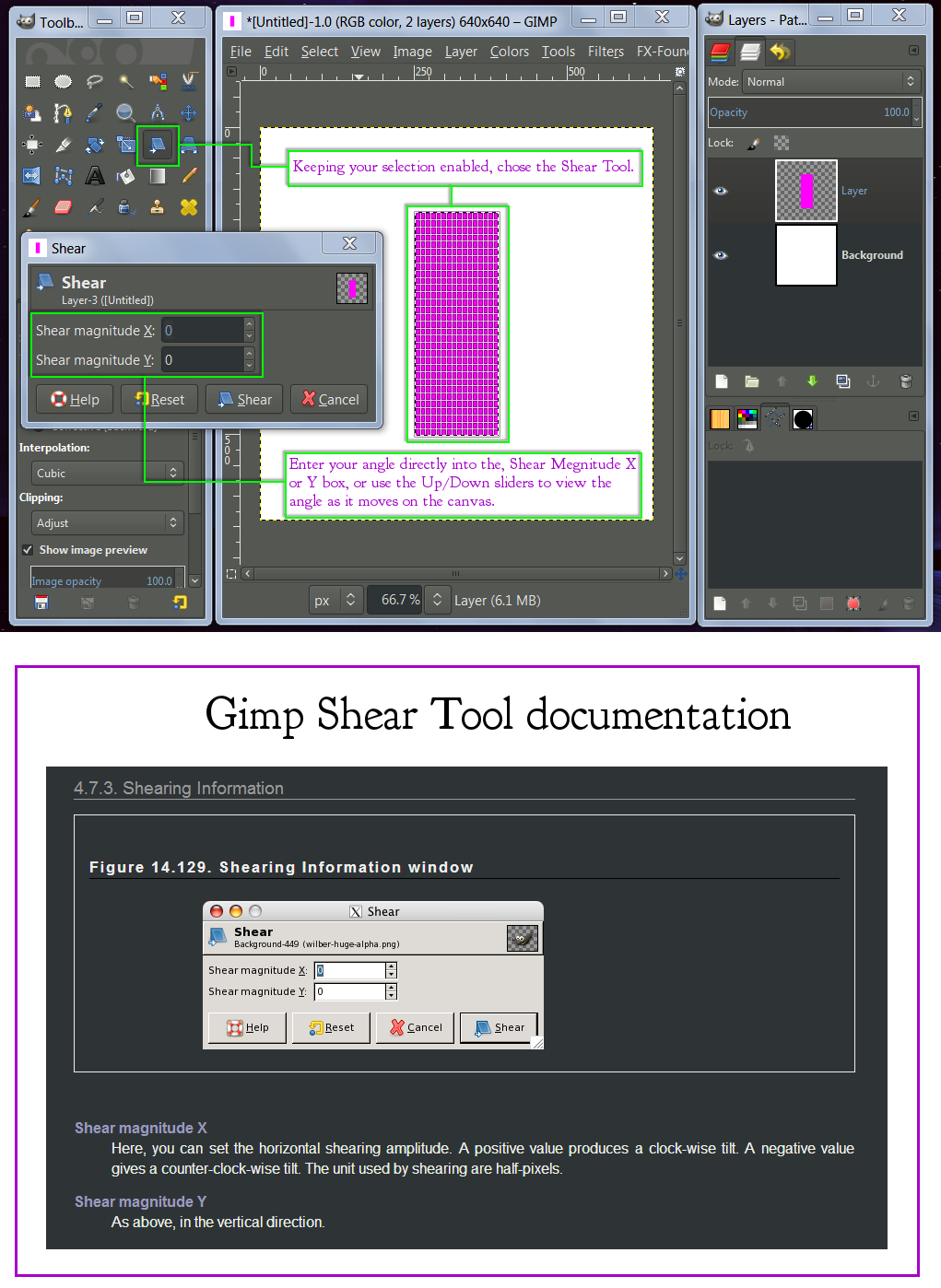
thank you Wallace and how to set shear to degree like 45 degree


Top
 Post subject: Re: How to create image like this ?
PostPosted: Fri Aug 08, 2014 7:55 am  (#7) 
Offline
Administrator
User avatar

Joined: Aug 10, 2012
Posts: 14220
Location: Native to NYC living in Arizona, Gimp 2.8 - 3.0, Win 11 PC.
peap wrote:
thank you Wallace and how to set shear to degree like 45 degree

I hope this helps.

Image

Also look here for more information... http://docs.gimp.org/en/gimp-tool-shear.html

_________________
Image
"A wise man learns more from a foolish question than a fool can learn from a wise answer"
Image


Top
Post new topic Reply to topic  [ 7 posts ] 

All times are UTC - 5 hours [ DST ]


* Login  


Powered by phpBB3 © phpBB Group