Hello dinasset,
Thank you for joining the game, and Thanks, be to Odinbc, Molly, Ronounours and you, Dinasset for your contributions. I like them all, the different directions they went in, and none like I would have proposed. I'm particularly fond of Molly's sun-breaking-through. And oddly, Ronounours reminds me of the winter "No'easter's" common to this part of the world and an intrinsic piece of my childhood. These arise from intense low pressure systems following the gulf stream up the North American Atlantic coast. This, being the Northern Hemisphere, the airmass twirls around these lows counterclockwise, lifting moisture-laden air from the Atlantic Ocean and carrying them inland to New England, the wind blowing in from the northeast from the offshore low pressure system. These would give rise to two or three days of drear. Somehow, Ronounours hit just the right shade of gray in the sky, and, from the anisotropic smoothing, some of the lighter building trimming assumed the aspect of piling-up snow - at least to me. I suppose that goes to show that what we see in an image is often what is already in our minds --
-

-
Oh? Right! Yes. dinasset asked a question, didn't he? I seem to have digressed. What was the question, now? No matter. I'll give an answer. And if it happens not to fit the question that dinasset asked, well, it will fit the question that dinasset should have asked.
There are three g'mic commands which, singly or in combination, relate to Gimp's Adjust Color Levels dialog box:
-cut,
-normalize and
-apply_gamma.
To help relate G'MIC's world to the Adjust Color Levels, I've marked the two slider controls with 5 indices. These produce five numbers, which I call C
1 to C
5.
In terms of G'MIC-speak, Gimp's Adjust Color Level does three operations, two which relate directly to corresponding G'MIC commands, the last to simple combinations of them. These are:
- Gamma Correction. Compares to G'MIC's -apply_gamma command.
- Range Rescaling. Compares to G'MIC's -normalize command.
- Gamut Rescaling. Emulated by G'MIC -cut and -normalize commands.
Here's a handy little gray scale generator in G'MIC command line script.
$ gmic -input 512,512,1,1,'x' -normalize[-1] 0,255 -round[-1] 16 -cut[-1] 0,255 -output[-1] grayscale_16.png
which makes a grayscale that looks like this:

Gimpers may copy most these commands, excluding -output and its argument, into one of the G'MIC command interpreter filters nestled in the Various branch, say 'custom code (local)'. Set the output mode to 'New layers', erase the demo code there and paste the grayscale generator code in its place. Hit 'OK'.
You can load this into Gimp and follow along with it. Each bar is 16 levels brighter than the one to the left, except for the rightmost bar, which has been truncated from 256 down to 255; the extreme left and right bars happen to be at half width (8 pixels) compared to the interior ones (16 pixels wide).
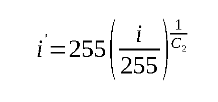
Gamma CorrectionThe middle slider in the Adjust Color Levels dialogue box, C
2 corrects for gamma. Here's the transformation relationship from original pixel intensities (
i) to new pixel intensities (
i')
-
-
where C
2 is the value one gets by adjusting the middle slider.
The analogous G'MIC commands are:
$gmic -input grayscale_16.png -apply_gamma[-1] <C5> -display[-1] -output[-1] gamma_adjust.png
The argument given to the -apply_gamma command is the same as the slider value "2" obtained from the Adjust Color Levels dialogue box. The G'MIC -display command place a window on your screen which you can examine by hovering the mouse over select pixels. Compare with those obtained from using the Adjust Color Level dialogue box.
Range RescalingThe two Output Level slider controls, C
4 and C
5 can serve as the arguments for a corresponding G'MIC normalization command. Here's the transformation relationship from original pixel intensities (
i) to new pixel intensities (
i')
-

-
where C
5 is the value one gets by adjusting the right hand Output Level slider, and C
4 is from the left hand slider.
The analogous G'MIC commands are:
$gmic -input grayscale_16.png -normalize[-1] <C4>,<C5> -display[-1] -output[-1] normalize.png
The arguments given to G'MIC's -normalize command correspond to the C
4 and C
5 sliders from the Adjust Color Levels dialogue box.
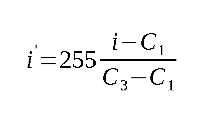
Gamut Rescaling The two Input Level slider controls, C
1 and C
3 manipulate an image's gamut. C
1 maps its given value to zero. This, and all values less than this become zero. Correspondingly, C
3 maps its given value to 255. This, and all values greater than this become 255. The facility rescales the values between C
1 and C
3. The transformation relationship from original pixel intensities (
i) to new pixel intensities (
i') is:
-
-
The corresponding G'MIC operations are:
$ gmic grayscale_16.jpg -cut[-1] <C1>,<C3> -normalize[-1] 0,255 -display[-1] -output[-1] gamut.png
As an aside, there is a button on the Adjust Color Levels which will bring you to Color Curves, preset to carry out the comparable Levels operations. Indeed, the Curve Tool is fundamental in that it can emulate nearly every other operation on the Color menu. It is also interesting to perform G'MIC operations on a standard scale like grayscale_16.png and then study the results through the curve tool with an eye toward what Gimp operations might produce analogous changes that the G'MIC command wrought.
Hopefully, you've got your money's worth for your fee of adjusting one Kuala Lumpur weather inversion. Take care.
Garry
 Login
Login Register
 Tweets
 FAQ
FAQ Advanced Search




 !
!