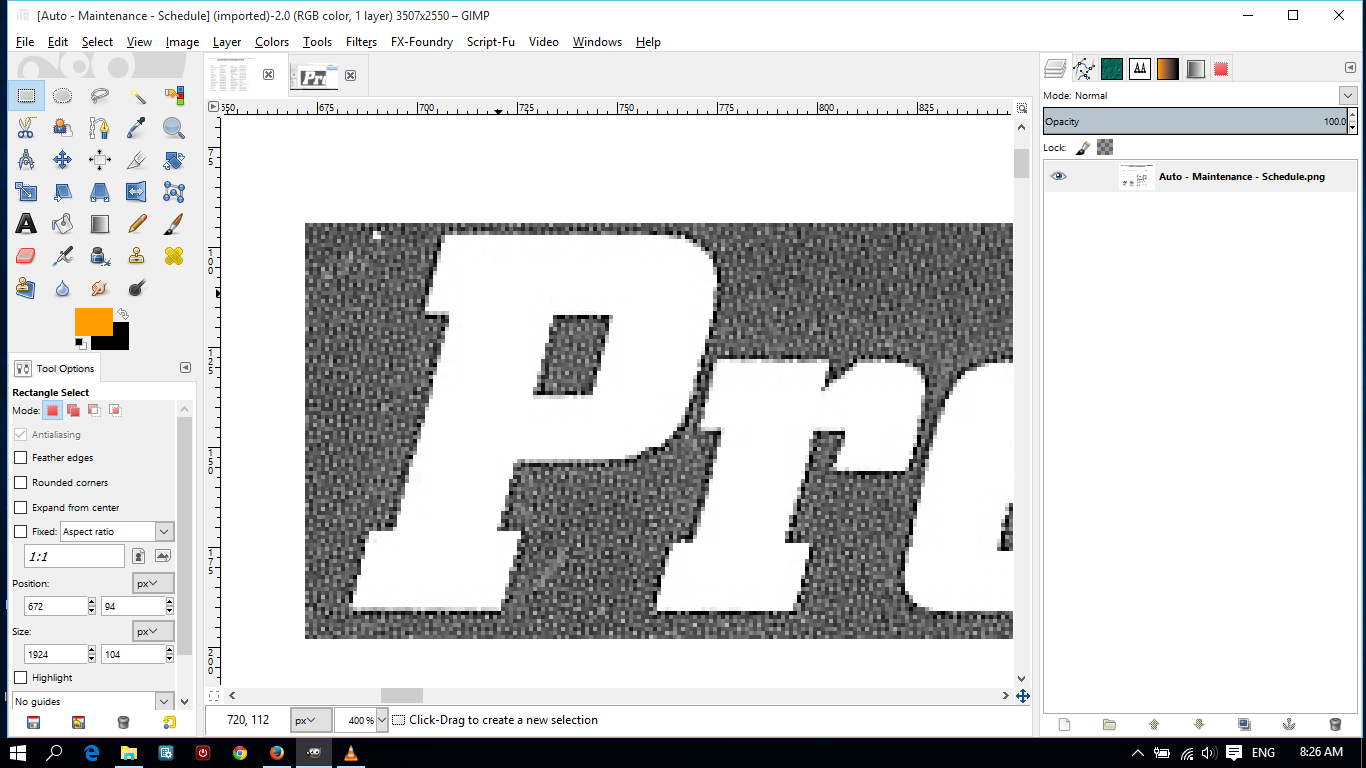
Open your image that you want to replace the background of header text in GIMP.
1. Use "Rectangle Select Tool" to Select the area to be replace color with. (On windows you can hold Ctrl key and scroll mouse button to zoom in or out, and adjust the rectangle to select an accurate rectangle)

2. Ctrl-C to Copy (or menu item Edit/Copy). Ctrl-V to Paste (or menu item Edit/Paste Into). You'll have a Floating Selection on top of your original layer (like below).

3. Right click the Floating Selection and select "To New Layer". This will put your copied area into a new layer above the original background.

4. Use "Select By Color Tool" and click on the White part of the Header text to select all that white in that layer.

5. Ctrl-I to Invert Selection (or menu item Select/Invert). This will select anything that isn't the White previously selected in that layer.

6. Click on the Foreground Color to change it to any color you like to replace the grey/black header background with. (here i am just selecting red).

7. Click and drag the Foreground Color into your working area. This will cover the selected area with red.
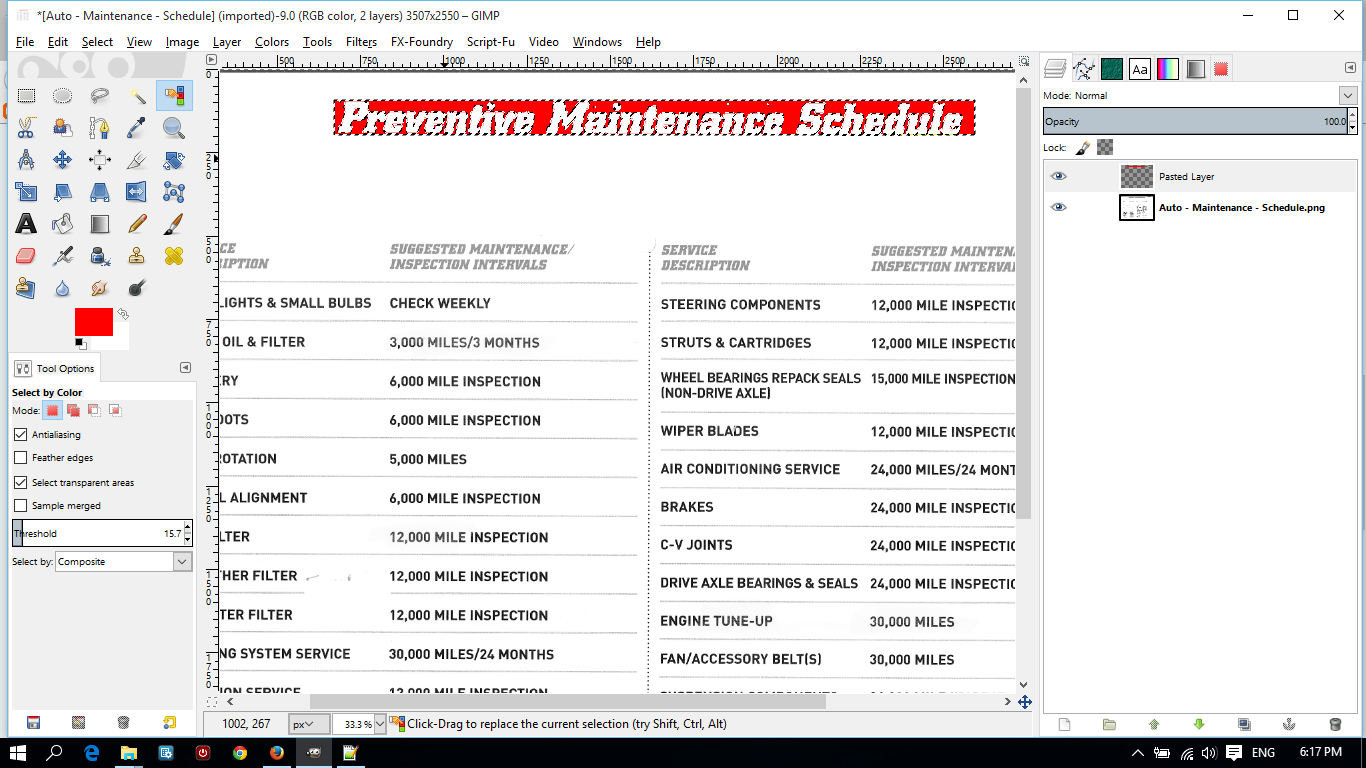
8. It's done, now we just have to merge visible layers. Right click on any layer in the Layers Window, and select "Merge Visible Layers..." then click "Merge" when the window pops up.

9. menu item Select/None to see the image without the selection moving ants.
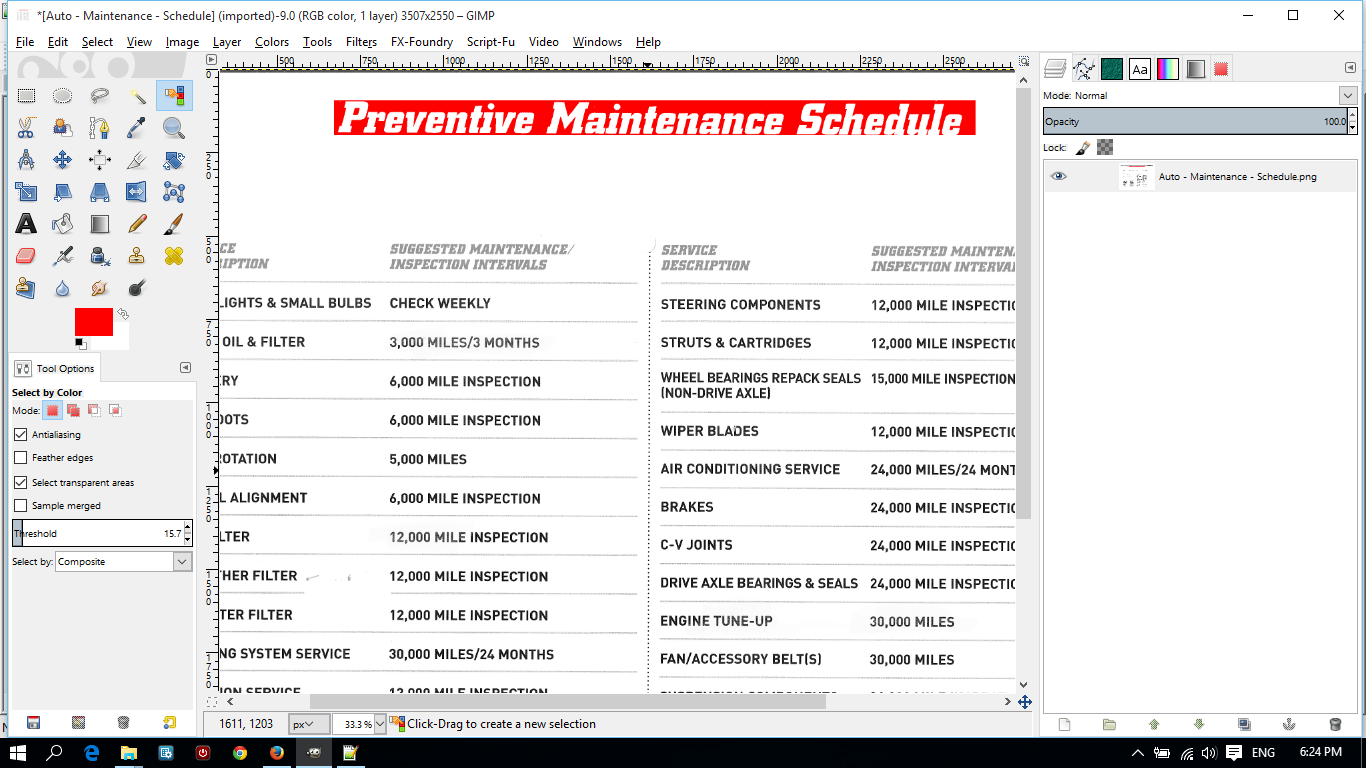
10. Now you can Export to save your new image.
PS: If you wanted to play with Text Tool, you can select the Big Capital A icon in Tools, then drag and select an area on your working area to add text to, and start typing away, and play around with text options.
 Login
Login Register
 Tweets
 FAQ
FAQ Advanced Search