It is currently Wed Nov 11, 2026 10:51 pm


All times are UTC - 5 hours [ DST ]


Post new topic Reply to topic  [ 7 posts ] 
Author Message
 Post subject: Anti-Aliasing, How do I do it?
PostPosted: Fri Oct 16, 2015 8:56 am  (#1) 
Offline
GimpChat Member

Joined: Sep 13, 2015
Posts: 17
GIMP Version: 2.8.14
Operating System: Windows
OS Version: 10
GIMP Experience: Basic Level


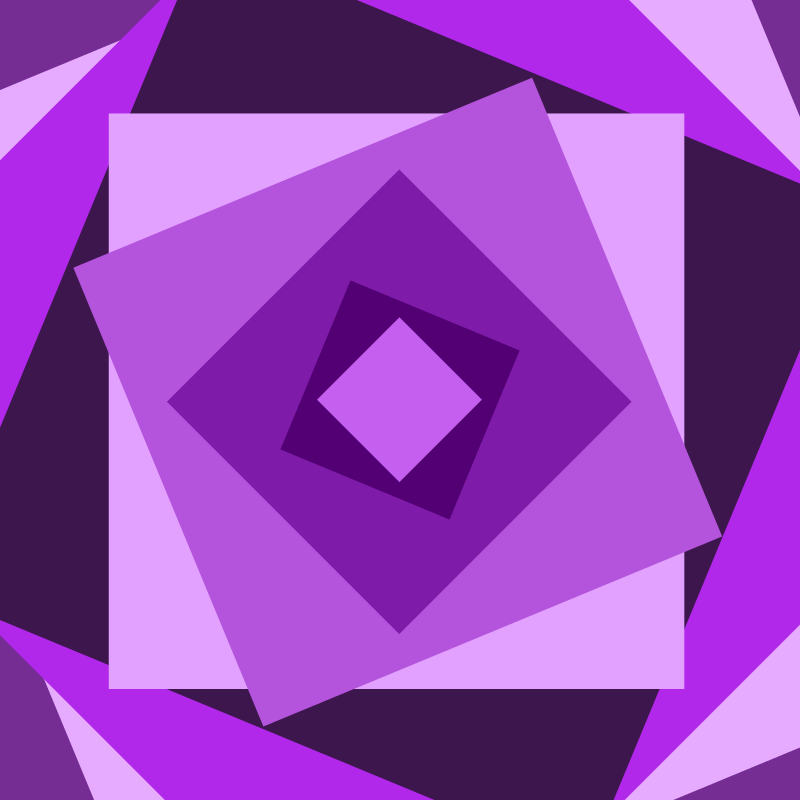
Attached is the xcf file in which I made something with lots of squares atop each other on different layers. Notice the edges looking so unsmooth and ugly. I know there's a way to get rid of that possibly called antialiasing but I don't know how to use it on multiple layers. Any help?

Also any tips and suggestions for making the image look better are welcome.

Attachment:
squaryspiral.xcf [403.27 KiB]
Downloaded 230 times


Share on Facebook Share on Twitter Share on Orkut Share on Digg Share on MySpace Share on Delicious Share on Technorati
Top
 Post subject: Re: Anti-Aliasing, How do I do it?
PostPosted: Fri Oct 16, 2015 10:27 am  (#2) 
Offline
Retired Staff
User avatar

Joined: May 22, 2008
Posts: 6946
Location: Somewhere in GIMP
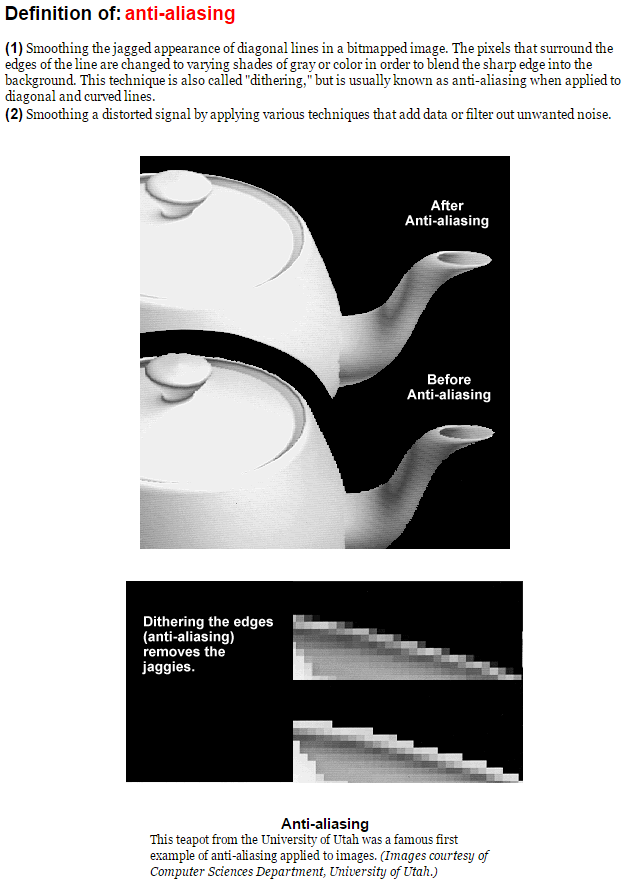
The antialiasing looks adequate on it to me.

What is your definition of antialiasing?

Image

_________________
Image
World War IV will be fought with sticks and stones. - Albert Einstein


Top
 Post subject: Re: Anti-Aliasing, How do I do it?
PostPosted: Fri Oct 16, 2015 10:32 am  (#3) 
Offline
GimpChat Member

Joined: Sep 13, 2015
Posts: 17
The top pics.
The edges of the squares don't seem the way they should if they were antialiased. I don't even think there are those darkened blurred pixels over there when they should be.


Top
 Post subject: Re: Anti-Aliasing, How do I do it?
PostPosted: Fri Oct 16, 2015 11:33 am  (#4) 
Offline
Administrator
User avatar

Joined: Aug 10, 2012
Posts: 14268
Location: Native to NYC living in Arizona, Gimp 2.8 - 3.0, Win 11 PC.
Raster graphics are infamous for their anti-aliasing properties, or lack there of.
That's why I created this image below using a square path.
That was rotated,
scaled to the needed size,
stroked and then finally filled with the desired color for each of the squares.
Image

Your image @ 800% magnification.
Attachment:
Capture A.PNG
Capture A.PNG [ 61.68 KiB | Viewed 8407 times ]


Image made using paths, @ 800% magnification.
Attachment:
Capture B.PNG
Capture B.PNG [ 48.47 KiB | Viewed 8407 times ]

I'm curious about how you made each square,
did you use the Rectangle Select Tool :rectsel or prehaps the Free Select Tool
:freesel ?


Attachment:
File comment: Here is the XCF file of the image above.
sq example.xcf [157.7 KiB]
Downloaded 118 times


Image

_________________
Image
"A wise man learns more from a foolish question than a fool can learn from a wise answer"
Image


Top
 Post subject: Re: Anti-Aliasing, How do I do it?
PostPosted: Fri Oct 16, 2015 3:30 pm  (#5) 
Offline
Script Coder
User avatar

Joined: Oct 25, 2010
Posts: 4812
Givera wrote:
GIMP Version: 2.8.14
Operating System: Windows
OS Version: 10
GIMP Experience: Basic Level


Attached is the xcf file in which I made something with lots of squares atop each other on different layers. Notice the edges looking so unsmooth and ugly. I know there's a way to get rid of that possibly called antialiasing but I don't know how to use it on multiple layers. Any help?

Also any tips and suggestions for making the image look better are welcome.

Attachment:
The attachment squaryspiral.xcf is no longer available

Remaining stray faint lines on some layers make me think that you selected/rotated layers... This damages the existing anti-aliasing pixels.

Attachment:
squaryspirallines.png
squaryspirallines.png [ 22.8 KiB | Viewed 8373 times ]


You have to create the squares directly. Create a square path, and then for each step, make a copy, rotate/scale it, create a selection from the result, and bucket-fill the selection.

Attachment:
squares.png
squares.png [ 22.56 KiB | Viewed 8373 times ]

_________________
Image


Top
 Post subject: Re: Anti-Aliasing, How do I do it?
PostPosted: Fri Oct 16, 2015 4:08 pm  (#6) 
Offline
Administrator
User avatar

Joined: Aug 10, 2012
Posts: 14268
Location: Native to NYC living in Arizona, Gimp 2.8 - 3.0, Win 11 PC.
ofnuts wrote:
Remaining stray faint lines on some layers make me think that you selected/rotated layers...
This damages the existing anti-aliasing pixels.

Attachment:
squaryspirallines.png


You have to create the squares directly.
Create a square path, and then for each step,
make a copy,
rotate/scale it,
create a selection from the result,
and bucket-fill the selection.

Attachment:
squares.png

Ofnuts's the man when it comes to paths,
it's best to take his suggestions...

:roll:

_________________
Image
"A wise man learns more from a foolish question than a fool can learn from a wise answer"
Image


Top
 Post subject: Re: Anti-Aliasing, How do I do it?
PostPosted: Fri Oct 16, 2015 8:58 pm  (#7) 
Offline
GimpChat Member

Joined: Sep 13, 2015
Posts: 17
Thanks guys.
I just was alpha-to-selection-ing the previous layer, shrinking it by 30 px, filling with color and rotating whatever angle to make it touch the previous one's edges.


Top
Post new topic Reply to topic  [ 7 posts ] 

All times are UTC - 5 hours [ DST ]


* Login  


Powered by phpBB3 © phpBB Group