It is currently Wed Sep 30, 2026 5:47 am


All times are UTC - 5 hours [ DST ]


Post new topic Reply to topic  [ 25 posts ]  Go to page 1, 2  Next
Author Message
 Post subject: How to put an object to the perfect center of the image?
PostPosted: Mon Apr 25, 2016 2:36 am  (#1) 
Offline
GimpChat Member

Joined: Dec 10, 2013
Posts: 106
GIMP Version: 2.8.14
Operating System: Windows
GIMP Experience: New User


Example, I want the center of text X (effectively text X) be located perfectly at the center of the image
and I want the center of the heart logo be located perfectly at the center of the image.

Otherwise than doing this by raw hand move any way to do it more easily

See exmapleImage
Image


Share on Facebook Share on Twitter Share on Orkut Share on Digg Share on MySpace Share on Delicious Share on Technorati
Top
 Post subject: Re: How to put an object to the perfect center of the image?
PostPosted: Mon Apr 25, 2016 2:49 am  (#2) 
Offline
GimpChat Member
User avatar

Joined: Nov 15, 2014
Posts: 875
Under "View" you can select "Grid" and "Snap to Grid".

This may help you to achieve the exact placement.

david.


Top
 Post subject: Re: How to put an object to the perfect center of the image?
PostPosted: Mon Apr 25, 2016 3:36 am  (#3) 
Offline
Administrator
User avatar

Joined: Aug 10, 2012
Posts: 14219
Location: Native to NYC living in Arizona, Gimp 2.8 - 3.0, Win 11 PC.
With the heart layer on top of the "X" layer.
Go to>Autocrop Layer and click it.
Image

Next select the Alignment Tool and click on the heart.
You will see a dash outline around the heart,
with a small white box in each corner.
Indicating that the alignment tool is active on the heart layer.
Image

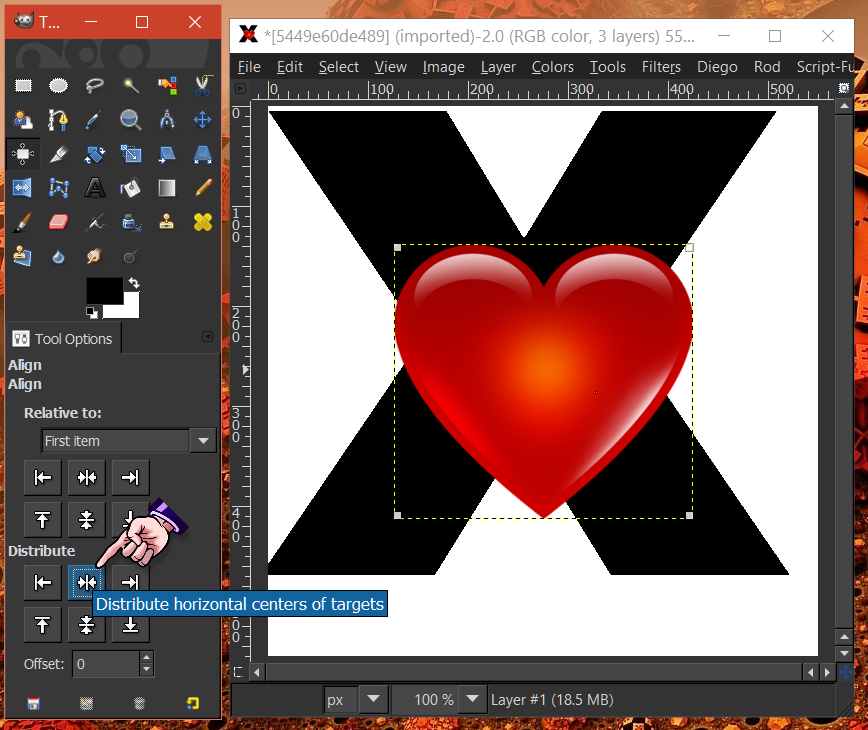
Click on Align Middle of Target.
Image

Next click on Distribute Horizontal Center of Target.
Image

Do the same for the "X" layer and it should look like this image below.
Image

Note:
If the "X" layer or Heart layer are not transparent,
this will not work as described.

You can also check out this Gimp Chat link below.
how to add an object to "perfect" center???

_________________
Image
"A wise man learns more from a foolish question than a fool can learn from a wise answer"
Image


Top
 Post subject: Re: How to put an object to the perfect center of the image?
PostPosted: Mon Apr 25, 2016 4:01 am  (#4) 
Offline
GimpChat Member

Joined: Dec 10, 2013
Posts: 106
Hi Wallace , thanks for your help

Excuse me, the first thing is, what is layer?? File>Open as layers??

Another thing is, how can I let the layer windows appear like the one on your screen, aligning next to the main editor windows, instead of flowing on top of the main windows??


Top
 Post subject: Re: How to put an object to the perfect center of the image?
PostPosted: Mon Apr 25, 2016 4:08 am  (#5) 
Offline
GimpChat Member

Joined: Dec 10, 2013
Posts: 106
this is the screen I have, can I have bigger text, bigger image display like yours??

and the heart does not appear on top of the letter X, it starts another windows

Image


Top
 Post subject: Re: How to put an object to the perfect center of the image?
PostPosted: Mon Apr 25, 2016 4:19 am  (#6) 
Offline
GimpChat Member

Joined: Dec 10, 2013
Posts: 106
transparent?? in this case my cross X is not transparent right? How to make it transparent?

another thing is , how to make the buttons and icons and things bigger (circled by red). My eyesight is not very good

Attachment:
File comment: cross on top of the heart.
2222.jpg
2222.jpg [ 249 KiB | Viewed 10682 times ]


Top
 Post subject: Re: How to put an object to the perfect center of the image?
PostPosted: Mon Apr 25, 2016 4:50 am  (#7) 
Offline
Administrator
User avatar

Joined: Aug 10, 2012
Posts: 14219
Location: Native to NYC living in Arizona, Gimp 2.8 - 3.0, Win 11 PC.
kenny1999 wrote:
Hi Wallace , thanks for your help
Excuse me, the first thing is, what is layer?? File>Open as layers??
Another thing is, how can I let the layer windows appear like the one on your screen,
aligning next to the main editor windows, instead of flowing on top of the main windows??

Layers are used to combine different images, one on top of another, in Layers

Open As Layers, allows you to open a single image or multiple images as layers in a single canvas.
I believe your Gimp interface is set to Single Window mode.

You would need to change this by going to Windows>Single-Window Mode.


kenny1999 wrote:
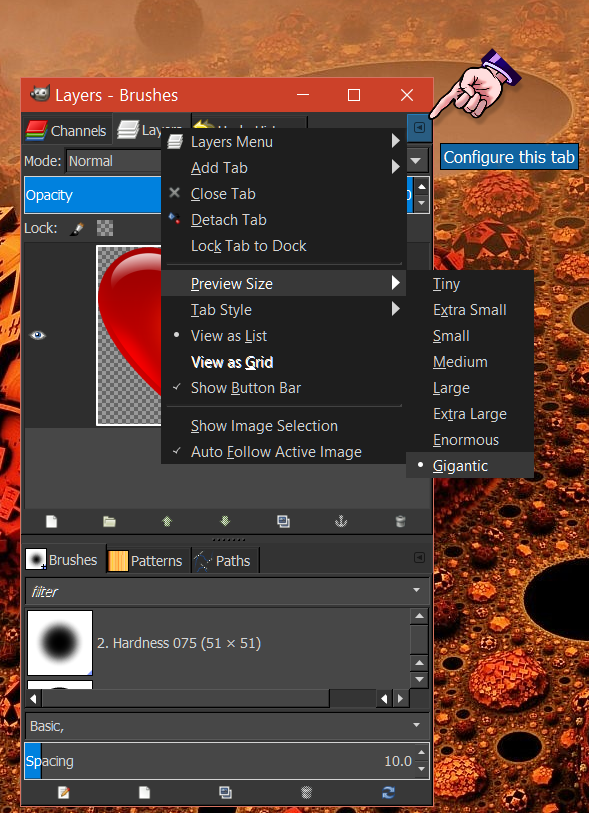
this is the screen I have, can I have bigger text, bigger image display like yours??

and the heart does not appear on top of the letter X, it starts another windows

[ Image ]


You need to configure the tab to show the preview size you want.
Image

Copy the Heart image.
Go to your "X" image.
Right-Click on the "X" image layer, within the dialog on the right and select New Layer.
Then paste the Heart image into this new layer, by going to Edit>Paste.

_________________
Image
"A wise man learns more from a foolish question than a fool can learn from a wise answer"
Image


Top
 Post subject: Re: How to put an object to the perfect center of the image?
PostPosted: Mon Apr 25, 2016 5:11 am  (#8) 
Offline
Administrator
User avatar

Joined: Aug 10, 2012
Posts: 14219
Location: Native to NYC living in Arizona, Gimp 2.8 - 3.0, Win 11 PC.
kenny1999 wrote:
transparent?? in this case my cross X is not transparent right? How to make it transparent?

another thing is , how to make the buttons and icons and things bigger (circled by red). My eyesight is not very good

Attachment:
2222.jpg

You could select the white parts of the "X" image using the Fuzzy Select Tool and delete them.
Image

You can also do a Color to Alpha, by going to Layer>Transparency>Color to Alpha and select White.

To make the tool icon bigger. You would need to install a Gimp Theme, that has Large tool Icons as part of it's theme.

_________________
Image
"A wise man learns more from a foolish question than a fool can learn from a wise answer"
Image


Top
 Post subject: Re: How to put an object to the perfect center of the image?
PostPosted: Mon Apr 25, 2016 6:50 am  (#9) 
Offline
GimpChat Member

Joined: Dec 10, 2013
Posts: 106
Hi Wallace,
Attachment:
44444.png
44444.png [ 10.82 KiB | Viewed 10661 times ]


This is the rough draft I hand create with Ms Paint. It's the logo I want to create with the professional GIMP....

First, the dimension is 400x400, and then a square suited perfectly in the center, then I'll add a Chinese text inside the square, of course it has to be suited perfectly in the center.

lastly, the red thing at the borders mean I want to make an effect around the borders, it's like burning fire.... except the border at the bottom


Now I don't even find out how to draw the sqaure :( :(


Top
 Post subject: Re: How to put an object to the perfect center of the image?
PostPosted: Mon Apr 25, 2016 6:53 am  (#10) 
Offline
GimpChat Member

Joined: Dec 10, 2013
Posts: 106
feeling so frustrated about doing with GIMP. Not even easy to add a square or any shape which is supposed to be very basic thing


Top
 Post subject: Re: How to put an object to the perfect center of the image?
PostPosted: Mon Apr 25, 2016 12:32 pm  (#11) 
Offline
Administrator
User avatar

Joined: Aug 10, 2012
Posts: 14219
Location: Native to NYC living in Arizona, Gimp 2.8 - 3.0, Win 11 PC.
Something like this.
Image
Attachment:
fire box.xcf [107.65 KiB]
Downloaded 150 times

_________________
Image
"A wise man learns more from a foolish question than a fool can learn from a wise answer"
Image


Top
 Post subject: Re: How to put an object to the perfect center of the image?
PostPosted: Tue Apr 26, 2016 12:11 am  (#12) 
Offline
GimpChat Member

Joined: Dec 10, 2013
Posts: 106
Wallace wrote:
Something like this.
[ Image ]
Attachment:
fire box.xcf


Yes!! but can you teach me how to make this?
i.e how to draw a square, how to set the width of the sqaure,
how to add the burning fire or other effects at the border.


You may just let me know the step, e.g. Select --> ... -> ... -> ... ->

you don't need to screenshot for me. it will spend you too much effort.


Top
 Post subject: Re: How to put an object to the perfect center of the image?
PostPosted: Tue Apr 26, 2016 12:21 am  (#13) 
Offline
GimpChat Member

Joined: Dec 10, 2013
Posts: 106
another case
Attachment:
666666.png
666666.png [ 8.19 KiB | Viewed 4849 times ]


Can you see there are 4 Chinese text at the 4 corners?
How to make them aligned perfectly (symmetrically?)
and how to align the Blue text at the center of the image
at the symmetrical distance from the other 4 Chinese text?

Red line drawn in the picture is for illustration of my question only.

Thank you Wallace and everyone else.


Top
 Post subject: Re: How to put an object to the perfect center of the image?
PostPosted: Tue Apr 26, 2016 12:51 am  (#14) 
Offline
Administrator
User avatar

Joined: Aug 10, 2012
Posts: 14219
Location: Native to NYC living in Arizona, Gimp 2.8 - 3.0, Win 11 PC.
kenny1999 wrote:
Yes!! but can you teach me how to make this?
i.e how to draw a square, how to set the width of the sqaure,
how to add the burning fire or other effects at the border.


You may just let me know the step, e.g. Select --> ... -> ... -> ... ->

you don't need to screenshot for me. it will spend you too much effort.


The White Square with Black Outline, was made using the Rectangle Select Tool :rectsel
I first used the tool to make a black square and then used it to make a whit square inside the black square.
This gave me what looks like a black out line of about 8 pixels.
You Autocrop the square and use the Alignment Tool to center it.

The flames were made by free handing it with the paint brush, using Reds, Orange and Yellows.
Gaussian Blur the flame a little.
Run a 90 degree Motion Bluer on the flames and then run Filter>Distort>Ripple.

_________________
Image
"A wise man learns more from a foolish question than a fool can learn from a wise answer"
Image


Top
 Post subject: Re: How to put an object to the perfect center of the image?
PostPosted: Tue Apr 26, 2016 1:09 am  (#15) 
Offline
GimpChat Member

Joined: Dec 10, 2013
Posts: 106
Wallace wrote:
kenny1999 wrote:
Yes!! but can you teach me how to make this?
i.e how to draw a square, how to set the width of the sqaure,
how to add the burning fire or other effects at the border.


You may just let me know the step, e.g. Select --> ... -> ... -> ... ->

you don't need to screenshot for me. it will spend you too much effort.


The White Square with Black Outline, was made using the Rectangle Select Tool :rectsel
I first used the tool to make a black square and then used it to make a whit square inside the black square.
This gave me what looks like a black out line of about 8 pixels.
You Autocrop the square and use the Alignment Tool to center it.

The flames were made by free handing it with the paint brush, using Reds, Orange and Yellows.
Gaussian Blur the flame a little.
Run a 90 degree Motion Bluer on the flames and then run Filter>Distort>Ripple.


Hi Is there any built-in function or GIMP plugin that would help make those flames effect? In addition to making flames I will also want to make other effects. Best to come with some common design already available for the user to one-click and apply. Any?


Top
 Post subject: Re: How to put an object to the perfect center of the image?
PostPosted: Tue Apr 26, 2016 1:39 am  (#16) 
Offline
Administrator
User avatar

Joined: Aug 10, 2012
Posts: 14219
Location: Native to NYC living in Arizona, Gimp 2.8 - 3.0, Win 11 PC.
kenny1999 wrote:
Hi Is there any built-in function or GIMP plugin that would help make those flames effect? In addition to making flames I will also want to make other effects. Best to come with some common design already available for the user to one-click and apply. Any?


There is an Animated Flames Script.
I'm not sure it would help, but here's a link, where you can try it out
Animated Fire

I made this.
You can download the xcf file and look it over.
Image
Attachment:
666666a.xcf [63.46 KiB]
Downloaded 132 times


I also made a brush.
It looks like this and will paint in color.
Image
Attachment:
File comment: Gimp Brush ch1
ch1.zip [1 KiB]
Downloaded 182 times

_________________
Image
"A wise man learns more from a foolish question than a fool can learn from a wise answer"
Image


Top
 Post subject: Re: How to put an object to the perfect center of the image?
PostPosted: Tue Apr 26, 2016 10:59 pm  (#17) 
Offline
GimpChat Member
User avatar

Joined: Apr 08, 2010
Posts: 5420
Location: Northwest Ohio
Kenny, I think it would help you immensely if you looked over the tutorials for beginners. It will really help you to understand instructions posted for you, as well as your ability to work with Gimp on your own.


Top
 Post subject: Re: How to put an object to the perfect center of the image?
PostPosted: Wed Apr 27, 2016 1:15 am  (#18) 
Offline
GimpChat Member

Joined: Dec 10, 2013
Posts: 106
Wallace wrote:
kenny1999 wrote:
Hi Is there any built-in function or GIMP plugin that would help make those flames effect? In addition to making flames I will also want to make other effects. Best to come with some common design already available for the user to one-click and apply. Any?


There is an Animated Flames Script.
I'm not sure it would help, but here's a link, where you can try it out
Animated Fire

I made this.
You can download the xcf file and look it over.
[ Image ]
Attachment:
666666a.xcf


I also made a brush.
It looks like this and will paint in color.
[ Image ]
Attachment:
ch1.zip


Sorry what's the use of this file ch1.zip? I don't understand...
a brush? I don't understand. How to use it??


Top
 Post subject: Re: How to put an object to the perfect center of the image?
PostPosted: Wed Apr 27, 2016 4:07 am  (#19) 
Offline
Administrator
User avatar

Joined: Aug 10, 2012
Posts: 14219
Location: Native to NYC living in Arizona, Gimp 2.8 - 3.0, Win 11 PC.
kenny1999 wrote:
Sorry what's the use of this file ch1.zip? I don't understand...
a brush? I don't understand. How to use it??


The file ch1.zip,
is a compressed archive file format popular and widely used on the Internet.
Like other archive file formats,
.zip files are data containers,
they store one or several files in a compressed form.
After you downloaded a .zip file,
you need to unpack its contents in order to use it.

The content of this .zip file contains a Gimp Brush that I made.
As shown in my previous post.

Once you unpack the .zip file,
you place the ch1.gbr file,
that was contained inside,
into your Gimp Brushes folder.
Then you will be able to use this brush in Gimp.

_________________
Image
"A wise man learns more from a foolish question than a fool can learn from a wise answer"
Image


Top
 Post subject: Re: How to put an object to the perfect center of the image?
PostPosted: Wed Apr 27, 2016 6:47 am  (#20) 
Offline
GimpChat Member

Joined: Dec 10, 2013
Posts: 106
Wallace wrote:
kenny1999 wrote:
Hi Is there any built-in function or GIMP plugin that would help make those flames effect? In addition to making flames I will also want to make other effects. Best to come with some common design already available for the user to one-click and apply. Any?


There is an Animated Flames Script.
I'm not sure it would help, but here's a link, where you can try it out
Animated Fire

I made this.
You can download the xcf file and look it over.
[ Image ]
Attachment:
666666a.xcf


I also made a brush.
It looks like this and will paint in color.
[ Image ]
Attachment:
ch1.zip


Hi Mr Wallace,

I've downlaoded your Animated Fire Lite

So now, where to put the zip files?

and what does that mean - in the instruction threads. I've quoted here


For these settings to work properly, there are some additions you need to add to GIMP (included in the zip file):

4 presets need to be added here: C:\Program Files\GIMP 2\share\gimp\2.0\gimpressionist\Presets
1 brush here: C:\Program Files\GIMP 2\share\gimp\2.0\gimpressionist\Brushes
Script goes here: C:\Program Files\GIMP 2\share\gimp\2.0\scripts


<<<<< I am lost with these instructions


Top
Post new topic Reply to topic  [ 25 posts ]  Go to page 1, 2  Next

All times are UTC - 5 hours [ DST ]


* Login  


Powered by phpBB3 © phpBB Group