It is currently Mon Nov 09, 2026 6:33 pm


All times are UTC - 5 hours [ DST ]


Post new topic Reply to topic  [ 15 posts ] 
Author Message
 Post subject: Moving an intelligent scissors selection
PostPosted: Tue Aug 01, 2017 7:45 am  (#1) 
Offline
GimpChat Member

Joined: Jul 31, 2017
Posts: 15
GIMP Version: 2.8.14
Operating System: Windows
GIMP Experience: New User

List any relevant plug-ins or scripts:
None

List any ERROR messages you received:
None. Just nothing happens


I want to put the image of a beret as a layer on the image of a politician. I have been told by many nice people here that I need to add alpha transparency. As instructed I right clicked on the layer and tried to add alpha transparency, but the only available option was remove alpha transparency, so it is already alpha transparent.

As you can see from the attached image I've managed to use the scissor tools to cut the beret out. When I try with the eraser nothing happens. I rub the eraser around the beret and there is no visible change. Now I want to move the image of the beret I've cut out and put it onto the politician's head. I've tried alt shift and arrow keys, I've tried dragging with the mouse. Any number of crazy things happen, including the selection lines moving and the beret staying put, or vice versa. Do you have a simple instruction just to move the selected beret onto the dumb politician's head?

Once I've done that I want to rotate the beret a few degrees anti clockwise to give it a jaunty look

Thanks a million, SF


Attachments:
Beret cut out.PNG
Beret cut out.PNG [ 339.74 KiB | Viewed 4586 times ]
Share on Facebook Share on Twitter Share on Orkut Share on Digg Share on MySpace Share on Delicious Share on Technorati
Top
 Post subject: Re: Moving an intelligent scissors selection
PostPosted: Tue Aug 01, 2017 10:10 am  (#2) 
Offline
GimpChat Member

Joined: Sep 23, 2016
Posts: 317
1. You have a selection of the beret. Invert the selection (Select > Invert). Now the background is selected and the beret is not selected.

2. Make sure the beret layer is selected and delete the background. (Edit > Clear) ; or press the Delete key. If the beret layer has an alpha channel the background will become transparent.

3. Do Select > None

4. Now use the Move tool and move the beret *layer* into position on the politicians head

5. Use the Rotate tool to rotate the beret *layer* a few degrees


Top
 Post subject: Re: Moving an intelligent scissors selection
PostPosted: Tue Aug 01, 2017 10:29 am  (#3) 
Offline
GimpChat Member

Joined: Jul 31, 2017
Posts: 15
Blighty II wrote:
1. You have a selection of the beret. Invert the selection (Select > Invert). Now the background is selected and the beret is not selected.

2. Make sure the beret layer is selected and delete the background. (Edit > Clear) ; or press the Delete key. If the beret layer has an alpha channel the background will become transparent.

3. Do Select > None

4. Now use the Move tool and move the beret *layer* into position on the politicians head

5. Use the Rotate tool to rotate the beret *layer* a few degrees


Thanks a lot

How come when I click on the beret and try to move it the outline moves but the image of the beret doesn't?


Top
 Post subject: Re: Moving an intelligent scissors selection
PostPosted: Tue Aug 01, 2017 10:40 am  (#4) 
Offline
GimpChat Member

Joined: Jul 31, 2017
Posts: 15
semperfi04 wrote:
Blighty II wrote:
1. You have a selection of the beret. Invert the selection (Select > Invert). Now the background is selected and the beret is not selected.

2. Make sure the beret layer is selected and delete the background. (Edit > Clear) ; or press the Delete key. If the beret layer has an alpha channel the background will become transparent.

3. Do Select > None

4. Now use the Move tool and move the beret *layer* into position on the politicians head

5. Use the Rotate tool to rotate the beret *layer* a few degrees


Thanks a lot

How come when I click on the beret and try to move it the outline moves but the image of the beret doesn't?


Also noticed, when I try to move the politician image up to under the beret, only the beret moves. I'm sure there is a very obvious solution but I find it very counterintuitive. Thanks for your help!


Top
 Post subject: Re: Moving an intelligent scissors selection
PostPosted: Tue Aug 01, 2017 10:49 am  (#5) 
Offline
GimpChat Member

Joined: Sep 23, 2016
Posts: 317
semperfi04 wrote:
How come when I click on the beret and try to move it the outline moves but the image of the beret doesn't?


1. Make sure you have the correct layer selected in the Layer Dialogue ie the beret layer

2. Make sure the Tool Options for the Move tool are correctly set.

Image


Top
 Post subject: Re: Moving an intelligent scissors selection
PostPosted: Tue Aug 01, 2017 10:56 am  (#6) 
Offline
GimpChat Member

Joined: Jul 31, 2017
Posts: 15
Blighty II wrote:
semperfi04 wrote:
How come when I click on the beret and try to move it the outline moves but the image of the beret doesn't?


1. Make sure you have the correct layer selected in the Layer Dialogue ie the beret layer

2. Make sure the Tool Options for the Move tool are correctly set.

[ Image ]


Thanks again. Appreciate you bearing with me. I added tool options from the Window toggle and it doesn't seem that the move button interacts with the tools (I've attached a screenshot)


Attachments:
tool options.PNG
tool options.PNG [ 38.63 KiB | Viewed 4559 times ]


Last edited by semperfi04 on Tue Aug 01, 2017 11:17 am, edited 1 time in total.
Top
 Post subject: Re: Moving an intelligent scissors selection
PostPosted: Tue Aug 01, 2017 11:10 am  (#7) 
Offline
GimpChat Member

Joined: Sep 23, 2016
Posts: 317
semperfi04 wrote:
I don't have any tool options on the move tool


1. Check that you are in single window mode
(Windows > Single-Window Mode) should be checked

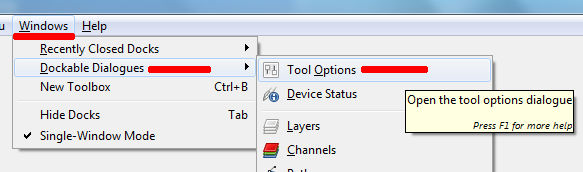
2. Enable Tool Options
(Windows > Dockable Dialogues > Tool Options)

Image


Top
 Post subject: Re: Moving an intelligent scissors selection
PostPosted: Wed Aug 02, 2017 3:47 am  (#8) 
Offline
GimpChat Member

Joined: Jul 31, 2017
Posts: 15
Blighty II wrote:
semperfi04 wrote:
I don't have any tool options on the move tool


1. Check that you are in single window mode
(Windows > Single-Window Mode) should be checked

2. Enable Tool Options
(Windows > Dockable Dialogues > Tool Options)

[ Image ]


Thanks, that's great. Appreciate very much


Top
 Post subject: Re: Moving an intelligent scissors selection
PostPosted: Wed Aug 02, 2017 5:02 am  (#9) 
Offline
GimpChat Member

Joined: Jul 31, 2017
Posts: 15
semperfi04 wrote:
Blighty II wrote:
1. You have a selection of the beret. Invert the selection (Select > Invert). Now the background is selected and the beret is not selected.

2. Make sure the beret layer is selected and delete the background. (Edit > Clear) ; or press the Delete key. If the beret layer has an alpha channel the background will become transparent.

3. Do Select > None

4. Now use the Move tool and move the beret *layer* into position on the politicians head

5. Use the Rotate tool to rotate the beret *layer* a few degrees


Thanks a lot

How come when I click on the beret and try to move it the outline moves but the image of the beret doesn't?


Hi, I followed your instructions. It would appear that the outline of the layer (the white beret shaped dotted lines) which I cut out hasn't moved when I moved the layer (see rotate 3.5 screenshot). When I rotate, it rotates the outline of the layer but not the rest of the beret (rotate 4 screenshot). I'm really confused why that would be. I didn't see anything in the help pages to explain this. I also don't understand what the benefit of the outline and the layer not moving together is. Why does Gimp do this?

Thanks for your help


Attachments:
rotate 4.PNG
rotate 4.PNG [ 489.3 KiB | Viewed 4502 times ]
rotate 3.5.PNG
rotate 3.5.PNG [ 487.74 KiB | Viewed 4502 times ]
Top
 Post subject: Re: Moving an intelligent scissors selection
PostPosted: Wed Aug 02, 2017 5:31 am  (#10) 
Offline
GimpChat Member

Joined: Sep 23, 2016
Posts: 317
Difficult to say what you are doing wrong. I have thought of two possiblities.

You have an active selection for some your actions. Only the area within the selection is acted on.
Use Select > None to get rid of the selection.

You have the wrong layer selected. The action takes place on the selected layer, not the currently visible layer.
Looking at some of your screenshots I don't see a Layers dialogue
Windows > Dockable Dialogues > Layers


Top
 Post subject: Re: Moving an intelligent scissors selection
PostPosted: Wed Aug 02, 2017 6:23 am  (#11) 
Offline
GimpChat Member

Joined: Jul 31, 2017
Posts: 15
Blighty II wrote:
Difficult to say what you are doing wrong. I have thought of two possiblities.

You have an active selection for some your actions. Only the area within the selection is acted on.
Use Select > None to get rid of the selection.

You have the wrong layer selected. The action takes place on the selected layer, not the currently visible layer.
Looking at some of your screenshots I don't see a Layers dialogue
Windows > Dockable Dialogues > Layers


Thank you maestro. I'm nearly there (very amateurish obviously). I want to use the pencil to clean the edges of the beret. I've clicked on tools -> pencil, the selection editor seems to indicate I'm editing the layers. But when I try to draw with the pencil nothing happens. No marks appear anywhere. I did print screen to show what appears where I hover my cursor (pencil screenshot). Thank you for your infinite patience.


Attachments:
Pencil.png
Pencil.png [ 821.11 KiB | Viewed 3020 times ]
Top
 Post subject: Re: Moving an intelligent scissors selection
PostPosted: Wed Aug 02, 2017 7:05 am  (#12) 
Offline
GimpChat Member

Joined: Sep 23, 2016
Posts: 317
semperfi04 wrote:
But when I try to draw with the pencil nothing happens.


Again, can't tell for sure. Some guesses:

1. You have the wrong layer selected. The pencil is drawing, but not on the layer you want it to. (I still don't see a layers dialogue in your screen shots)

2. The pencil is set to a very small size. It is drawing, but the results are so small that they cannot be seen. In the tool options, increase the brush size.

3. You have an active selection and are trying to draw outside the selection. Drawing only takes place inside the selection.

Footnote: The pencil does not have anti-aliasing pixels, so gives a very harsh edge. For a softer edge use the paintbrush tool. In the tool options select a round brush with hardness 0.75 or 1.00 (experiment).


Top
 Post subject: Re: Moving an intelligent scissors selection
PostPosted: Wed Aug 02, 2017 7:12 am  (#13) 
Offline
GimpChat Member

Joined: Jul 31, 2017
Posts: 15
Blighty II wrote:
semperfi04 wrote:
But when I try to draw with the pencil nothing happens.


Again, can't tell for sure. Some guesses:

1. You have the wrong layer selected. The pencil is drawing, but not on the layer you want it to. (I still don't see a layers dialogue in your screen shots)

2. The pencil is set to a very small size. It is drawing, but the results are so small that they cannot be seen. In the tool options, increase the brush size.

3. You have an active selection and are trying to draw outside the selection. Drawing only takes place inside the selection.

Footnote: The pencil does not have anti-aliasing pixels, so gives a very harsh edge. For a softer edge use the paintbrush tool. In the tool options select a round brush with hardness 0.75 or 1.00 (experiment).


Thanks a lot. I've tried to select the layer using various selection tools. I added the selection dialogue box but it was hidden underneath the tool dialogue box. I've rectified that in the attached screenshot. Does that give you a better idea of what I'm doing wrong?


Attachments:
2017-08-02 (2).png
2017-08-02 (2).png [ 824.23 KiB | Viewed 3017 times ]
Top
 Post subject: Re: Moving an intelligent scissors selection
PostPosted: Wed Aug 02, 2017 7:19 am  (#14) 
Offline
GimpChat Member

Joined: Sep 23, 2016
Posts: 317
Your top layer is a Floating Selection. That happens, for example, after a copy and paste.

Right click on the Floating Selection layer and select To New Layer.

(Click on the eyes next to each layer to make them all invisible. Then activate them one at a time so that you can see what you have on each layer.)


Top
 Post subject: Re: Moving an intelligent scissors selection
PostPosted: Wed Aug 02, 2017 2:09 pm  (#15) 
Offline
GimpChat Member
User avatar

Joined: Feb 14, 2012
Posts: 426
semperfi04 wrote:
Blighty II wrote:
semperfi04 wrote:
How come when I click on the beret and try to move it the outline moves but the image of the beret doesn't?


1. Make sure you have the correct layer selected in the Layer Dialogue ie the beret layer

2. Make sure the Tool Options for the Move tool are correctly set.

[ Image ]


Thanks again. Appreciate you bearing with me. I added tool options from the Window toggle and it doesn't seem that the move button interacts with the tools (I've attached a screenshot)


In Post #6 the image shows that the move tool is set to move the selection and not the layer.


Top
Post new topic Reply to topic  [ 15 posts ] 

All times are UTC - 5 hours [ DST ]


* Login  


Powered by phpBB3 © phpBB Group