It is currently Tue Sep 22, 2026 5:11 pm


All times are UTC - 5 hours [ DST ]


Post new topic Reply to topic  [ 4 posts ] 
Author Message
 Post subject: Lines
PostPosted: Thu Oct 19, 2017 1:50 pm  (#1) 
Offline
GimpChat Member

Joined: Oct 09, 2017
Posts: 26
GIMP Version: 2.8.14
Operating System: Mac OS
GIMP Experience: New User


I am really chuffed that I got the hang of gimp in the end with the help of you all here & I'm really chuffed with it. The only thing is I can't remember what I did to get rid of the lines! I know I've done it before, but could you remind me? I also need to put the picture in a better place on the screen, how do I move it about?
It wouldn't let me post the whole file tonight since I did it last night, so I've posted a screen shot instead, since I hope its not too difficult


Attachments:
Screen Shot 2017-10-19 at 19.47.41.png
Screen Shot 2017-10-19 at 19.47.41.png [ 1.1 MiB | Viewed 3238 times ]
Share on Facebook Share on Twitter Share on Orkut Share on Digg Share on MySpace Share on Delicious Share on Technorati
Top
 Post subject: Re: Lines
PostPosted: Thu Oct 19, 2017 1:57 pm  (#2) 
Offline
GimpChat Member
User avatar

Joined: Jul 04, 2010
Posts: 2253
Location: Retired Moderator Slowly Returning to the Living.
I assume you're talking about the dotted lines around your text. They are only there showing the edge of the layer and are not part of the image when you save it. If you click on the background layer in your layers palette, they will disappear.

I hope this helps.

If the picture you're trying to move is part of the background you'd have to cut it from the background and put it on it's own layer to move it. If you don't make it separate, any attempt to move the picture will move the whole background. You'll also need to add background color to the hole in the background where the photo was.

_________________
Artists aren't crazy! We're eccentric! ~G.M. Ross

Image

My Sigs = My Photos
Check out my work at http://www.flickr.com/photos/photomastergreg.


Top
 Post subject: Re: Lines
PostPosted: Thu Oct 19, 2017 2:39 pm  (#3) 
Offline
GimpChat Member

Joined: Mar 04, 2011
Posts: 2615
Quote:
...I also need to put the picture in a better place on the screen, how do I move it about?


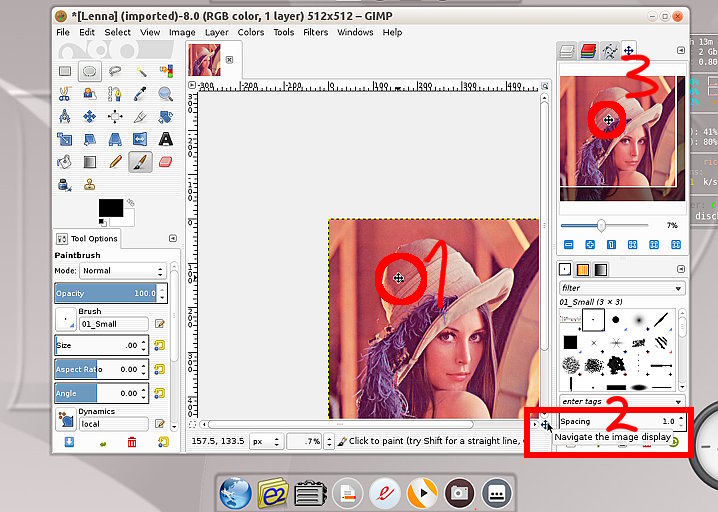
Move the canvas around? Various ways.

1. Should work, but who knows with a Mac. Hold the spacebar down and drag the canvas.

2. If you resize your Gimp window to something suitable the little four-way arrow icon moves the canvas around.

3. Windows -> Dockable Dialogues -> Navigation opens a little window.

edit: then of course there might be some scroll bars somewhere ;)

Attachment:
movecanvas.jpg
movecanvas.jpg [ 93.85 KiB | Viewed 3222 times ]


Top
 Post subject: Re: Lines
PostPosted: Thu Oct 19, 2017 4:05 pm  (#4) 
Offline
GimpChat Member

Joined: Oct 09, 2017
Posts: 26
Thank you both! That is exactly what I was talking about. Many thanks, Lynne


Top
Post new topic Reply to topic  [ 4 posts ] 

All times are UTC - 5 hours [ DST ]


* Login  


Powered by phpBB3 © phpBB Group