It is currently Sun Nov 08, 2026 11:22 pm


All times are UTC - 5 hours [ DST ]


Post new topic Reply to topic  [ 14 posts ] 
Author Message
 Post subject: Can anyone tell me .....
PostPosted: Fri Oct 18, 2019 8:45 pm  (#1) 
Offline
Global Moderator
User avatar

Joined: Apr 01, 2012
Posts: 8500
Location: On the other side of your screen
GIMP Version: 2.8.14
Operating System: Windows
OS Version: Home 64 bit
GIMP Experience: New User


Without using Gmic I want to learn how to fade photos into a background. The GMIC plugin 'seamless' doesn''t always work for me so if I know how to just by using Gimp I won't need to use it. Feather often leaves a white halo.
Tutorials anyone?

_________________
Image
Free Fun Photo Editing & resources
Poems from the Lord
Gimp Newby
Gimp version 3.2.6 and GMIC-Qt 4.0.2 OS :- Windows 10 Home 64


Share on Facebook Share on Twitter Share on Orkut Share on Digg Share on MySpace Share on Delicious Share on Technorati
Top
 Post subject: Re: Can anyone tell me .....
PostPosted: Fri Oct 18, 2019 10:35 pm  (#2) 
Offline
GimpChat Member

Joined: Nov 14, 2018
Posts: 45
You could use a photo mask over it, like this:

Original Photo:

Attachment:
29790641_10214773457357290_8581652739707109376_n.jpg
29790641_10214773457357290_8581652739707109376_n.jpg [ 124.57 KiB | Viewed 4526 times ]


With Photo Mask:

Attachment:
Photo Fade Demo.jpg
Photo Fade Demo.jpg [ 220.55 KiB | Viewed 4526 times ]


I used the photo mask from a set of spill frame layers by Katie Pertiet:

https://www.designerdigitals.com/digital-scrapbooking/supplies/product_info.php/products_id/25224


Top
 Post subject: Re: Can anyone tell me .....
PostPosted: Fri Oct 18, 2019 11:18 pm  (#3) 
Offline
Global Moderator
User avatar

Joined: Apr 01, 2012
Posts: 8500
Location: On the other side of your screen
Thank you enxio27. What is a photo mask?
I think I worked out the reason for halos in feathering - you have to add an alpha channel before feathering.
Just did this one
Image

_________________
Image
Free Fun Photo Editing & resources
Poems from the Lord
Gimp Newby
Gimp version 3.2.6 and GMIC-Qt 4.0.2 OS :- Windows 10 Home 64


Top
 Post subject: Re: Can anyone tell me .....
PostPosted: Sat Oct 19, 2019 12:52 am  (#4) 
Offline
Administrator
User avatar

Joined: Aug 10, 2012
Posts: 14266
Location: Native to NYC living in Arizona, Gimp 2.8 - 3.0, Win 11 PC.
You're example turned out well sallyanne.
With a bit of refinement,
I think your technique should work.

This "fade into background" effect can be achieved by using layer masks.
Which is what I believe enxio27 was referring to.

_________________
Image
"A wise man learns more from a foolish question than a fool can learn from a wise answer"
Image


Top
 Post subject: Re: Can anyone tell me .....
PostPosted: Sat Oct 19, 2019 3:34 am  (#5) 
Offline
GimpChat Member

Joined: Mar 04, 2011
Posts: 2629
@sallyanne

It is worth practicing with layer masks, a really powerful Gimp function.

A default white layer mask is 100% transparent Black is 100% opaque. Varying grey is varying transparency.

Now that Gimp 2.10 uses GEGL for gradients you get to see on the canvas the effect of painting in the layer mask. An easy transition might look like this using a linear gradient. Different effect with a circular gradient. Layers do not have to be the same size.

Attachment:
01-mask.jpg
01-mask.jpg [ 243.72 KiB | Viewed 4499 times ]


Or, the other way round, black layer mask, paint in white with a fuzzy brush to 'uncover' the subject. The advantage? The whole layer + layer mask can be moved to adjust position.

Attachment:
02-mask.jpg
02-mask.jpg [ 217.41 KiB | Viewed 4499 times ]


Easy, non-destructive, can be adjusted anytime.

Quote:
I used the photo mask from a set of spill frame layers


Some edge masks (100 or so) + utility scripts + demo here:
https://www.gimp-forum.net/Thread-Easy-Edge-Masks


Top
 Post subject: Re: Can anyone tell me .....
PostPosted: Sun Oct 20, 2019 3:43 am  (#6) 
Offline
Global Moderator
User avatar

Joined: Apr 01, 2012
Posts: 8500
Location: On the other side of your screen
tried it using a radial gradient - using my method plus an eraser - didn't spend a lot of time on it as you can probably see.

Image

_________________
Image
Free Fun Photo Editing & resources
Poems from the Lord
Gimp Newby
Gimp version 3.2.6 and GMIC-Qt 4.0.2 OS :- Windows 10 Home 64


Last edited by sallyanne on Sun Oct 20, 2019 5:43 am, edited 1 time in total.

Top
 Post subject: Re: Can anyone tell me .....
PostPosted: Sun Oct 20, 2019 3:56 am  (#7) 
Offline
GimpChat Member

Joined: Mar 04, 2011
Posts: 2629
I like the expression on its face.

Nearly there, practice makes perfect better.

You can still go round the edges (in the layer mask) with a fuzzy brush to touch-up any hard lines.


Top
 Post subject: Re: Can anyone tell me .....
PostPosted: Sun Oct 20, 2019 5:08 am  (#8) 
Offline
GimpChat Member
User avatar

Joined: May 10, 2013
Posts: 1443
Location: Finland
Blending with gradient does not work well with all images.
With the image you are playing with, I'd use a sharp brush to paint over the stone on the layer mask, so that the grass looks natural in front of it. The brushes Gimp includes, "bristles 01" and "bristles 02" would be good for grass and fur.
After that you can play with the Hue-Saturation & Brightness-Contrast on the animal/object layer to make it blend even better with the background.

Here's a quick demo. Dog from wikimedia over random garden image.

Image

Painted most off with a round big brush on layer mask. This step could be done also with eraser on the layer itself.

Image

Switch from mask to layer to use Hue-Sat now, so that you can see the effect of colors and lighting has when blending images.
Increased saturation little and reduced lightness. Then a bit of contrast with Brightness-Contrast.
The new Hue-Chroma in 2.10 is also good for this kind of tweaking.

Image

Cleaning rest around the dog using "bristles 02" black brush on layer mask. Size 14-17 with this image.
Brush hardness reduced to 50.
You have the possibility to make corrections later with layer mask method, but here's why I normally make first perfect .png cutout of the object I wish to blend over the background.
Not that you always have to, but 9 times out of 10 there will be leftover pixels when you brush.

Image

Fixed, now the dog can sit and oversee anywhere in the garden it (or he or she?) wants.

Image


Top
 Post subject: Re: Can anyone tell me .....
PostPosted: Sun Oct 20, 2019 11:33 pm  (#9) 
Offline
GimpChat Member

Joined: May 12, 2015
Posts: 4693
Sallyanne, check this script of Greachan's. I do not know if it works in 2.10.


viewtopic.php?f=8&t=3257


Top
 Post subject: Re: Can anyone tell me .....
PostPosted: Mon Oct 21, 2019 2:18 am  (#10) 
Offline
GimpChat Member
User avatar

Joined: May 10, 2013
Posts: 1443
Location: Finland
Pat625 wrote:
Sallyanne, check this script of Greachan's. I do not know if it works in 2.10.

viewtopic.php?f=8&t=3257


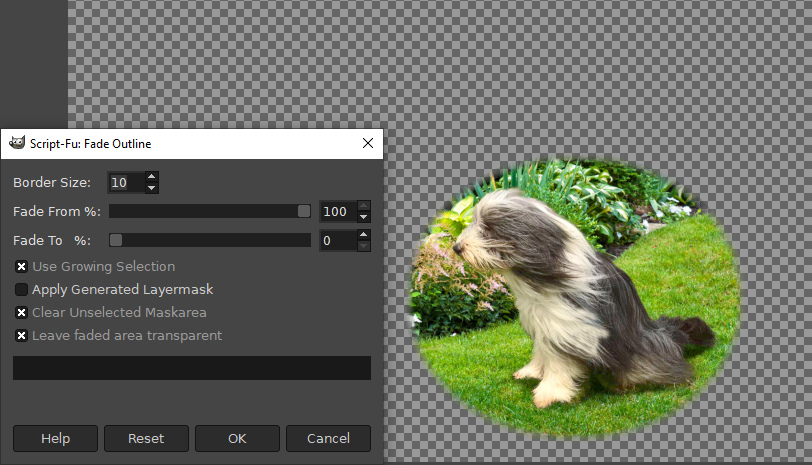
It doesn't work in 2.10, and the constantize plug-in won't fix it fully either.
I've attached fixed version, with one of the settings changed (Leave faded areas transparent) so that you will automatically end up with feathered transparent edge.

Image


Attachments:
FU_edges_fade-outline.scm [7.96 KiB]
Downloaded 115 times
Top
 Post subject: Re: Can anyone tell me .....
PostPosted: Mon Oct 21, 2019 3:15 am  (#11) 
Offline
GimpChat Member

Joined: Mar 04, 2011
Posts: 2629
Just a reminder that with recent Gimp 2.10's you can apply a layer mask to a layer group, Which makes it easy to apply different fades.

A quick example using a couple of edge masks each with sort of fade (distressed border) applied.

Attachment:
two-layer-mask.jpg
two-layer-mask.jpg [ 273.08 KiB | Viewed 2499 times ]


..and remember unlike applying a script, a layer mask is non-destructive.
No pixels were harmed making this image ;)


Top
 Post subject: Re: Can anyone tell me .....
PostPosted: Mon Oct 21, 2019 4:00 am  (#12) 
Offline
GimpChat Member
User avatar

Joined: May 10, 2013
Posts: 1443
Location: Finland
rich2005 wrote:
Just a reminder that with recent Gimp 2.10's you can apply a layer mask to a layer group, Which makes it easy to apply different fades.
A quick example using a couple of edge masks each with sort of fade (distressed border) applied.

..and remember unlike applying a script, a layer mask is non-destructive.
No pixels were harmed making this image ;)

Hehe. Yeah that's a good tip. We should always seek solution from the built-in features of Gimp.
The fade-outlines.scm does create a layer mask though.


Top
 Post subject: Re: Can anyone tell me .....
PostPosted: Mon Oct 21, 2019 8:21 am  (#13) 
Offline
GimpChat Member

Joined: May 12, 2015
Posts: 4693
Thank you for fixing the script, Nidhogg. Very nice of you.


Top
 Post subject: Re: Can anyone tell me .....
PostPosted: Mon Oct 21, 2019 11:06 am  (#14) 
Offline
GimpChat Member
User avatar

Joined: May 10, 2013
Posts: 1443
Location: Finland
Pat625 wrote:
Thank you for fixing the script, Nidhogg. Very nice of you.

You're welcome pat625.


Top
Post new topic Reply to topic  [ 14 posts ] 

All times are UTC - 5 hours [ DST ]


* Login  


Powered by phpBB3 © phpBB Group