ofnuts wrote:
1) I'll avoid self-advertisement

But my recommendation is not install plugins until you really need them.
I agree with ofnuts! In the beginning, I would say only add G'MIC and Resynthesizer (a content aware like on PS), but nothing else! You will be overwhelmed with huge menu and sub-menus
anyway you can keep this links as well for later use
https://www.gimphelp.org/ It's some one who is updating scripts to work on a GIMP 2.10.x version
I do agree with @Griatch Krita not only has non destructive adjustment layers, but also, adjustment mask, transform mask and so on... But it's not GIMP, it's a different learning curve as well, but Krita might be able to keep your layer adjustment, which would be better IMHO than installing wine or a VM of windows...
GIMP or Krita without G'MIC it' is like a car without a turbo IMHO, or a computer without internet... (starting with Krita 5 (pre-alpha) G'MIC is auto embedded with Krita for all OS)
To download G'MIC =>
https://gmic.eu on the download page chose carefully the G'MIC for your OS, Linux Mint is based on Ubuntu, so you need to download for Ubuntu
and for the software you want to use with it (GIMP)
To know the version of your distro, in the terminal (Ctrl+Alt+T to open terminal on the fly) type (or copy the code below, then in the terminal Ctrl+
Shift+V to paste it, (Ctrl+C or V in terminal are for something else))
then hit Enter key

To get the latest GIMP with the most important plugins included (like G'MIC and more) or without plugins
https://github.com/aferrero2707/gimp-ap ... continuous (scroll down to GIMP_AppImage-git-2.10.25-20210610-withplugins-x86_64.AppImage or GIMP_AppImage-git-2.10.25-20210603-x86_64.AppImage as of today, (the guy update it 2 times a month))
AppImage... If you're new on Linux (BTW Welcome to the Bazaar

), you might not be aware how appimage works, you do not need to install them, once you've downloaded it, right click on it=> select "Properties", => a window opens go to the tab "Permissions" and check the box "Allow Executing file as program" => OK/Close, you're done, now just double click on the appimage and it will opens,
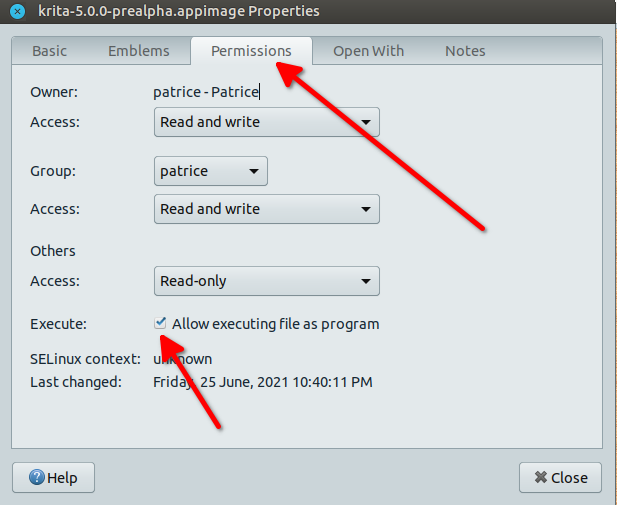
if you don't like the appimage, just throw it in the trash, done as well. your system might ask you if you want to put the link in the menu the first time you click on the appimage, in a super duper technical way that might scares you (programmers should never write messages to the end users, ever),
But yes, it's nice to open it from the menu as well so click OK even if you don't understand what's the message is speaking about (Should a Desktop file blablabla/bla/ = Do you want a shortcut in the menu?), but you can refuse if you want and the app will continue to work as intended, in all case when you throw an appimage to the trash, it will automatically be removed from the menu.
 Login
Login Register
 Tweets
 FAQ
FAQ Advanced Search