It is currently Thu Nov 26, 2026 7:32 pm


All times are UTC - 5 hours [ DST ]


Post new topic Reply to topic  [ 27 posts ]  Go to page 1, 2  Next
Author Message
 Post subject: cut out background
PostPosted: Sun Aug 21, 2011 10:47 am  (#1) 
Offline
GimpChat Member

Joined: Aug 05, 2011
Posts: 606
Location: limestone,ny
GIMP Version: 2.6.11
Operating System: Windows
OS Version: XP - SP3
GIMP Experience: Intermediate Level


What is the easiest way to remove a background that you guys use, i think i've tried most but still seems like i'm missing an easier way of doing it. i've tried paths and lasso and foreground select,, i'm thinking i should learn to use quick mask too for background removal but need some help with all of them. any/all tutorials would be great
thanks
Andy

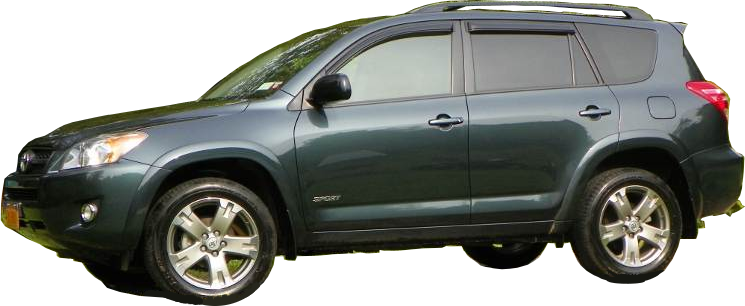
my car picture that i've been practicing on
Image

some of the pictures i've done in gimp A&Ls


Share on Facebook Share on Twitter Share on Orkut Share on Digg Share on MySpace Share on Delicious Share on Technorati
Top
 Post subject: Re: cut out background
PostPosted: Sun Aug 21, 2011 12:20 pm  (#2) 
Offline
GimpChat Member
User avatar

Joined: Apr 07, 2010
Posts: 14182
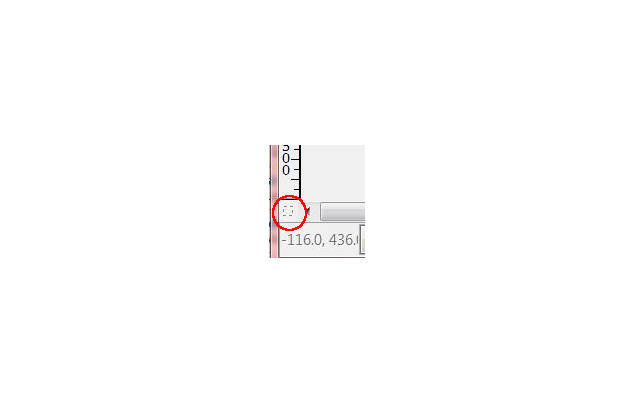
Have you tried quick mask yet? There is a little square down on the bottom left corner of your Gimp, if you click that, your screen will turn red Use your foreground set at white and paint the car, that will select it. If you happen to go outside the lines, just paint it back in with black. you can turn it off and on by clicking the square while you are working on it to see if missed anything.
Image

_________________
Image


Top
 Post subject: Re: cut out background
PostPosted: Sun Aug 21, 2011 1:31 pm  (#3) 
Offline
Global Moderator
User avatar

Joined: May 16, 2010
Posts: 16317
Also with quick masks keep in mind you can use selection tools and paint them white if you want it visible.This can make it much faster to add the masks.

Image example with quick mask enabled with a elliptical selection made and painted white to show the area i selected.

Image

Also note that their are NO colors other than black , and white and all the grays in between those two colors when it comes to masking.
Just remember black is fully transparent 100%, and white is fully opaque 100% so guess what in between those two colors would be?
A mid gray and it would be 50% visible, or you could also say the opacity was set to 50%... same thing.

_________________
Image


Top
 Post subject: Re: cut out background
PostPosted: Sun Aug 21, 2011 1:34 pm  (#4) 
Offline
Retired Staff
User avatar

Joined: May 22, 2008
Posts: 6946
Location: Somewhere in GIMP
:ninja'd by Rod. :mrgreen:

alc59 wrote:
GIMP Version: 2.6.11
Operating System: Windows
OS Version: XP - SP3
GIMP Experience: Intermediate Level


What is the easiest way to remove a background that you guys use.
There is really no easy way to do it. You will have to get down and zoomed in no matter which way you do it. It's impossible to take a picture without some background behind it. As Molly said, quick mask is probably your best friend here.

_________________
Image
World War IV will be fought with sticks and stones. - Albert Einstein


Top
 Post subject: Re: cut out background
PostPosted: Sun Aug 21, 2011 1:57 pm  (#5) 
Offline
Global Moderator
User avatar

Joined: May 16, 2010
Posts: 16317
Also you can feather your selections to make them have softer edges. This way they blend in better with whatever back ground you place behind your rendered image. :)

_________________
Image


Top
 Post subject: Re: cut out background
PostPosted: Sun Aug 21, 2011 2:05 pm  (#6) 
Offline
Retired Staff
User avatar

Joined: May 22, 2008
Posts: 6946
Location: Somewhere in GIMP
Jolie's tutorial is good for understanding cutting out and feathering, even though your vehicle is not furry.

http://gimpchat.com/viewtopic.php?p=410#p410

_________________
Image
World War IV will be fought with sticks and stones. - Albert Einstein


Top
 Post subject: Re: cut out background
PostPosted: Sun Aug 21, 2011 3:56 pm  (#7) 
Offline
Retired Staff
User avatar

Joined: May 22, 2008
Posts: 6946
Location: Somewhere in GIMP
I used the paths tool on your car, alc. I'm very bad with tires and there are some rough places that need to be smoothed in the image.

Here is a png image of my results, plus an xcf file is attached with the layers and paths intact so if you want to play with them you can.

Image


Attachments:
WD4rX.xcf [1.96 MiB]
Downloaded 119 times

_________________
Image
World War IV will be fought with sticks and stones. - Albert Einstein
Top
 Post subject: Re: cut out background
PostPosted: Sun Aug 21, 2011 4:13 pm  (#8) 
Offline
GimpChat Member

Joined: Aug 05, 2011
Posts: 606
Location: limestone,ny
thanks everybody, i'm going to try and get used to using quick mask
using shift +Q and X to switch between white and black and it might be easier then using the eraser like i first learned, then it was paths which i'd been trying
( although sometimes it's hard to see the edge through the red for me with qmask)
practice practice i guess


Top
 Post subject: Re: cut out background
PostPosted: Sun Aug 21, 2011 6:44 pm  (#9) 
Offline
GimpChat Member
User avatar

Joined: Apr 07, 2010
Posts: 14182
It might be easier too if you parked the car on pavement and as little background as possible because you will get a lot of reflections from the grass in the windows and it makes the car look green. If you have sky above the car it would help too.
Anyway, I am sure you will ace it.

_________________
Image


Top
 Post subject: Re: cut out background
PostPosted: Sun Aug 21, 2011 7:42 pm  (#10) 
Offline
GimpChat Member

Joined: Aug 05, 2011
Posts: 606
Location: limestone,ny
pavement..sky.. ha ha
i live in the sticks, nothing but dirt and trees and bears at my house. i just went out and took a pic of the car to practice on.


Top
 Post subject: Re: cut out background
PostPosted: Sun Aug 21, 2011 9:11 pm  (#11) 
Offline
Retired Staff
User avatar

Joined: May 22, 2008
Posts: 6946
Location: Somewhere in GIMP
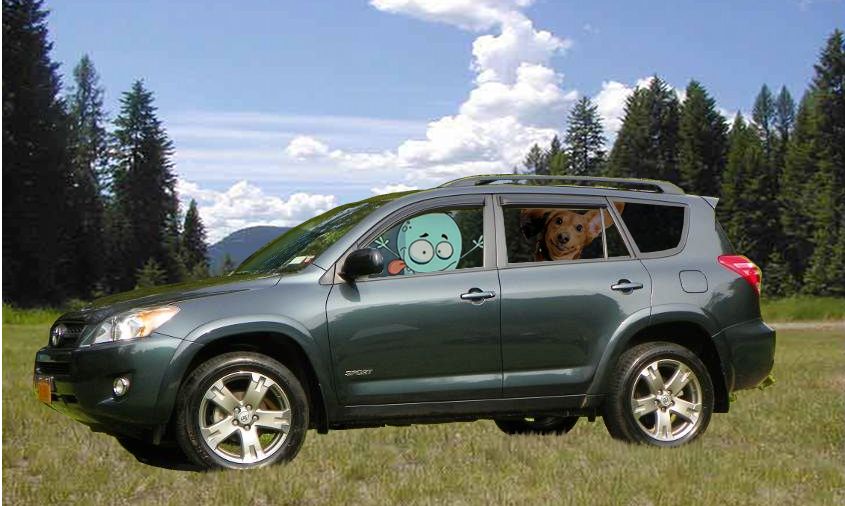
Another little trick when you are cutting out the background. When you have windows in the project, using the paths tool to select around the windows, then color to alpha and have white (ffffff) as the color, it gets rid of the opacity but not the color so you can see the background or other stuff through the windows.

Image

_________________
Image
World War IV will be fought with sticks and stones. - Albert Einstein


Top
 Post subject: Re: cut out background
PostPosted: Sun Aug 21, 2011 10:42 pm  (#12) 
Offline
GimpChat Member
User avatar

Joined: Apr 08, 2010
Posts: 5420
Location: Northwest Ohio
lol, the doggie cracks me up!


Top
 Post subject: Re: cut out background
PostPosted: Sun Aug 21, 2011 11:44 pm  (#13) 
Offline
Global Moderator
User avatar

Joined: May 16, 2010
Posts: 16317
HAHAH! All the dog needs now is one of those cones placed on backwards. :)
Cool O.

_________________
Image


Top
 Post subject: Re: cut out background
PostPosted: Mon Aug 22, 2011 10:41 am  (#14) 
Offline
GimpChat Member

Joined: Aug 05, 2011
Posts: 606
Location: limestone,ny
I like it Oregonian
my quick try, background is my driveway last winter. screwed up the windows..made them see through and could see the snow, tried painting them back in around the animals :roll: how would i blend/blur the car so it looks more like it belongs in the background
thanks
Andy

Image


Top
 Post subject: Re: cut out background
PostPosted: Mon Aug 22, 2011 11:24 am  (#15) 
Offline
Script Coder

Joined: Apr 10, 2011
Posts: 532
I just use the eraser for those. Although I have to admit it's much easier with pressure-sensitive equipment.

Quote:
how would i blend/blur the car so it looks more like it belongs in the background
thanks


Well, you can feather it. But I'd say the bigger problem is the reflection of green light on the car, when the surroundings are white... you could try using a selective h/s/l adjustment for those. Then there's the green grass showing through the tires... eraser for those I think? And maybe adding some shadow on a lower layer.


Top
 Post subject: Re: cut out background
PostPosted: Mon Aug 22, 2011 11:28 am  (#16) 
Offline
Retired Staff
User avatar

Joined: May 22, 2008
Posts: 6946
Location: Somewhere in GIMP
:ninja'd by dd. :cool

Well for one thing, there is no discernible light source in the background snow layer and your car obviously has the sun shining from somewhere. It's hard to blend the snow scene with the car because of that. I don't really know what you could do in those circumstances. Your car is shiny, it should be less shiny because of the dispersed light of the snow sky.

I tried to find a picture that demonstrates the "sameness" of the light with the gray snow sky, and this is the best I could do. Notice how "dullish" the light is on the car.

http://www.ctpost.com/mediaManager/?con ... height=471

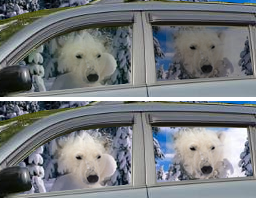
Also, you erased the windows. If you try the color to alpha method I suggested above you'd have more authentic-looking windows. Notice the difference between using color to alpha and simply deleting the insides of the windows. I used a snow scene also so you can see that it shows through along with the polar bear face that looks more like a dog. :hehe All of the windows should be treated.
Image

_________________
Image
World War IV will be fought with sticks and stones. - Albert Einstein


Top
 Post subject: Re: cut out background
PostPosted: Mon Aug 22, 2011 11:51 am  (#17) 
Offline
GimpChat Member
User avatar

Joined: Apr 07, 2010
Posts: 14182
Hi again alc59,
If you say you are doing this just for practice, here is a link with several cars to choose from, You could cut the bk out of one of those and mount in one of your favorite photo's.
http://www.bing.com/images/search?q=car ... BIR#x0y418

_________________
Image


Top
 Post subject: Re: cut out background
PostPosted: Mon Aug 22, 2011 6:43 pm  (#18) 
Offline
GimpChat Member
User avatar

Joined: Oct 07, 2010
Posts: 439
Location: home/Nixnine/.gimp-2.0/scripts/nixnine.scm
Another thing to note. Your image size is 800x600. I have found that larger images tend to cut out better. Because of the pixel count you can get closer to object edges. I prefer to work with images at about 3000-4000 px width. Works better with the eraser and free select at this size.

_________________
I refuse to be confused, but am often confused at this refusal.


Top
 Post subject: Re: cut out background
PostPosted: Mon Aug 22, 2011 7:27 pm  (#19) 
Offline
GimpChat Member
User avatar

Joined: Apr 18, 2011
Posts: 620
Location: New York
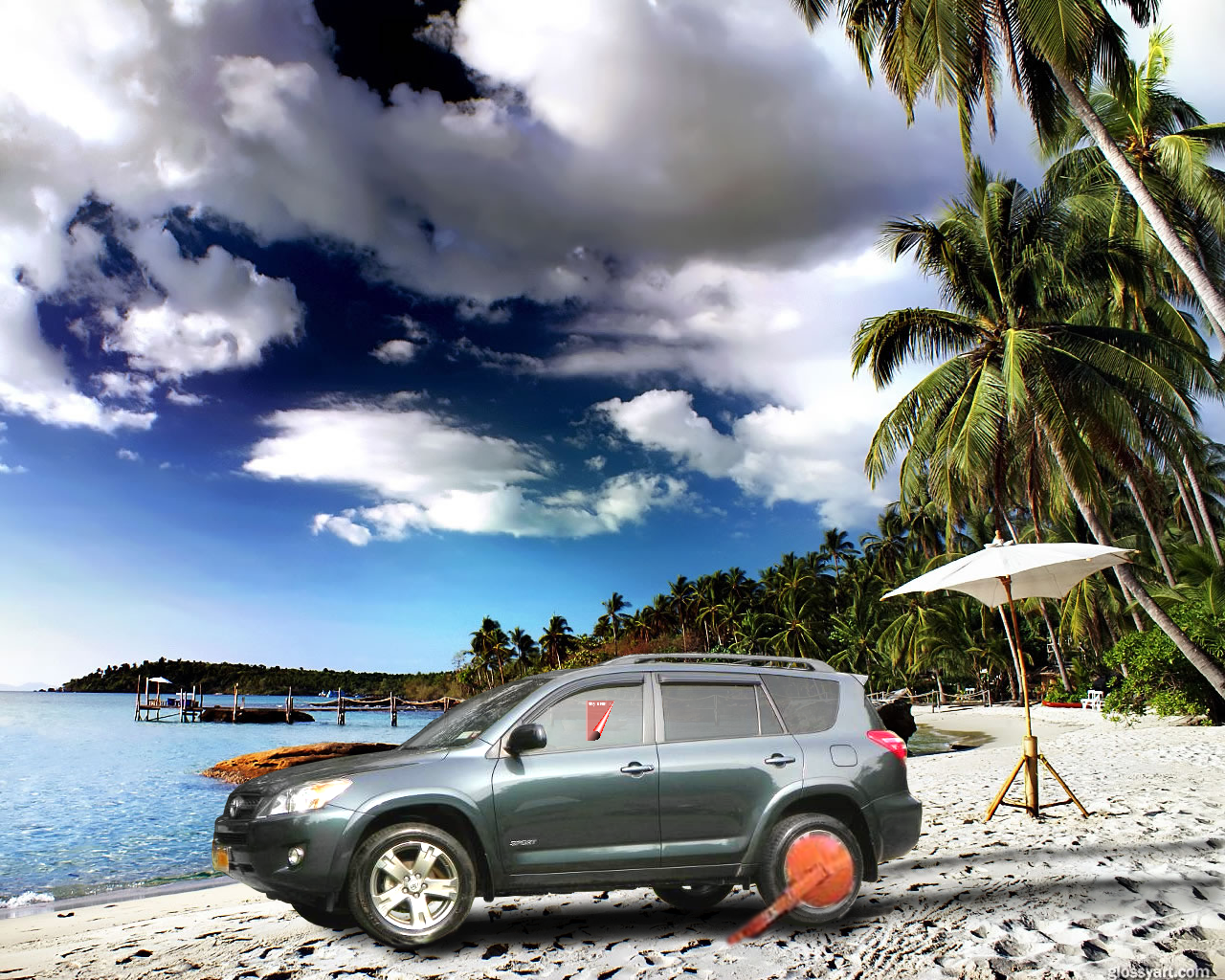
this is hardly perfect, but as this sort of thing (mattes and compositing) I did for a living I figured I'd take a crack at it.

Attachment:
car-in-paradise.jpg
car-in-paradise.jpg [ 116.08 KiB | Viewed 2684 times ]


one of the elements that really makes a composite feel natural is adding shadows. and color correcting (which in this case is not really good, but I didn't want to spent too much time at this...real busy today) :mrgreen:

and, as I'm used to doing these things in AfterEffects, making each element into a layer is the best way to go. I've included the xcf file so you get the idea.
one layer for the windows so you control the transparency
one layer for the shadows - in this it's mostly used as an aid as I feathers and airbrushed them extensively in the composite above.
and one layer for the car (minus it's windows) so any additional color correction can be done without messing with the other layers.

if this was a real job, I would not only have received a much larger res plate, I would have taken longer to get it all right. This is good enough for proof of concept


Attachments:
car-in-paradise.xcf [5.55 MiB]
Downloaded 112 times

_________________
Ubuntu 24.04.1, Kernel i686, 6.8.0-52-generic
python3 v3.12.3 ----- GIMP - ver 2.10.38
Top
 Post subject: Re: cut out background
PostPosted: Mon Aug 22, 2011 7:33 pm  (#20) 
Offline
Global Moderator
User avatar

Joined: May 16, 2010
Posts: 16317
Looks pretty nice,but can't you get a ticket for parking that thing on the beach? :P

Image

_________________
Image


Top
Post new topic Reply to topic  [ 27 posts ]  Go to page 1, 2  Next

All times are UTC - 5 hours [ DST ]


* Login  


Powered by phpBB3 © phpBB Group