It is currently Sun Nov 22, 2026 7:28 pm


All times are UTC - 5 hours [ DST ]


Post new topic Reply to topic  [ 41 posts ]  Go to page Previous  1, 2, 3  Next
Author Message
 Post subject: Re: Gfig
PostPosted: Fri Sep 30, 2011 5:05 am  (#21) 
Offline
Script Coder
User avatar

Joined: Oct 25, 2010
Posts: 4812
mahvin wrote:
It doesn't show the screen shots in its entirety on how to create the path spiral, but the idea is once you select the spiral by color, and then save to Path, you can delete all the portions of the path you don't want. It works very quickly, I discovered.
Wouldn't it be nice if Gfig generated paths directly...

_________________
Image


Top
 Post subject: Re: Gfig
PostPosted: Fri Sep 30, 2011 6:20 am  (#22) 
Offline
GimpChat Member

Joined: Apr 12, 2010
Posts: 5870
@ Ofnuts
it does generate vectorial paths :!: :!:
Except that instead then "gimp" paths are paths in a more exoteric vectorial file format :hoh


Try the Filter's File (save ) and Edit menu to check:
well obviously first you have to save a vector created by gfig using the FILTER file menu,
then you will see your preset saved in your gfig folder (in your user directory)and yes is a vectorial file

Again look as a poweful tool miss only sufficent informations for make it usable at full power
Well would be even better if the output could be directly a gimp path ,and if new presets could be saved in svg instead then with the actual undocumented format but maybe will be ask too much

_________________
My 3D Gallery on Deviantart http://photocomix2.deviantart.com/
Main gallery http://www.flickriver.com/photos/photocomix-mandala/
Mandala and simmetry http://www.flickriver.com/photos/photocomix_mandala/

Image

Mrs Wilbress


Top
 Post subject: Re: Gfig
PostPosted: Fri Sep 30, 2011 7:30 am  (#23) 
Offline
GimpChat Member

Joined: Mar 04, 2011
Posts: 2630
Going back to my earlier post, inkscape is still the best tool by far, but I used gfig as an example because it is the most convenient.

Not the only way, you can render a short line with gmic 'twirl' into a spiral as

http://i.imgur.com/JJg8a.jpg

and going back a long way to school days you can assemble a spiral from half circles of increasing radius.

@ofnuts
gfig saves to a text file much the same as does svg and other vector formats. Maybe you can tweak those files. I know you use linux and xfig is possibly still available in your repo. I only dumped it a couple of months ago. Makes nice svg files but is a really annoying app to use.

As with all things Gimp - lots of ways to do anything.


Top
 Post subject: Re: Gfig
PostPosted: Fri Sep 30, 2011 7:48 am  (#24) 
Offline
GimpChat Member

Joined: Apr 12, 2010
Posts: 5870
@Ofnuts
Digging better (http://www.picnic.demon.co.uk/gfig/README ) i saw that the gfig author used the idea of xfig but nothing from the code .. and maybe it is not even using the same .fig format for the object

_________________
My 3D Gallery on Deviantart http://photocomix2.deviantart.com/
Main gallery http://www.flickriver.com/photos/photocomix-mandala/
Mandala and simmetry http://www.flickriver.com/photos/photocomix_mandala/

Image

Mrs Wilbress


Top
 Post subject: Re: Gfig
PostPosted: Fri Sep 30, 2011 2:39 pm  (#25) 
Offline
Script Coder
User avatar

Joined: Oct 25, 2010
Posts: 4812
PhotoComix wrote:
@ Ofnuts
it does generate vectorial paths :!: :!:
Except that instead then "gimp" paths are paths in a more exoteric vectorial file format :hoh


Try the Filter's File (save ) and Edit menu to check:
well obviously first you have to save a vector created by gfig using the FILTER file menu,
then you will see your preset saved in your gfig folder (in your user directory)and yes is a vectorial file

Again look as a poweful tool miss only sufficent informations for make it usable at full power
Well would be even better if the output could be directly a gimp path ,and if new presets could be saved in svg instead then with the actual undocumented format but maybe will be ask too much
What it saves is not a path, it the set of parameters to rebuild the same object. I've yet to find a way to obtain a real Gimp path from Gfig (massaging a path obtained for the a selection over the output of Gfig doesn't count).

_________________
Image


Top
 Post subject: Re: Gfig
PostPosted: Fri Sep 30, 2011 3:01 pm  (#26) 
Offline
Script Coder
User avatar

Joined: Oct 25, 2010
Posts: 4812
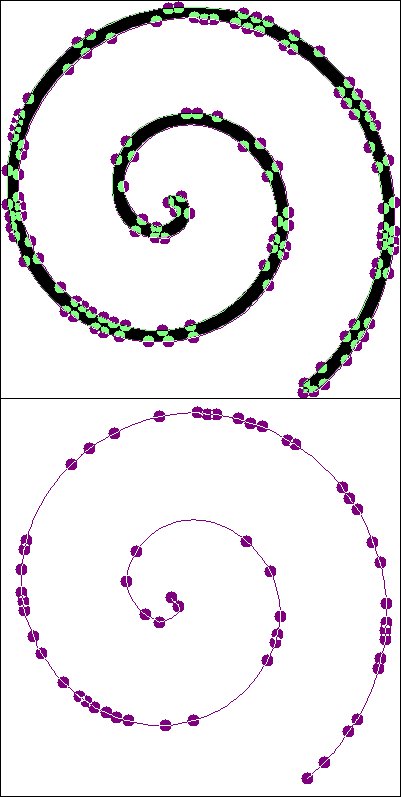
Another Gfig mystery: I can't get it to produce clean output. On the left, the Gfig spiral with visible jitter. On the right, the spiral approximated with a path and stroked with the same brush. What am I missing? (no, my paintbrush has the "jitter" control unchecked).
Attachment:
Gfig-jitter.png
Gfig-jitter.png [ 112.84 KiB | Viewed 2100 times ]

_________________
Image


Top
 Post subject: Re: Gfig
PostPosted: Fri Sep 30, 2011 3:14 pm  (#27) 
Offline
GimpChat Member

Joined: Apr 12, 2010
Posts: 5870
hum.. i had the same tought of Rich

Quote:
@ofnuts
gfig saves to a text file much the same as does svg and other vector formats


but i suppose you already checked that txt file is to recreate the setting and not the file as for svg-
(to be honest i didn't )

_________________
My 3D Gallery on Deviantart http://photocomix2.deviantart.com/
Main gallery http://www.flickriver.com/photos/photocomix-mandala/
Mandala and simmetry http://www.flickriver.com/photos/photocomix_mandala/

Image

Mrs Wilbress


Top
 Post subject: Re: Gfig
PostPosted: Fri Sep 30, 2011 3:22 pm  (#28) 
Offline
Script Coder
User avatar

Joined: Apr 23, 2010
Posts: 1553
Location: not from Guildford after all
Ofnuts, I will just advise that should you decide to pursue converting the GFIG objects into GIMP paths, 1) the information is readily available as a parasite attached to the generated Gfig layer and 2) there is some extremely strange coordinate transformation taking place (which gets even stranger if the layer is not the same size as the image).

Also, while for the straight-edged polygons the information in the parasite is directly useful (after transformation to image coordinates), for the spirals, arcs, and ellipses you will basically need to draw your path based on just the basic geometric parameters (for example, given a center point and a radius, you will need to generate a circular path1).


1 Well, it's not possible to create a perfect circle with a cubic Bezier curve, but something close.

_________________
Any sufficiently primitive technology is indistinguishable from a rock.


Top
 Post subject: Re: Gfig
PostPosted: Fri Sep 30, 2011 3:39 pm  (#29) 
Offline
Script Coder
User avatar

Joined: Oct 25, 2010
Posts: 4812
saulgoode wrote:
1 Well, it's not possible to create a perfect circle with a cubic Bezier curve, but something close.
Awfully close, actually (Google "Bezier circle kappa"). The fun things is that the "mathematical proof" on most sites is utterly false :) I use that on my path-waves script, and a similar technique to generate the sines.

_________________
Image


Last edited by ofnuts on Fri Sep 30, 2011 3:42 pm, edited 2 times in total.

Top
 Post subject: Re: Gfig
PostPosted: Fri Sep 30, 2011 3:40 pm  (#30) 
Offline
Retired Staff
User avatar

Joined: May 22, 2008
Posts: 6946
Location: Somewhere in GIMP
ofnuts wrote:
Another Gfig mystery: I can't get it to produce clean output.
It may because there's a "double" path from copying it as a selection. I find it reprehensible that they did not make those shapes automatically into paths.

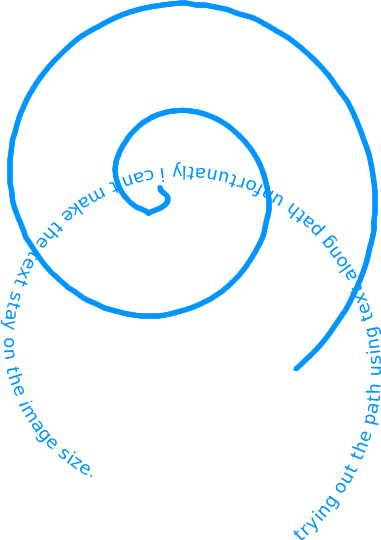
Another way, and somewhat tedious, is to use a wide brush when making the spiral. I used a size 17, then did alpha to selection and saved it as a path. Then I brought up the path to edit it and removed path nodes along one side of the spiral (Ctrl + Shift + Click to each node). The resulting path leaves much to be desired though.

Image

Text along path and also stroking the path after removing one side of the path.

Image

_________________
Image
World War IV will be fought with sticks and stones. - Albert Einstein


Top
 Post subject: Re: Gfig
PostPosted: Fri Sep 30, 2011 5:44 pm  (#31) 
Offline
GimpChat Member

Joined: Mar 29, 2011
Posts: 346
Location: Wisconsin
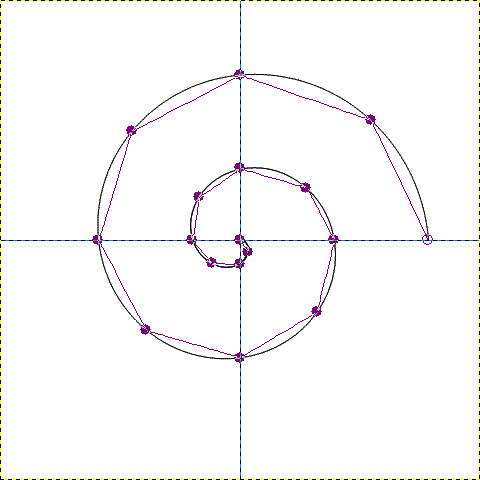
This is how I would create a spiral path by hand:

1. Render the spiral with a very narrow brush - I used the "Pixel" brush.

2. Create a crude path with the points at approximately constant angles.
That sounds confusing. :( Here's an example: I set up center guides so I'd know where the 0, 90, 180 and 270 degree angles were (i.e. the axes). I started at the center and put path nodes where the spiral crossed the guides and approximately half way in between.
Image

3. Smooth the path.
There is a plug-in to do this http://registry.gimp.org/node/20069 Look at the comments to find compiled versions for Windows. I assume Linux users will know how to compile the plug-in. The plug-in registers in the path menu (right click on the path in the paths dialog).
The smoothed path isn't perfect, but it's close. More points would give a better result.
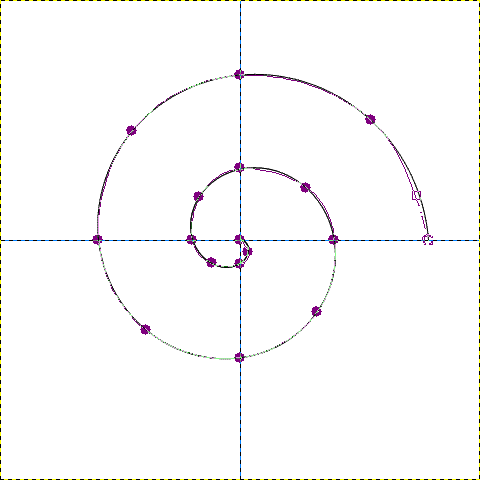
Image

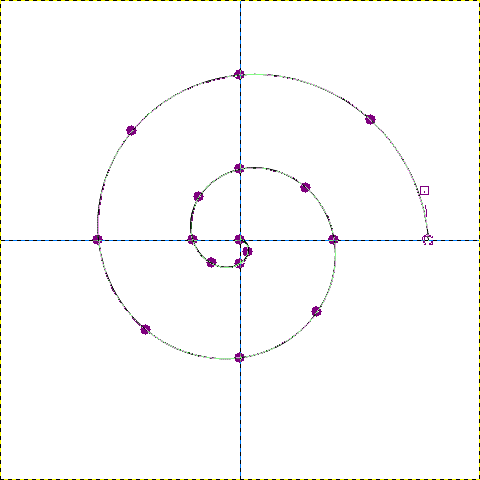
4. Optional: Tweak the path. Adjust the node handles to get a better alignment between the path and the rendered spiral. Hold down the shift key while adjusting the node handle to adjust both handles symmetrically. (This avoids bumps at the nodes.)
Image

That's it.

The other option is to use a script that renders the spiral to a path, but such scripts usually have the option to draw many types of spirals and thus they can be rather confusing to use. (I wrote such a script, but I think you'd find the method described above to be easier to use.)

_________________
Image


Top
 Post subject: Re: Gfig
PostPosted: Fri Sep 30, 2011 6:33 pm  (#32) 
Offline
GimpChat Member
User avatar

Joined: Oct 06, 2010
Posts: 4050
I'd actually prefer a script that allows user input (much like gfig does) and creates a re-usable spiral path, than to find 1k dirty ways to accomplish the same thing, in a cosmetic but incomplete fashion. Is this being addressed in 2.8 or future releases, btw?

_________________
"In order to attain the impossible, one must attempt the absurd."
~ Miguel de Cervantes


Top
 Post subject: Re: Gfig
PostPosted: Sat Oct 01, 2011 5:17 am  (#33) 
Offline
GimpChat Member
User avatar

Joined: Apr 07, 2010
Posts: 14182
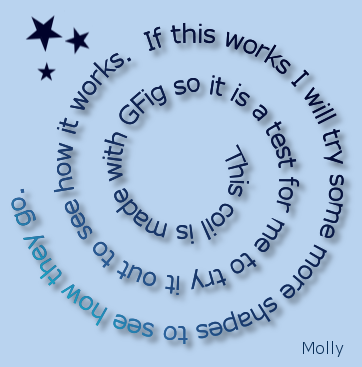
Ok, Mahv, here is my coil done with GFig.

Image

_________________
Image


Top
 Post subject: Re: Gfig
PostPosted: Sat Oct 01, 2011 5:48 am  (#34) 
Offline
GimpChat Member

Joined: Apr 12, 2010
Posts: 5870
Gfig can almost do what i wish but with too much fiddling so i opened a new topic here
viewtopic.php?f=9&t=2714

_________________
My 3D Gallery on Deviantart http://photocomix2.deviantart.com/
Main gallery http://www.flickriver.com/photos/photocomix-mandala/
Mandala and simmetry http://www.flickriver.com/photos/photocomix_mandala/

Image

Mrs Wilbress


Top
 Post subject: Re: Gfig
PostPosted: Sat Oct 01, 2011 1:44 pm  (#35) 
Offline
GimpChat Member
User avatar

Joined: Oct 07, 2010
Posts: 439
Location: home/Nixnine/.gimp-2.0/scripts/nixnine.scm
Hey, molly, that's cool. Looks much better than mine. What did you do different?

_________________
I refuse to be confused, but am often confused at this refusal.


Top
 Post subject: Re: Gfig
PostPosted: Sat Oct 01, 2011 2:25 pm  (#36) 
Offline
GimpChat Member
User avatar

Joined: Apr 07, 2010
Posts: 14182
The only thing I know of is a shadow and used a gradient for the text. I want to know how you did the animated one. pleeeeeze. :teeth

_________________
Image


Top
 Post subject: Re: Gfig
PostPosted: Sat Oct 01, 2011 4:55 pm  (#37) 
Offline
GimpChat Member
User avatar

Joined: Oct 07, 2010
Posts: 439
Location: home/Nixnine/.gimp-2.0/scripts/nixnine.scm
Sorry, I forgot all about that. It is real simple though.

After I did the text to path -- well, I used the bevel and metallic look, but that's an option -- I just used the mathmap zoom and rotate script. That was all. Not sure how many frames I used. Think it was a 100. But after the zoom and rotate, apply and combine background, optimize for gif, and save as gif. Really simple it was. I had more difficulty applying the text to path.

1. With text pathed to spiral, apply mathmap zoom and rotate.
2. Apply and combine background (remove original background layer).
3. Save as gif.

If you have ? just let me know. I'll try to get back quicker. I'm still trying to get my spiralled text as smooth and circular as yours.

_________________
I refuse to be confused, but am often confused at this refusal.


Top
 Post subject: Re: Gfig
PostPosted: Sat Oct 01, 2011 5:03 pm  (#38) 
Offline
GimpChat Member
User avatar

Joined: Apr 07, 2010
Posts: 14182
Make the GFig first > alpha to selection (I used the smallest brush I had but I don't think that matters.) > selection to path > layers > Text (Make your line of text) > text to path make new transparent layer > Paths > click your path > go down to bottom and go< paint along path, turn off eye in paths I don't remember if there was anything between that or not, I should have written it down. (I used paint with gradient for my stroke) and put in a shadow 5 - 5 - 5 with 50% opacity

EDIT: I didn't use the pen, (bezier) tool, I just went straight to the coil

_________________
Image


Top
 Post subject: Re: Gfig
PostPosted: Sun Oct 02, 2011 2:29 am  (#39) 
Offline
GimpChat Member
User avatar

Joined: Oct 06, 2010
Posts: 4050
LightningIsMyName made these path scripts which I found at Gimp Talk. Spiral works real well. Golden Spiral is a bit off the grid, literally.

Found here:

http://www.mediafire.com/?jzmre45q1oi

_________________
"In order to attain the impossible, one must attempt the absurd."
~ Miguel de Cervantes


Top
 Post subject: Re: Gfig
PostPosted: Sun Oct 02, 2011 5:21 am  (#40) 
Offline
GimpChat Member
User avatar

Joined: Apr 07, 2010
Posts: 14182
nixnine wrote:
Sorry, I forgot all about that. It is real simple though.

After I did the text to path -- well, I used the bevel and metallic look, but that's an option -- I just used the mathmap zoom and rotate script. That was all. Not sure how many frames I used. Think it was a 100. But after the zoom and rotate, apply and combine background, optimize for gif, and save as gif. Really simple it was. I had more difficulty applying the text to path.

1. With text pathed to spiral, apply mathmap zoom and rotate.
2. Apply and combine background (remove original background layer).
3. Save as gif.

If you have ? just let me know. I'll try to get back quicker. I'm still trying to get my spiralled text as smooth and circular as yours.


Attachments:
File comment: I finally figured out the Zoom and rotate Nixnine, thanks
Halloween-GFig.gif
Halloween-GFig.gif [ 621.93 KiB | Viewed 3695 times ]

_________________
Image
Top
Post new topic Reply to topic  [ 41 posts ]  Go to page Previous  1, 2, 3  Next

All times are UTC - 5 hours [ DST ]


* Login  


Powered by phpBB3 © phpBB Group