It is currently Thu Nov 26, 2026 8:45 pm


All times are UTC - 5 hours [ DST ]


Post new topic Reply to topic  [ 10 posts ] 
Author Message
 Post subject: How to create this yellow shape
PostPosted: Wed Feb 01, 2012 11:48 am  (#1) 
Offline
GimpChat Member
User avatar

Joined: Aug 07, 2011
Posts: 69
GIMP Version: 2.7.5
Operating System: Windows
OS Version: 7
GIMP Experience: Basic Level


hello everyone, :seeya
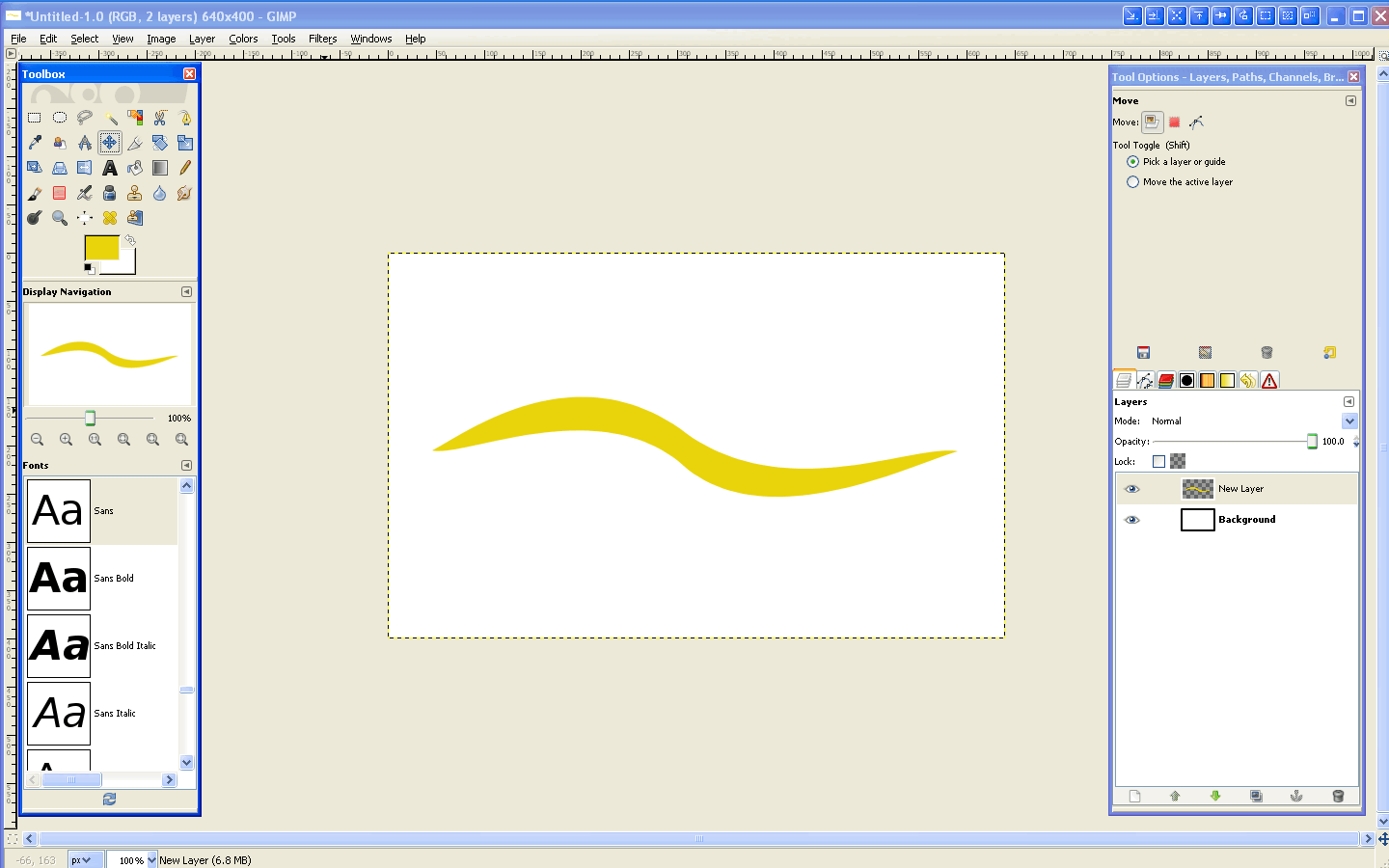
can you tell me how to do this yellow shape in gimp?
Image
thanks.


Share on Facebook Share on Twitter Share on Orkut Share on Digg Share on MySpace Share on Delicious Share on Technorati
Top
 Post subject: Re: How to create this yellow shape
PostPosted: Wed Feb 01, 2012 12:07 pm  (#2) 
Offline
GimpChat Member
User avatar

Joined: Jan 20, 2012
Posts: 583
Take the image, select the "Select by Color" tool. Click on the blue, crtl+i. Selection to Path.
Stroke the path on a new layer. Fill the inner selection with any color you want on another new layer.
Gives you the shape (minus a little dependent on the stroke path amount) on a new layer that you can manipulate to your hearts content.

You could also right click on the original layer and select add alpha channel. Then color select the blue and hit delete. Leaving the yellow shape, not as clean but works non the less.

And last but not least, you could use the path tool and trace it yourself to learn the curves and how to use the tool.

_________________


"In the face of adversity, there's three things: fly, freeze or fight; We're choosing to fight..."- Guy Boucher, Tampa Bay Lighting Head Coach


Top
 Post subject: Re: How to create this yellow shape
PostPosted: Wed Feb 01, 2012 5:20 pm  (#3) 
Offline
Script Coder
User avatar

Joined: Oct 25, 2010
Posts: 4812
kungfu07 wrote:
GIMP Version: 2.7.5
Operating System: Windows
OS Version: 7
GIMP Experience: Basic Level


hello everyone, :seeya
can you tell me how to do this yellow shape in gimp?
Image
thanks.

  • Load sample image in Gimp.
  • Scale up to comfortable size (I used 400%) or to the size you need if it's big enough. The image will look crap but it's not a problem.
  • Use the Path editor to draw a path that follow the shape. You don't need many points (the less points, the smoother it will look. I used 6.
  • Add new layer, fill with blue (that you sampled on the original)
  • Add new layer
  • Obtain selection from path create above
  • Fill selection with yellow
Attachment:
Shape.png
Shape.png [ 14.87 KiB | Viewed 3526 times ]


Plus attached XCF:


Attachments:
Shape.xcf [662.9 KiB]
Downloaded 121 times

_________________
Image
Top
 Post subject: Re: How to create this yellow shape
PostPosted: Thu Feb 02, 2012 3:11 am  (#4) 
Offline
Global Moderator
User avatar

Joined: May 16, 2010
Posts: 16317
Ahh and here we are back to the 3-point-path :)
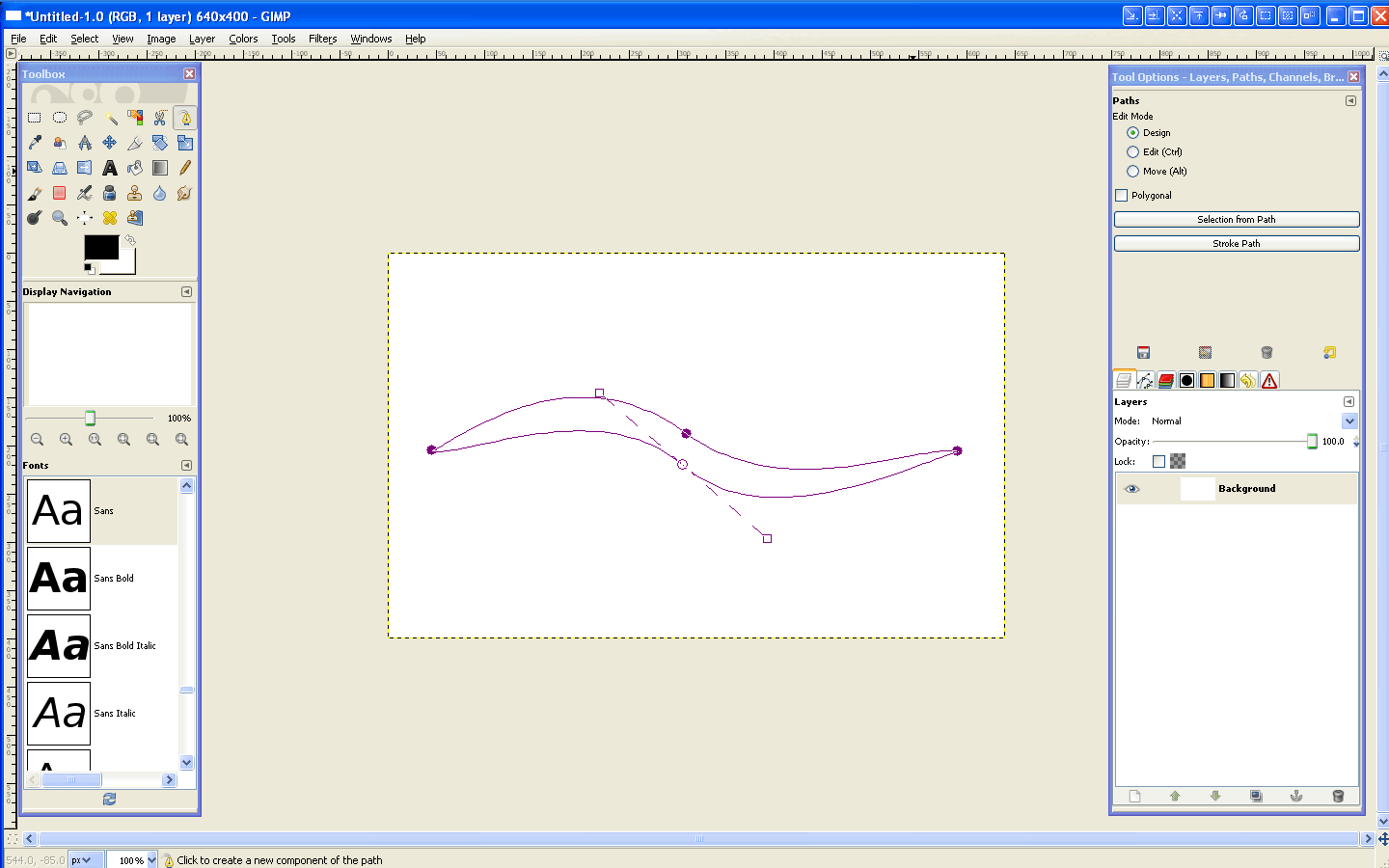
Make a new doc - grab your paths tool - create one point - create a second point - hold down the ctrl key and click on the first point.You now have a 2 line path. Trust me it's there. :lol
Now grab one path line and move it away from the other one.
Select the edit option in the paths tool options dialog - add 2 nodes, one in the center of each path line.
Re-Select the design option in the tool options dialog.
Hold down the shift key and select one of the center nodes handles.Move the handle up or down.
Do the same with the other center node.Select the layers dialog and make a new layer.
Select the paths dialog , select your path layer, and in the tool options select selection from path.
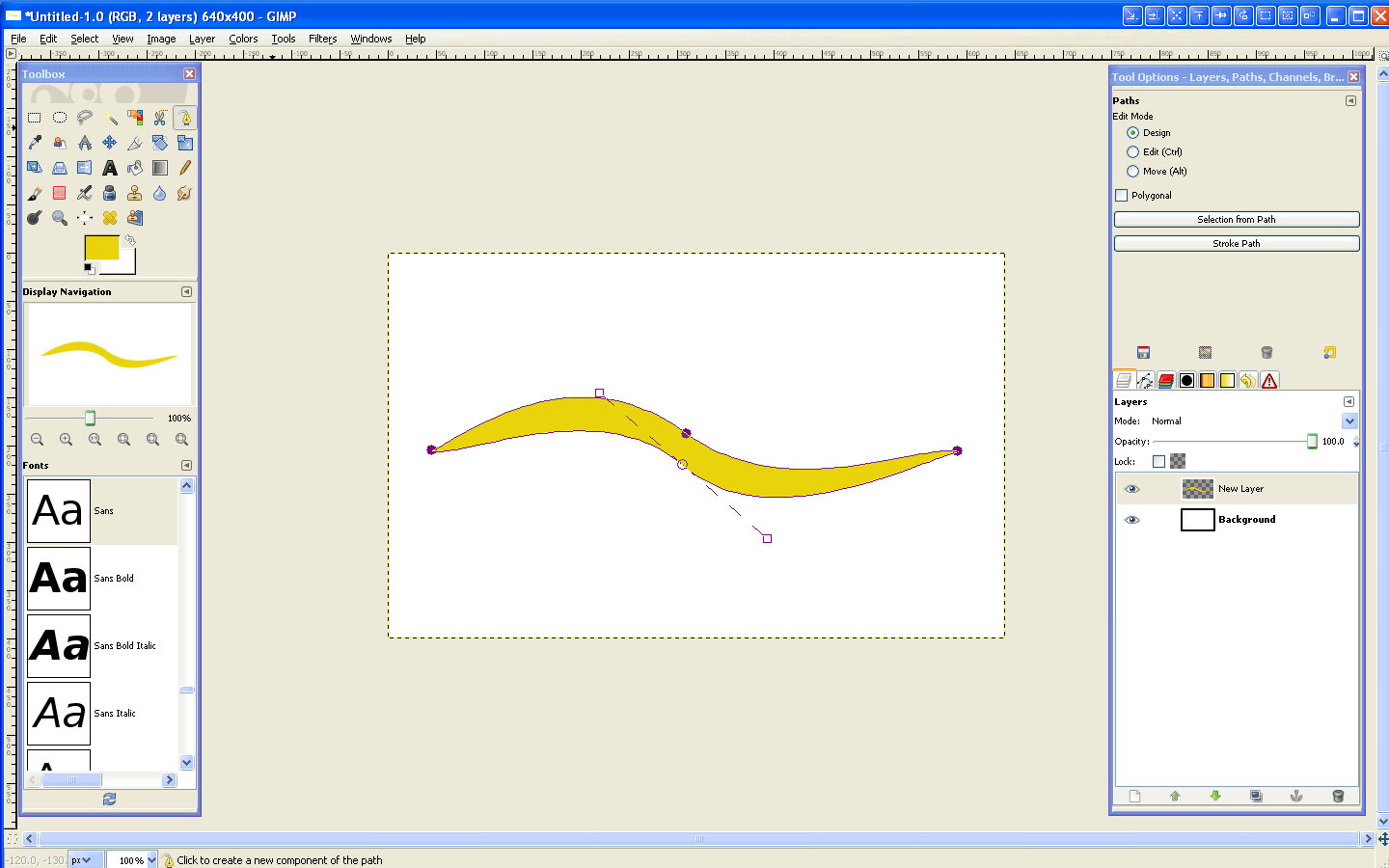
Select the layers dialog and fill it in with whatever color you like. :)

The Path -
Image

The Fill -

Image

Choose a different tool in the toolbox to hide the path line.
Image

_________________
Image


Top
 Post subject: Re: How to create this yellow shape
PostPosted: Thu Feb 02, 2012 6:06 am  (#5) 
Offline
Script Coder
User avatar

Joined: Apr 23, 2010
Posts: 1553
Location: not from Guildford after all
Or you could edit two 2-point paths and merge them into one path.

Attachment:
curvy.gif
curvy.gif [ 919.96 KiB | Viewed 3484 times ]

_________________
Any sufficiently primitive technology is indistinguishable from a rock.


Top
 Post subject: Re: How to create this yellow shape
PostPosted: Thu Feb 02, 2012 6:39 am  (#6) 
Offline
GimpChat Member
User avatar

Joined: Apr 07, 2010
Posts: 14182
wow thats cool.

_________________
Image


Top
 Post subject: Re: How to create this yellow shape
PostPosted: Thu Feb 02, 2012 7:45 am  (#7) 
Offline
GimpChat Member
User avatar

Joined: Aug 07, 2011
Posts: 69
Hello, :gimp
Thank you very much..all of you :tyspin that's what I wanted to know
I think ROD method is the best to create symmetrical shape.
at the same time I wonder is there a different way using Paths Tool (single path) and the Brush Dynamics ?


Top
 Post subject: Re: How to create this yellow shape
PostPosted: Thu Feb 02, 2012 9:17 am  (#8) 
Offline
Script Coder
User avatar

Joined: Oct 25, 2010
Posts: 4812
saulgoode wrote:
Or you could edit two 2-point paths and merge them into one path.

I don't see the purpose of creating the two strokes in two separate paths and merging them afterwards? Merging the paths doesn't connect the strokes, so if the ending points of the strokes aren't close enough you won't get a proper selection from the merged path...

_________________
Image


Top
 Post subject: Re: How to create this yellow shape
PostPosted: Thu Feb 02, 2012 9:24 am  (#9) 
Offline
Script Coder
User avatar

Joined: Oct 25, 2010
Posts: 4812
kungfu07 wrote:
Hello, :gimp
Thank you very much..all of you :tyspin that's what I wanted to know
I think ROD method is the best to create symmetrical shape.
at the same time I wonder is there a different way using Paths Tool (single path) and the Brush Dynamics ?
You could but you would never get this kind of control.

_________________
Image


Top
 Post subject: Re: How to create this yellow shape
PostPosted: Thu Feb 02, 2012 5:38 pm  (#10) 
Offline
Script Coder
User avatar

Joined: Apr 23, 2010
Posts: 1553
Location: not from Guildford after all
ofnuts wrote:
saulgoode wrote:
Or you could edit two 2-point paths and merge them into one path.

I don't see the purpose of creating the two strokes in two separate paths and merging them afterwards? Merging the paths doesn't connect the strokes, so if the ending points of the strokes aren't close enough you won't get a proper selection from the merged path...

The second path is a duplicate of the first and has the same end points, only the control handles get repositioned.

_________________
Any sufficiently primitive technology is indistinguishable from a rock.


Top
Post new topic Reply to topic  [ 10 posts ] 

All times are UTC - 5 hours [ DST ]


* Login  


Powered by phpBB3 © phpBB Group