It is currently Mon Sep 21, 2026 3:24 am


All times are UTC - 5 hours [ DST ]


Post new topic Reply to topic  [ 15 posts ] 
Author Message
 Post subject: Lighting Effects
PostPosted: Wed Nov 07, 2012 8:10 pm  (#1) 
Offline
GimpChat Member

Joined: Nov 07, 2012
Posts: 14
GIMP Version: 2.6.11
Operating System: Windows
OS Version: XP - SP3
GIMP Experience: Intermediate Level


Hey guys I am a long time GIMP user, mainly for signatures, but I have never been able to figure out how to light them correctly? Any suggestions or sites that I could use to help me out?

One thing I have tried recently, but its just too much lighting is add a black, dodge layer over what I want lighted while using a white, radial gradient to bring out the lighting part. Like I said its way too much. Any help would be appreciated.


Share on Facebook Share on Twitter Share on Orkut Share on Digg Share on MySpace Share on Delicious Share on Technorati
Top
 Post subject: Re: Lighting Effects
PostPosted: Wed Nov 07, 2012 8:30 pm  (#2) 
Offline
GimpChat Member
User avatar

Joined: Jul 17, 2012
Posts: 2769
ist that what Filters - > Light & Shadow -> Lighting Effects is for ?


Top
 Post subject: Re: Lighting Effects
PostPosted: Wed Nov 07, 2012 8:47 pm  (#3) 
Offline
GimpChat Member

Joined: Nov 07, 2012
Posts: 14
Esper wrote:
ist that what Filters - > Light & Shadow -> Lighting Effects is for ?


I used that when I first started doing this stuff and wasn't too impressed. I am talking like using different brushes, gradients, layers to get it done. Thanks.


Top
 Post subject: Re: Lighting Effects
PostPosted: Wed Nov 07, 2012 9:57 pm  (#4) 
Offline
GimpChat Member

Joined: Nov 07, 2012
Posts: 14
I've been messing around with it tonight and it appears that if you use a radial gradient (overlay) over the layer(s) you are trying to lighting, add effects.

So make a new layer.
Use a white radial gradient - White to Transparent
In your new layer make your radial gradient where you want the light to be.
Change that layer to Overlay (duplicate depending on how bright you want it)

That works some what. I would still like more of a lighting effect, but if you do this with a white, yellowish color it works OK.


Top
 Post subject: Re: Lighting Effects
PostPosted: Wed Nov 07, 2012 10:43 pm  (#5) 
Offline
GimpChat Member

Joined: Aug 27, 2010
Posts: 491
There's a technique where you overlay a photograph of a light source over the area you want highlighted.
For example, if you overlay a window with a frame you get both highlights and shadows.
It's simply a matter of moving and rotating the image to get the highlights and shadows in the proper location.
Trimming and feathering help a great deal with highlights and shadows.


Top
 Post subject: Re: Lighting Effects
PostPosted: Wed Nov 07, 2012 10:45 pm  (#6) 
Offline
GimpChat Member

Joined: Nov 07, 2012
Posts: 14
That's a good idea. I'll have to try that. Thanks for the suggestion.


Top
 Post subject: Re: Lighting Effects
PostPosted: Thu Nov 08, 2012 12:32 pm  (#7) 
Offline
GimpChat Member
User avatar

Joined: Aug 16, 2012
Posts: 4271
Location: Göteborg, Sweden
soty: how much did you play with the settings when you used the lighting effects? i get results that i like, but only if i work on a separate layer, fill it with black or a dark colour first, change all the settings til i get exactly the kind of light i'm after and put the result on overlay (or ocasionally other layer modes, depends on what result i'm after), sometimes duplicating the layer. in any case i don't think you need to give the lighting effects up as useless, it's one of many possible tools and techniques for getting lighting effects.

_________________


Top
 Post subject: Re: Lighting Effects
PostPosted: Thu Nov 08, 2012 1:26 pm  (#8) 
Offline
GimpChat Member

Joined: Nov 07, 2012
Posts: 14
Yeah I have been messing around with the layers thing myself. Seems to work somewhat. Thanks.


Top
 Post subject: Re: Lighting Effects
PostPosted: Fri Nov 16, 2012 8:20 pm  (#9) 
Offline
GimpChat Member

Joined: Nov 07, 2012
Posts: 14
Been working on some lighting techniques. Minus the fact that its a sports sig, what do you guys think?

Image


Top
 Post subject: Re: Lighting Effects
PostPosted: Fri Nov 16, 2012 8:49 pm  (#10) 
Offline
GimpChat Member
User avatar

Joined: Nov 15, 2012
Posts: 949
Location: Mesa, AZ
Assuming you still got your render separate. Try darkening the background a little with brightness/contrast sliders. Turn brightness down a notch, contrast up. Drop your render on top of that, duplicate it, blur it just slightly and then overlay it on your existing render in the sig. It will make him pop while the contrast in the back will push the background down where it belongs. My two cents.

_________________
Image

I now have a Tumblr, check it out!


Top
 Post subject: Re: Lighting Effects
PostPosted: Fri Nov 16, 2012 9:03 pm  (#11) 
Offline
GimpChat Member

Joined: Nov 07, 2012
Posts: 14
ek22 wrote:
Assuming you still got your render separate. Try darkening the background a little with brightness/contrast sliders. Turn brightness down a notch, contrast up. Drop your render on top of that, duplicate it, blur it just slightly and then overlay it on your existing render in the sig. It will make him pop while the contrast in the back will push the background down where it belongs. My two cents.


Did what you said.

Image

Not sure why image is not showing? It only says Image on my end?


Top
 Post subject: Re: Lighting Effects
PostPosted: Fri Nov 16, 2012 9:09 pm  (#12) 
Offline
GimpChat Member
User avatar

Joined: Nov 15, 2012
Posts: 949
Location: Mesa, AZ
Not seeing it here either, 404 error, try uploading it again.

_________________
Image

I now have a Tumblr, check it out!


Top
 Post subject: Re: Lighting Effects
PostPosted: Fri Nov 16, 2012 9:12 pm  (#13) 
Offline
GimpChat Member

Joined: Nov 07, 2012
Posts: 14
Image


Top
 Post subject: Re: Lighting Effects
PostPosted: Fri Nov 16, 2012 9:51 pm  (#14) 
Offline
GimpChat Member
User avatar

Joined: Nov 15, 2012
Posts: 949
Location: Mesa, AZ
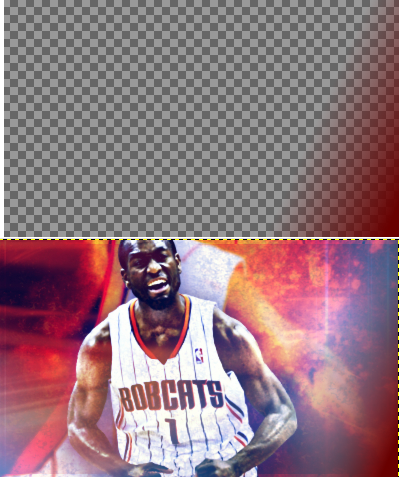
Colors are popping better. The whole sig is more vivid. I still trip over that bluish flare in the right corner. I don't know if that's intentional or not, but if it was mine, I'd stroke a black to transparent gradient into that corner to mute that a bit. If yo do it on a separate layer, you can adjust the intensity of it.

EDIT: I pulled it up and had a go at that glare, this is obviously very rough on my end, but just to get you the idea of what I did. I used a rusty kind of red and on a separate layer stroked that corner to suit the colors of the rest of the image a little better. Hope this helps.

Image

_________________
Image

I now have a Tumblr, check it out!


Top
 Post subject: Re: Lighting Effects
PostPosted: Fri Nov 16, 2012 10:05 pm  (#15) 
Offline
GimpChat Member

Joined: Nov 07, 2012
Posts: 14
I see what you are talking about with the blue. I will work on it for the next sig. Thanks.


Top
Post new topic Reply to topic  [ 15 posts ] 

All times are UTC - 5 hours [ DST ]


* Login  


Powered by phpBB3 © phpBB Group