It is currently Mon Sep 21, 2026 11:42 am


All times are UTC - 5 hours [ DST ]


Post new topic Reply to topic  [ 33 posts ]  Go to page 1, 2  Next
Author Message
 Post subject: Extended Text Help: (Thanks for all the Suggestions)...
PostPosted: Thu Jun 27, 2013 3:51 pm  (#1) 
Offline
Administrator
User avatar

Joined: Aug 10, 2012
Posts: 14206
Location: Native to NYC living in Arizona, Gimp 2.8 - 3.0, Win 11 PC.
GIMP Version: 2.6.11
Operating System: Windows
OS Version: XP sp3
GIMP Experience: Advanced Level

List any relevant plug-ins or scripts:
N/A

List any ERROR messages you received:
N/A


Would anyone know how to create this kind of extended text effect you see in the blue text below?

Image

I want the base text to be straight/flat, like you see in the yellow text above. Without any kind of curve and the extended effect to go as far back into the image as possible.
Also, I would like to have the extended text effect retain much of it's original text shape, along with some added depth.

_________________
Image
"A wise man learns more from a foolish question than a fool can learn from a wise answer"
Image


Last edited by Wallace on Thu Jun 27, 2013 9:00 pm, edited 1 time in total.

Share on Facebook Share on Twitter Share on Orkut Share on Digg Share on MySpace Share on Delicious Share on Technorati
Top
 Post subject: Re: Extended Text Help...
PostPosted: Thu Jun 27, 2013 5:14 pm  (#2) 
Offline
GimpChat Member
User avatar

Joined: Aug 30, 2012
Posts: 2174
I would have a read through this thread

_________________
Image


Top
 Post subject: Re: Extended Text Help...
PostPosted: Thu Jun 27, 2013 5:17 pm  (#3) 
Offline
Global Moderator
User avatar

Joined: May 16, 2010
Posts: 16173
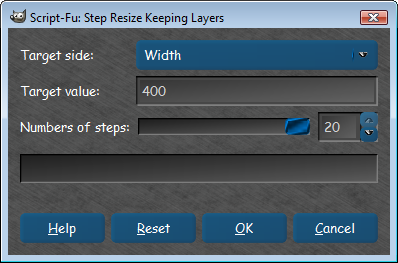
If you use the scale image (keeping layers) script , then adding perspective you can get this effect.
http://www.gimpchat.com/viewtopic.php?f=9&t=1450#p17702

Select all the code and copy as scale-keep-layers.scm
You will find it at -
Script-Fu>Step Resize Keeping Layers

_________________
Image


Top
 Post subject: Re: Extended Text Help...
PostPosted: Thu Jun 27, 2013 5:23 pm  (#4) 
Offline
GimpChat Member
User avatar

Joined: Apr 07, 2010
Posts: 14182
Have you tried this script Wallace? I have made some very nice 3-D text with it.

Image


Attachments:
3dscript.scm.7z [1.06 KiB]
Downloaded 119 times

_________________
Image
Top
 Post subject: Re: Extended Text Help...
PostPosted: Thu Jun 27, 2013 5:33 pm  (#5) 
Offline
Administrator
User avatar

Joined: Aug 10, 2012
Posts: 14206
Location: Native to NYC living in Arizona, Gimp 2.8 - 3.0, Win 11 PC.
he4rty wrote:
I would have a read through this thread


Thanks for the link. I think I even have that script, but not sure. I'll have to take a look and see.

_________________
Image
"A wise man learns more from a foolish question than a fool can learn from a wise answer"
Image


Top
 Post subject: Re: Extended Text Help...
PostPosted: Thu Jun 27, 2013 5:35 pm  (#6) 
Offline
Global Moderator
User avatar

Joined: May 16, 2010
Posts: 16173
Image

These are the settings.
Image :ninja
You will also need to Layer>Stack>reverse the layer order.

Molly added another nice alternative. :)
You can also set the values to a higher limit within the step resize script (from 20 max to a higher number).
   SF-ADJUSTMENT   "Numbers of steps"   '(10 2 20 1 1 0 0)


Change the number 20 to 200 or 2000 whichever you prefer. :ninja

_________________
Image


Top
 Post subject: Re: Extended Text Help...
PostPosted: Thu Jun 27, 2013 5:37 pm  (#7) 
Offline
GimpChat Member
User avatar

Joined: Apr 07, 2010
Posts: 14182
This is another way I tried too, by moving the layers with the arrow keys to make it 3:D
Fencepost text tutorial

_________________
Image


Top
 Post subject: Re: Extended Text Help...
PostPosted: Thu Jun 27, 2013 5:39 pm  (#8) 
Offline
Administrator
User avatar

Joined: Aug 10, 2012
Posts: 14206
Location: Native to NYC living in Arizona, Gimp 2.8 - 3.0, Win 11 PC.
molly wrote:
Have you tried this script Wallace? I have made some very nice 3-D text with it.


Yes I have tried this script. That is how I made the example image to start this thread. The script is pretty goo but does not create the 3d effect in perspective. That is what I looking to do. I want my test to extend back into the image and disappear into the background. The vanishing-point would be in the center of the text and extend far into the background, getting smaller the further back it goes.

_________________
Image
"A wise man learns more from a foolish question than a fool can learn from a wise answer"
Image


Top
 Post subject: Re: Extended Text Help...
PostPosted: Thu Jun 27, 2013 5:40 pm  (#9) 
Offline
Global Moderator
User avatar

Joined: May 16, 2010
Posts: 16173
Image

I have to admit though that the 3D text script gives you more perspective angle options and is less of a hassle to work with. :) :ninja

_________________
Image


Top
 Post subject: Re: Extended Text Help...
PostPosted: Thu Jun 27, 2013 5:46 pm  (#10) 
Offline
Administrator
User avatar

Joined: Aug 10, 2012
Posts: 14206
Location: Native to NYC living in Arizona, Gimp 2.8 - 3.0, Win 11 PC.
Rod wrote:
[ Image ]

These are the settings.
[ Image ] :ninja
You will also need to Layer>Stack>reverse the layer order.

Molly added another nice alternative. :)
You can also set the values to a higher limit within the step resize script (from 20 max to a higher number).
   SF-ADJUSTMENT   "Numbers of steps"   '(10 2 20 1 1 0 0)


Change the number 20 to 200 or 2000 whichever you prefer. :ninja


Thanks Rod.
There doesn't seem to be much form given to the effect that resembles the text, only one solid shape of the test. Almost like an elongated shadow of the text, but it is close to what I would like to do.

_________________
Image
"A wise man learns more from a foolish question than a fool can learn from a wise answer"
Image


Top
 Post subject: Re: Extended Text Help...
PostPosted: Thu Jun 27, 2013 5:48 pm  (#11) 
Offline
Administrator
User avatar

Joined: Aug 10, 2012
Posts: 14206
Location: Native to NYC living in Arizona, Gimp 2.8 - 3.0, Win 11 PC.
molly wrote:
This is another way I tried too, by moving the layers with the arrow keys to make it 3:D
Fencepost text tutorial


Oh yes, I've used this tut before, it's a good one too. Thanks Molly.

_________________
Image
"A wise man learns more from a foolish question than a fool can learn from a wise answer"
Image


Top
 Post subject: Re: Extended Text Help...
PostPosted: Thu Jun 27, 2013 5:52 pm  (#12) 
Offline
Administrator
User avatar

Joined: Aug 10, 2012
Posts: 14206
Location: Native to NYC living in Arizona, Gimp 2.8 - 3.0, Win 11 PC.
Rod wrote:
[ Image ]

I have to admit though that the 3D text script gives you more perspective angle options and is less of a hassle to work with. :) :ninja


Yes I agree with you Rod. I might try to do a zoom-blur on some text with 2 or 3 colors. This might help create more depth to the 3d effect created by this method.

_________________
Image
"A wise man learns more from a foolish question than a fool can learn from a wise answer"
Image


Top
 Post subject: Re: Extended Text Help...
PostPosted: Thu Jun 27, 2013 5:58 pm  (#13) 
Offline
GimpChat Member
User avatar

Joined: Sep 22, 2012
Posts: 2089
Location: US
Is that what you're after, Wallace?
It takes about 1 min to make it in Blender

Image


Top
 Post subject: Re: Extended Text Help...
PostPosted: Thu Jun 27, 2013 6:01 pm  (#14) 
Offline
GimpChat Member
User avatar

Joined: Apr 07, 2010
Posts: 14182
Very cool Kit. How many minutes does it take to learn blender?

_________________
Image


Top
 Post subject: Re: Extended Text Help...
PostPosted: Thu Jun 27, 2013 6:01 pm  (#15) 
Offline
Global Moderator
User avatar

Joined: May 16, 2010
Posts: 16173
Wallace wrote:
Rod wrote:
[ Image ]

These are the settings.
[ Image ] :ninja
You will also need to Layer>Stack>reverse the layer order.

Molly added another nice alternative. :)
You can also set the values to a higher limit within the step resize script (from 20 max to a higher number).
   SF-ADJUSTMENT   "Numbers of steps"   '(10 2 20 1 1 0 0)


Change the number 20 to 200 or 2000 whichever you prefer. :ninja


Thanks Rod.
There doesn't seem to be much form given to the effect that resembles the text, only one solid shape of the test. Almost like an elongated shadow of the text, but it is close to what I would like to do.

Well you do not have to use black.You can use a gradient fill to create a 3D illusion.

Maybe G'MIC extrusion is your answer?
Image
Image
Image

I think a need for this kind of effect was brought up before but didn't raise any attention. :lol :ninja :ninja :ninja

_________________
Image


Top
 Post subject: Re: Extended Text Help...
PostPosted: Thu Jun 27, 2013 6:15 pm  (#16) 
Offline
GimpChat Member
User avatar

Joined: Sep 22, 2012
Posts: 2089
Location: US
molly wrote:
Very cool Kit. How many minutes does it take to learn blender?


lol, molly! A LOT! But you can do so much more than just extruded text after you sacrificed those many minutes on Blender.


Top
 Post subject: Re: Extended Text Help...
PostPosted: Thu Jun 27, 2013 6:15 pm  (#17) 
Offline
GimpChat Member
User avatar

Joined: Jul 17, 2012
Posts: 2769
i wrote a Gimp/Inkscape tutorial for 3D text, if thats any help

http://gimp-science-labs.blogspot.de/20 ... style.html


Top
 Post subject: Re: Extended Text Help...
PostPosted: Thu Jun 27, 2013 6:57 pm  (#18) 
Offline
Administrator
User avatar

Joined: Aug 10, 2012
Posts: 14206
Location: Native to NYC living in Arizona, Gimp 2.8 - 3.0, Win 11 PC.
K1TesseraEna wrote:
Is that what you're after, Wallace?
It takes about 1 min to make it in Blender

[ Image ]

@K1TesseraEna

:yes ! That's it...
I would like a different perspective, but that's spot on. Don't know Blender though.
If I download Blender, do you think I could figure out how you did that on my own? I'm pretty savvy with stuff like this.
Maybe you could just direct me to the proper tabs to select or whatever it is in Blender that will create this effect?

_________________
Image
"A wise man learns more from a foolish question than a fool can learn from a wise answer"
Image


Top
 Post subject: Re: Extended Text Help...
PostPosted: Thu Jun 27, 2013 7:01 pm  (#19) 
Offline
Administrator
User avatar

Joined: Aug 10, 2012
Posts: 14206
Location: Native to NYC living in Arizona, Gimp 2.8 - 3.0, Win 11 PC.
Esper wrote:
i wrote a Gimp/Inkscape tutorial for 3D text, if thats any help

http://gimp-science-labs.blogspot.de/20 ... style.html


Hey! Alright!
I'll have to check this out Esper thanks, but first I have to get Inkscape and play with it a little.

_________________
Image
"A wise man learns more from a foolish question than a fool can learn from a wise answer"
Image


Top
 Post subject: Re: Extended Text Help...
PostPosted: Thu Jun 27, 2013 7:18 pm  (#20) 
Offline
GimpChat Member
User avatar

Joined: Sep 22, 2012
Posts: 2089
Location: US
Wallace wrote:
I would like a different perspective, but that's spot on. Don't know Blender though.
If I download Blender, do you think I could figure out how you did that on my own? I'm pretty savvy with stuff like this.
Maybe you could just direct me to the proper tabs to select or whatever it is in Blender that will create this effect?


You sure can Wallace. But that could take a lot of time to figure out.
There are thousands of good Blender tuts and they multiply hourly.
Look up this tutorial http://www.youtube.com/watch?v=aFmvpt4Zr3k
All you need to change is the extrusion value and camera view perspective.
Any questions - ask me. Would be my pleasure to help you out.


Top
Post new topic Reply to topic  [ 33 posts ]  Go to page 1, 2  Next

All times are UTC - 5 hours [ DST ]


* Login  


Powered by phpBB3 © phpBB Group