g_krishna1:
okay. i didn't like the look of that png one bit, so i worked from your gif and made a smoothed png. i tested the png in different smaller sizes and i still think it looks good enough - of course, i don't know what requirements you have of the result, but i think using the techniques i used here you could also get better results.
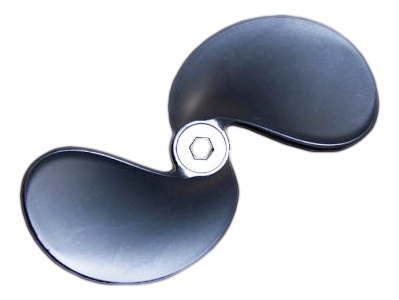
i started by duplicating the original layer and putting the gaussian blurred copy under the original layer. then i gaussian blurred the copy by 10 px (both directions). after that i went into the colour menu and under curves i chose to make an alpha curve. i then experimented on that alpha curve til i got edges that looked smooth and tight and not jagged. then i made an alpha to selecion of that copy layer, i shrank the selection by 2 px and feathered it by two. i then selected the original layer again, inverted the selection and cut it off. that gave me a propeller with the sharpness in detail of the original layer but the smoothed edges of the gaussian blurred copy. the next step (and here i think you could do much better than i have, it takes a bit of time and patience) was to make some of the jagged edges
inside the actual drawing look smoother. first i made a copy of what i had so far on a new layer and duplicated that copy. then i went into g'mic (don't know if you have the g'mic plugin? if you don't you might want to get it, it's really good for repair work among other things!) and under "repair" i chose "smooth (anisotropic)". i changed nothing in the menu except for the "amplitude" and "anisotropic" sliders, and i just moved those two upwards a little. that gave me a propeller without the jagged look of the shadows and highlights. on the other hand, the anisotropic copy looked a bit too smooth and the detail was a bit lost, so i did this: 1. alpha selected the first (unsmoothed) copy layer. 2. selected the smoothed layer again and made a layer mask from the selection, then turned the selection off. 3. with a small soft paintbrush with black fg colour painted out the parts that i wanted transparent on the smoothed layer. for example, the nave of the propeller didn't look good on the smoothed layer, so i made those parts transparent to show the unsmoothed layer underneath. i can see now that the unsmoothed layer was a bit too jagged around the nave, so i could have made those parts semi-transparent on the smoothed layer instead.
i think it takes a bit of tlc if you want to make a nice, smooth looking png out of a gif, but you should be able to get there!
 Login
Login Register
 Tweets
 FAQ
FAQ Advanced Search





 you're of course welcome to use the png i made, but i'd be happy to explain the whole thing better if it was hard to understand - it's not easy to know what level of explanation is needed when you don't really know what the other person already knows
  . learning some of the tricks i used for this picture is worth the effort, i think!