It is currently Mon Aug 31, 2026 12:50 pm


All times are UTC - 5 hours [ DST ]


Post new topic Reply to topic  [ 91 posts ]  Go to page Previous  1, 2, 3, 4, 5  Next
Author Message
 Post subject: Re: Any idea to do this in Gimp?
PostPosted: Thu Jan 22, 2015 6:13 pm  (#61) 
Offline
GimpChat Member
User avatar

Joined: Sep 24, 2010
Posts: 12840
Thanks for the updated brush Wallace. :)

_________________
Lyle

Psalm 109:8

Image


Top
 Post subject: Re: Any idea to do this in Gimp?
PostPosted: Thu Jan 22, 2015 6:16 pm  (#62) 
Offline
Administrator
User avatar

Joined: Aug 10, 2012
Posts: 14182
Location: Native to NYC living in Arizona, Gimp 2.8 - 3.0, Win 11 PC.
lylejk wrote:
Thanks for the updated brush Wallace. :)

Sure Lyle.
The layers of the brush were not correct and some of the letters and numbers were being chopped off. So that's what was fixed. The brush works flawlessly now.

_________________
Image
"A wise man learns more from a foolish question than a fool can learn from a wise answer"
Image


Top
 Post subject: Re: Any idea to do this in Gimp?
PostPosted: Thu Jan 22, 2015 6:37 pm  (#63) 
Offline
GimpChat Member
User avatar

Joined: Apr 07, 2010
Posts: 14182
Thanks for the brush Wallace

_________________
Image


Top
 Post subject: Re: Any idea to do this in Gimp?
PostPosted: Thu Jan 22, 2015 6:49 pm  (#64) 
Offline
Administrator
User avatar

Joined: Aug 10, 2012
Posts: 14182
Location: Native to NYC living in Arizona, Gimp 2.8 - 3.0, Win 11 PC.
molly wrote:
Thanks for the brush Wallace

You got it Molly, enjoy. :)

_________________
Image
"A wise man learns more from a foolish question than a fool can learn from a wise answer"
Image


Top
 Post subject: Re: Any idea to do this in Gimp?
PostPosted: Thu Jan 22, 2015 9:16 pm  (#65) 
Offline
GimpChat Member
User avatar

Joined: Mar 10, 2014
Posts: 845
pspi filter ICNET-Files>Edges,Round>RoundEdge16
with the Wallace brush( thank you)
Image


Top
 Post subject: Re: Any idea to do this in Gimp?
PostPosted: Thu Jan 22, 2015 11:42 pm  (#66) 
Offline
Administrator
User avatar

Joined: Aug 10, 2012
Posts: 14182
Location: Native to NYC living in Arizona, Gimp 2.8 - 3.0, Win 11 PC.
Marcello wrote:
pspi filter ICNET-Files>Edges,Round>RoundEdge16
with the Wallace brush( thank you)
[ Image ]

Good going Marcello. :bigthup

_________________
Image
"A wise man learns more from a foolish question than a fool can learn from a wise answer"
Image


Top
 Post subject: Re: Any idea to do this in Gimp?
PostPosted: Fri Jan 23, 2015 7:52 am  (#67) 
Offline
Global Moderator
User avatar

Joined: May 16, 2010
Posts: 16168
Marcello wrote:
pspi filter ICNET-Files>Edges,Round>RoundEdge16
with the Wallace brush( thank you)
[ Image ]

Nicely done but how did you get the color back? Figured it out (had to remove alpha channel first).

This may help also when using Map Object. :)
http://gimpchat.com/viewtopic.php?f=23&t=6015

_________________
Image


Top
 Post subject: Re: Any idea to do this in Gimp?
PostPosted: Fri Jan 23, 2015 10:10 am  (#68) 
Offline
GimpChat Member
User avatar

Joined: Mar 10, 2014
Posts: 845
Rod wrote:
This may help also when using Map Object. :)
http://gimpchat.com/viewtopic.php?f=23&t=6015

Thank you Rod for the address, it is very interesting


Top
 Post subject: Re: Any idea to do this in Gimp?
PostPosted: Fri Jan 23, 2015 10:31 am  (#69) 
Offline
Global Moderator
User avatar

Joined: May 16, 2010
Posts: 16168
Marcello wrote:
Rod wrote:
This may help also when using Map Object. :)
http://gimpchat.com/viewtopic.php?f=23&t=6015

Thank you Rod for the address, it is very interesting

You are very welcome. I think also if you were to create a panorama of letters it would wrap better. Of course you need a square image for it to work correctly in Map Object. :) NOT!

This image is stretched to 3x it's normal width 1000*3 x 1000. Then Map Object-to sphere is applied.Then i resized the image to 1000x1000

Image

_________________
Image


Top
 Post subject: Re: Any idea to do this in Gimp?
PostPosted: Fri Jan 23, 2015 11:08 am  (#70) 
Offline
Administrator
User avatar

Joined: Aug 10, 2012
Posts: 14182
Location: Native to NYC living in Arizona, Gimp 2.8 - 3.0, Win 11 PC.
Rod wrote:
Marcello wrote:
Rod wrote:
This may help also when using Map Object. :)
http://gimpchat.com/viewtopic.php?f=23&t=6015

Thank you Rod for the address, it is very interesting

You are very welcome. I think also if you were to create a panorama of letters it would wrap better. Of course you need a square image for it to work correctly in Map Object. :) NOT!

This image is stretched to 3x it's normal width 1000*3 x 1000. Then Map Object-to sphere is applied.Then i resized the image to 1000x1000

[ Image ]


That's pretty good Rod, but it doesn't address the issue that the edge is still well defined by the sphere mapping of the letter image. The edge needs some irregularity.

_________________
Image
"A wise man learns more from a foolish question than a fool can learn from a wise answer"
Image


Top
 Post subject: Re: Any idea to do this in Gimp?
PostPosted: Fri Jan 23, 2015 11:12 am  (#71) 
Offline
GimpChat Member
User avatar

Joined: Sep 24, 2010
Posts: 12840
Marcello wrote:
pspi filter ICNET-Files>Edges,Round>RoundEdge16
with the Wallace brush( thank you)
[ Image ]


Have a link to RoundEdge16? Don't have that one. :)

_________________
Lyle

Psalm 109:8

Image


Top
 Post subject: Re: Any idea to do this in Gimp?
PostPosted: Fri Jan 23, 2015 1:05 pm  (#72) 
Offline
Global Moderator
User avatar

Joined: May 16, 2010
Posts: 16168
lylejk wrote:
Marcello wrote:
pspi filter ICNET-Files>Edges,Round>RoundEdge16
with the Wallace brush( thank you)
[ Image ]


Have a link to RoundEdge16? Don't have that one. :)


Just throw them in your db folder Lyle. :bigthup

Attachment:
Edge-filters-ffx-for-filters-unlimited.zip [751.51 KiB]
Downloaded 136 times

_________________
Image


Top
 Post subject: Re: Any idea to do this in Gimp? (solved)
PostPosted: Fri Jan 23, 2015 1:46 pm  (#73) 
Offline
GimpChat Member
User avatar

Joined: Sep 24, 2010
Posts: 12840
PSPI can only use 8bf, or am I wrong? I did try to do so Rod, but GIMP PSPI did not see them (as I expected). Not sure if I can convert the FFX files into GUG but too lazy to currently do so now. :)

_________________
Lyle

Psalm 109:8

Image


Top
 Post subject: Re: Any idea to do this in Gimp? (solved)
PostPosted: Fri Jan 23, 2015 4:13 pm  (#74) 
Offline
Global Moderator
User avatar

Joined: May 16, 2010
Posts: 16168
lylejk wrote:
PSPI can only use 8bf, or am I wrong? I did try to do so Rod, but GIMP PSPI did not see them (as I expected). Not sure if I can convert the FFX files into GUG but too lazy to currently do so now. :)


My bad i thought you had Filters Unlimited already. You can download the free version here.
http://web.archive.org/web/201210280351 ... lters.html

The site no longer exists but the software works as demo.

8BF attached

Attachment:
filtersunlimited20e_demo.zip [1.55 MiB]
Downloaded 161 times


Just unzip to your ps folder and point PSPI to the 8BF. Restart GIMP and it will be found under Filters>ICNET

_________________
Image


Top
 Post subject: Re: Any idea to do this in Gimp? (solved)
PostPosted: Fri Jan 23, 2015 4:52 pm  (#75) 
Offline
GimpChat Member
User avatar

Joined: Sep 24, 2010
Posts: 12840
Demo's only for preview only apparently Rod but it did work but will not save the result to the layer unfortunately. Oh well. :)

_________________
Lyle

Psalm 109:8

Image


Top
 Post subject: Re: Any idea to do this in Gimp? (solved)
PostPosted: Fri Jan 23, 2015 7:44 pm  (#76) 
Offline
GimpChat Member
User avatar

Joined: Aug 30, 2012
Posts: 2174
Nice results everyone, here is my latest efforts....

Image

Here is a very potted tutorial.

1. create a canvas 1024*1024px
2. Using a text brush fill an area of 768*768px with text. This should be centred on your canvas.
3. create two text layers one bump mapped and the other plain.
4. Manipulate both layers using the sphere mapping described here in method 2, The only thing I did differently was to set the specular highlight to 0 under the materials tab. Mapping Text To Sphere (2 Methods)
5. Select the bump map layer and use the motion blur filter set to zoom inwards and length 10.
6. duplicate this layer 5 times then merge layers together, duplicate the new layer by 5 times and again merge layers together.
7. merge the plain text layer with the 3d layer.
8. repeat steps 2 - 7 for subsequent text layers, but when you come to map sphere reduce z value by 0.05 under the orientation tab each time for each new layer.

On the whole fairly pleased with the results although still no managing to get the sharpness of colour I would like and edges seem a bit dark.

_________________
Image


Top
 Post subject: Re: Any idea to do this in Gimp? (solved)
PostPosted: Fri Jan 23, 2015 8:36 pm  (#77) 
Offline
Administrator
User avatar

Joined: Aug 10, 2012
Posts: 14182
Location: Native to NYC living in Arizona, Gimp 2.8 - 3.0, Win 11 PC.
he4rty wrote:
Nice results everyone, here is my latest efforts....

[ Image ]

Here is a very potted tutorial.

1. create a canvas 1024*1024px
2. Using a text brush fill an area of 768*768px with text. This should be centred on your canvas.
3. create two text layers one bump mapped and the other plain.
4. Manipulate both layers using the sphere mapping described here in method 2, The only thing I did differently was to set the specular highlight to 0 under the materials tab. Mapping Text To Sphere (2 Methods)
5. Select the bump map layer and use the motion blur filter set to zoom inwards and length 10.
6. duplicate this layer 5 times then merge layers together, duplicate the new layer by 5 times and again merge layers together.
7. merge the plain text layer with the 3d layer.
8. repeat steps 2 - 7 for subsequent text layers, but when you come to map sphere reduce z value by 0.05 under the orientation tab each time for each new layer.

On the whole fairly pleased with the results although still no managing to get the sharpness of colour I would like and edges seem a bit dark.

Something look terribly wrong with your image. I can't really put my finger on it, but it's really out of proportion.
Am I the only one that feels this way.

_________________
Image
"A wise man learns more from a foolish question than a fool can learn from a wise answer"
Image


Top
 Post subject: Re: Any idea to do this in Gimp? (solved)
PostPosted: Fri Jan 23, 2015 10:08 pm  (#78) 
Offline
GimpChat Member
User avatar

Joined: Sep 22, 2012
Posts: 2089
Location: US
Obviously I don't have enough skills to make such an image with gimp
(and wouldn't even dare to try) but I can do it fairly quickly with Blender ;)

The model
Image

the render with glowing letters

Image


Top
 Post subject: Re: Any idea to do this in Gimp? (solved)
PostPosted: Sat Jan 24, 2015 2:30 am  (#79) 
Offline
GimpChat Member

Joined: Jan 09, 2015
Posts: 22
K1TesseraEna wrote:
[font=Tahoma]Obviously I don't have enough skills to make such an image with gimp
(and wouldn't even dare to try) but I can do it fairly quickly with Blender ;)

Yup...it's pretty clear a 3D program is "the right tool for the job" here.

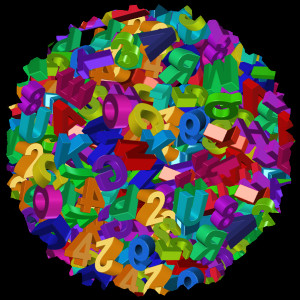
Still, there's a certain allure to the puzzle of trying to achieve it with some other, less well-suited tool. ;) I've been noodling over it for a while for fun, on my own. So far I've gotten as far as the attached image generated using Gimp and G'MIC.


Attachments:
letter_sphere.png
letter_sphere.png [ 128.42 KiB | Viewed 2497 times ]
Top
 Post subject: Re: Any idea to do this in Gimp? (solved)
PostPosted: Sat Jan 24, 2015 3:58 am  (#80) 
Offline
Global Moderator
User avatar

Joined: May 16, 2010
Posts: 16168
Ok here is the Wallace brush (sized at 75 -spaced at 144) on a transparent layer.
I created the one layer by making (painting with the brush) a sort of spiral from the outside in. DONT overlap any letters.
Image
Now Filters>Map>Map Object. Map to sphere - new image - transparent bg.
Image
You get something like this -
Image
now it's cleanup time. :) Remove all outside globe imperfections, partial letters, blurs ect..ect.
Until you have something like this image.
Image

Now just duplicate the layer two more times and rotate each layer so their all different. :bigthup
Image
You could also use Filters>Enhance>Unsharp mask before duping. It may be sharper that way.

If you need to fill the center and other areas like i did, just use the brush on 3 new transparent layers at the sizes you need.
Place each new brush size layer above the corresponding distance ratio (xcf included so you understand that better).
And volia! You have a pretty decent looking letter/number globular cluster. :bigthup

Image
This was a quicky. With first brush computations you may be able to get a starting globe with NO imperfections and no blurs! I am sure this can be done in GIMP now with just GIMP tools and of course Wallace's brush. Thanks Wallace!.

Have fun with it.
XCF workspace file-


Attachments:
letter-number-finish-globular-cluster_RD.xcf [1.42 MiB]
Downloaded 119 times

_________________
Image
Top
Post new topic Reply to topic  [ 91 posts ]  Go to page Previous  1, 2, 3, 4, 5  Next

All times are UTC - 5 hours [ DST ]


* Login  


Powered by phpBB3 © phpBB Group