It is currently Fri Nov 13, 2026 6:55 pm


All times are UTC - 5 hours [ DST ]


Post new topic Reply to topic  [ 37 posts ]  Go to page Previous  1, 2
Author Message
 Post subject: Re: Need help laying gradient over selection
PostPosted: Sat May 21, 2016 11:10 am  (#21) 
Offline
Administrator
User avatar

Joined: Aug 10, 2012
Posts: 14270
Location: Native to NYC living in Arizona, Gimp 2.8 - 3.0, Win 11 PC.
Dalia wrote:
Now that's a tutorial by a pro.
Wallace I hope you don't mind - I created a pdf - lots of great information.

Not a problem Dalia and thanks. :bigthup

_________________
Image
"A wise man learns more from a foolish question than a fool can learn from a wise answer"
Image


Top
 Post subject: Re: Need help laying gradient over selection
PostPosted: Sat May 21, 2016 11:48 pm  (#22) 
Offline
GimpChat Member

Joined: May 19, 2016
Posts: 19
Wallace wrote:
You will always loose image quality whenever you scale raster images.
The amount of scaling is also a factor,
when it comes to image quality loss.
Knowing the exact size required and saving the image as a PNG.
Should help to keep the quality of the image intact/undamaged.

Raster!... Looked that up and learned a whole lot about raster vs vector graphics. Always wondered why my friend went out and got Illustrator to learn how to design graphics when she had a perfectly good copy of Photoshop ;)

The issue with the anomalies in the pgn where I applied inner glow in PS was because I forget and saved it in PS as an 8 bit png instead of a 24 bit png like the 'flatter' one I posted above it. Still you're instructions for removing the noise around the 8 bit png resolves similar problems I've had with trying to remove such junk in other graphics in the past.

Applying a stroke and shadow will definitely help make these buttons look better if I end up using them in a background that's not as dark as the one I'm working on now. Thanks for the tutorial on that.

There are a couple things I couldn't replicate from your instructions, tho' I think I ended up processing that same png of mine above with the same results you got.

1st: It looks like you started with a base layer and pasted my png on a layer above it. I just loaded my png and only had one layer throughout the entire process you detailed.

Image - Image


I kind of stumbled after I inverted and deleted the 1 pixel outer edge from the layer selection. I wasn't getting the results you were until I finally discovered I had to use a selection tool to click, and deselect to proceed.

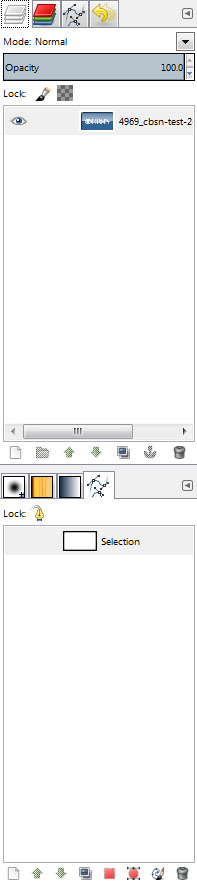
Then somewhere between applying path and stroking, you had a new layer show up while you were stroking.

Image


I didn't make any new layer here. At this point I had to get to stroking via 'Edit > Stroke Path'. Also had to figure out how to add the Path tab on the lower right corner of gimp (name for that?) to preview the 1 pixel stroke line, tho' I think I got the job done..

Again, my layers never changed when I went through what seemed a pretty successful duplication of stroking that you produced. And again, if I apply the stroke and drop-shadow to all the buttons, they'll definitely look better if or when I end up putting them in a skin with a lighter background.

Thank you so very much for taking the time to explain all this Wallace. I'm learning a lot of very useful information here. :)


Last edited by tchiqwik on Sun May 22, 2016 12:41 am, edited 3 times in total.

Top
 Post subject: Re: Need help laying gradient over selection
PostPosted: Sun May 22, 2016 12:16 am  (#23) 
Offline
Administrator
User avatar

Joined: Aug 10, 2012
Posts: 14270
Location: Native to NYC living in Arizona, Gimp 2.8 - 3.0, Win 11 PC.
tchiqwik wrote:
Raster!... Looked that up and learned a whole lot about raster vs vector graphics. Always wondered why my friend went out and got Illustrator to learn how to design graphics when she had a perfectly good copy of Photoshop ;)

The issue with the anomalies in the pgn where I applied inner glow in PS was because I forget and saved it in PS as an 8 bit png instead of a 24 bit png like the 'flatter' one I posted above it. Still you're instructions for removing the noise around the 8 bit png resolves similar problems I've had with trying to remove such junk in other graphics in the past.

Applying a stroke and shadow will definitely help make these buttons look better if I end up using them in a background that's not as dark as the one I'm working on now. Thanks for the tutorial on that.

There are a couple things I couldn't replicate from your instructions, tho' I think I ended up processing that same png of mine above with the same results you got.

1st: It looks like you started with a base layer and pasted my png on a layer above it. I just loaded my png and only had one layer throughout the entire process you detailed.

I kind of stumbled after I inverted and deleted the 1 pixel outer edge from the layer selection. I wasn't getting the results you were until I finally discovered I had to use a selection tool to click, and deselect to proceed.

Then somewhere between applying path and stroking, you had a new layer show up while you were stroking.


Again, my layers never changed when I went through what seemed a pretty successful duplication of stroking that you produced. And again, if I apply the stroke and drop-shadow to all the buttons, they'll definitely look better if or when I end up putting them in a skin with a lighter background.

Thank you so very much for taking the time to explain all this Wallace. I'm learning a lot of very useful information here. :)

You're welcome tchiqwik. :bigthup
I'm happy that you found something of use from the little tut I posted.

I added all the extra layers to the image myself.
By right-clicking on the image layer itself within the layers dialog and selecting New Layer.
I added a background layer and a layer for the stroked outline.
When drop-shadow is used,
it creates it's own layer.

By the way...
Inkscape is a very good free vector program.
Also, what font was used when making the CBSN button?

_________________
Image
"A wise man learns more from a foolish question than a fool can learn from a wise answer"
Image


Top
 Post subject: Re: Need help laying gradient over selection
PostPosted: Sun May 22, 2016 4:15 am  (#24) 
Offline
GimpChat Member

Joined: May 19, 2016
Posts: 19
Wallace wrote:
I added a background layer and a layer for the stroked outline.
When drop-shadow is used,
it creates it's own layer.

OK... That'd make sense as the palette would have to be larger. I stopped after stroking, as I realized it wouldn't have much effect wit my dark background. But will have to decide if I want to do that for all the icons I'm making now if there's any chance I'll be using them on a lighter background at some point.


Quote:
By the way...
Inkscape is a very good free vector program.

Good to know. I'll look that up Wallace.


Quote:
Also, what font was used when making the CBSN button?

Heh... No font. Just magic wanded the png I found on Google Images in PS and did a little cut and paste :)


But I ran into a pretty major problem just now trying to replicate what I did above with that lettering when I went to design a different logo. Will post the details of the little fiasco below. :?

.


Top
 Post subject: Re: Need help laying gradient over selection
PostPosted: Sun May 22, 2016 4:54 am  (#25) 
Offline
Administrator
User avatar

Joined: Aug 10, 2012
Posts: 14270
Location: Native to NYC living in Arizona, Gimp 2.8 - 3.0, Win 11 PC.
tchiqwik wrote:
I ran into a pretty major problem just now trying to replicate what I did above with that lettering when I went to design a different logo.
Will post the details of the little fiasco below. :?
.

What was the issue?

I did manage to find a similar looking font after all.

_________________
Image
"A wise man learns more from a foolish question than a fool can learn from a wise answer"
Image


Top
 Post subject: Re: Need help laying gradient over selection
PostPosted: Sun May 22, 2016 5:20 am  (#26) 
Offline
GimpChat Member

Joined: May 19, 2016
Posts: 19
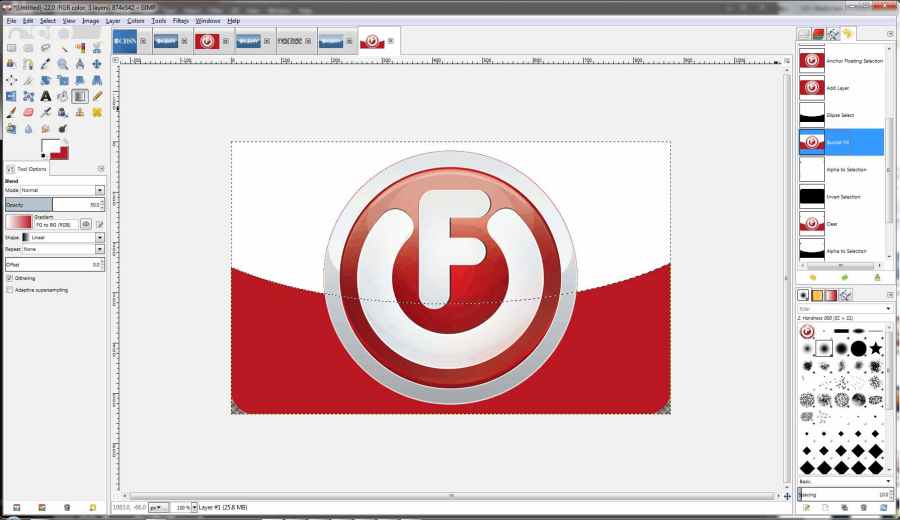
Well... ran into a bit of a wall trying to create a new logo tonight. This is an older button I was trying to redo like the logo you guys helped me with here:

Image


As you can see... lots of fuzziness again. The problem came when I replicated the steps Dalia outlined, and later corrected when I added the lettering. The central circular logo is a separate image I dropped onto a new layer above my base rounded rectangular red background. But that one I did in PS. Here's the steps I went through that Dalia had laid out to redo this in Gimp:

1. Select the “Rectangle Select Tool".
2. In “Tool Options” check Rounded Corners.
3. Fill with color
4. New Layer.
5. Select the "Ellipse Select Tool" and draw out a selection
6.Flood fill that selection with white.
7. Go back to original layer. Alpha to Selection > Select > Invert
8. Back to ellipse layer and “Cut”
<slipped layer scaling for these tests>

At this point I created a new layer as I had done with the lettering from the last project and pasted the cut out circle from the png logo I'm making a new button for. Here's that png (it has a white background that doesn't show up here):

Image


The results of pasting the cut out from that into my new project:

Image


See the problem? Then Dalia's last steps:

9. Alpha to Selection on the white layer
10. Create a New Layer > Select your “Blend Tool” with gradient of your choice
11. Apply gradient

And well, here it is in it's full glory:

Image


At this point I realized that since the lettering in my previous logo was white, I never noticed that it hadn't been shaded at all by the gradient.

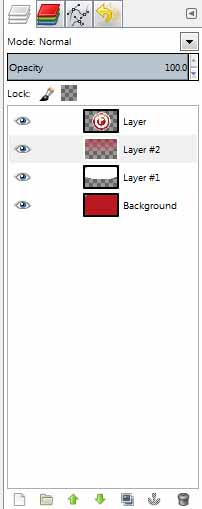
So as I had before, I end up here with 4 layers:
Image


1. Background rounded rectangle
2. White layer for gradient
3. Layer with gradient applied
4. The logo where my lettering was in the 1st project.

But I need to apply the gradient to both the 1st base layer and the 4th with the logo. I can see this will likely take doing something we've not covered yet :shock:
Or more correctly as these forum emojis are so tiny without zooming the page: Image

Latest edit: I did retry the failed attempt of pasting the logo into the base layer as I'd tried with the lettering before. But the gradient ended up covering the logo as it did with the lettering with opaque white, while for whatever reason, shading the red rounded rectangle properly.
.


Last edited by tchiqwik on Sun May 22, 2016 10:03 am, edited 5 times in total.

Top
 Post subject: Re: Need help laying gradient over selection
PostPosted: Sun May 22, 2016 6:58 am  (#27) 
Offline
GimpChat Member

Joined: May 19, 2016
Posts: 19
Wallace wrote:
What was the issue?

Gradient never really applied to the text in my 1st project. You'll see this above.

Quote:
I did manage to find a similar looking font after all.

Curious about what it was. Watched a few videos on Inkscape . Yet another great looking piece of freeware!

.


Top
 Post subject: Re: Need help laying gradient over selection
PostPosted: Sun May 22, 2016 11:37 am  (#28) 
Offline
Administrator
User avatar

Joined: Aug 10, 2012
Posts: 14270
Location: Native to NYC living in Arizona, Gimp 2.8 - 3.0, Win 11 PC.
I don't really understand what the issue is.

Maybe I'm just not getting what it is you're trying to do.
:puzzled

Can you possibly post the xcf file and perhaps an example image of what it is you're trying to achieve?

_________________
Image
"A wise man learns more from a foolish question than a fool can learn from a wise answer"
Image


Top
 Post subject: Re: Need help laying gradient over selection
PostPosted: Sun May 22, 2016 12:03 pm  (#29) 
Offline
GimpChat Member
User avatar

Joined: Dec 10, 2013
Posts: 1004
I'm stepping out and allowing the pros to help :oops:

_________________
Image
Macbook Air - MacOS Sierra 10.12
McGimp 2.8.14
G'mic 1.6.5


Last edited by Dalia on Sun May 22, 2016 8:28 pm, edited 2 times in total.

Top
 Post subject: Re: Need help laying gradient over selection
PostPosted: Sun May 22, 2016 1:20 pm  (#30) 
Offline
Administrator
User avatar

Joined: Aug 10, 2012
Posts: 14270
Location: Native to NYC living in Arizona, Gimp 2.8 - 3.0, Win 11 PC.
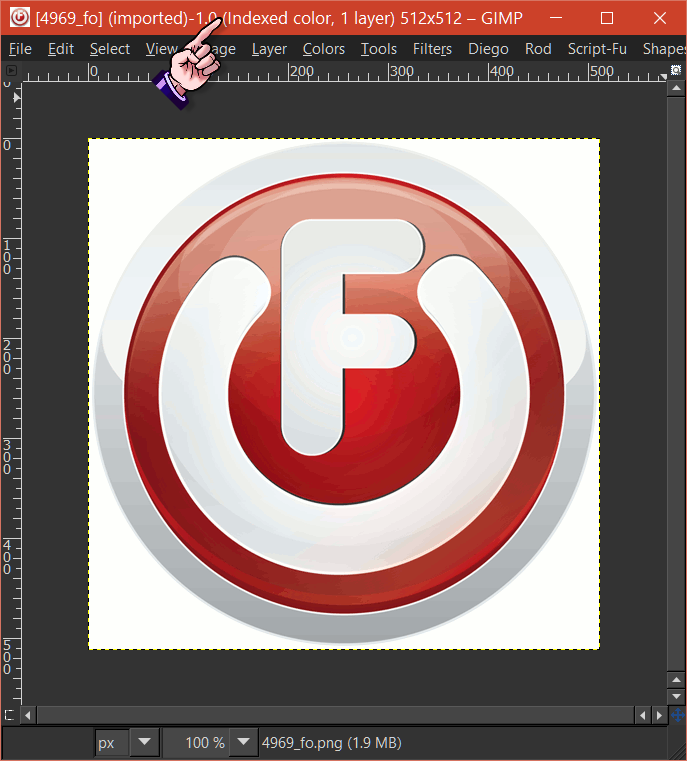
I download one of your png images,
opened it with Gimp and found that the image mode is set to indexed.

Image

You would need to change the image mode to RGB,
before pasting it into the other image for editing.

I made this image as an example.
Not sure if this is what you're after.

Image

I also made this one below,
by applying Script-Fu>Alpha-to-Logo>Plastic or Glass


Image

_________________
Image
"A wise man learns more from a foolish question than a fool can learn from a wise answer"
Image


Top
 Post subject: Re: Need help laying gradient over selection
PostPosted: Sun May 22, 2016 10:30 pm  (#31) 
Offline
GimpChat Member

Joined: May 19, 2016
Posts: 19
Wallace wrote:
I don't really understand what the issue is.

Maybe I'm just not getting what it is you're trying to do.

Sorry Wallace. I'm trying to get Gimp to lay the gradient over that png you found was indexed color and not RGB. And get the results I did in PS. Maybe it's hard to see, but I got PS to apply the gradient to the reds inside that logo, and not just the red that surrounds it. Here's the png I made in PS blown up:

Image


I've changed the png from indexed to RGB, added an alpha channel, used fuzzy select to cut out the white, and pasted it into a new larger transparent image, rounded the corners and followed the same steps as Dalia detailed. But the gradient always ends up covering the area of the logo with the opaque gradient.

Image


Have tried other approaches, but just can't replicate what I did in PS. And in PS I always end up with fuzzy borders.


Top
 Post subject: Re: Need help laying gradient over selection
PostPosted: Mon May 23, 2016 1:08 am  (#32) 
Offline
Administrator
User avatar

Joined: Aug 10, 2012
Posts: 14270
Location: Native to NYC living in Arizona, Gimp 2.8 - 3.0, Win 11 PC.
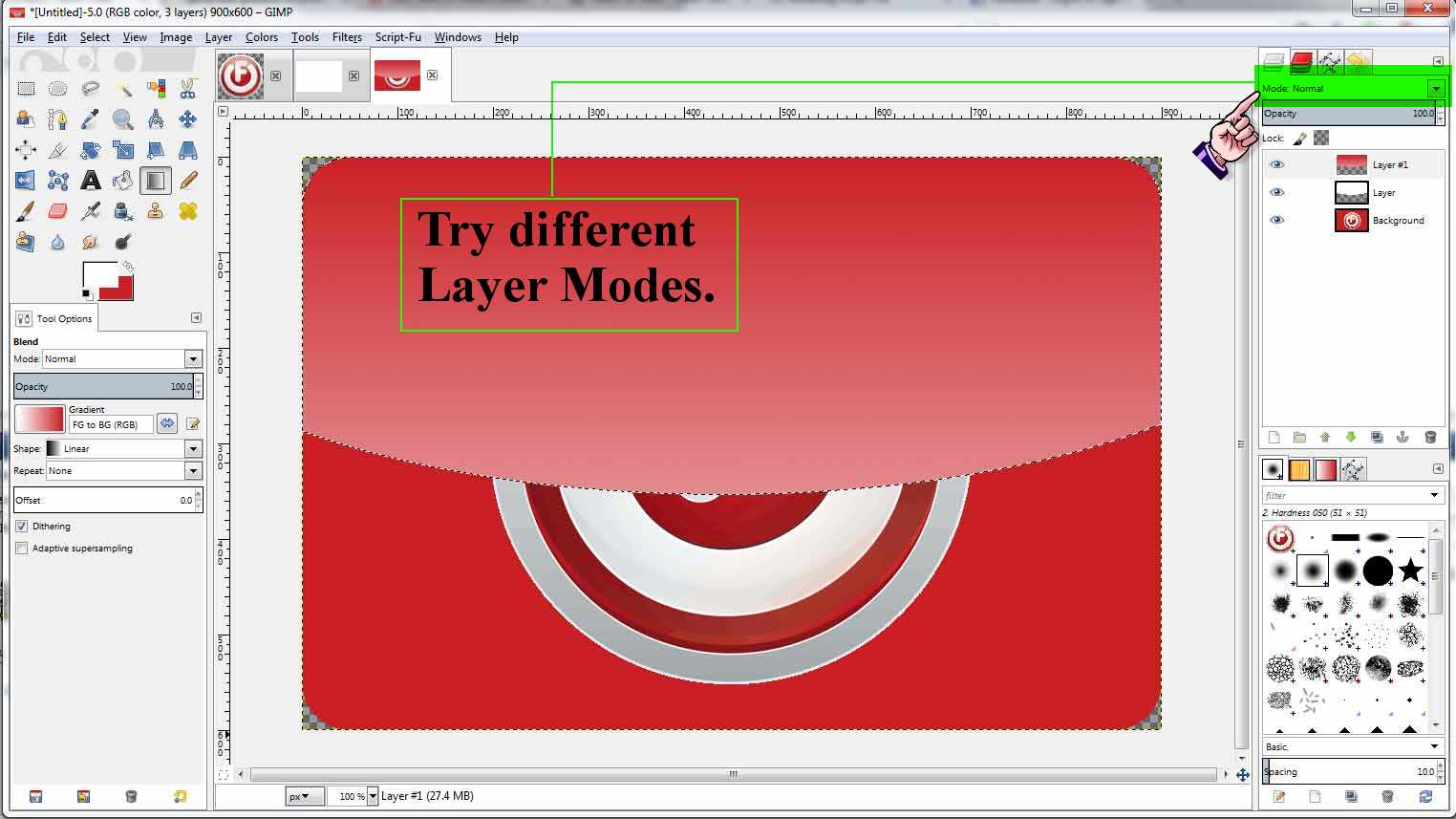
You might need to change the layer modes of the gradient layer,
as well as the white shine/reflection layers.
Image

_________________
Image
"A wise man learns more from a foolish question than a fool can learn from a wise answer"
Image


Top
 Post subject: Re: Need help laying gradient over selection
PostPosted: Mon May 23, 2016 3:53 am  (#33) 
Offline
GimpChat Member

Joined: May 19, 2016
Posts: 19
I did find a tutorial that involved setting the layer mode to overlay. That came the closest. It matched the foreground white color of course, but I couldn't get it to match the background red. Meanwhile in PS the task is trivial: Load image, select with ellipse, set foreground and background colors, apply gradient. I just can't reshape the selection to scale the layer / selection of the ellipse like Gimp can. Instead of using inner glow, inner shadow in PS looks much better.

Image


Still lacks the 2-3 pixel defined border because I can't shrink the ellipse selection, but this may do if I don't find a way to take it further in Gimp


Top
 Post subject: Re: Need help laying gradient over selection
PostPosted: Mon May 23, 2016 4:59 am  (#34) 
Offline
Administrator
User avatar

Joined: Aug 10, 2012
Posts: 14270
Location: Native to NYC living in Arizona, Gimp 2.8 - 3.0, Win 11 PC.
tchiqwik wrote:
I did find a tutorial that involved setting the layer mode to overlay.
That came the closest.
It matched the foreground white color of course,
but I couldn't get it to match the background red.
Meanwhile in PS the task is trivial: Load image,
select with ellipse, set foreground and background colors,
apply gradient.
I just can't reshape the selection to scale the layer / selection of the ellipse like Gimp can.
Instead of using inner glow, inner shadow in PS looks much better.

[ Image ]
Still lacks the 2-3 pixel defined border because I can't shrink the ellipse selection,
but this may do if I don't find a way to take it further in Gimp

I think it looks great. :bigthup

_________________
Image
"A wise man learns more from a foolish question than a fool can learn from a wise answer"
Image


Top
 Post subject: Re: Need help laying gradient over selection
PostPosted: Tue May 24, 2016 12:52 am  (#35) 
Offline
GimpChat Member

Joined: May 19, 2016
Posts: 19
Wallace wrote:
I think it looks great. :bigthup

Thanks Wallace. I'm pretty happy with it. :D Spent the day making a group of them in that style. Now I get to relax. :ducky


Top
 Post subject: Re: Need help laying gradient over selection
PostPosted: Tue May 24, 2016 2:05 am  (#36) 
Offline
Administrator
User avatar

Joined: Aug 10, 2012
Posts: 14270
Location: Native to NYC living in Arizona, Gimp 2.8 - 3.0, Win 11 PC.
tchiqwik wrote:
Thanks Wallace.
I'm pretty happy with it. :D
Spent the day making a group of them in that style.
Now I get to relax. :ducky

Alright! :bigthup

_________________
Image
"A wise man learns more from a foolish question than a fool can learn from a wise answer"
Image


Top
 Post subject: Re: Need help laying gradient over selection
PostPosted: Wed May 25, 2016 7:30 pm  (#37) 
Offline
GimpChat Member
User avatar

Joined: Apr 08, 2010
Posts: 5420
Location: Northwest Ohio
IIRC, when I learned to make 'shiny buttons', the gradient white shine was the reverse of how these examples are...the transparency would be more as you go downwards. For example, here is a shiny button I made years ago when I was first learning Gimp.
Image


Top
Post new topic Reply to topic  [ 37 posts ]  Go to page Previous  1, 2

All times are UTC - 5 hours [ DST ]


* Login  


Powered by phpBB3 © phpBB Group